Unable to Process Transactions or Slowness
If you see network error messages on the pay tablet or you are unable to process cars and transactions these are the troubleshooting steps.Power Cycle
The first troubleshooting step we recommend is restarting the Coordinator. This should resolve most issues.Soft Reboot
Soft reboot is preferred. Press button and wait for the power light on the button to go off, usually only takes a few seconds but give it up to a minute. Then push the power button again to turn it back on.Hard Reboot
If soft reboot does not work then you can do a hard reboot by pressing and holding the power button on the front for 3 seconds. Then push the power button again to turn it back on. Make sure to try the soft reboot first as doing this too many times can damage your hardware.Confirm Network Cables
Confirm all the cables are plugged into the correct ports according to our installation instructions. Then take a picture of the back side, our support will want to see this.Verify LAN
Next make sure our coordinator and switch are plugged into our power supply and nothing else is plugged into our power supply. Verify coordinator is plugged into port 1 on the big switch- verify port 2 is empty
- verify there is nothing non-FlexWash plugged into our switch, for example plugging another network or router into our switch will cause issues
Verify ISP
If you verified all of the above and still have issues, confirm your ISP and router are working. Connect a computer to the same ethernet port, turn off that computer’s WiFi, and try to reach the internet. If the computer cannot connect, contact your ISP. The coordinator requires the following:
For full network specifications, see Network.
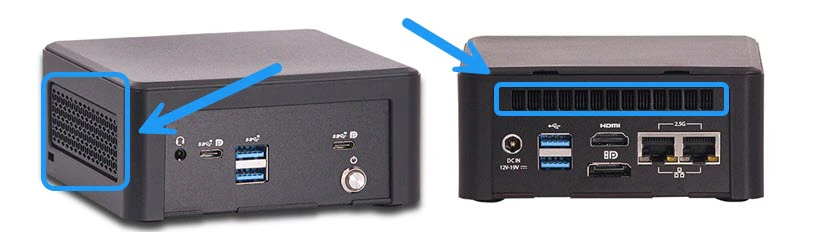
Coordinator Overheating
Gates not opening for members
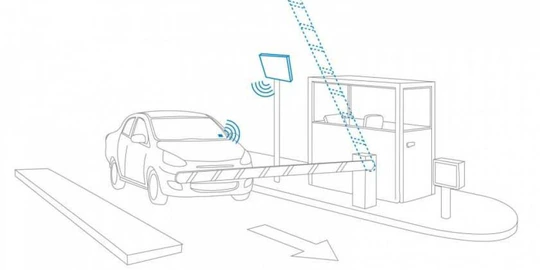
- If it opens manually: Check the cameras. Most likely the camera is either off or offline. Check the ethernet cable and make sure it is well connected on the camera’s end and on the switch.
- If it does not open manually: that indicates that the gate itself is the issue. Troubleshoot the gate.
RFID not reading tags
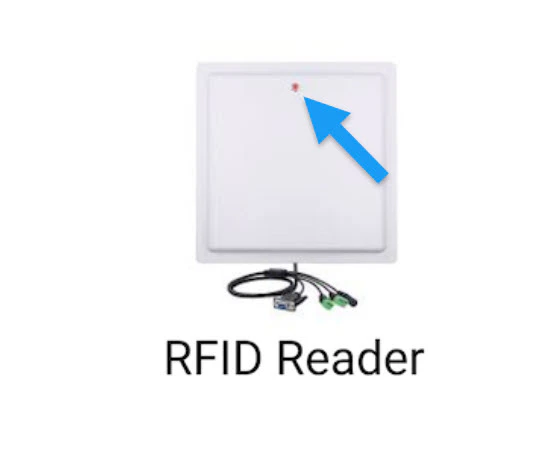
- If the RFID scanner is not reading tags, the first thing we want to check is if it has power. Is there a red or green light on the circle highlighted on the image above? If there is no light on then that means it has no power. Verify that the cable is well connected on the other end. If possible, use a cable tester to make sure that it works.
- Some make and model of vehicles are known to not be scanned properly by RFID scanners. Please read our article on LPR and RFID limitations for more information:
Washes not firing on the tunnel
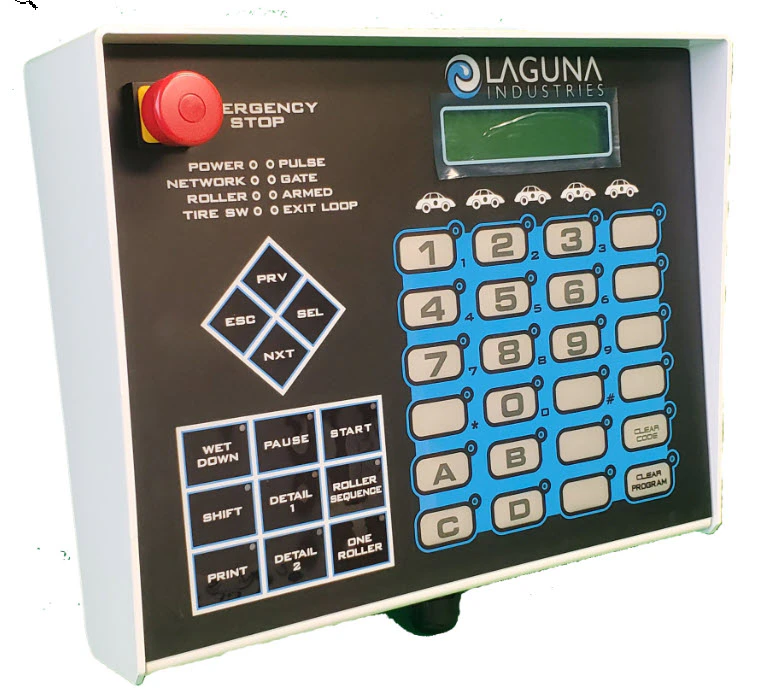
- In order to determine that, you must send a wash directly from your controller. Depending on the make and model you have the way you send them will vary. Most, like the example above, have a keypad that allows you to fire a wash directly.
- If the wash is still not firing directly from the controller, then you must contact the controller’s manufacturer.