Hardware Diagnostics
If a Pay Terminal cannot read a customer’s card, run the built-in hardware diagnostics to identify which reader is failing. The terminal can test the NFC antenna, chip card reader, and swipe reader independently.1
Open Diagnostics
On the Pay Terminal, open
Settings and tap Diagnostics.2
Scroll to the Hardware section
The Hardware section lists the three card readers along with the battery status.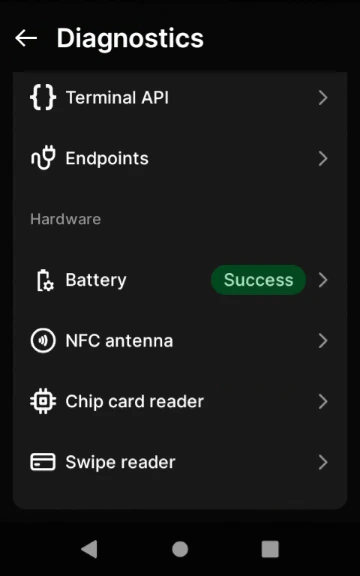
3
Test each reader
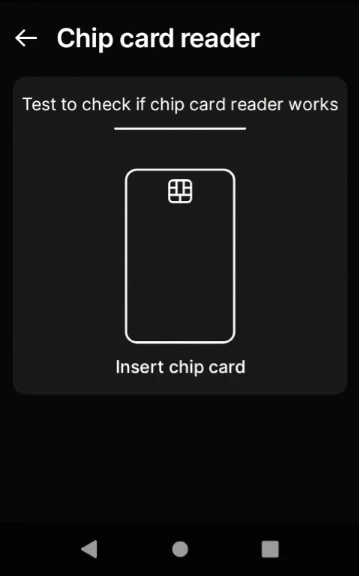
Tap a reader and follow the on-screen prompt. You will need a card to tap, insert, or swipe.
- NFC antenna
- Chip card reader
- Swipe reader
Tap a contactless card against the back of the terminal.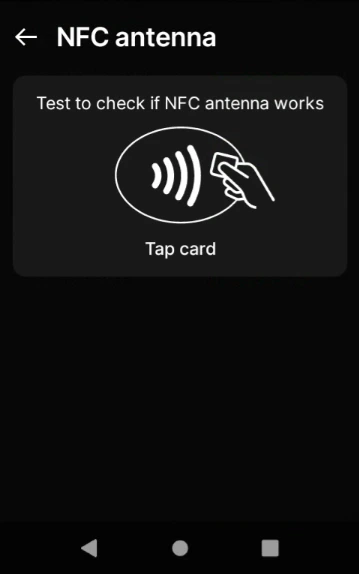
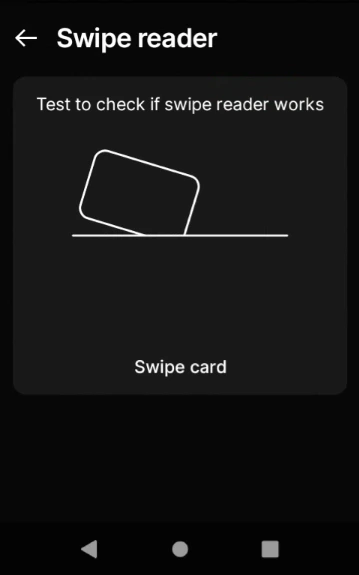
4
Confirm the result
A working reader reports a 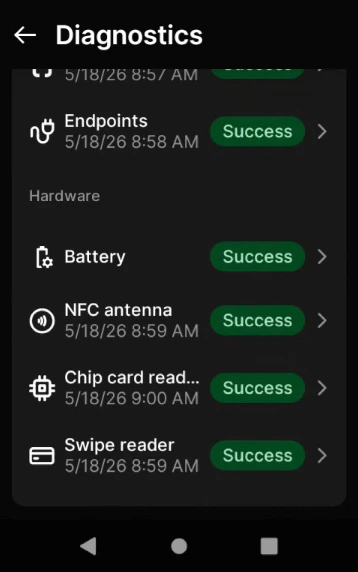
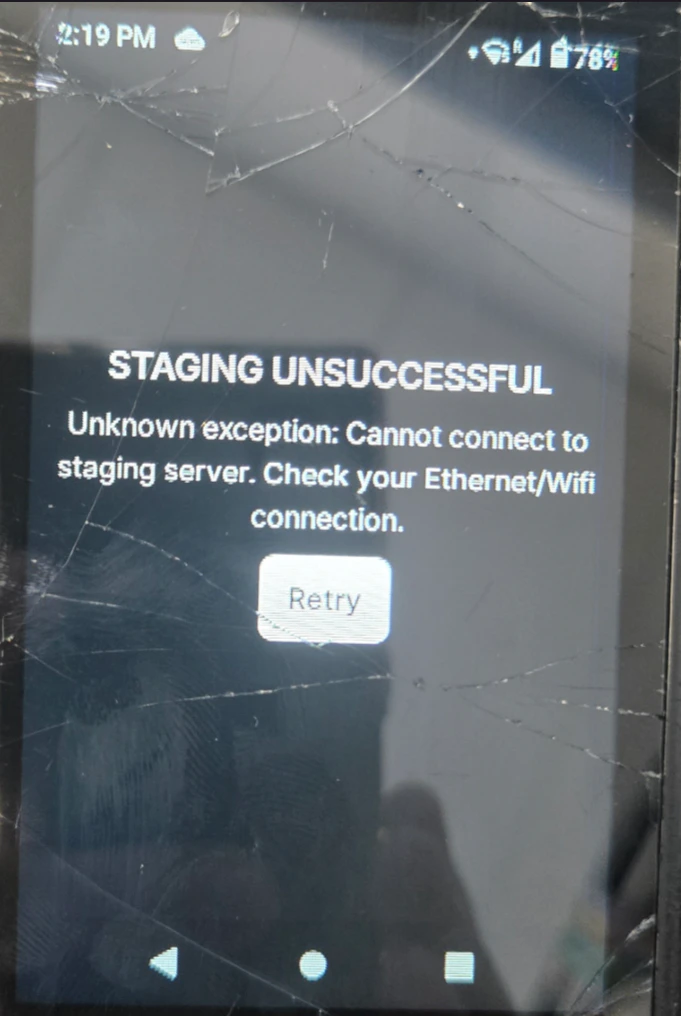
Success status. Any other result indicates a hardware fault with that specific component.Staging Unsuccessful Error
1
Power off the Pay Terminal
Hold the power button and shut the device down.
2
Remove the battery
Open the back cover and take the battery out.
3
Reinsert the battery
Place the battery back in and close the cover.
4
Power the terminal back on
Confirm the device starts cleanly and the error is gone.
SE Connect Fail
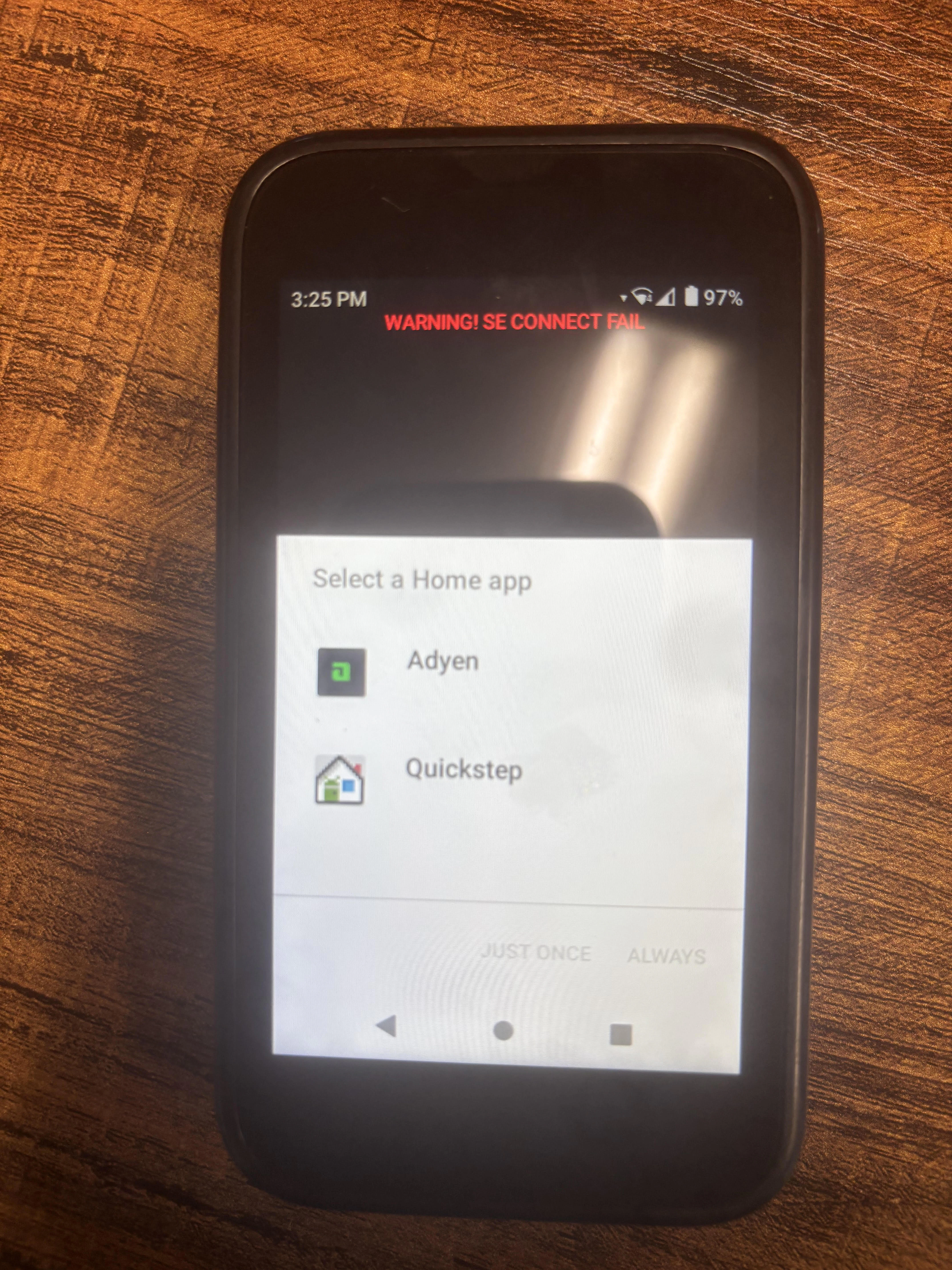
SE Connect Fail warning indicates the secure element inside the Pay Terminal is unresponsive. Common causes:
- Physical tampering with the device
- A hardware defect or impact damage
- An unresponsive secure module
1
Reboot the terminal
Restart the device and check whether the warning clears.
2
Perform a battery reset
If the reboot does not resolve it:
- Power off the terminal.
- Remove the battery.
- Wait 5 minutes.
- Reinsert the battery.
- Power the device back on.