Step 1. Check for power
Remove the top lid of the gate and look at the screen.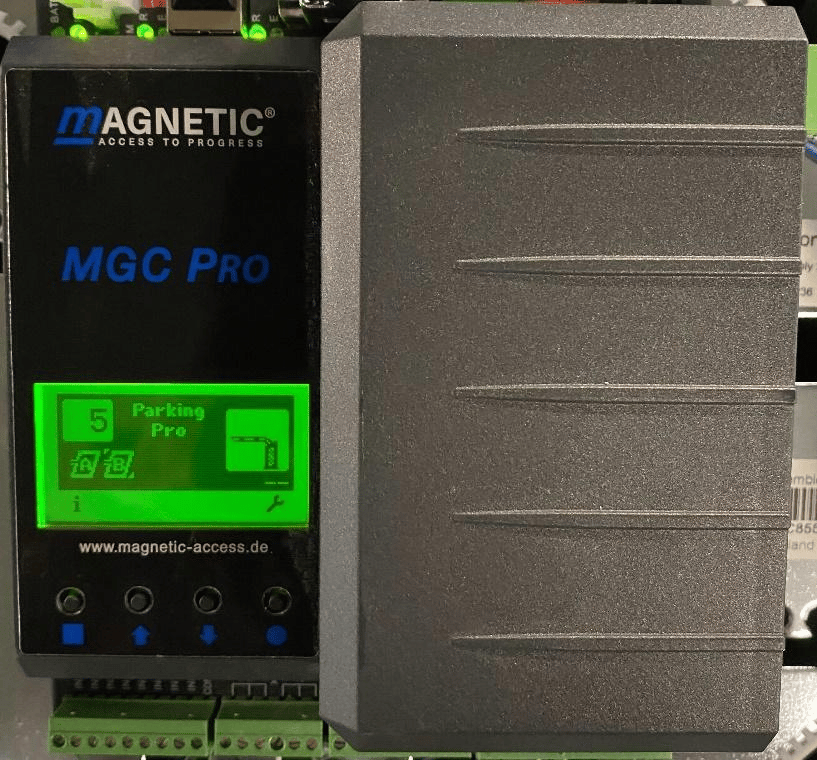
Step 2. Test the gate manually
Open and close the barrier by hand in service mode. See Magnetic Gates for the service mode procedure.If the barrier moves manually, the motor and boom are fine and the fault is upstream. If it does not move, stop here. That is a hardware problem, not a configuration problem.
Step 3. Check the programming mode
The left side of the screen should show the number 7. Any other number means the gate is in the wrong programming mode and will not accept commands from FlexWash.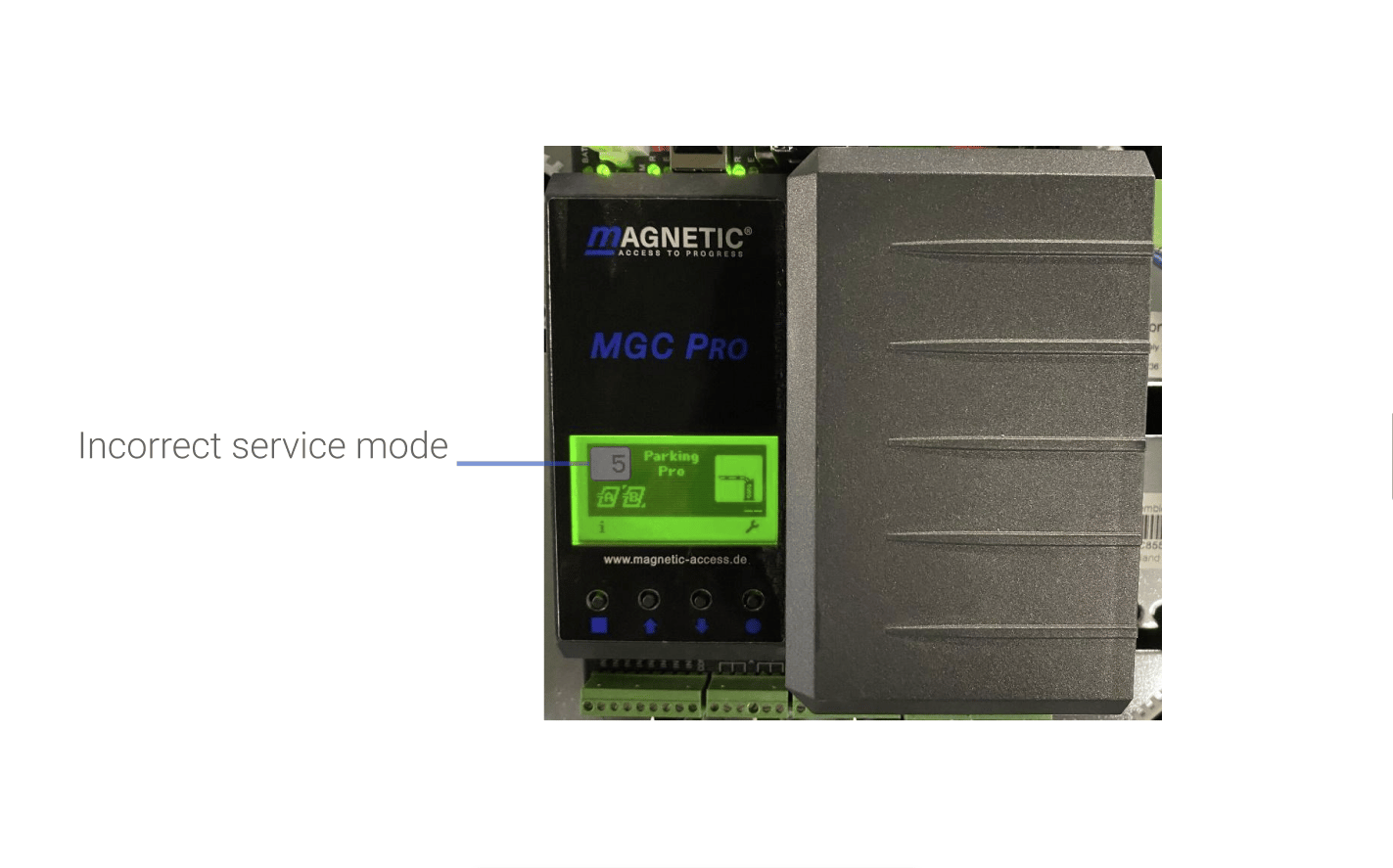
1
Open the main menu
Press the circle button below the screen.
2
Select Function

3
Set the programming mode to 7
Then press the circle button again to save.
Step 4. Clear conflicting inputs
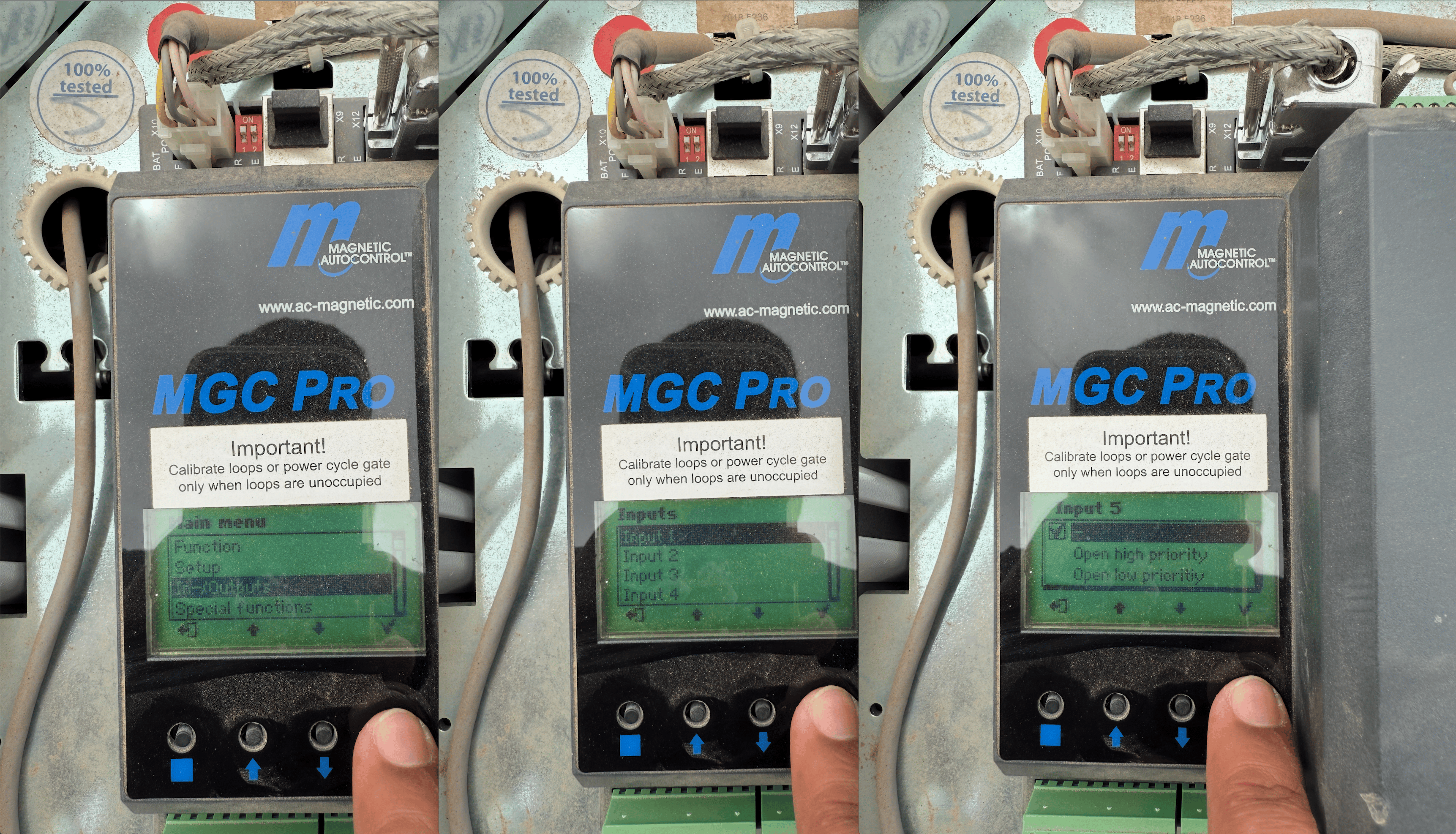
To check the inputs:1
Open the main menu
Press the circle button below the screen.
2
Select In-/Outputs
Go through each input and check its value.
Step 5. Reseat the ethernet cable
Check the screen for an error icon . If one is present:1
Turn the gate off
Power it down before touching the cabling.
2
Reseat the ethernet cable at the gate
Unplug it and plug it back in, confirming it seats fully.
3
Check the other end
Confirm the cable is seated on the FlexWash switch inside the office.
4
Turn the gate back on
Then retry a command from FlexWash.
Other gate symptoms
Gate stuck open (Open High Priority)
The gate will not respond to open or close commands. Usually the key switch.
Gate opens randomly (Queue Out of Sync)
The gate cycles open with no car present and the queue backs up.