Permissions
Users with the Fleet Activity permission can view, create, edit, delete, and mark invoices paid. Charging a card also requires the Charge Now Ability permission. For how to edit permissions, see Roles.Create an invoice
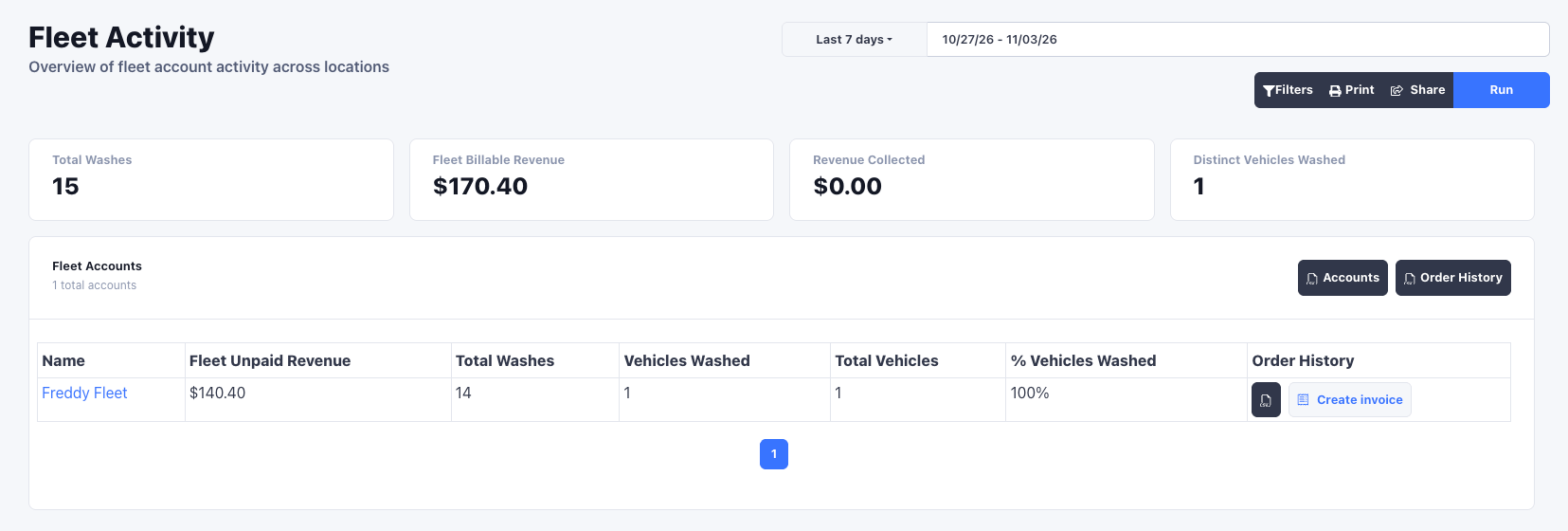
- Open the Fleet Activity report, choose the locations and date range, and click Run.
- Click Create invoice on the account’s row.
The invoice list
Fleet Invoices in the Reports section lists every invoice with its number, customer, period, number of lines, total, status, how it was paid, and when it was created. The list opens on Unpaid invoices, the ones still to collect. Use the status filter to see Paid or All.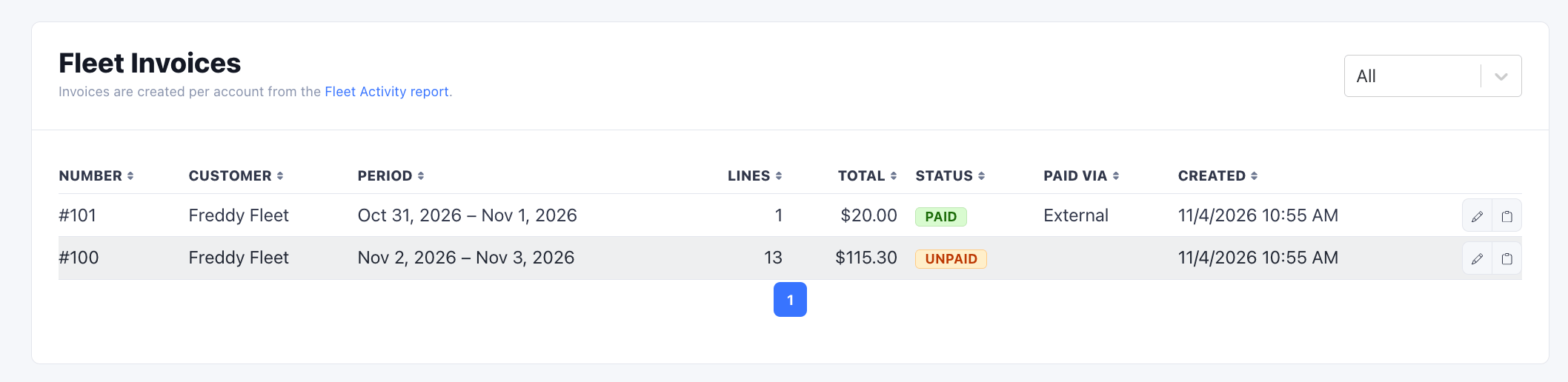
Adjust an invoice
Open an invoice to review and change it.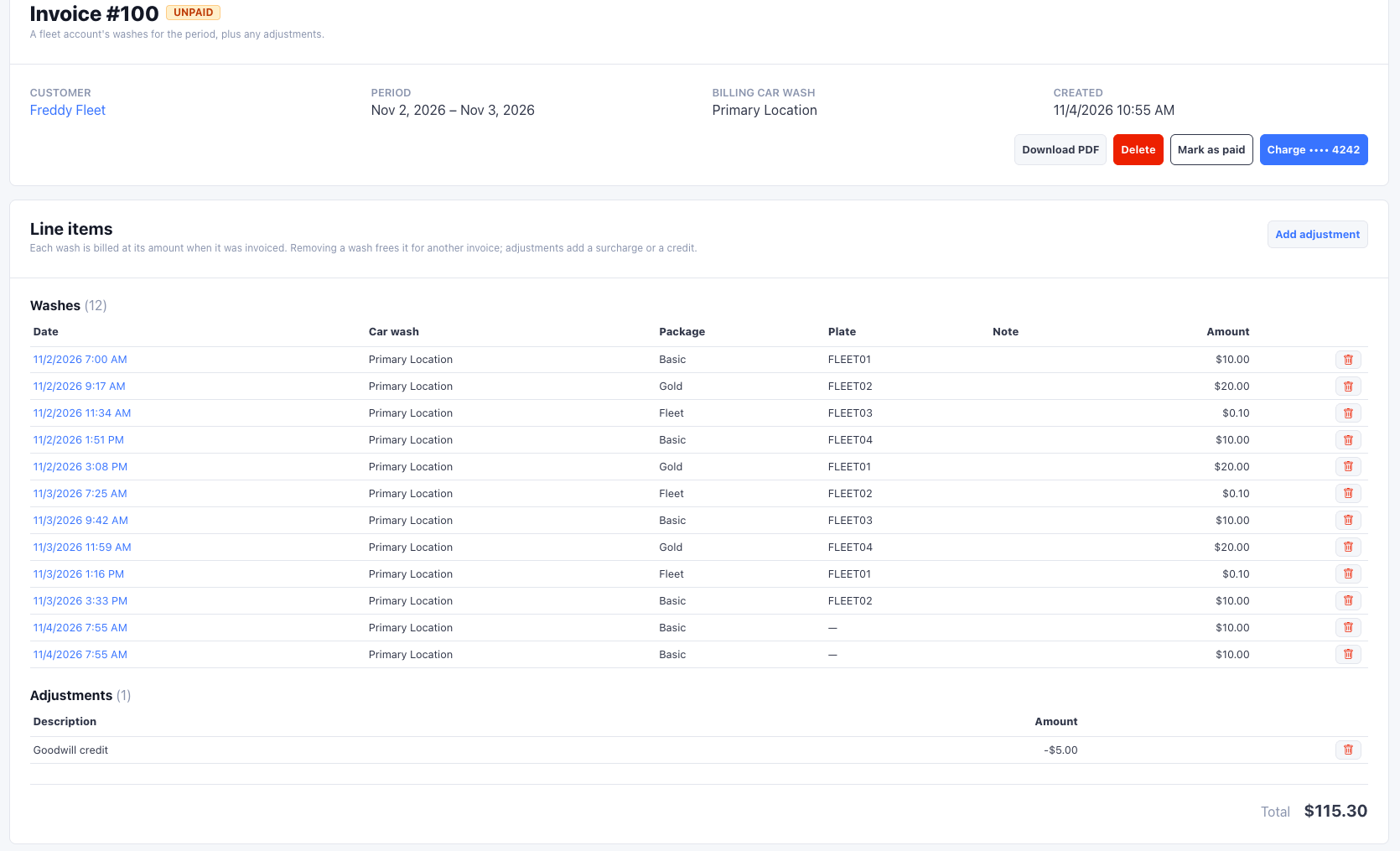
- Remove a wash. Each wash is billed at its amount when the invoice was created. Remove a wash that should not be billed, such as one the customer already paid for by card. A removed wash is free to appear on another invoice.
- Add an adjustment. Add a surcharge or a credit with a description and an amount. Use a negative amount for a credit.
- Edit the note. The note prints on the PDF. Use it for payment terms, a PO number, or remittance details. You can edit it at any time, even after the invoice is paid.
A wash refunded after it was invoiced keeps its invoiced amount, and the
invoice marks the row so you can remove it.
Delete an invoice
You can delete an unpaid invoice. Its washes become available to invoice again. You cannot delete an invoice that is paid or that has had a card charge attempt, even a declined one. FlexWash keeps it as the payment record. To free its washes for another invoice, remove them from the invoice instead.Download the PDF
Click Download PDF to get a printable invoice with your logo, the invoice number, issue and period dates, the Bill To details, the washes, adjustments, total, the Paid or Unpaid status, and the note.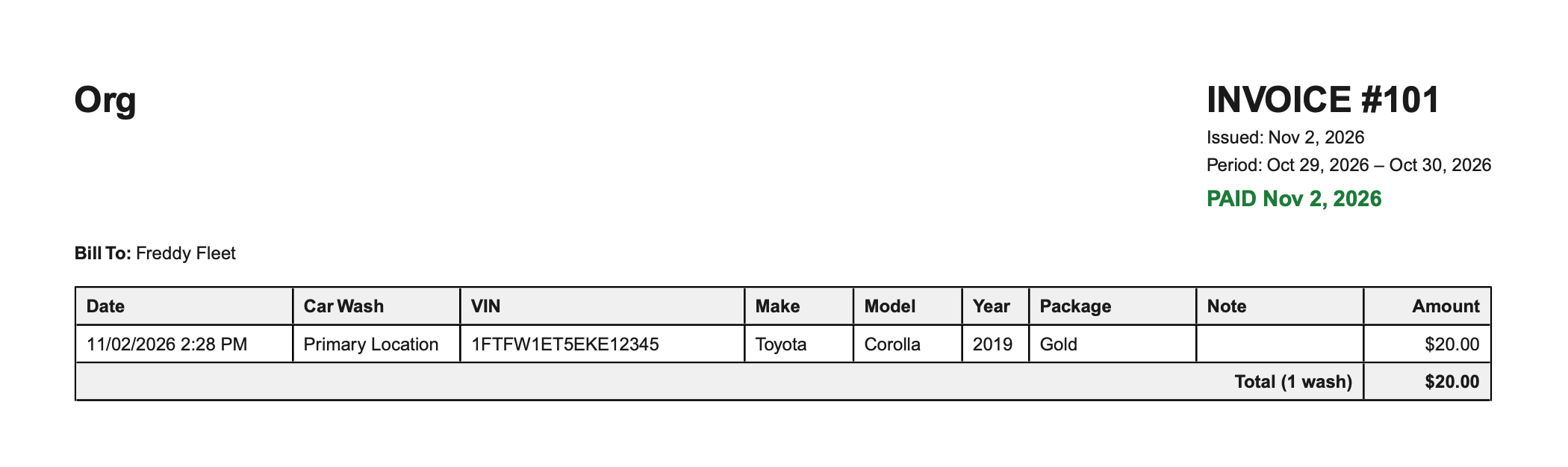
Collect payment
Mark as paid
If the account paid outside FlexWash, by check or bank transfer for example, click Mark as paid and confirm. The invoice shows Paid via External and its line items lock. If you marked it by mistake, click Mark as unpaid to reopen it. Mark as unpaid is only available on invoices paid outside FlexWash.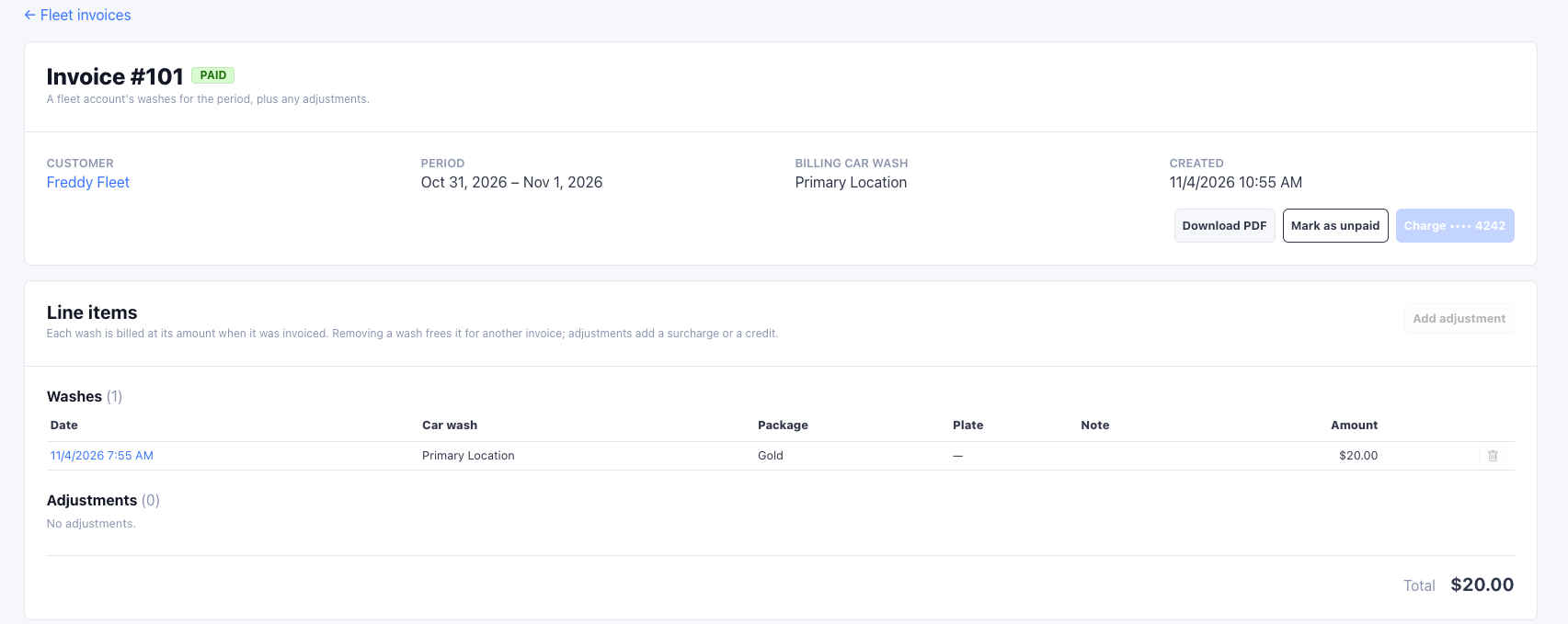
Charge card on file
If the customer has a card on file, click the charge button, labeled with the card’s last four digits (for example Charge •••• 4242), and confirm to charge the invoice total. The charge button only shows for users with the Charge Now Ability permission. It is disabled, with the reason shown, when:- The customer has no card on file.
- The card on file is not stored with Adyen.
- The invoice is paid or its total is $0.
- An earlier charge attempt is still settling.
Refunds
Refund the Fleet Invoice Payment order from the order’s page like any other order. A full refund, or a void, reopens the invoice as unpaid, and the refunded attempt stays listed under Payment attempts. Partial refunds are not allowed on fleet invoice payments. Refund the full amount, then adjust the invoice and collect again.Accounting
A fleet wash counts as a sale on the day it happens, under the Fleet payment channel. Collecting an invoice later is money moving, not a second sale, so:- The Deposits report shows card payments of invoices in a separate Fleet Invoice Payments column, at the invoice’s billing car wash. They are not counted in Card or in Net Sales.
- Dashboard, Revenue Analytics, and the sales summary show the same numbers with or without an invoice payment.
For accountants: the accounting journal records a DAILY SALES ENTRY - FLEET
ACCT PAYMENTS credit that clears the receivable the Fleet tender created.