Employees are separate from
Users. An employee signs in at the
POS with a punch code, while a user signs in to the FlexWash admin site with
an email and password.
The Employees List
In the left sidebar, click Employees to open the list. It shows every employee for the car wash selected in the top navigation, with their role, punch code, and assigned car wash.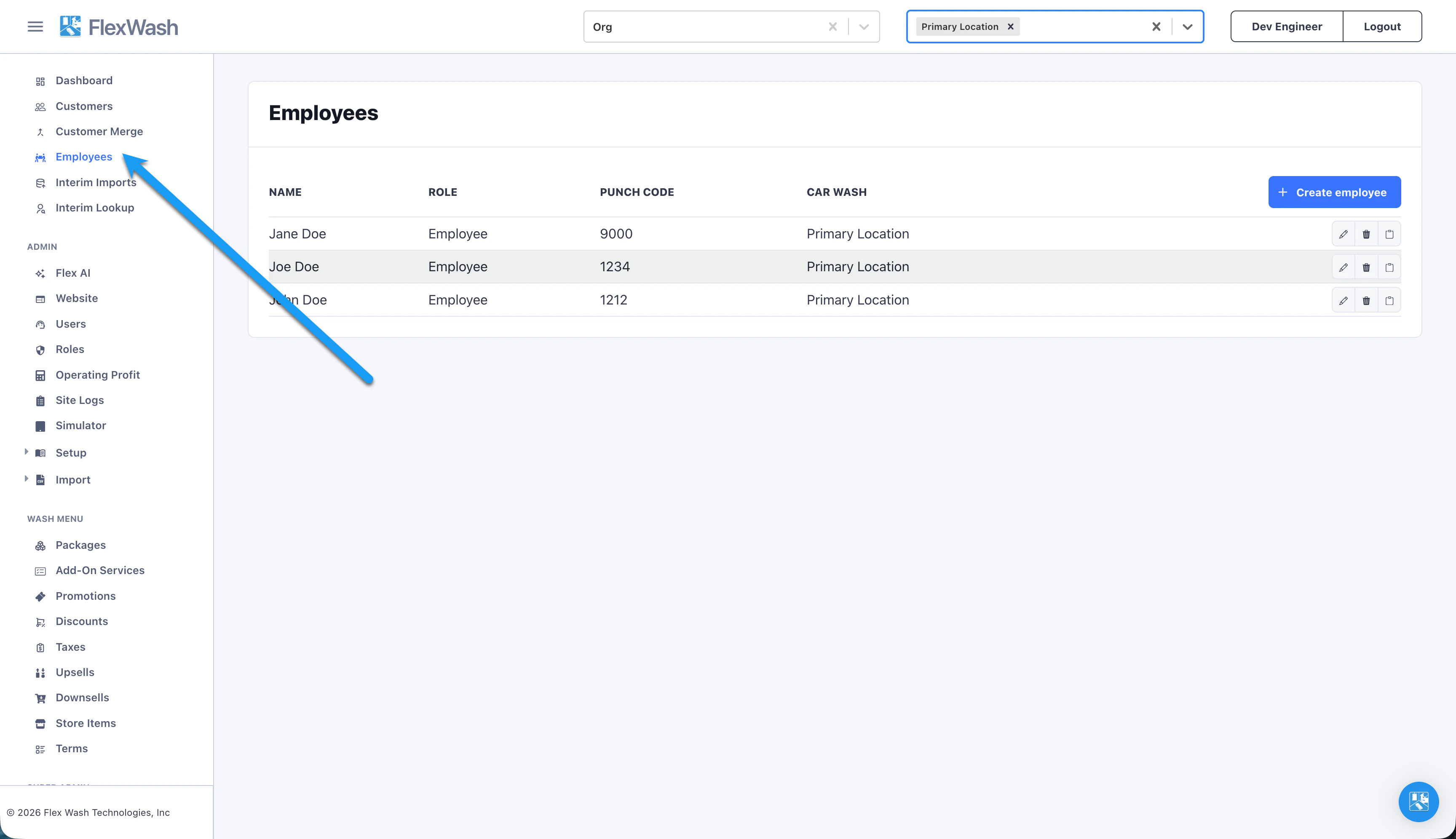
Create an Employee
1
Click Create employee
Open the Employees page and click Create employee on the top
right.
2
Enter the basics
Fill in the required Name and Punch Code, then choose the
employee’s Role and Car Wash.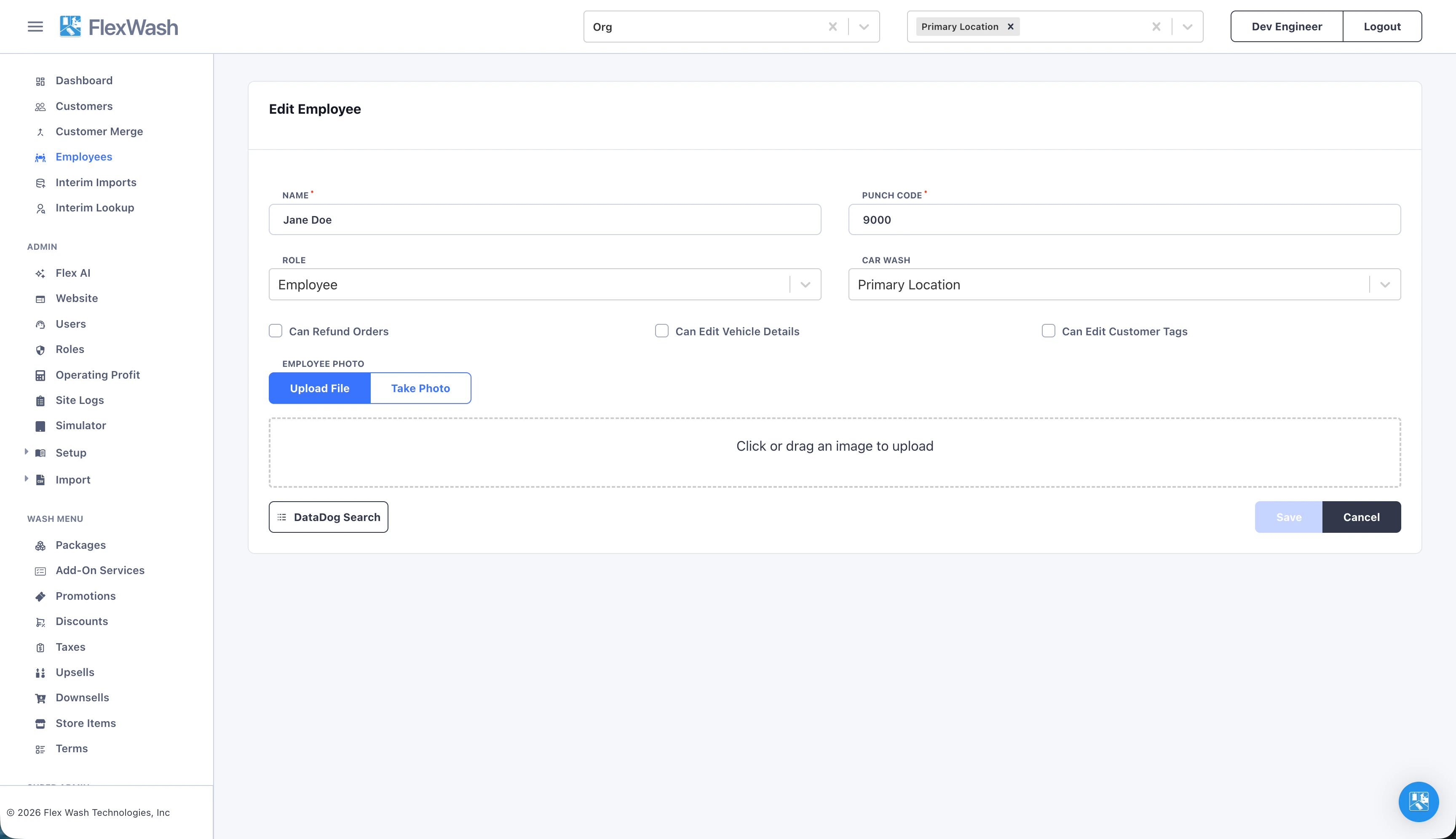
- Punch Code: A 4-digit number the employee enters to sign in at the POS. It must be unique within the car wash.
- Role: Select the employee’s role.
- Car Wash: The site this employee works at. Required.
3
Set POS permissions
Use the toggles to control what the employee can do at the point of sale:
- Can Refund Orders: Issue refunds on the POS.
- Can Edit Vehicle Details: Change a vehicle’s details, such as its license plate, on the POS.
- Can Edit Customer Tags: Add or remove customer tags on the POS.
4
Add a photo (optional)
Under Employee Photo, choose Upload File to select an image or
Take Photo to capture one with the device camera.
5
Save
Click Save to create the employee. They can now sign in at the POS
with their punch code.