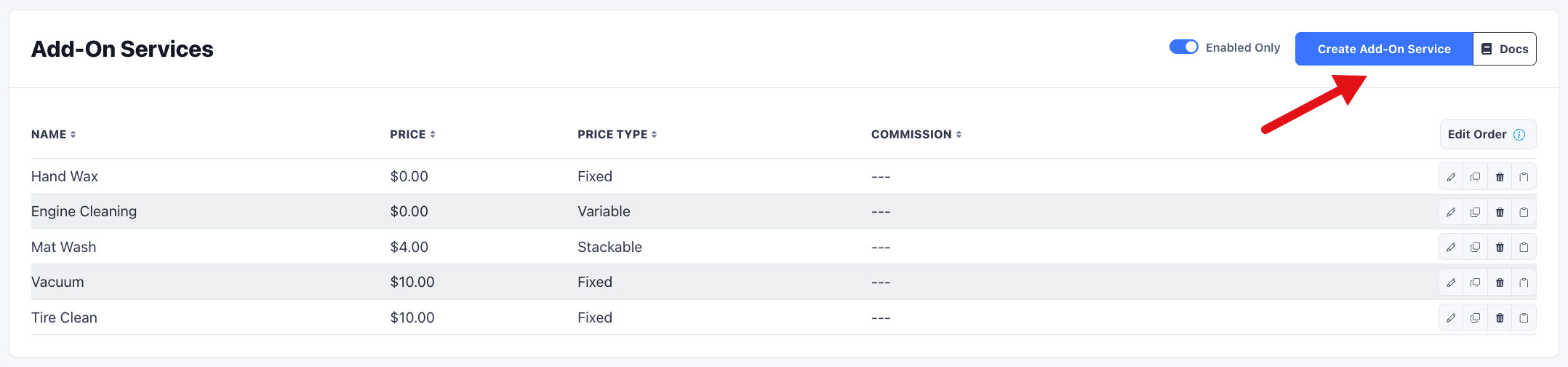
Create Add-on
-
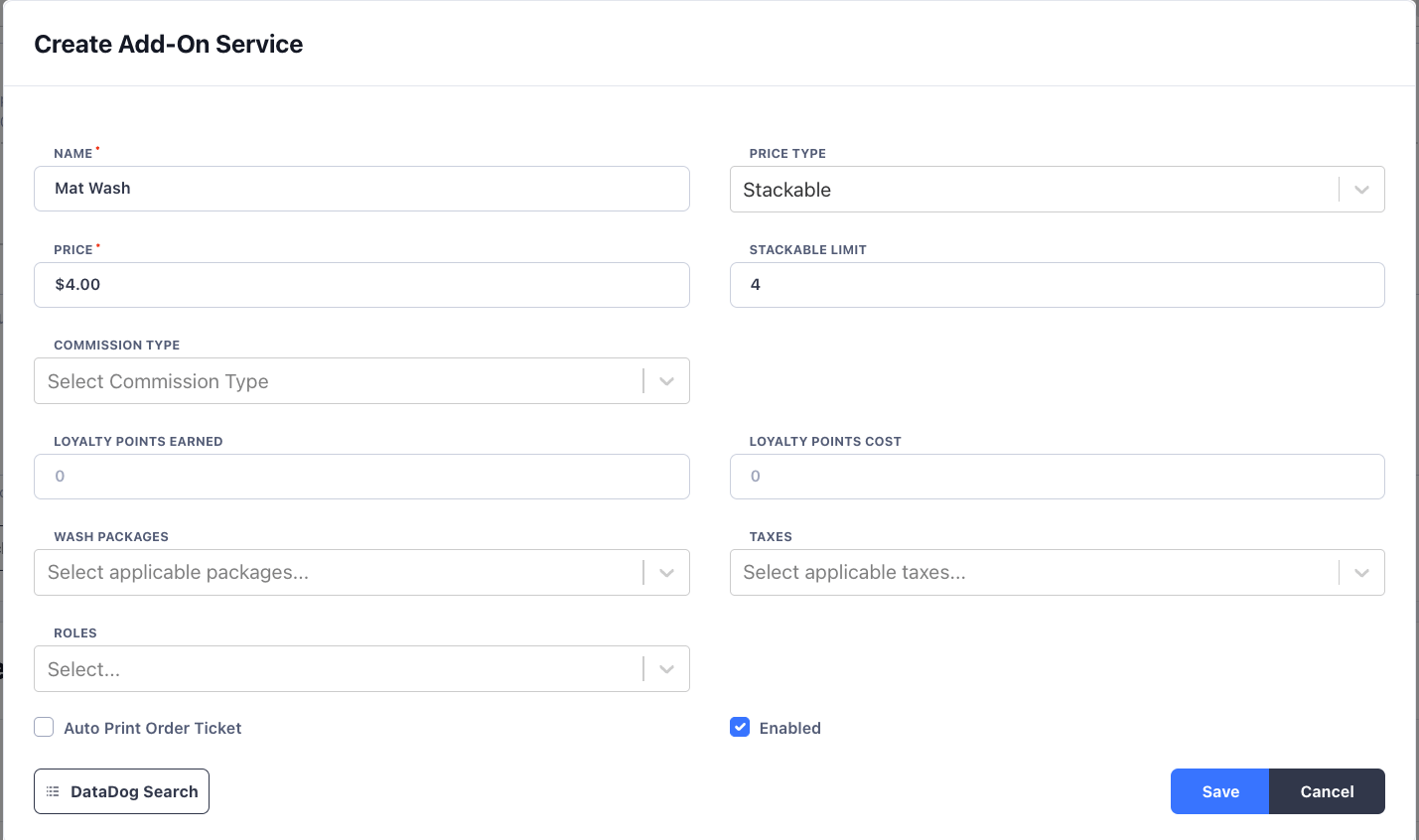
Go to Wash Menu > Add-On Services and click Create Add-On Service. Fill in the fields on the template, then click Save.
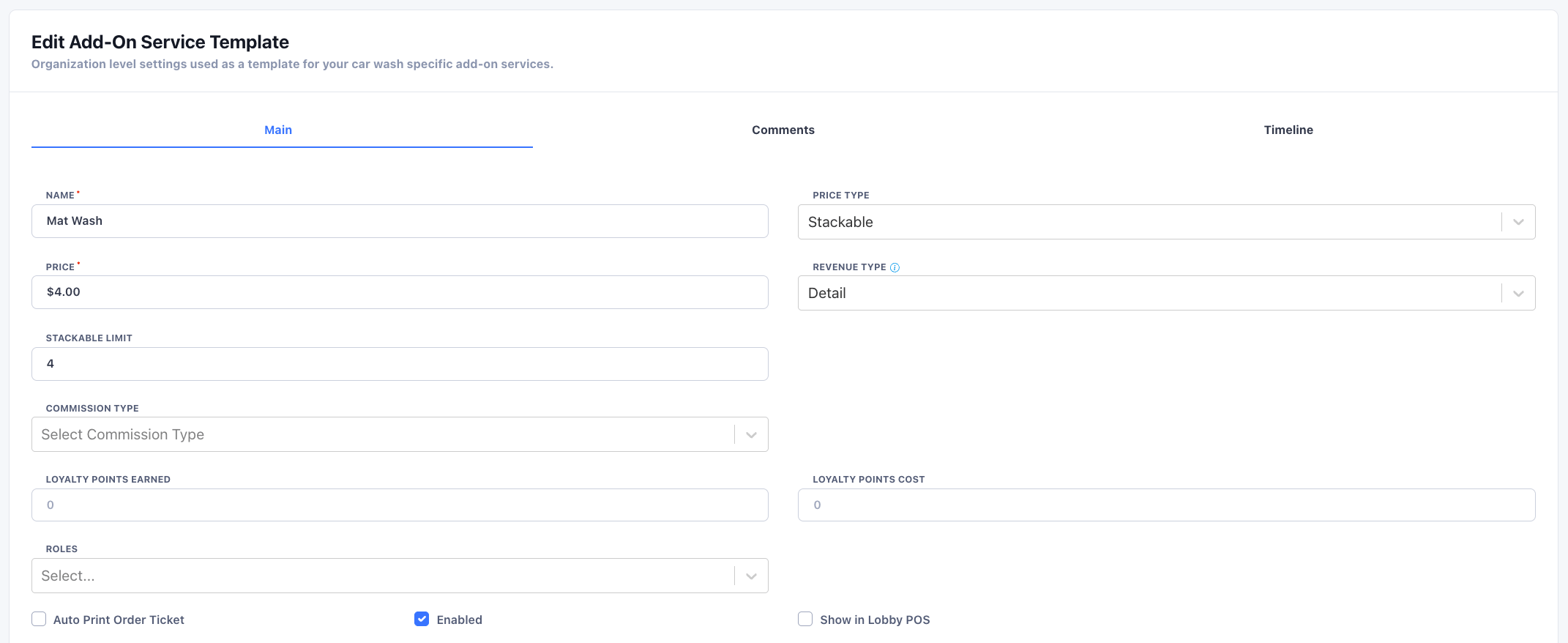
Settings
Name: Service name displayed on FlexWash devices. Price Type:- Fixed: Set price.
- Stackable: Can be added multiple times per wash.
- Variable: Employees enter price (e.g., for varying vehicle sizes).
You can upload a presentation image to display graphics on the Pay Tablet. The Metadata field holds a custom message for the add-on.
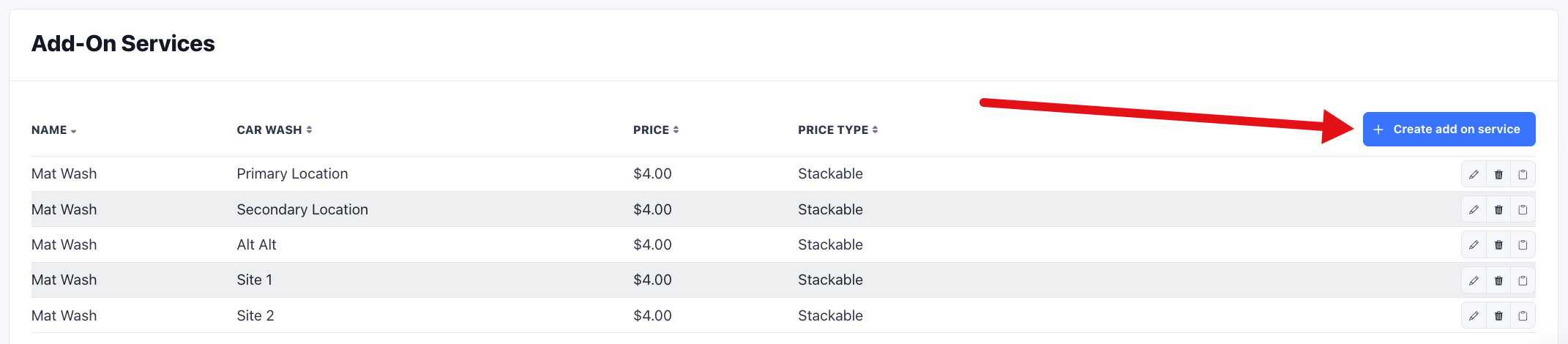
Add-On Services
-
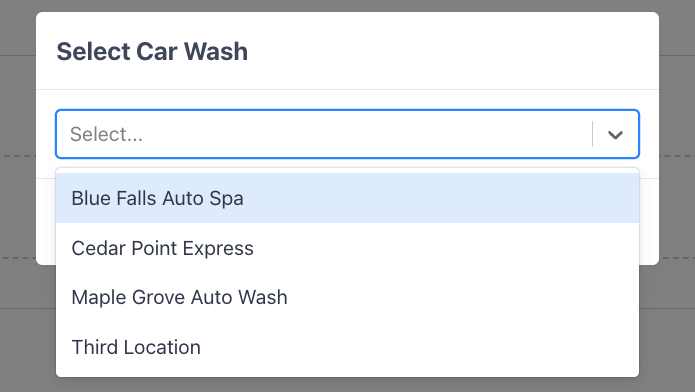
From the add-on list, edit your add-on. At the bottom, click Create add on service, then select the car wash.
-
Choose a wash package, enter its price, and specify the applicable tax. Verify that all entries match the template, then save.
Setting Display Order
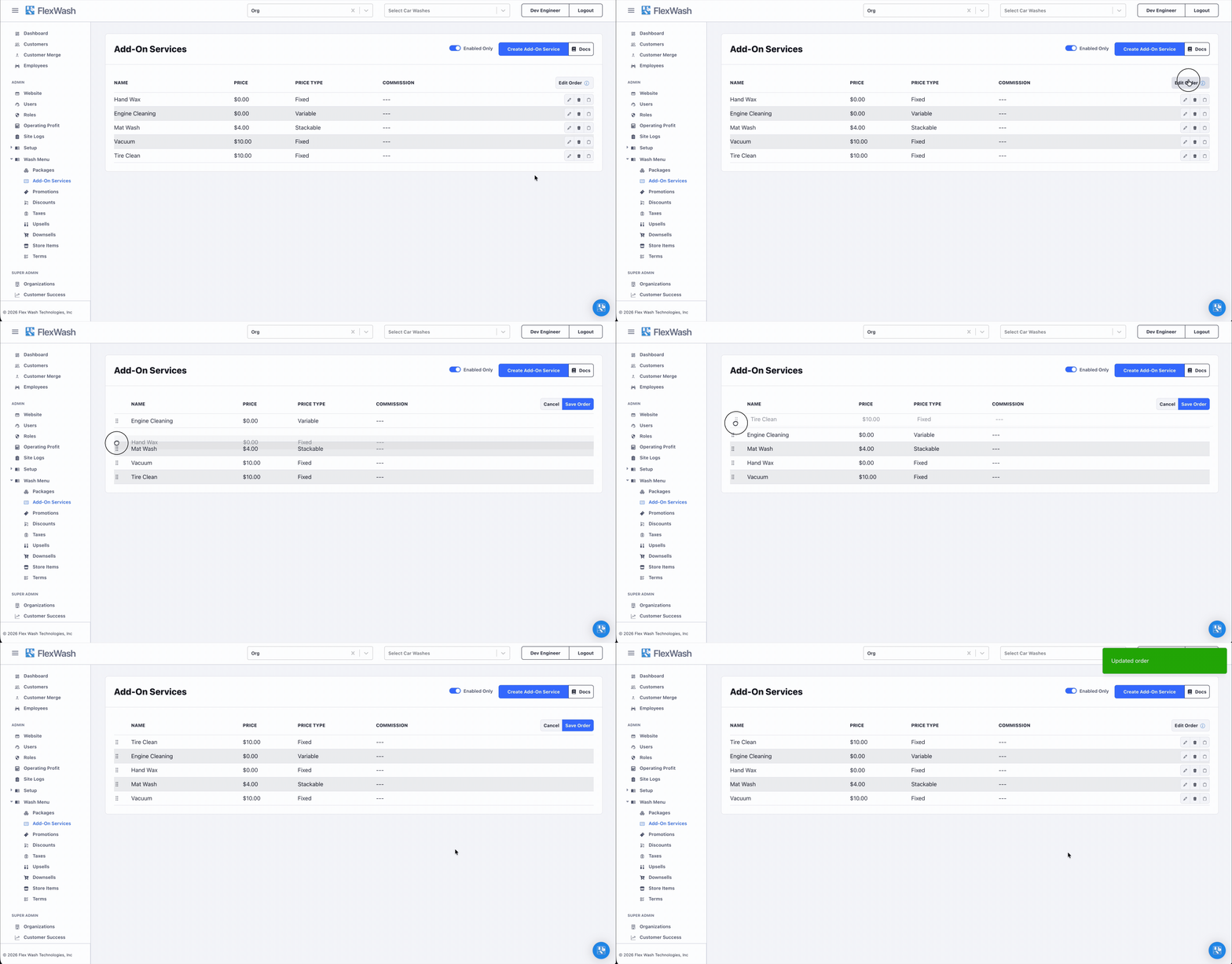
You can customize the order in which add-on services appear on the POS using the Edit Order feature. By default, add-on services display in the order they were created. To change this:- Navigate to Wash Menu > Add-On Services.
- Click Edit Order in the top-right corner of the table.
- The table enters reorder mode and a drag handle appears to the left of each row.
- Drag and drop rows to arrange add-on services in your preferred order.
- Click Save Order to apply your changes, or Cancel to discard them.