iFrame
In the Website page under the Admin section you can copy the HTML for the Sign Up portal iFrame. A preview box for testing is available in the same section.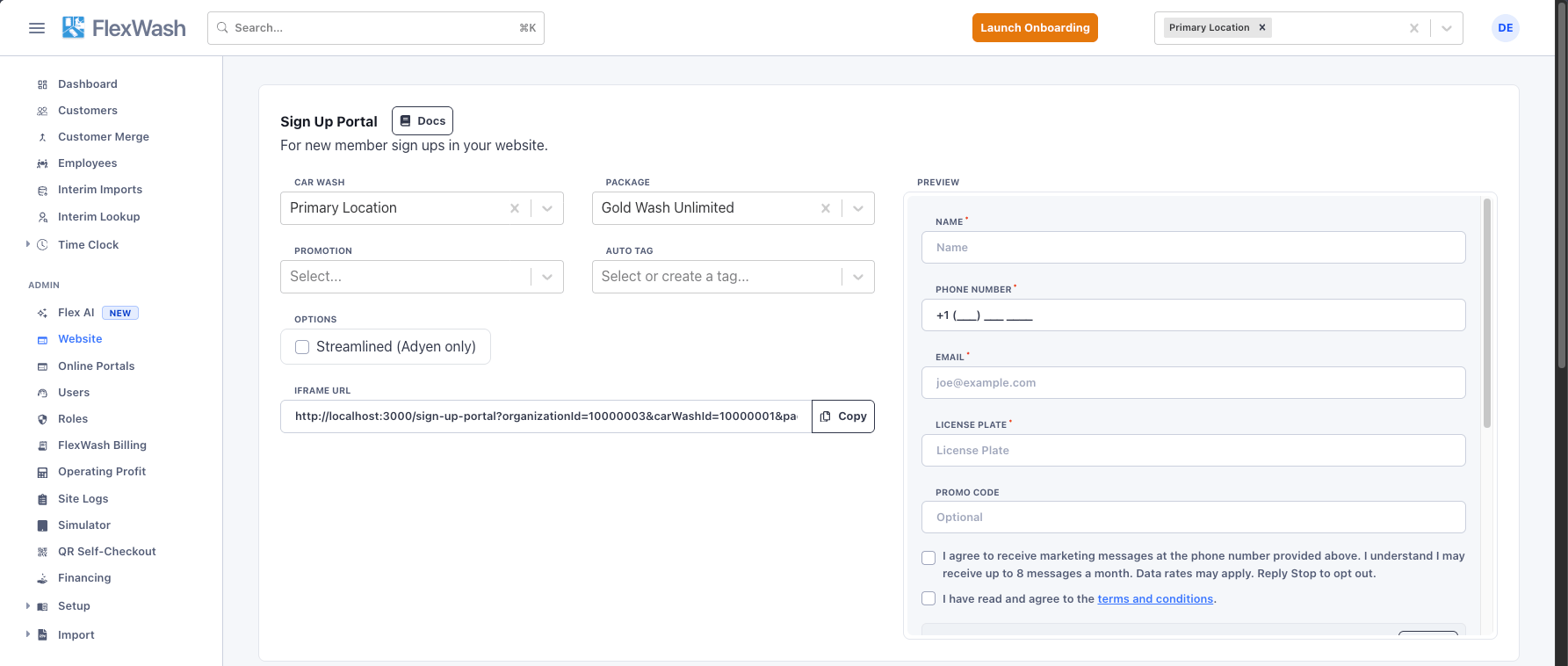
Sign Up Portal settings under Admin > Website
Configuration
By default the portal will have a way to select the location and package. If you pre-select these then the form will go straight to the sign up flow. For a branded experience we recommend having the selection of the site and package be built in your website and then you present the different iFrame URLs according to what was selected. You can optionally have a promotion pre-selected if you want to run ads and allow for easy sign up. If an Auto Tag is selected then any member who signs up through that iFrame will have that tag applied to their account. For example if you want a dedicated sign up page with a partner organization (charity, partner business, etc.) you would use the auto tag to be able to identify those members.Streamlined Sign Up
Customers who sign up away from the wash often do not know their license plate number. The streamlined option lets them buy a membership with only an email, an optional phone number, and a card. The customer links the membership to a vehicle on their first visit.Turn on streamlined sign up
- Go to Admin > Website.
- In the Sign Up Portal card, select the location, package, promotion, and Auto Tag as usual.
- Under Options, select Streamlined (Adyen only).
- Optionally, select Require Phone Number to make the phone number field required. This option appears only while Streamlined is on.
- Copy the iFrame HTML or the portal URL.
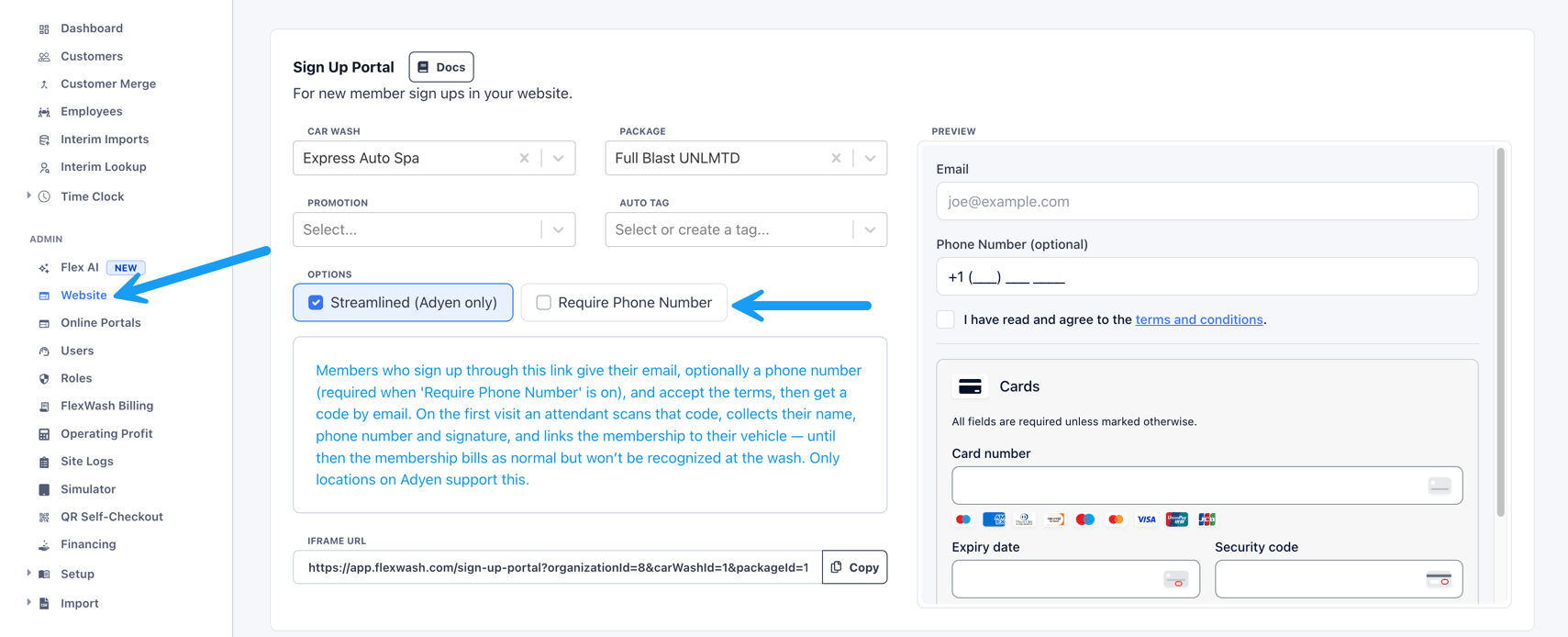
The Streamlined (Adyen only) and Require Phone Number options
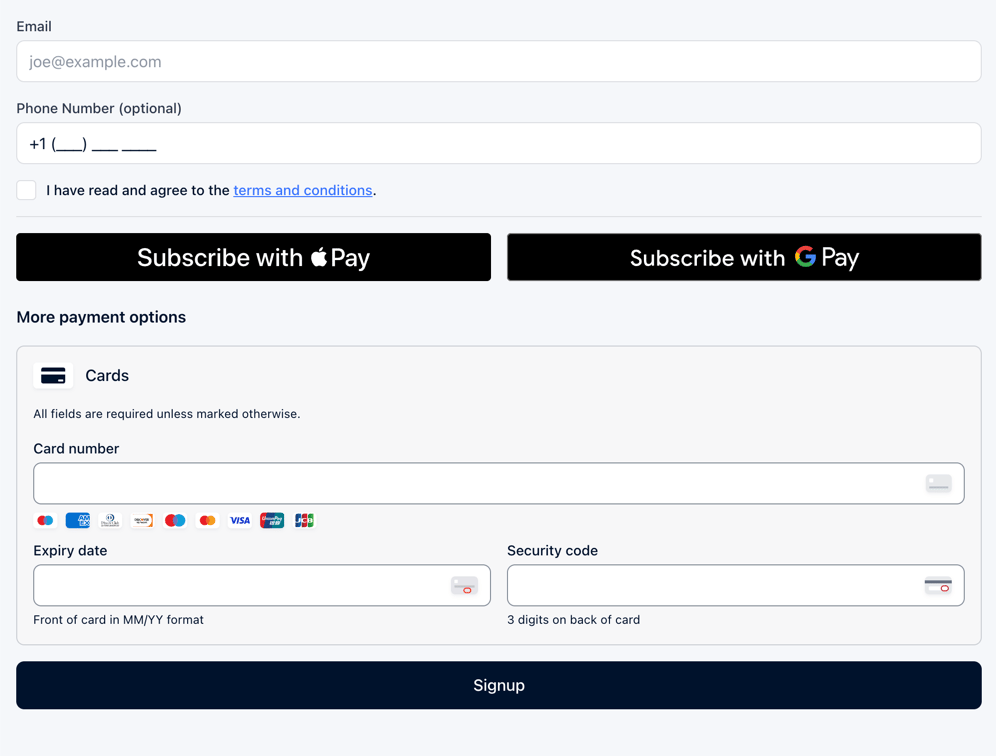
The streamlined sign-up form
What the customer gets after sign up
After payment, the sign-up page shows the customer a QR code and a membership code. The customer can save the QR code or use the copy FlexWash sends by email. On the first visit, the customer shows the code to an attendant. The membership does not work at the wash until it is linked to a vehicle.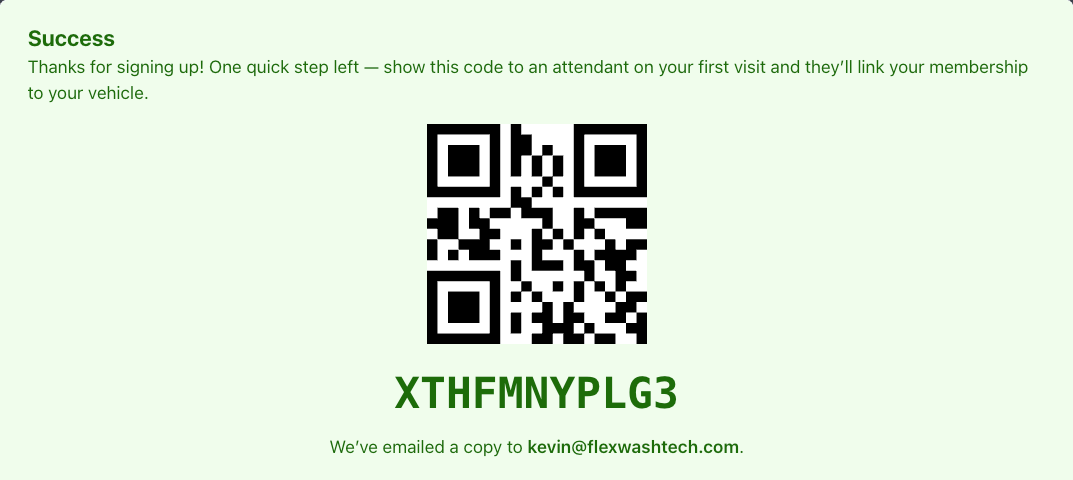
Shown on the sign-up page after payment
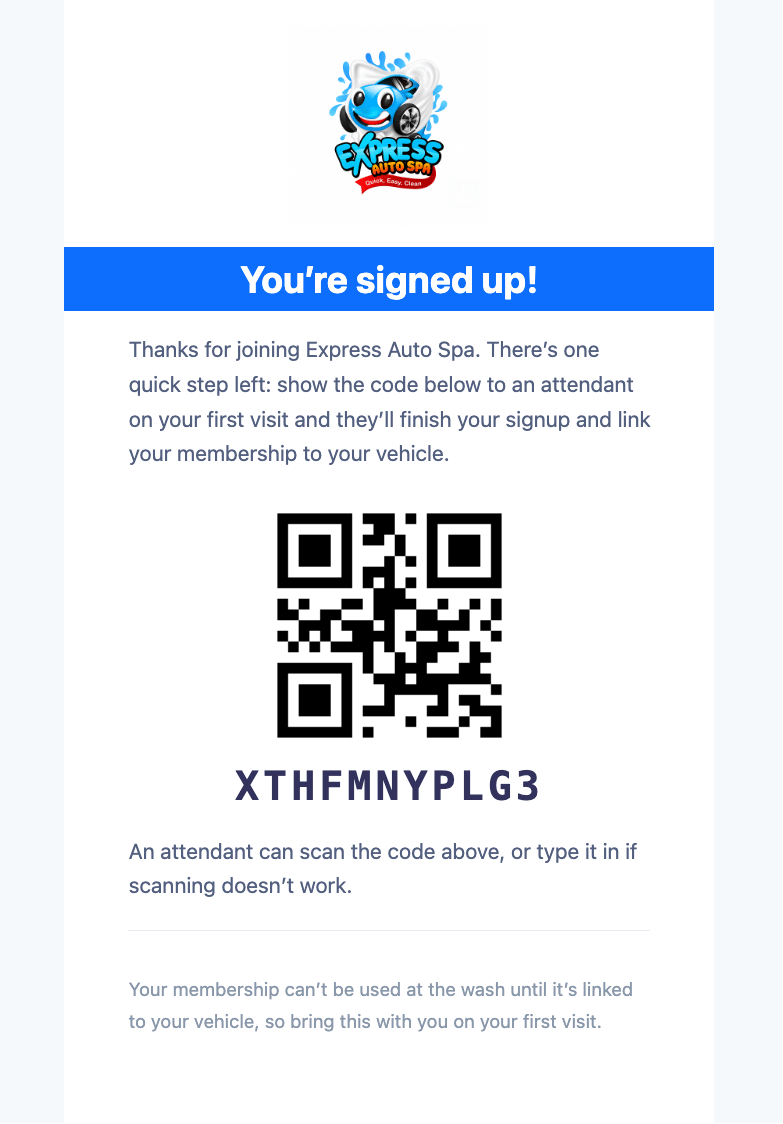
Sent to the customer by email
Activate the membership on the first visit
The attendant links the membership to the vehicle on the pay tablet.- Load the customer’s vehicle at checkout so the license plate shows on the order.
- Tap Membership Code on the checkout menu.
- Tap Scan Code and scan the QR code in the customer’s email. You can also type the code.
- Confirm the details under Membership Found, then tap Continue.
- Enter the customer’s name and phone number. The phone number is pre-filled when the customer gave one online, and the name is pre-filled when your organization already has it on file for that number. Confirm both with the customer and edit them if needed. If the customer agrees to marketing texts, check the opt-in box. If the package has membership terms, the customer also accepts the terms and signs. Tap Assign Membership.
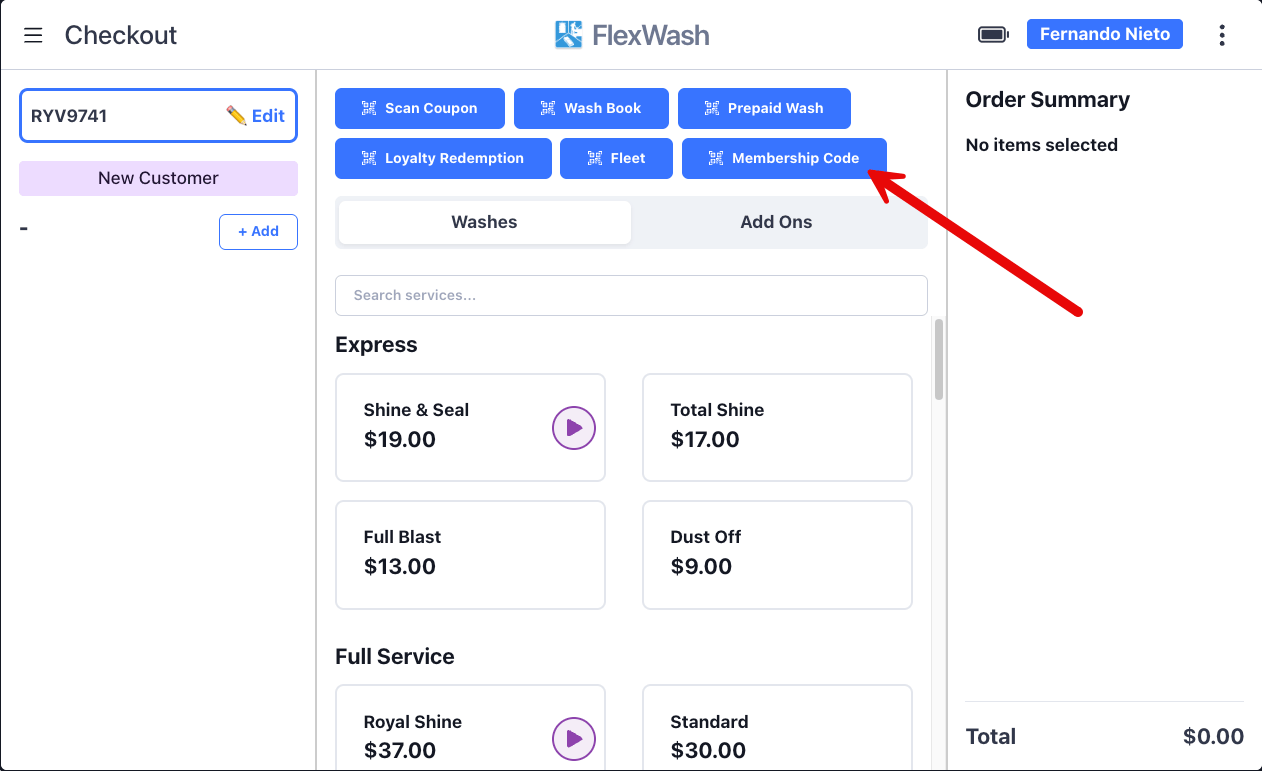
Tap Membership Code on the checkout menu
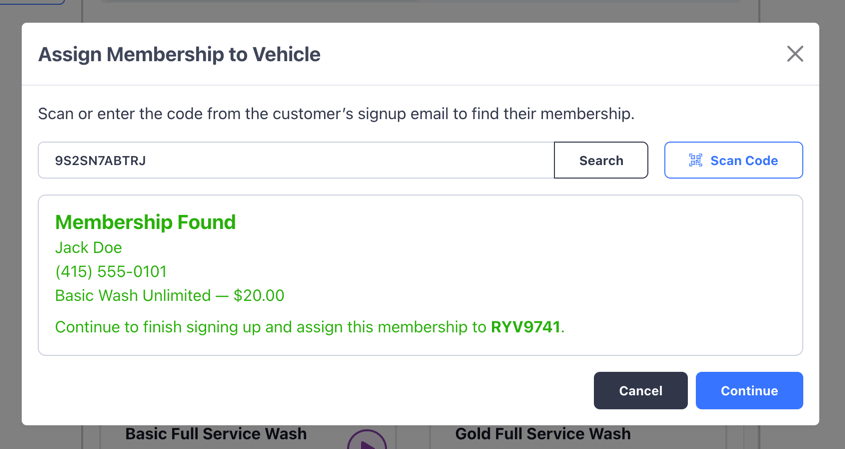
Confirm the details under Membership Found
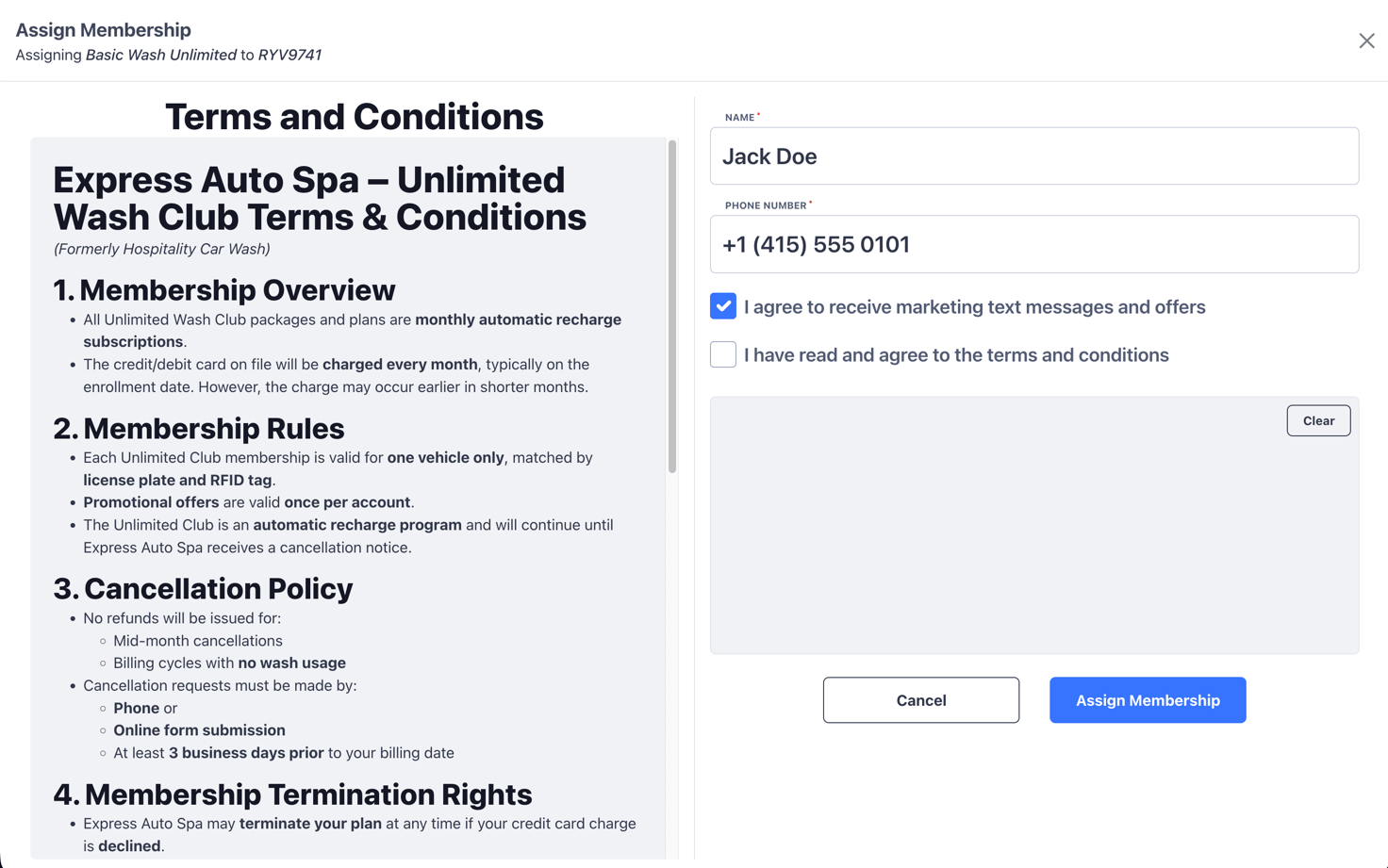
Enter the customer's name and phone number
Marketing Opt-In
When a member checks the marketing opt-in box during sign up, FlexWash opts them in to both SMS and email marketing in one step. SMS opt-in still requires the standard double opt-in confirmation reply. Email opt-in is recorded immediately, so the member is eligible for future FlexEngage email campaigns. A streamlined sign up does not collect marketing consent. The attendant asks for it when activating the membership on the first visit, and the same SMS and email opt-in applies.Callbacks
You can have your webpage listen for success/fail callbacks from the iFrame to respond accordingly. For example to redirect to a branded thank you page, or to feed the data into ads or 3rd party systems. There are two types of messages posted to the parent site:- flexwash-sign-up-portal-success with the name, phone number, and email of the member. For a streamlined sign up, name is
nulland phone number is the number the customer gave, ornullif they left it blank. - flexwash-sign-up-portal-error