Accessing the Report
Open Time Clock > Reports > Tip Pool, select one or more locations and a date range, and click Run. The date range defaults to the last two full workweeks. Running the report requires the Time Clock Reports permission on the user’s role.
If an employee is still clocked in during the period, a warning lists them.
Their hours are incomplete until they clock out, so run the report again
after the shift ends.
Tips by Location
The first table shows the tips collected at each selected location. These are the tips customers added to their payments, counted by payment date in each location’s timezone. Each location’s total matches the Tips column of the Deposits report for the same dates. Click a location to open its Deposits report. Cash tips (entered) adds tips collected outside FlexWash, such as a tip box. Enter the amount and it joins the pool. Cash tips are not part of the Deposits report, and FlexWash does not save the amount: it clears each time you run the report. Pool total is the location tips plus the cash tips. This is the amount that is split.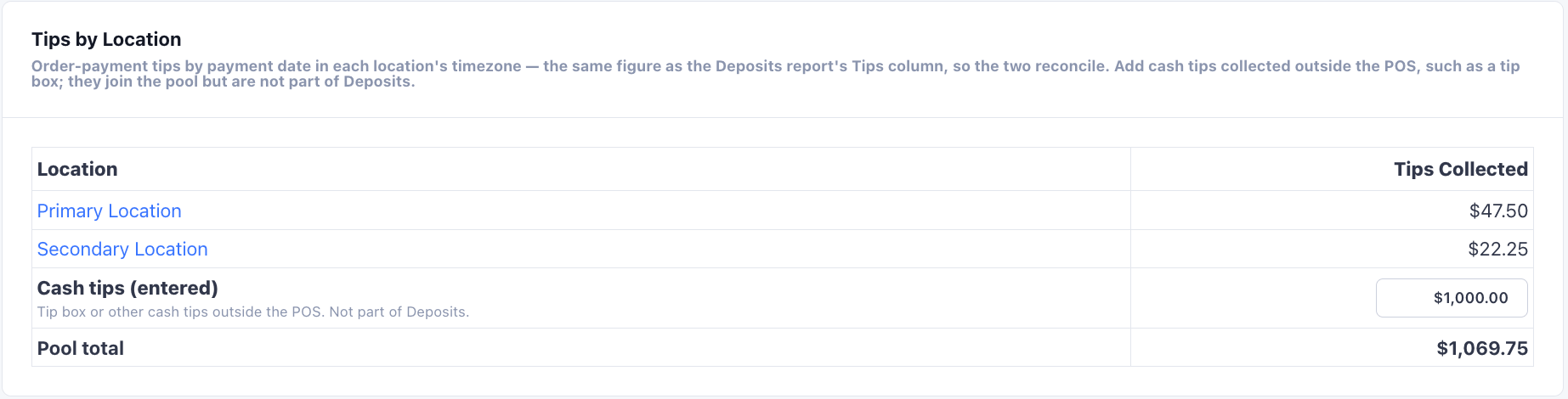
Labor & Tip Shares
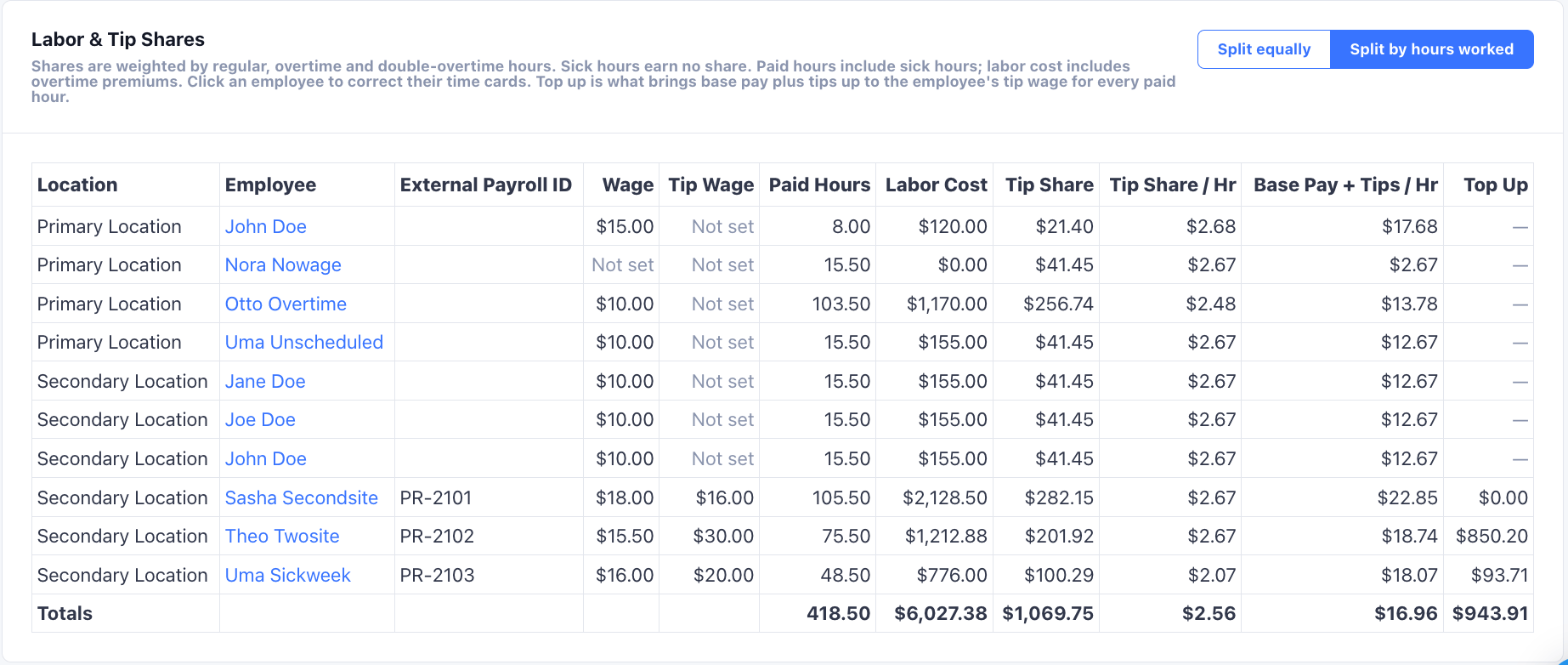
The second table splits the pool across employees. It has one row for each employee at each location they worked. An employee who worked at two of the selected locations appears twice. Click an employee to open their time cards and correct any punches.Split Method
Pick how the pool is divided with the toggle above the table:- Split equally: every employee who worked in the period gets the same share. A row with only sick hours gets no share.
- Split by hours worked: shares follow each employee’s regular, overtime, and double overtime hours. Sick hours are not counted toward the share.
Columns
The table’s footer row shows the totals for the period.Wage, Tip Wage, Labor Cost, Base Pay + Tips / Hr, and Top
Up show only for users with the View And Edit Employee Wages
permission. Other users see tip shares and hours, and only the period’s
total labor cost.
Top Up
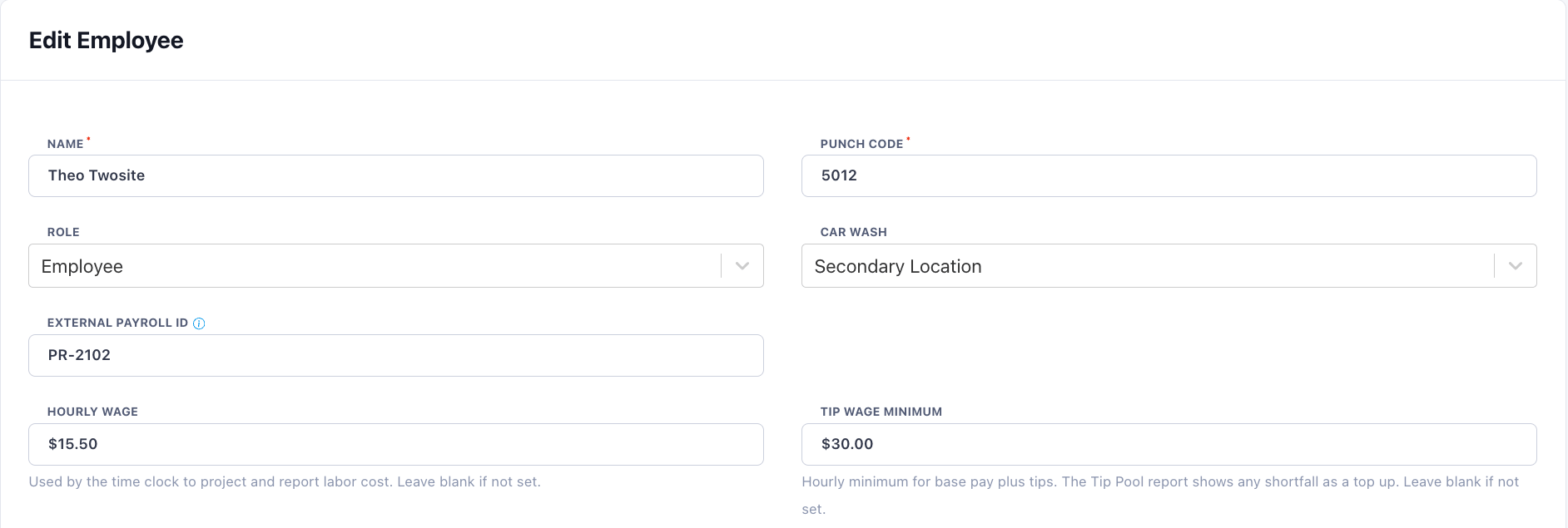
Some employees are paid a lower base wage because they earn tips. Set a Tip Wage Minimum on their employee profile: the hourly amount their base pay plus tips must reach. When an employee’s base pay plus tip share falls below that minimum for their paid hours, Top Up shows the difference payroll needs to add. When they meet or pass the minimum, it shows $0.00. If the employee has no hourly wage or no tip wage minimum, the column shows a dash. For example, an employee with a $7.00 wage and a $15.00 tip wage minimum works 20 hours. Their labor cost is $140.00 and their tip share is $100.00, so base pay plus tips is $240.00. The minimum for 20 hours is $300.00, so the top up is $60.00.