
Overview
The Customer Timeline gives you a complete, chronological history of every significant event associated with a customer. Instead of checking multiple tabs or reports, the Timeline consolidates billing activity, membership status changes, account edits, and import events into a single view.How to Access
Navigate to Customers from the left sidebar, select a customer, then click the Timeline tab.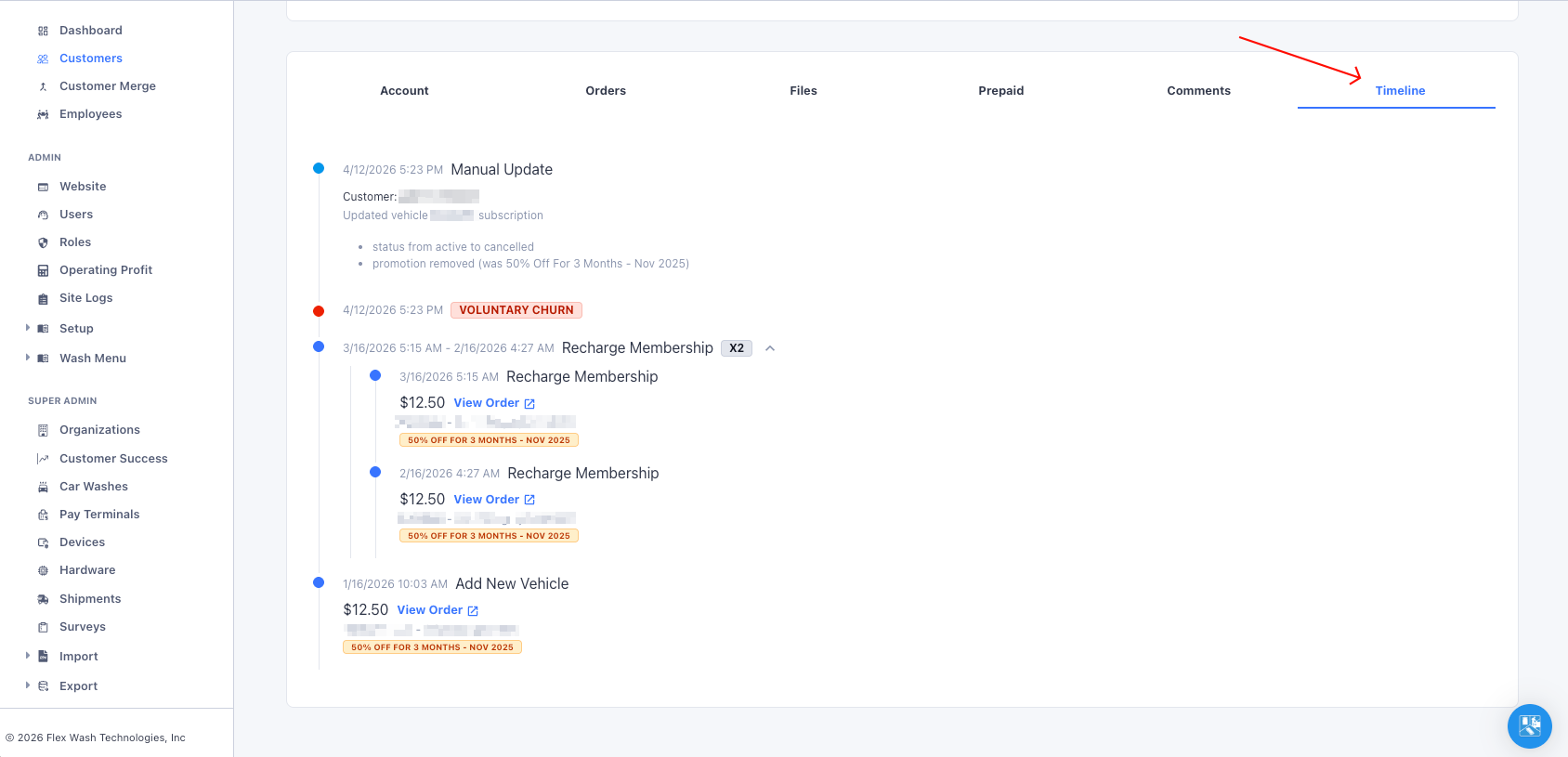
Event Types
Each event on the timeline includes a timestamp, a colored indicator, and relevant details. Below is a breakdown of every event type you may encounter.Recharge Membership
A recurring membership billing charge was processed. This appears each time a customer’s membership auto-renews. Details shown:- Charge amount
- Vehicle and subscription line items
- Applied promotions, upsells, or downsells
- View Order link to the full order
Consecutive recharge events are automatically grouped together. Click the expand arrow to view individual charges within a group.
Add New Vehicle
A new vehicle was added to the customer’s membership. This generates a billing order for the new subscription. Details shown:- Charge amount
- Vehicle and subscription line items
- Applied promotions, upsells, or downsells
- View Order link
Reactivate Membership
A previously cancelled customer was re-enrolled in a membership plan. The event name specifies whether it was a reactivation from voluntary churn or involuntary churn. Details shown:- Charge amount
- Vehicle and subscription line items
- View Order link
Voluntary Churn
The customer’s membership was cancelled intentionally. This could be initiated by the customer or by a staff member on their behalf. Displayed as a red VOLUNTARY CHURN badge. Details shown:- Employee who performed the cancellation (if applicable)
Involuntary Churn
The customer’s membership was cancelled due to a failed payment (invalid or declined credit card). Displayed as a red INVOLUNTARY CHURN badge. Details shown:- Employee (if applicable)
Manual Update
An edit was made to the customer’s account. This captures changes made from the web app, pay tablet, or member portal. Details shown:- Who made the change (employee name, customer, or system)
- A detailed breakdown of exactly what changed (for example: status updates, promotion additions or removals, credit card changes, and subscription modifications)
Added Interim Import
The customer was imported as an interim member during a POS migration. Interim members are active but do not yet have a credit card on file. Details shown:- Employee who performed the import (if applicable)
Tokenized Interim Member
An interim member’s credit card was successfully captured, converting them into a full active member. This is the final step of a POS migration for that customer. Details shown:- License plate of the tokenized vehicle
- Employee (if applicable)
Reading the Timeline
Events are displayed in reverse chronological order, with the most recent at the top. Each event has a colored dot indicating its category:- Blue - Billing events (recharges, new vehicles, reactivations)
- Red - Churn events (voluntary and involuntary cancellations)
- Light blue - Manual updates (account edits and modifications)
- Green - Import events (interim imports and tokenizations)