Documentation Index
Fetch the complete documentation index at: https://docs.flexwash.com/llms.txt
Use this file to discover all available pages before exploring further.
Overview
Use Customer Merge to combine duplicate customer profiles into a single account. This ensures accurate reporting, avoids fragmented histories, and keeps your CRM clean.Permissions
To access this feature, your user must have the Merge Customers permission enabled.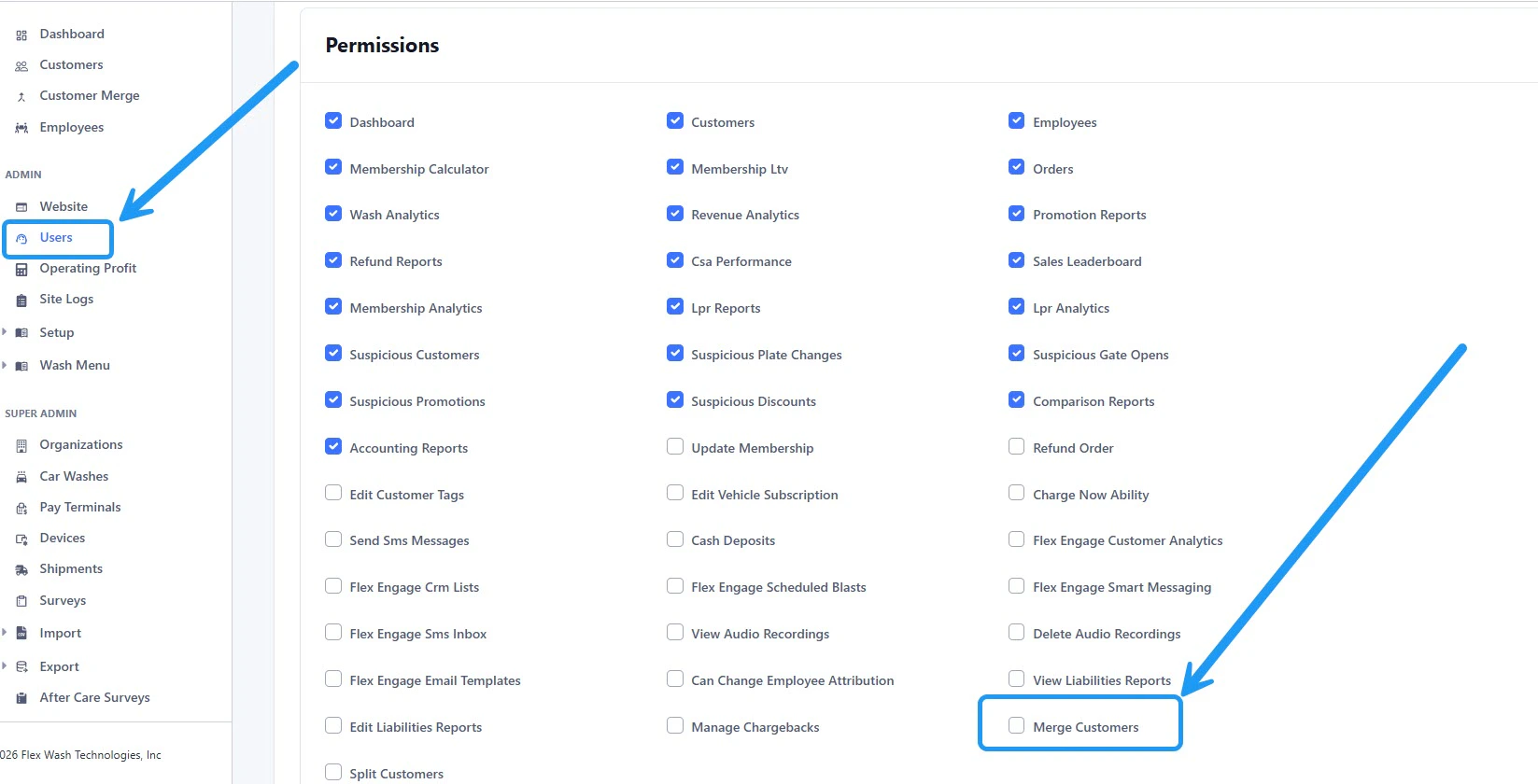
Access
Navigate to Customer Merge from the left sidebar menu.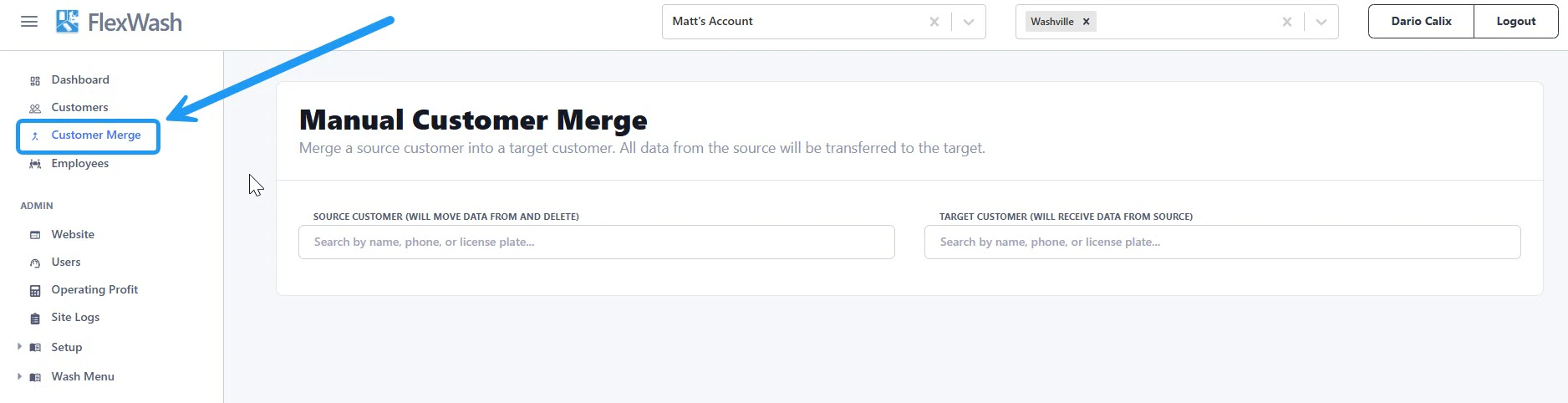
Merge Customers
1. Select Source and Target
- Source Customer
The account that will be merged and removed. - Target Customer
The account that will retain all data.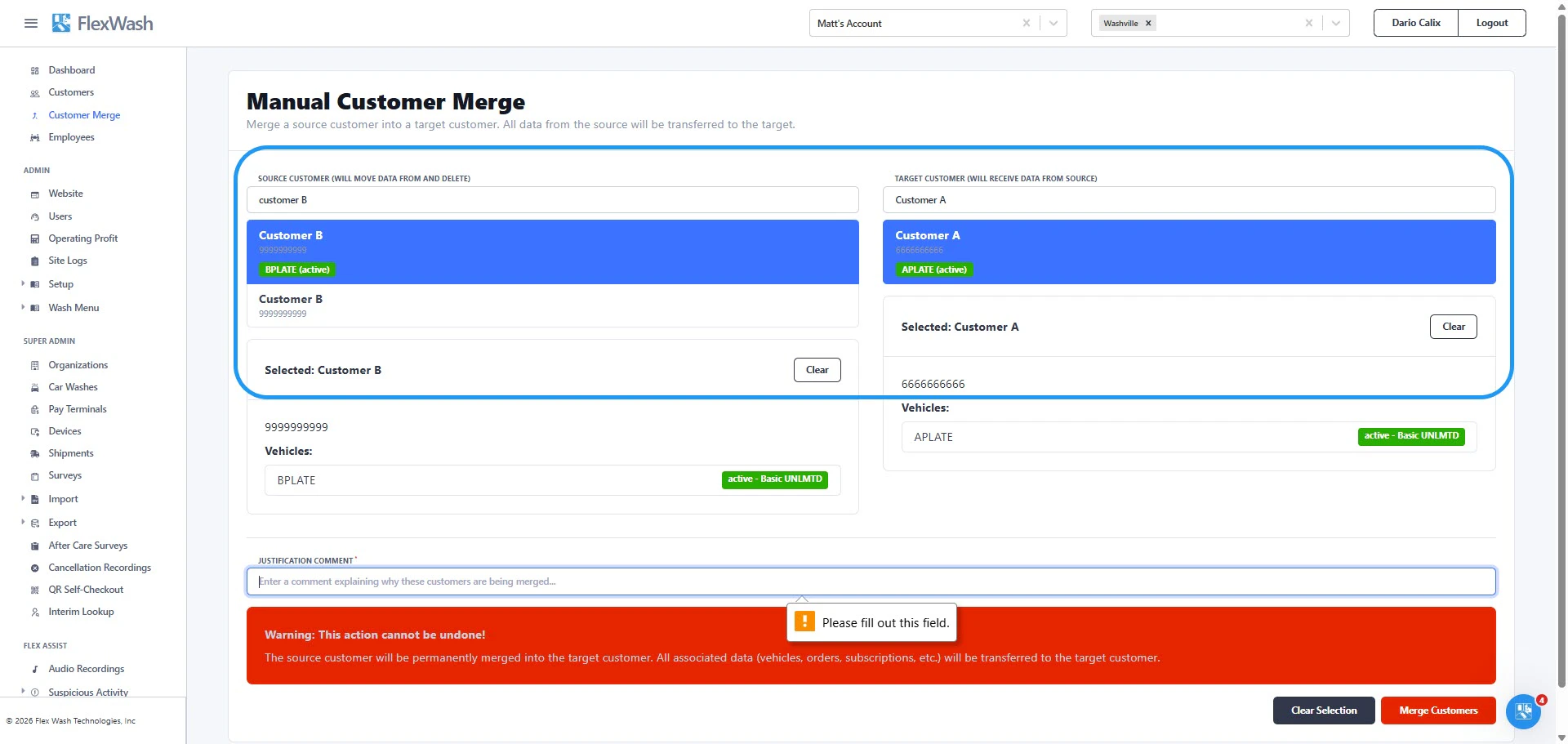
2. Add Justification
Enter a brief explanation for the merge. This creates an audit trail for your team.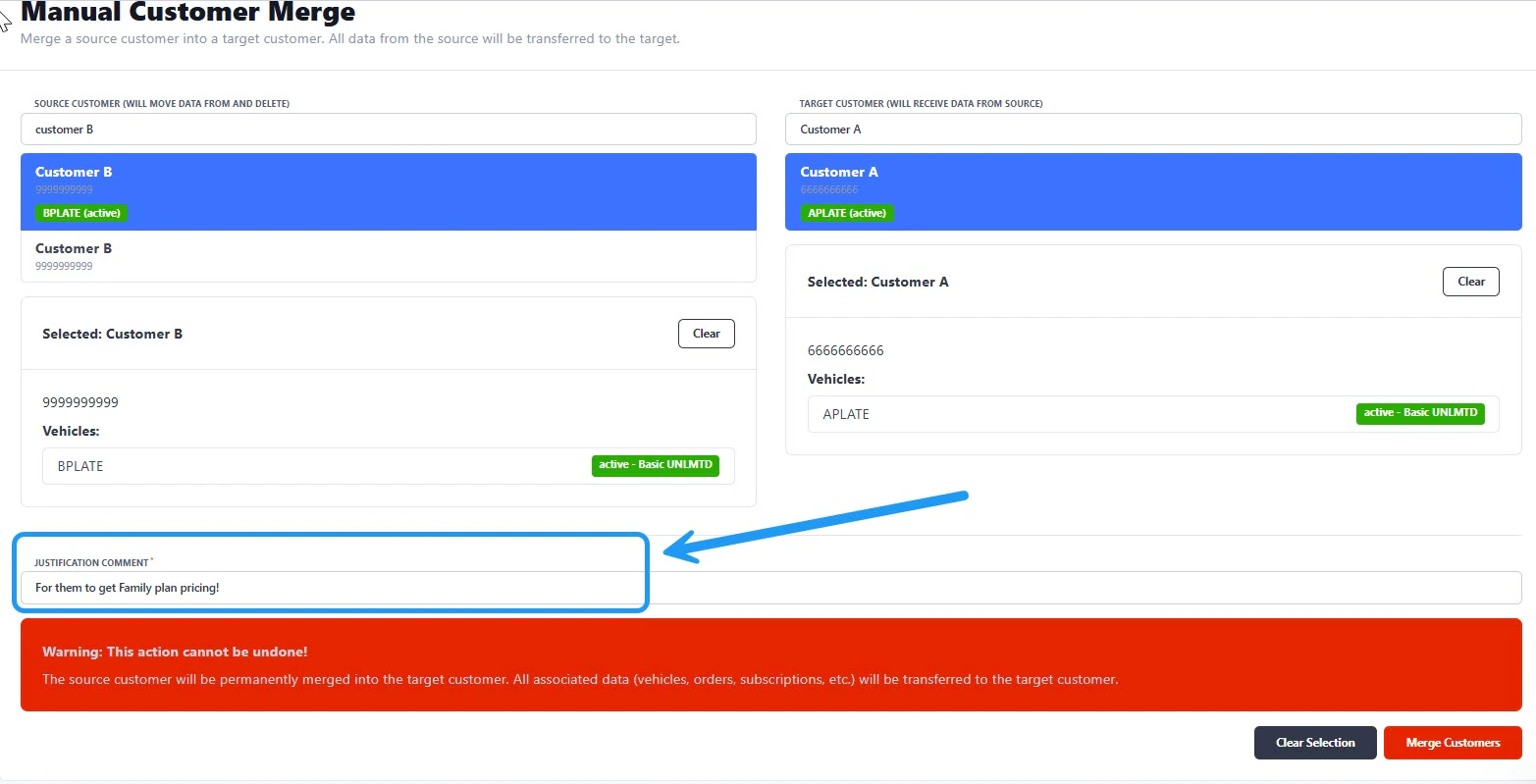
3. Confirm Merge
Once completed:- A confirmation message will appear
- Click View Merged Customer to review the updated account

Important Notes
- All relevant data from the source customer is transferred to the target customer.
- The source customer is permanently deleted after the merge.
- This action cannot be undone.