FlexWash WiFi
Make sure that both the Pay Tablet and the Payment Terminal terminal are turned on and connected to the FlexWash WiFi.Network Settings
Please ensure these settings are turned off so you do not experience connection issues on your iPad. In Settings > Battery Low Power Mode is turned off.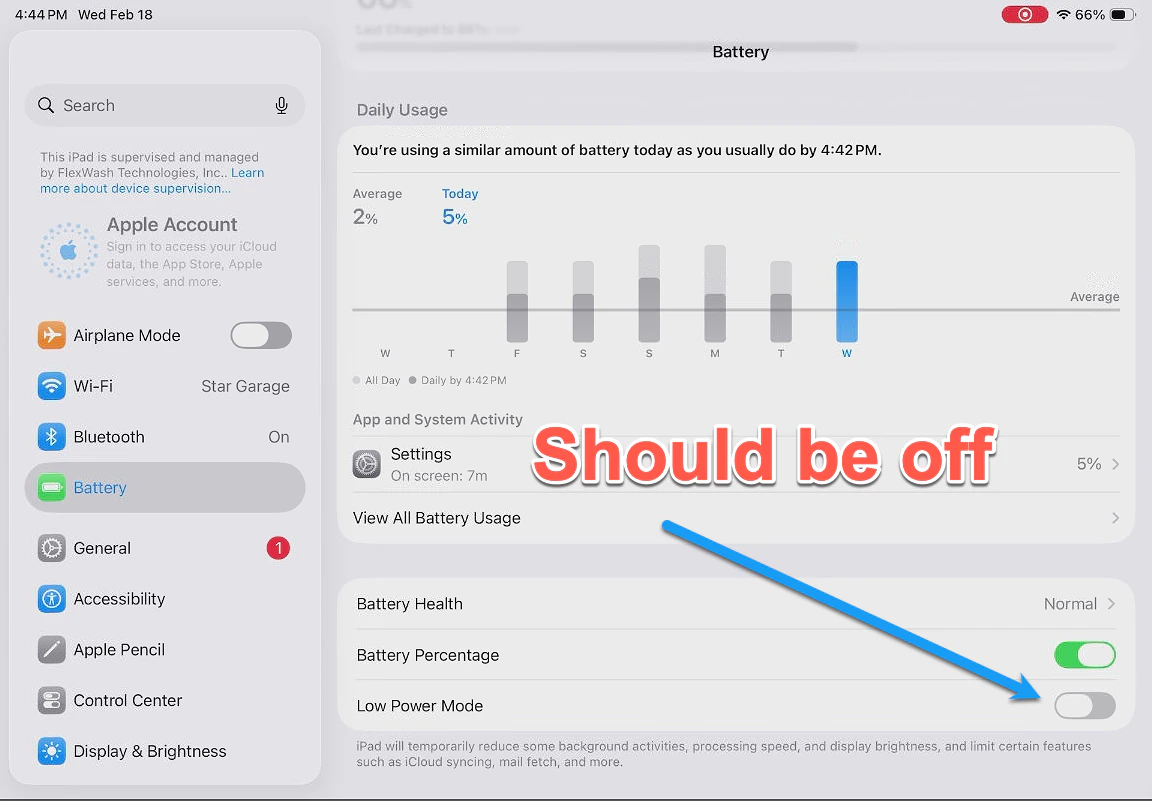
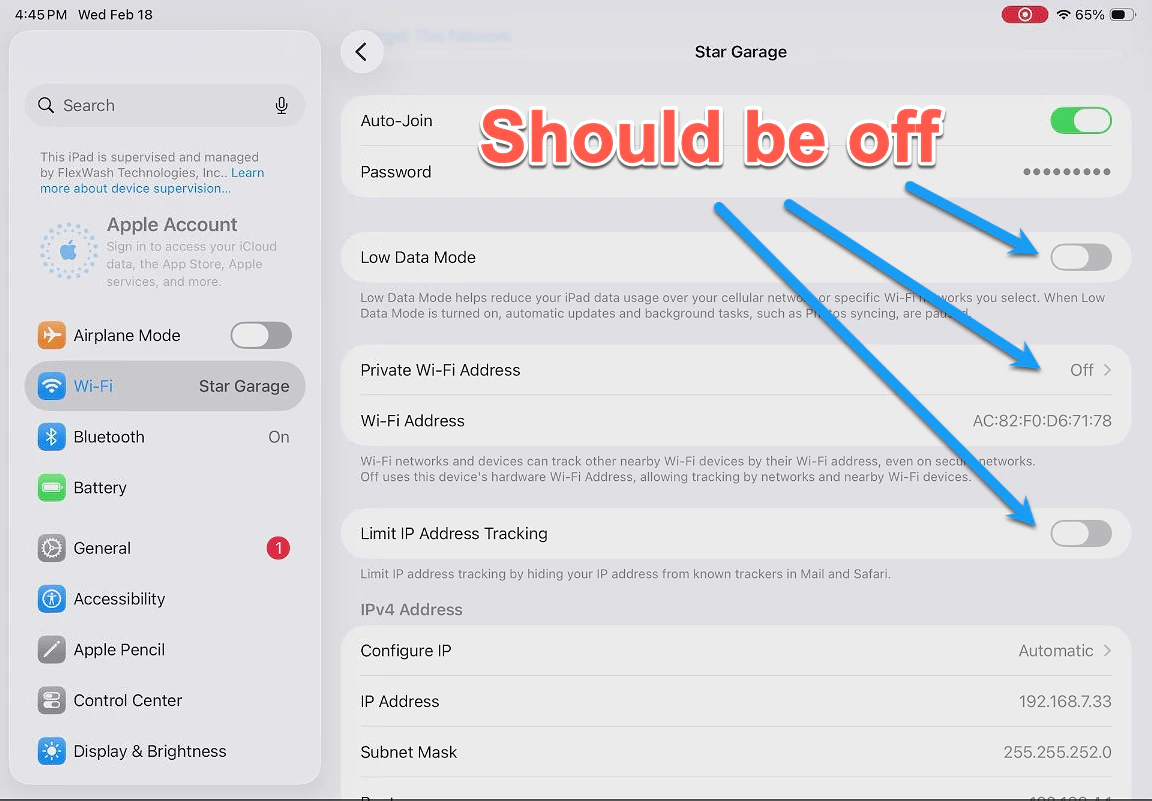
Health Check
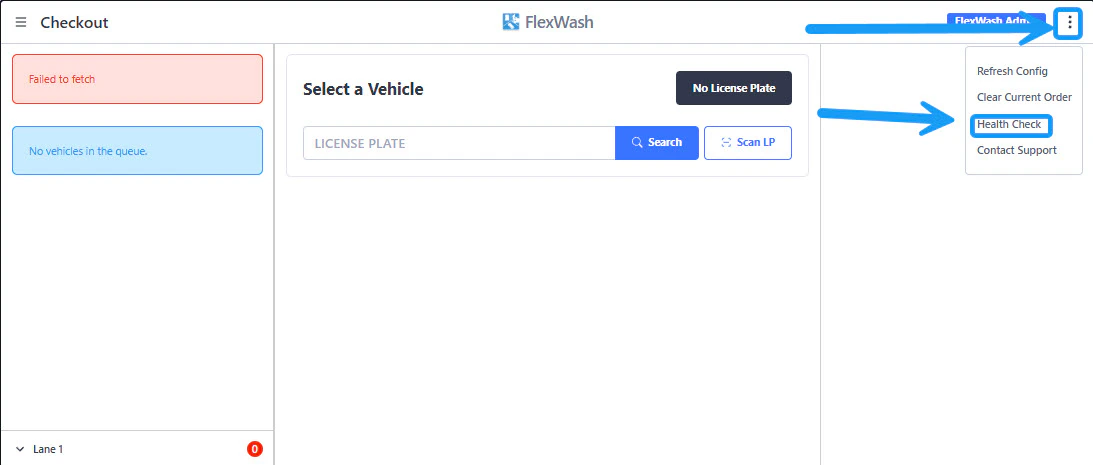
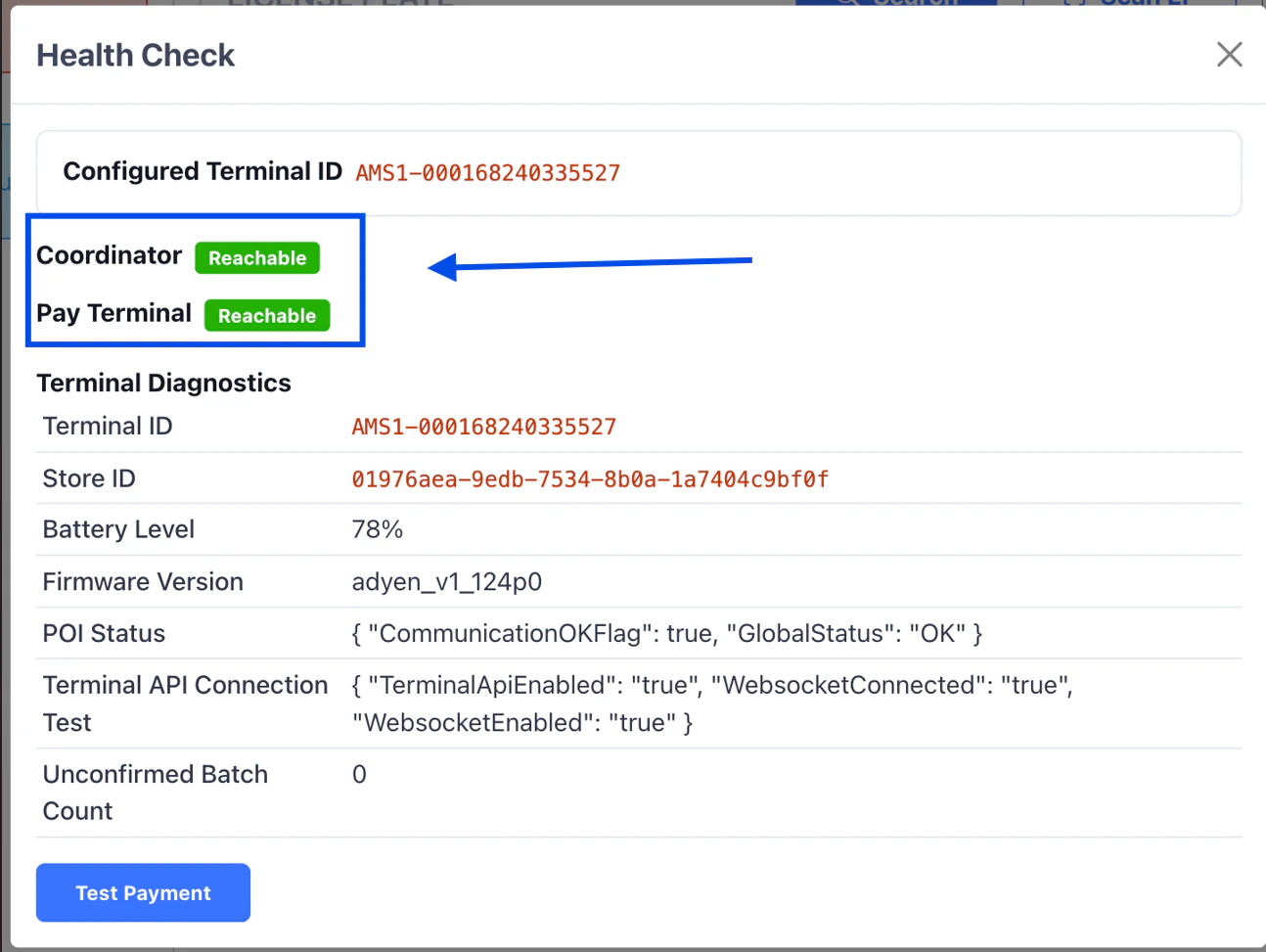
If the devices are communicating as expected, you will get a message like the one in the screenshot below showing “Reachable” for both the Pay Terminal and the Coordinator. If you get a not reachable message for the Pay Terminal continue with the troubleshooting steps below.
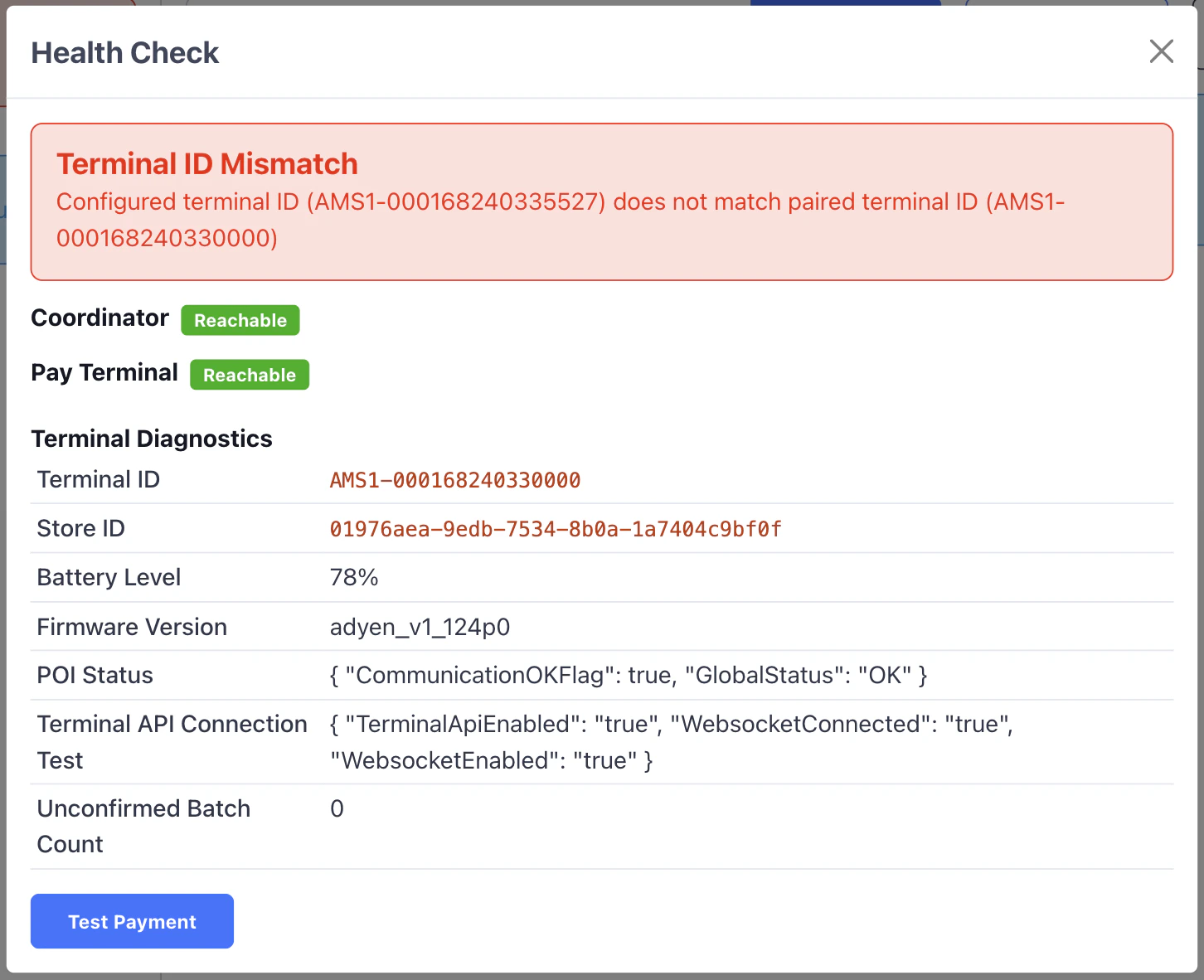
Terminal ID Mismatch
Permissions
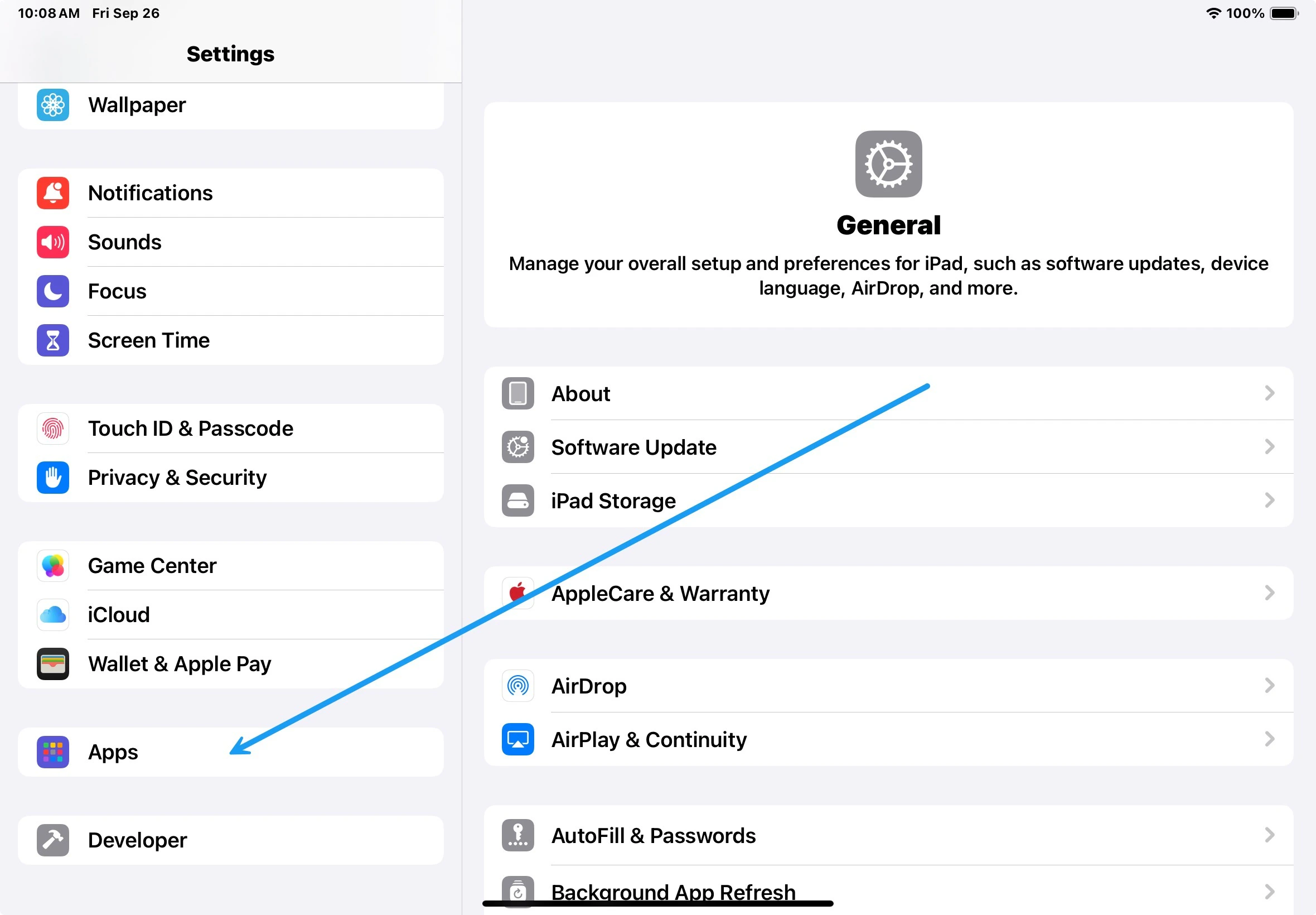
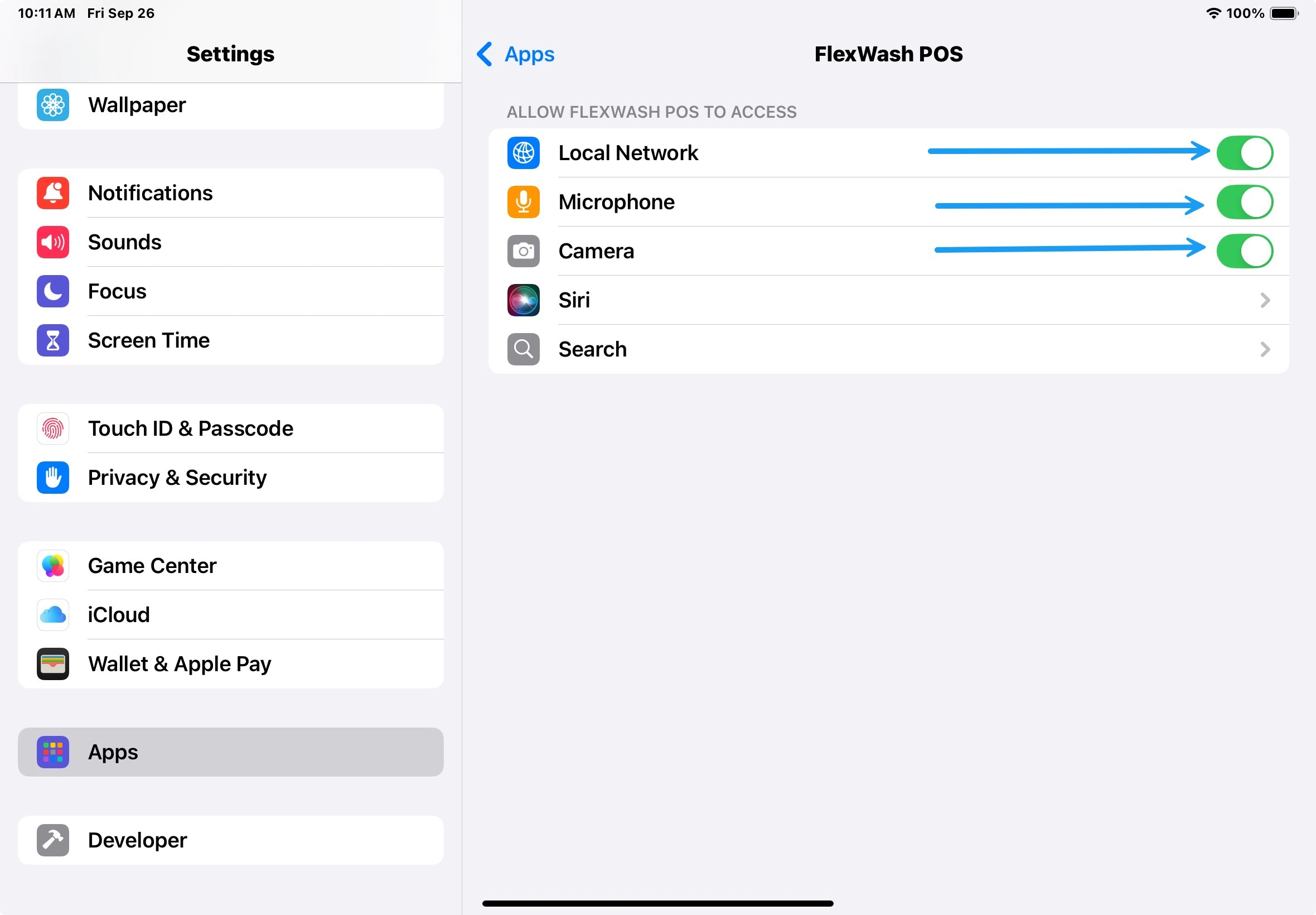
Make sure the FlexWash app has the necessary permissions enabled.- Open the settings and select Apps.
- Find and select the FlexWash POS app.
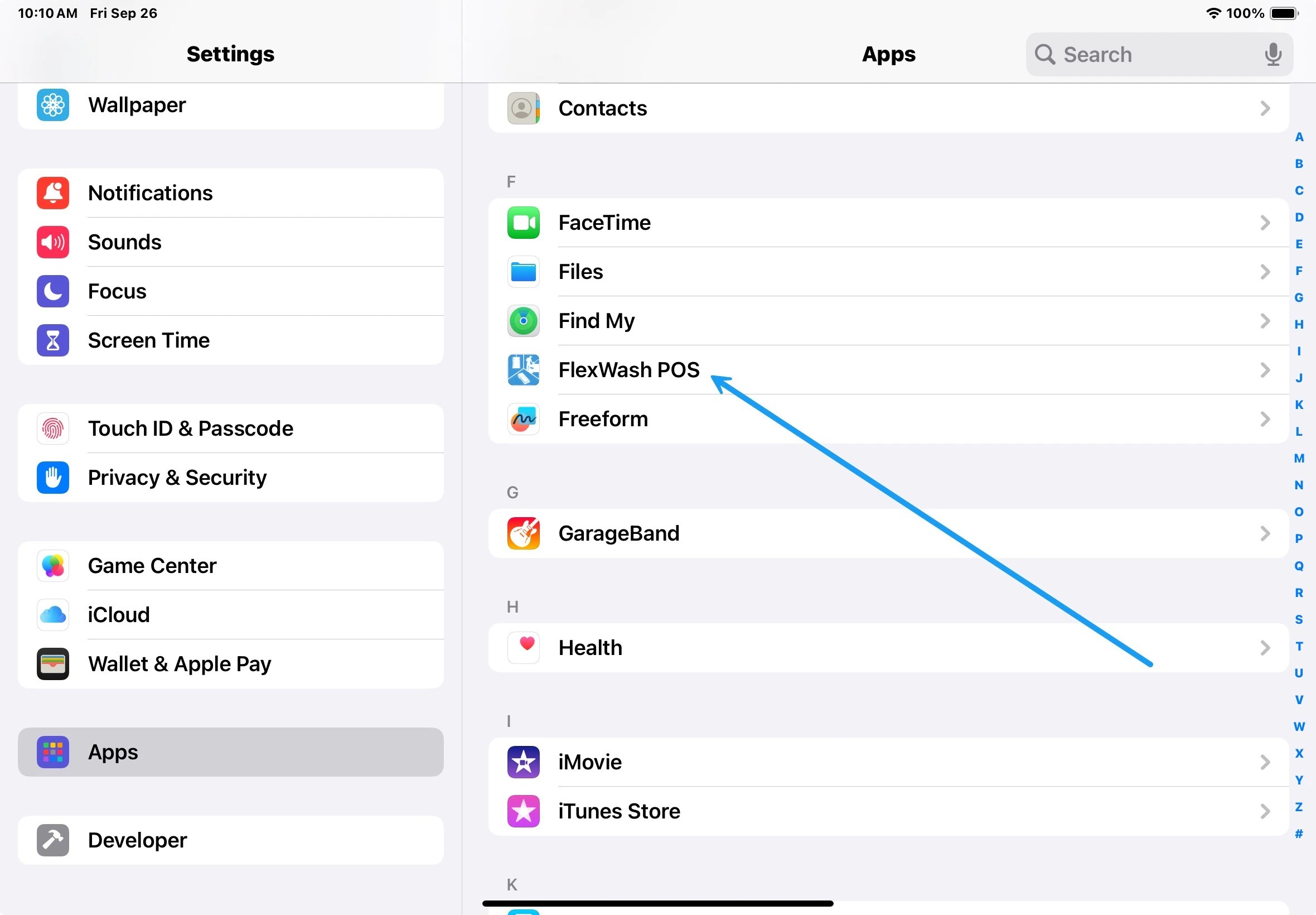
- Make sure all three permissions are enabled (audio, camera, local device communication).
Update the Pay Terminal
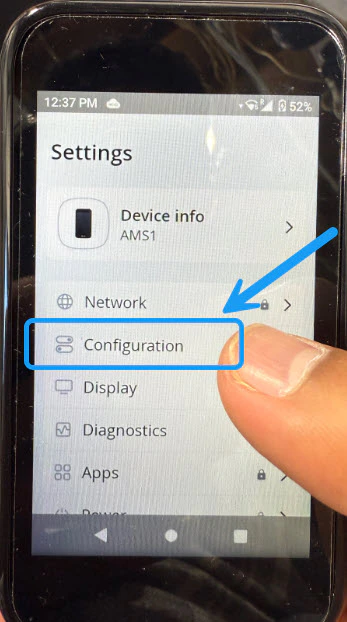
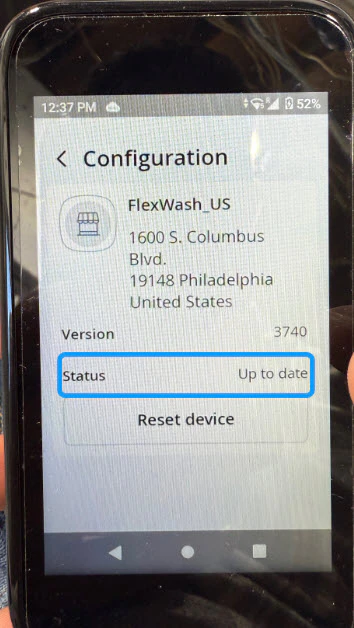
If you are getting an error indicating that a Credit Card is not supported or something similar, verify that the Pay Terminal is updated.Settings
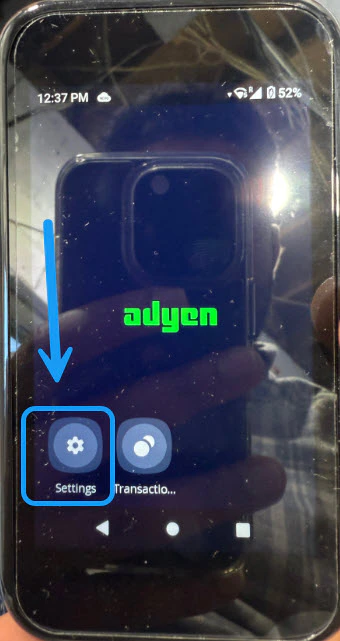
Configuration
Check Status
Removing Pay Terminal from the Pay Tablet’s case
As shown on the video above, the Pay Terminal is a separate device from the Pay Tablet, and it can be detached from the case.
Press down on the lever located on the top of the Pay Terminal’s compartment. You will hear a clicking noise and the device will come right out.
To put the device back in, put it top first and then push on the bottom until it clicks again.
How to insert and remove the Pay Tablet from its case
Removing the iPad from the Case
- Flip the case over and push back the small clip on the top of the case.
- The tablet will slide out.
- To open the inner portion of the case, locate the small clip and push it down while pulling up, which allows the tablet to come out.
- Slide the iPad back into the inner part of the case until it is “pretty snug”.
- Clip the inner case closed on the top, making sure it clips on both sides.
- When putting the unit back into the outer case, first clip the top part and then push on the bottom until you hear a click.