Gift cards are a low-effort way to bring new customers onto your lot and put cash on the books before a single car gets washed. FlexWash sells, scans, and redeems them on every checkout surface, and you can also hand a card to a customer without ringing up an order.Documentation Index
Fetch the complete documentation index at: https://docs.flexwash.com/llms.txt
Use this file to discover all available pages before exploring further.
Sell from a Pay Tablet
Gift cards appear alongside washes in the Pay Tablet menu.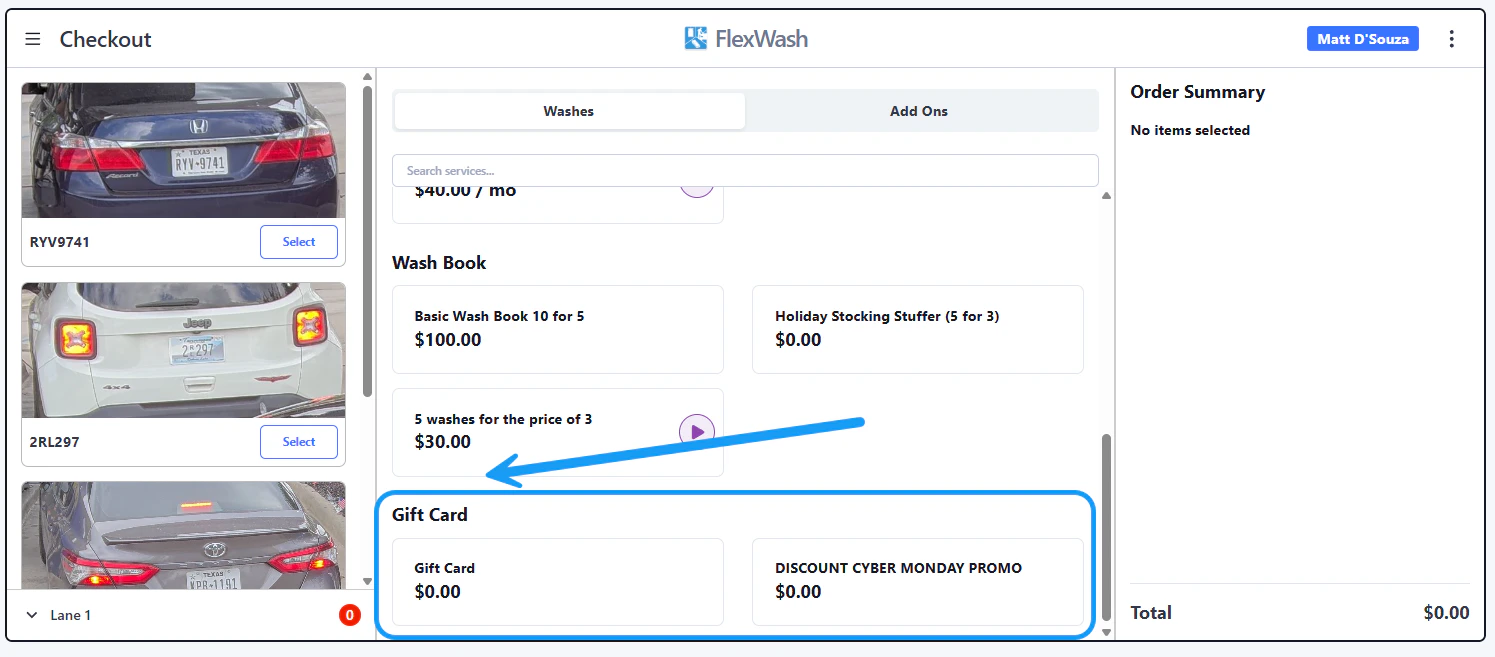
Scan or enter the code
You have two options: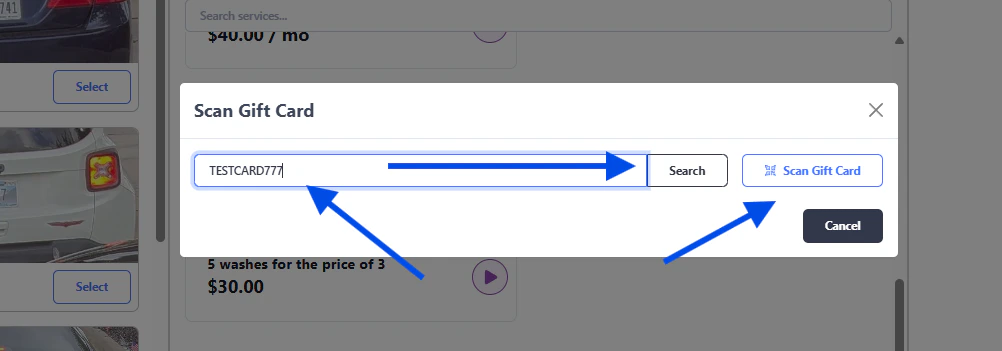
- Scan Gift Card to read the barcode from a physical card.
- Enter Gift Card manually to type the code, then tap Search.
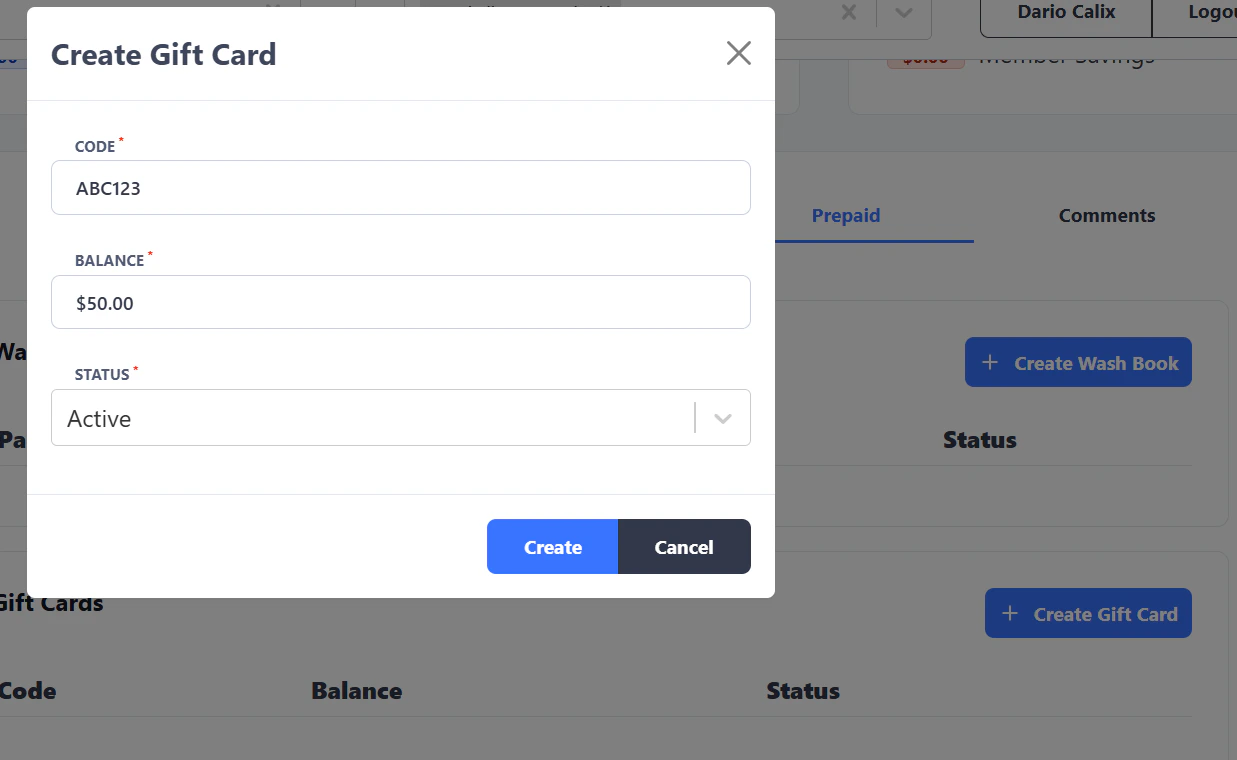
Each gift card code must be unique within your organization. FlexWash rejects any attempt to create or import a card whose code matches an existing one, so you can correct the duplicate before issuing the card.
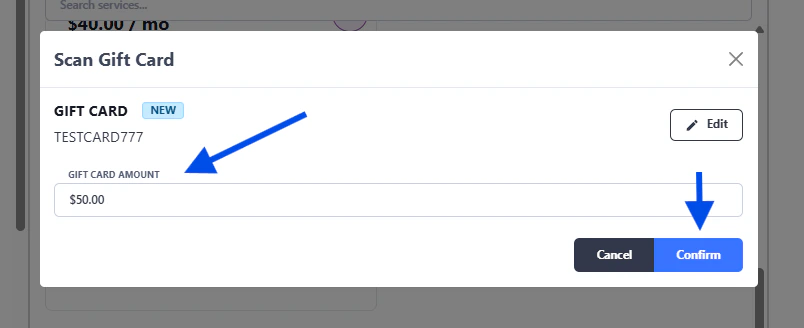
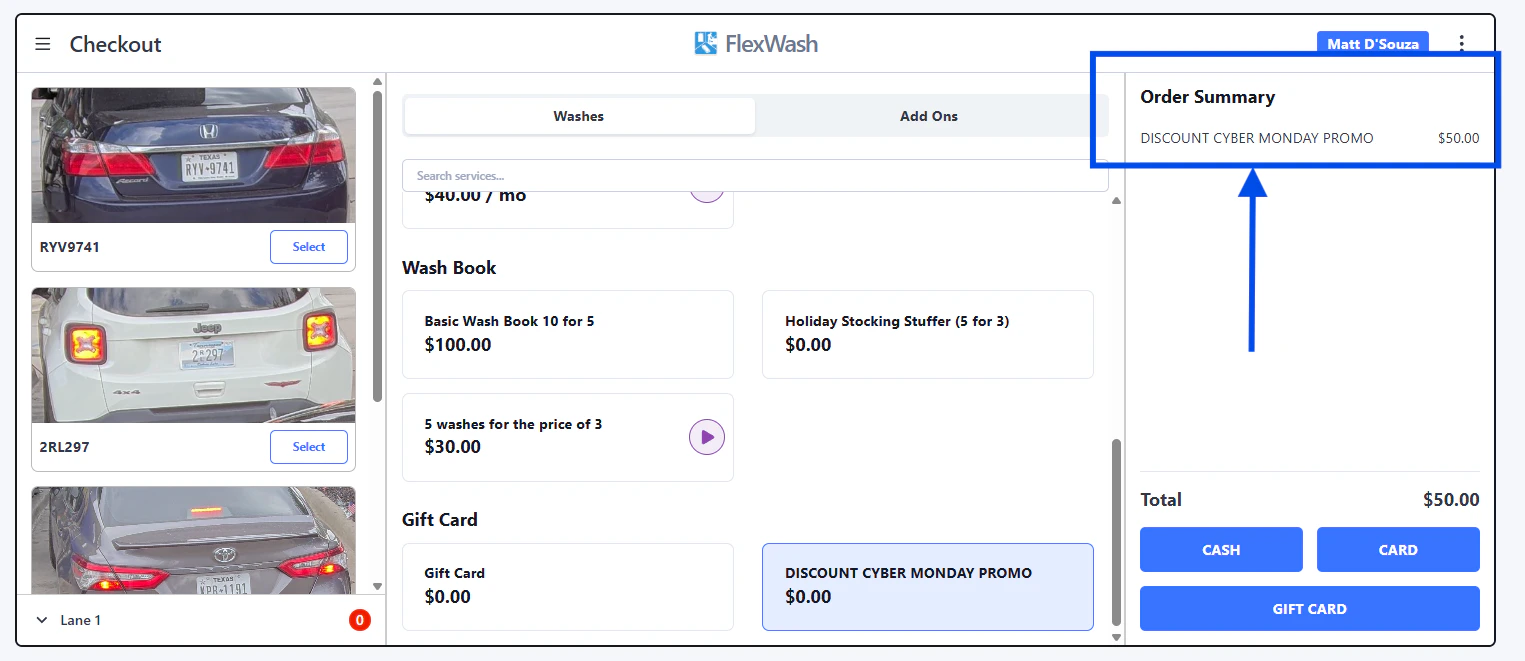
Redeem from a Pay Tablet
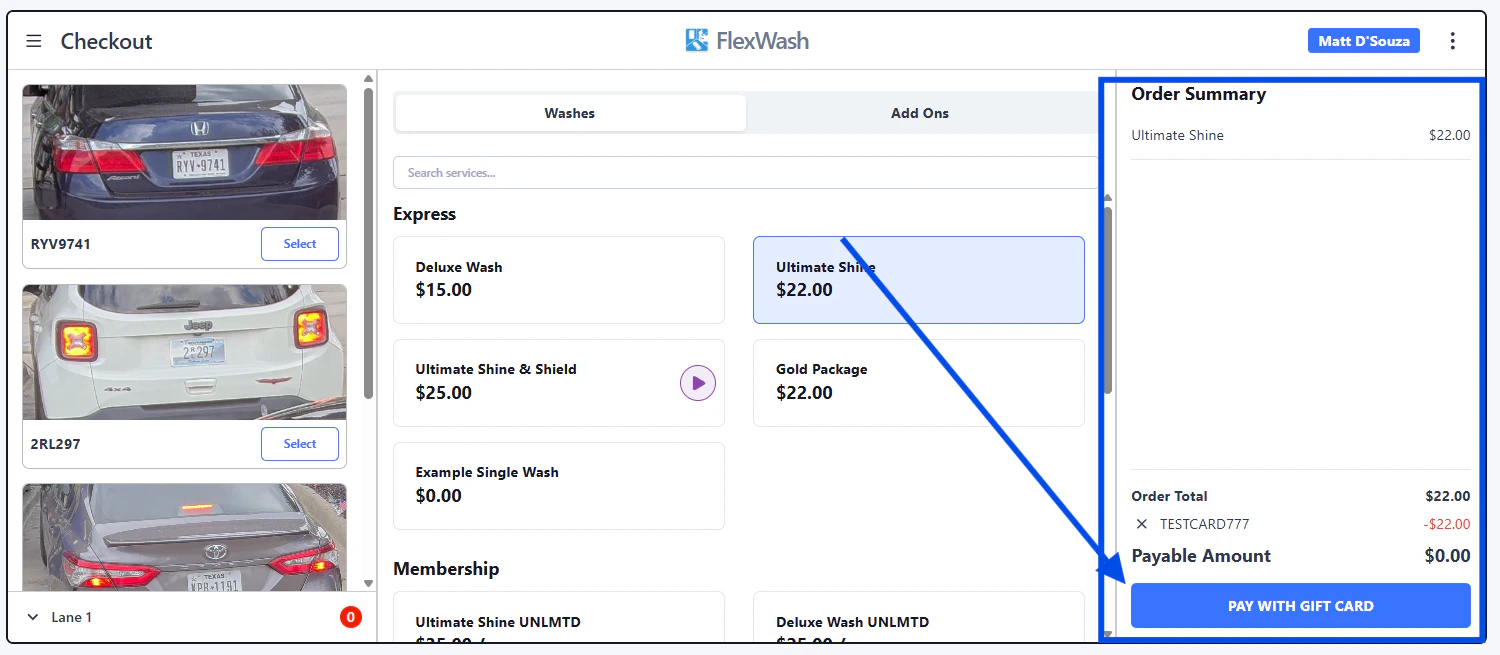
Gift cards work as a tender on any sale.Choose Gift Card as the payment method
After picking a wash package, select Gift Card as the payment method.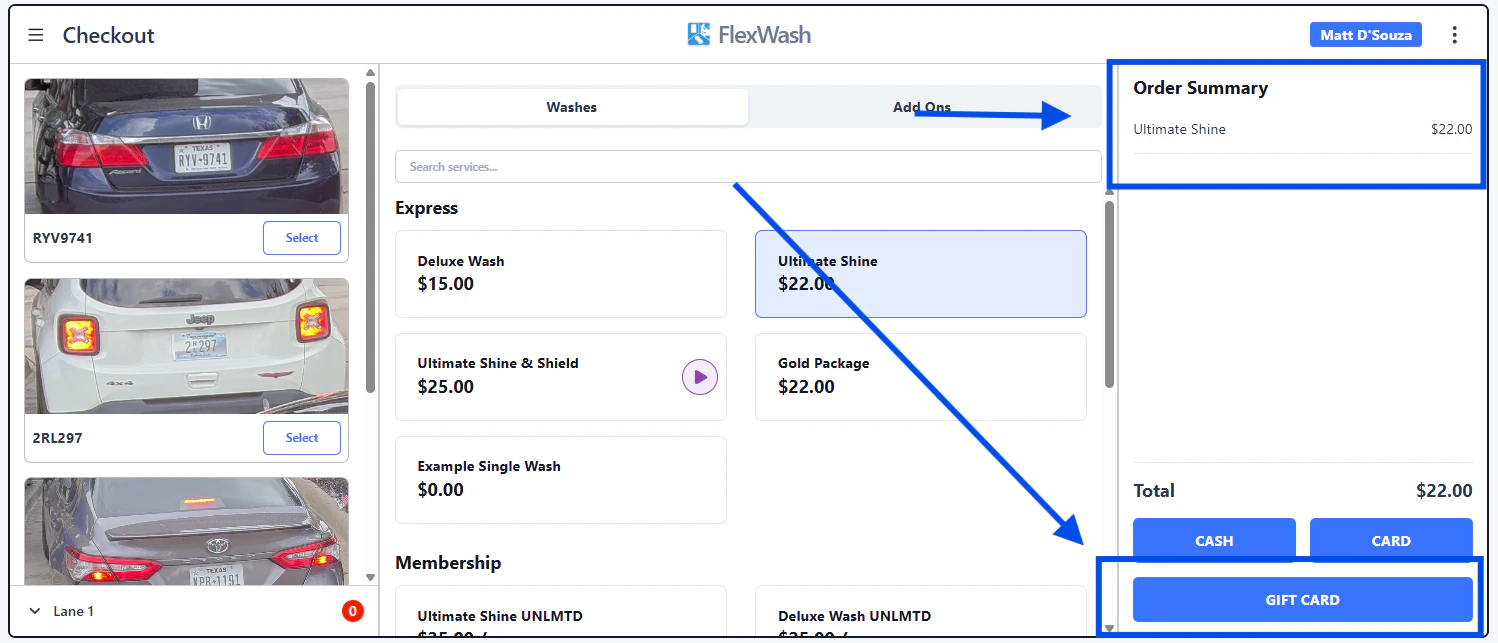
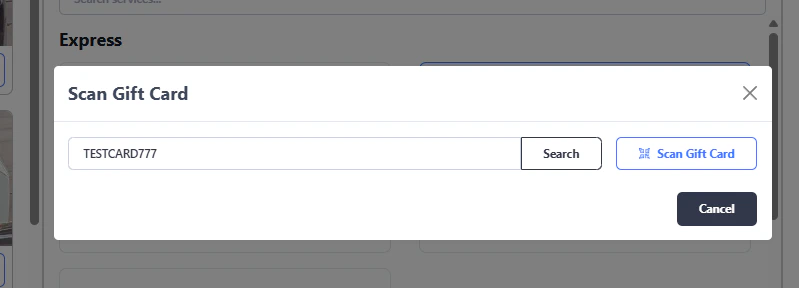
Choose how much to redeem
Tap Autofill to deduct the full payable amount from the card, or enter a smaller amount to split payment with another method. Tap Confirm.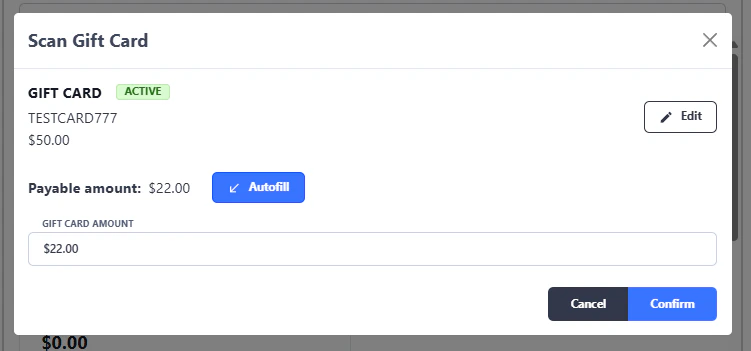
Sell & Redeem from PAX Handhelds
The same gift card flows work on PAX handhelds, so staff can sell and redeem cards anywhere on the lot. The video below walks through both.Add a Gift Card without creating an order
Sometimes you need to hand a customer a gift card without ringing up a sale. Cards issued this way do not affect your revenue reports.Open the customer's Prepaid tab
From the customer’s account, click the Prepaid tab, then click Create Gift Card.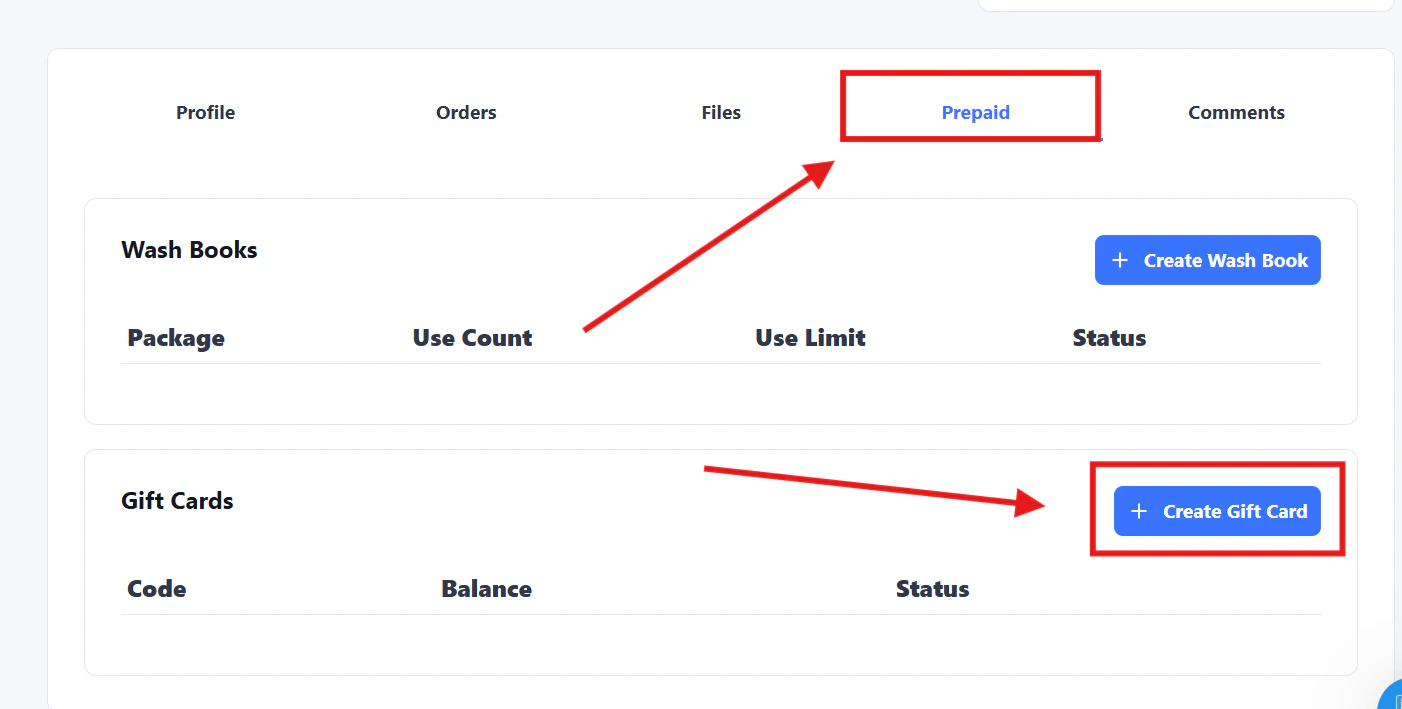
Physical Gift Card Requirements
Physical gift cards must meet a few requirements before they can be sold and redeemed in FlexWash.Supported Barcode Types
FlexWash supports the following barcode formats for physical gift cards:- QR
- Code39
- Code128
- EAN-8
- EAN-13
- ITF (Interleaved 2 of 5)
- UPC-E