
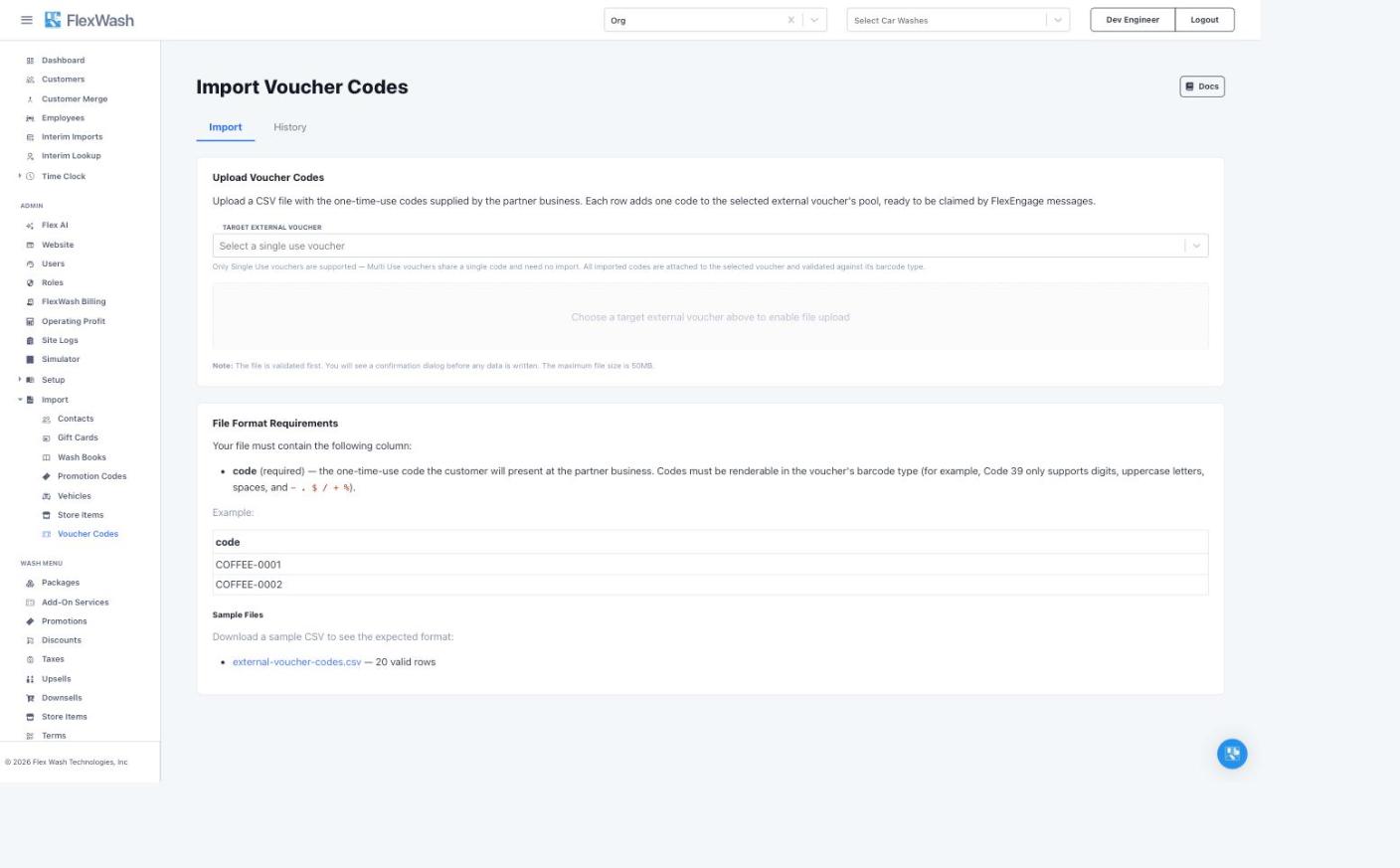
Where to Find It
Open Admin -> Import -> Voucher Codes in the left navigation, or click Import Codes on the External Vouchers page. The page has two tabs: Import for new uploads and History for every prior upload in this organization. You need at least the Admin role.Only Single Use vouchers accept code imports. Multi Use vouchers share
one code across all recipients and need no import.
File Format
Your CSV must contain a single required column:
Every code is validated against the target voucher’s barcode type, so an
unscannable code is rejected before it can ever be sent:
A sample CSV is available on the import page itself.
Running an Import
1
Select the target voucher
Choose the Single Use voucher the codes belong to. The dropdown shows how
many codes each voucher has left.
2
Upload the CSV
Drag and drop the file, or click to select it. The maximum file size is
50MB. FlexWash validates the whole file first; nothing is written yet.
3
Review and confirm
A confirmation dialog shows the number of codes about to be imported and
the target voucher. Type your organization name to enable the import
button.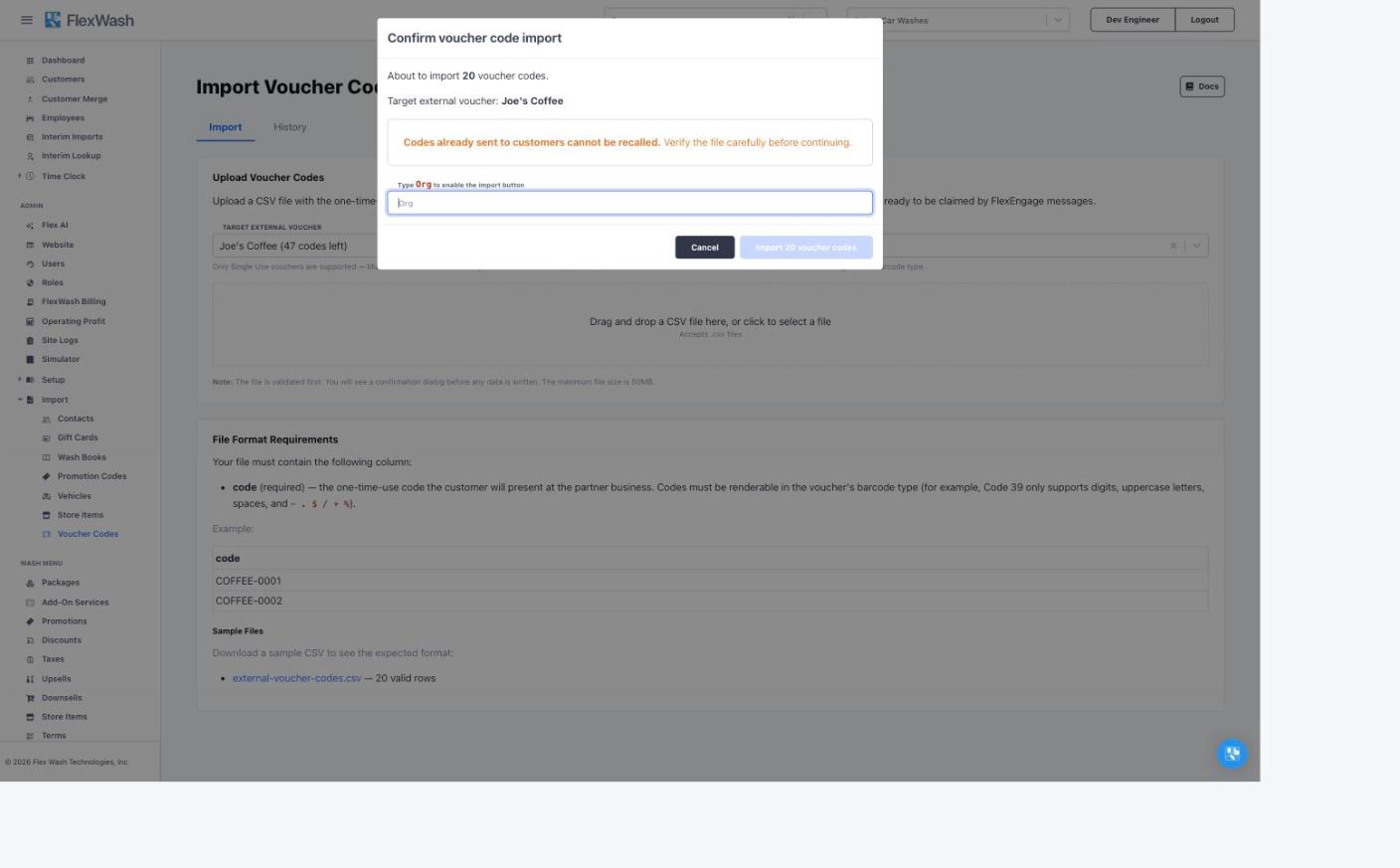
4
Track the import
The import runs in the background with a live progress bar. Large files
process in batches, and the finished import reports how many codes were
newly added and how many already existed.
Validation Rules
The validation pass must come back clean before the import button unlocks:- The header row must contain the
codecolumn. Empty rows are ignored. - Every code must be renderable in the voucher’s barcode type (see the charset table above). Invalid codes are listed row by row.
- The same code may not appear on multiple rows of one file. In-file duplicates block the import until you remove them.
History and Rollback
The History tab lists every voucher code upload with a link to download the original file, and lets you roll back an upload. A rollback deletes the codes that upload added, with one exception: a code already sent to a customer is kept, because deleting it would break the voucher page that customer received. The rollback report shows exactly how many codes were deleted and how many were kept.Verify the Import
After the import completes, open FlexEngage -> External Vouchers and check the voucher’s Total Codes and Remaining columns against your CSV row count. The import summary also breaks the upload down into newly imported codes and codes that already existed, so the numbers should reconcile exactly.The channel form’s Test Send button sends your message text as-is, so
{{voucherUrl}} is not replaced and no code is consumed. To see the
customer-facing voucher page end to end, run a real Scheduled Blast filtered
to a test customer.