Self-serve and fast
Upload a CSV and import in minutes. No onboarding ticket required.
Consent built in
Capture SMS and email consent per contact, with a signed attestation on
every import.
Campaign ready
Every contact lands in the CRM List you choose, ready for marketing.
Before You Start
Contact Import is available to Admin users. You will find it in the
FlexWash app under Import then Contacts.
- The file must be a
.csvfile. - The maximum file size is 50MB.
- Every row needs at least a phone number or an email address.
Prepare Your File
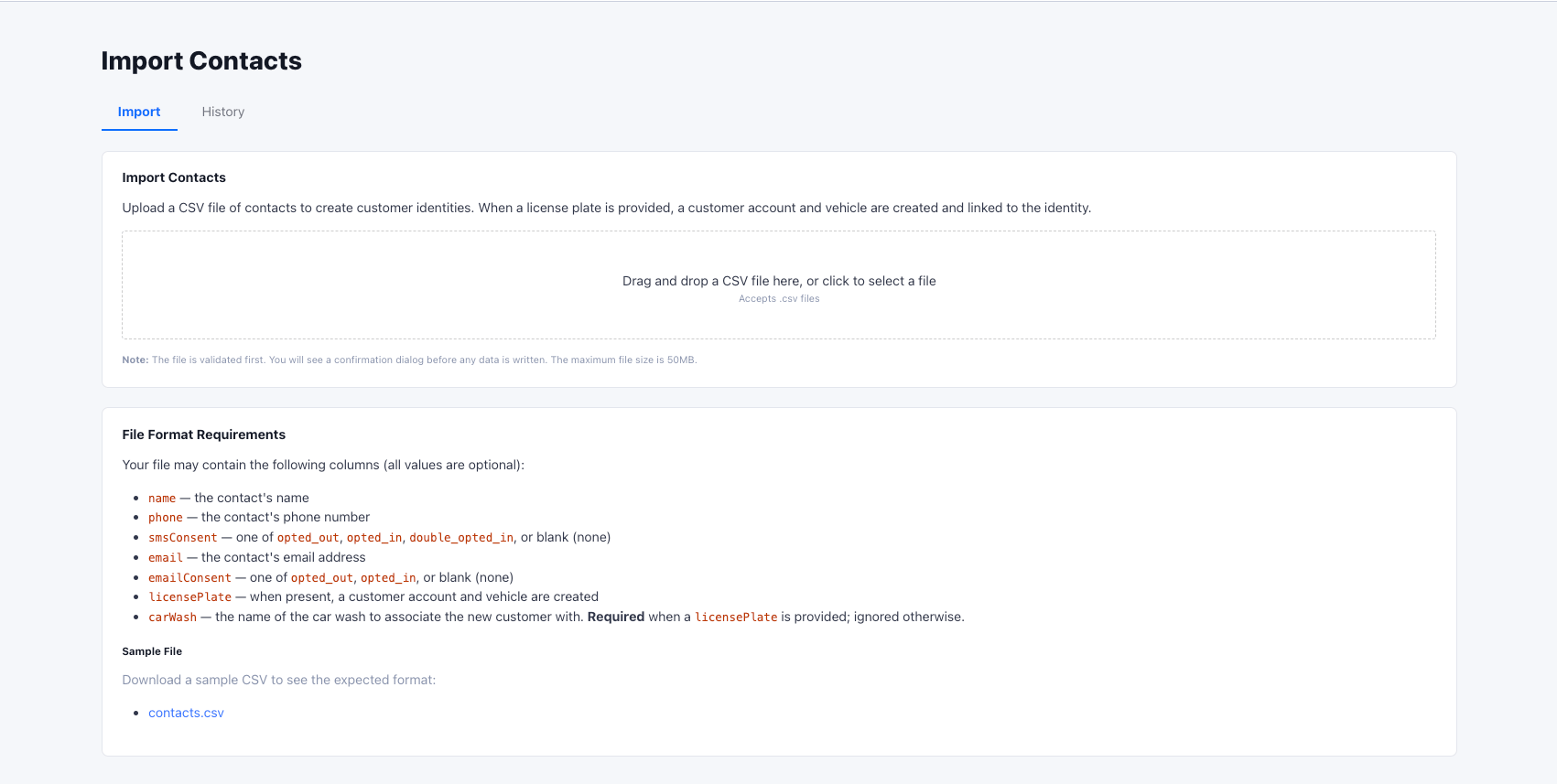
Your CSV may contain the columns below. Every value is optional on its own, but the row-level rules that follow still apply. The Contacts import page includes a downloadable sample CSV so you can see the exact format.Row Rules
FlexWash checks each row against a small set of rules so your data lands clean:- Reachable contact. Each row must have a
phone, anemail, or both. - Consent needs its channel. Set
smsConsentonly when the row has aphone. SetemailConsentonly when the row has anemail. - Plates need a car wash. When a row has a
licensePlate, it must also have acarWash, and that name must match a car wash in your organization. The match is case-insensitive.
double_opted_in applies to SMS only. The emailConsent column accepts
opted_out, opted_in, or blank.How It Works
1
Upload your CSV
Drag and drop your file onto the Contacts import page, or click to select
it. FlexWash validates the file before writing any data.
2
Review the preview
FlexWash shows how many contacts it found, how many carry a license plate,
and a full breakdown of SMS and email consent. Any problem rows are listed
with the row number and the reason.
3
Choose a CRM List
Pick the CRM List that every imported contact will be added to. This is
where your new contacts live and where your campaigns draw from.
4
Certify and sign
Confirm that you have verifiable proof of opt-in and double-opt-in consent
for the relevant contacts, then sign to attest. The import button stays
disabled until a CRM List, both certifications, and a signature are
provided.
5
Import
The import runs in the background. When it finishes, you receive a summary
of everything that was created.
Validation Catches Problems First
Nothing is written to your database until you confirm the import, and a file with any errors cannot be imported at all. FlexWash reports each problem row with its row number, the contact’s name, and a clear message, such as:phone or email is requiredphone is required when smsConsent is setcarWash is required when a licensePlate is providedCar wash "..." not found in this organization
Duplicate Handling
FlexWash protects your existing data by skipping contacts you already have:- Existing phone or email. If a row’s phone or email already exists in your organization, that row is skipped and no identity is created.
- Existing license plate. If a plated row’s license plate already exists, the contact identity is still created, but a duplicate vehicle is not.
Compliance and Audit Trail
Marketing to imported contacts carries consent obligations, so FlexWash records the proof alongside the data:- You certify verifiable proof of opt-in and double-opt-in before importing.
- Your signature is captured and saved with the import.
- The consent breakdown is preserved in the import summary.
Upload History
The History tab lists every contact import for your organization, showing the file name, rows processed, who uploaded it, and when. From there you can:- Open the Details view to see the import summary, the captured signature, and the consent attestation.
- Download the original CSV file.