
When Not to Use This Importer
Pick a different tool if any of these match your situation.Where to Find It
Open Admin -> Import -> Vehicles in the left navigation. You need at least the Admin role.Customer Grouping
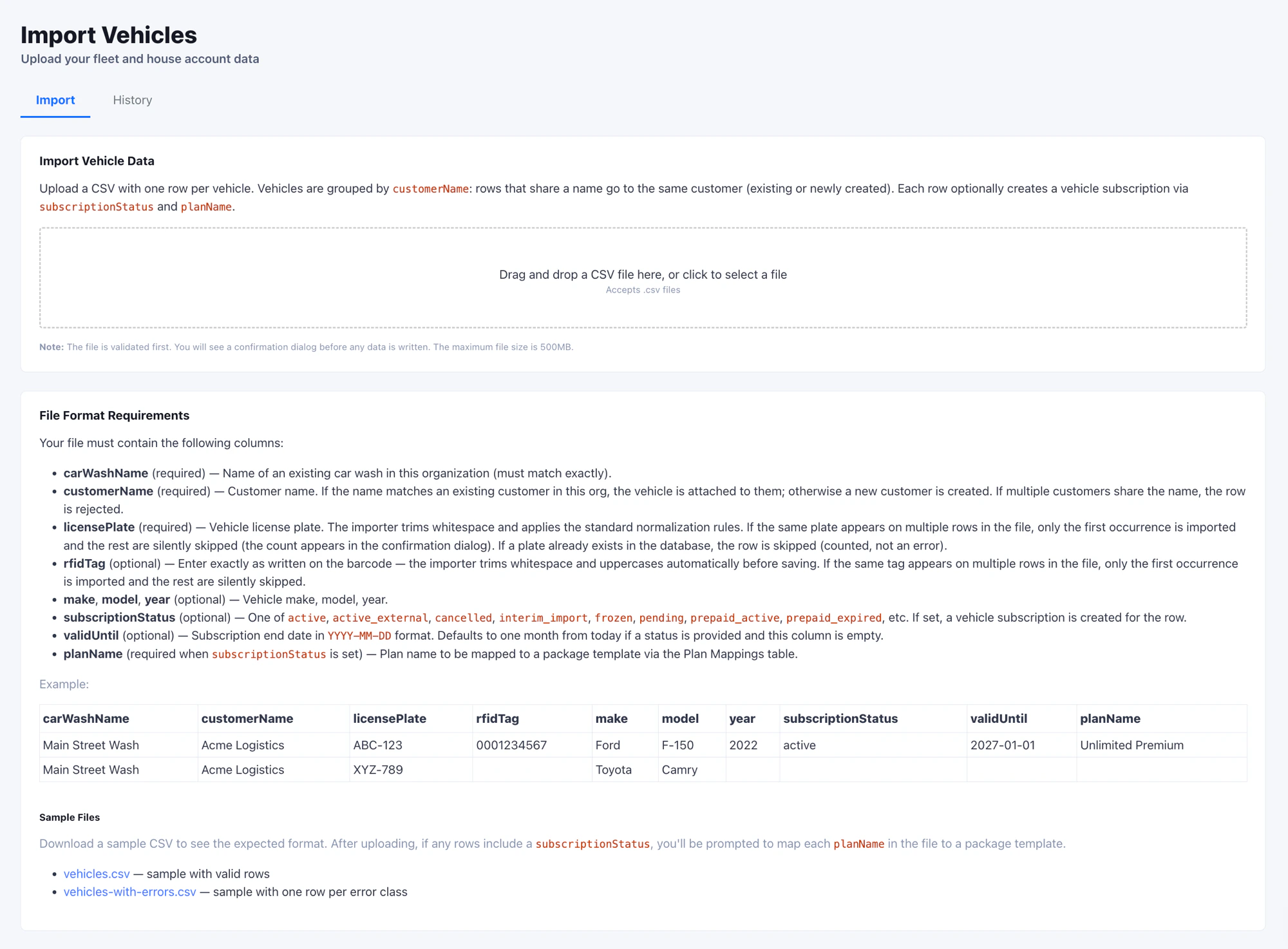
This is the rule that catches operators off guard most often. Rows that share the samecustomerName (case-insensitive) are grouped
to the same customer. FlexWash decides who that customer is per
group:
If the rejection happens, the validator returns a per-row error
(“Multiple customers named X exist in this organization”). Either merge
the duplicate customers in FlexWash first, or split the group into
distinct names.
License Plate Normalization
Plates are normalized before write and before duplicate checks, in this order:- Trim leading and trailing whitespace.
- If the value ends with
-immediately followed by two word characters (letters, digits, or underscore), strip those three trailing characters.ABC123-WAbecomesABC123(state code dropped). A space breaks the match:ABC 123 - WAbecomesABC123-WAafter step 5. - Uppercase all letters.
- Replace letter
Owith digit0.ABO123becomesAB0123- verify your fleet records do not rely on a literalO. - Remove all remaining whitespace.
Verify the Import
The customer-grouping and plate-normalization rules produce most real-world surprises, so run an end-to-end test before committing to a full file:- Upload a 5 to 10 row test CSV.
- Open Customers in the admin app and locate one of the imported customers.
- On the customer’s profile, confirm the vehicle, normalized license plate, and (if set) the attached membership and subscription match the CSV row.
Tips
- Verify
customerNamecasing and spacing in your source data before upload. Two rows that look identical to a human but differ by a trailing space create two separate customers. - Open the CSV in a plain-text editor before uploading to confirm Excel has not stripped leading zeros from RFID tags or rewritten long numeric codes in scientific notation.
- For mixed batches (some rows with subscriptions, some without),
leave
subscriptionStatusandplanNameblank on the vehicles-only rows. The same file can carry both shapes. - The Fleet and House toggles are global to the import. If you need some customers flagged and others not, run two imports.