
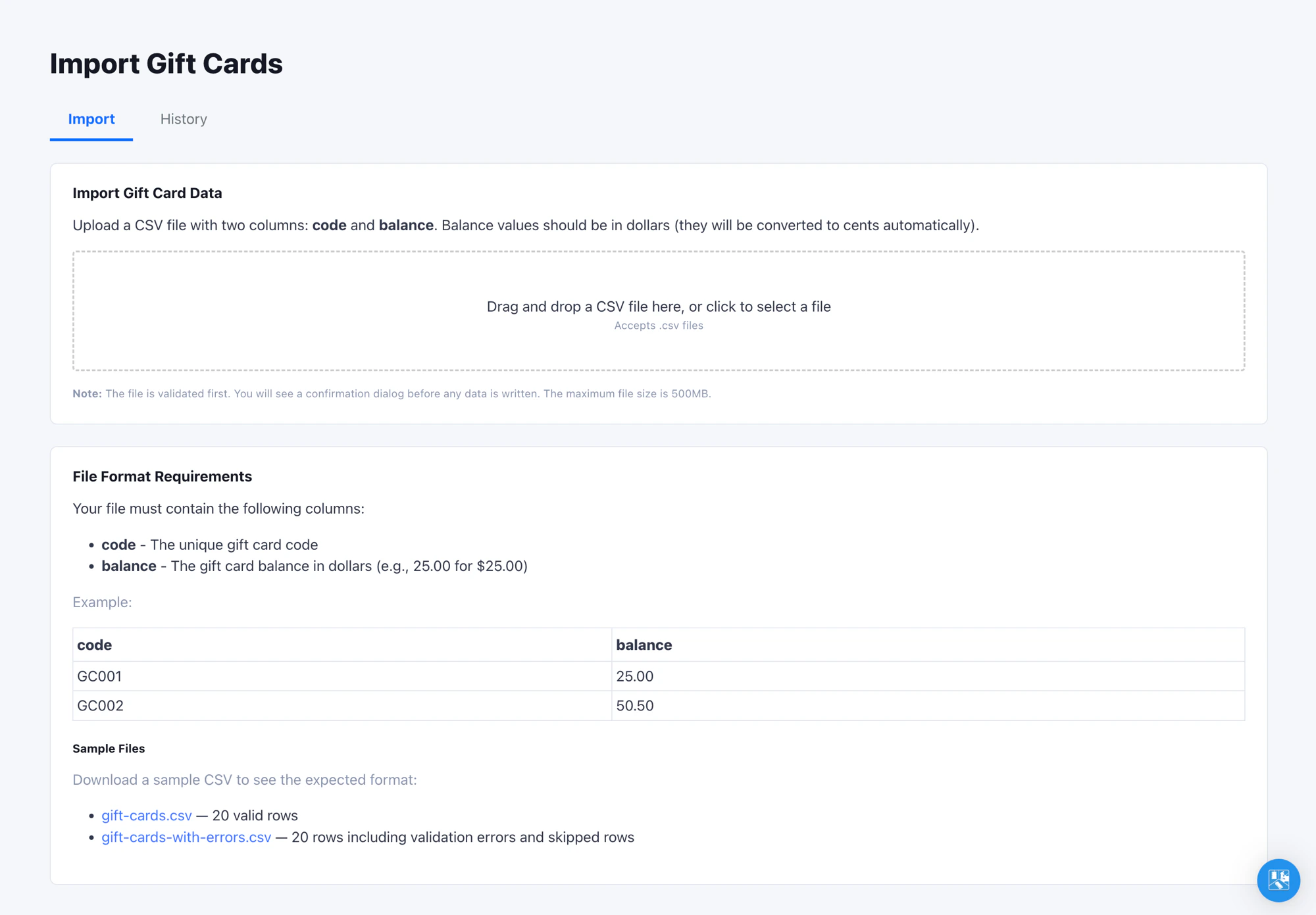
Where to Find It
Open Admin -> Import -> Gift Cards in the left navigation. The page has two tabs: Import for new uploads, History for every prior upload in this organization. You need at least the Admin role to access this page.FlexWash gift cards do not support expiration. Once active, a card
holds its balance until it is fully redeemed or manually deactivated.
Where Imported Cards Show Up
Imported gift cards land in the organization’s gift card pool but are not attached to a customer. To find them, open Reports -> Liabilities and switch to the Gift Cards tab. Cards are searchable by code or by the cardholder’s last four (the latter is empty for imported cards).Re-Importing and Updating Balances
Re-import the same file as many times as you need. Gift cards are matched by code, and the latest upload wins: a code already in your organization has its balance overwritten, while new codes are added. Re-running never creates duplicate cards. This makes it safe to fix a bad balance column or refresh balances that changed in your legacy system since the first import. Correct the CSV and upload it again.Verify the Import
Run an end-to-end test before committing to a full file:- Upload a 5 to 10 row test CSV.
- On the pay tablet, start a sale for any package and select Gift Card as the tender. See Redeem from a pay tablet for the full flow.
- Enter one of the imported codes and confirm the balance matches the CSV.
Tips
- Always open the CSV in a plain-text editor before uploading to verify Excel has not stripped leading zeros from your card codes or rewritten long codes in scientific notation.
- The combined balance shown in the confirm dialog is the cleanest sanity check available before you commit. If it looks off by an order of magnitude, you almost certainly have a decimal-point issue in the CSV.