Tags are colored labels you attach to customer profiles. They turn one-off observations (“Lakers fan”, “abuses membership washes”, “frequent visitor”) into structured data you can search, filter, and segment on across the platform. You can apply tags by hand, or let promotions, surveys, and sign-up portals stamp them onto customers automatically. The result is a CRM that enriches itself in the background, with no extra effort from your staff.Documentation Index
Fetch the complete documentation index at: https://docs.flexwash.com/llms.txt
Use this file to discover all available pages before exploring further.
Why use tags?
Personalize service
Recognize loyal customers, regulars, or VIPs the moment the lane reads their license plate, and tailor the interaction.
Segment for marketing
Build Flex Engage audiences off the same tags that drive your reports, so your messaging lines up with the customers it targets.
Automate enrichment
Promotions, surveys, and sign-up portals can stamp tags onto customers automatically. No staff time required.
Filter every report
Customer Analytics, Membership LTV, and customer search all accept tag filters, so you can slice your data by any cohort you define.
Where tags appear
Customer profile
The Tags field on a customer’s profile shows every tag attached to that customer.
Pay tablet
The Tags tab on the customer card lets staff add or remove tags during a wash.
Customer search
Filter the customer list to any combination of tags.
Customer Analytics report
Filter the report by tag, then export the matching customers as a Flex Engage CRM list.
Membership LTV report
Slice membership lifetime value by customer tag.
Flex Engage segments
Use a tag as a filter leaf inside the segment builder to drive automated messaging.
Promotions
Pick an Auto Tag that fires on every redemption, or attach tags to a promotion’s question answers so the choices customers make during sign-up flow onto their profile.
Surveys
Each survey answer carries a tag. Picking that answer applies its tag to the customer.
How customers get tagged
Seven distinct paths result in a tag landing on a customer profile.1. Manually from the CRM
Open a customer’s profile and edit the Tags field directly.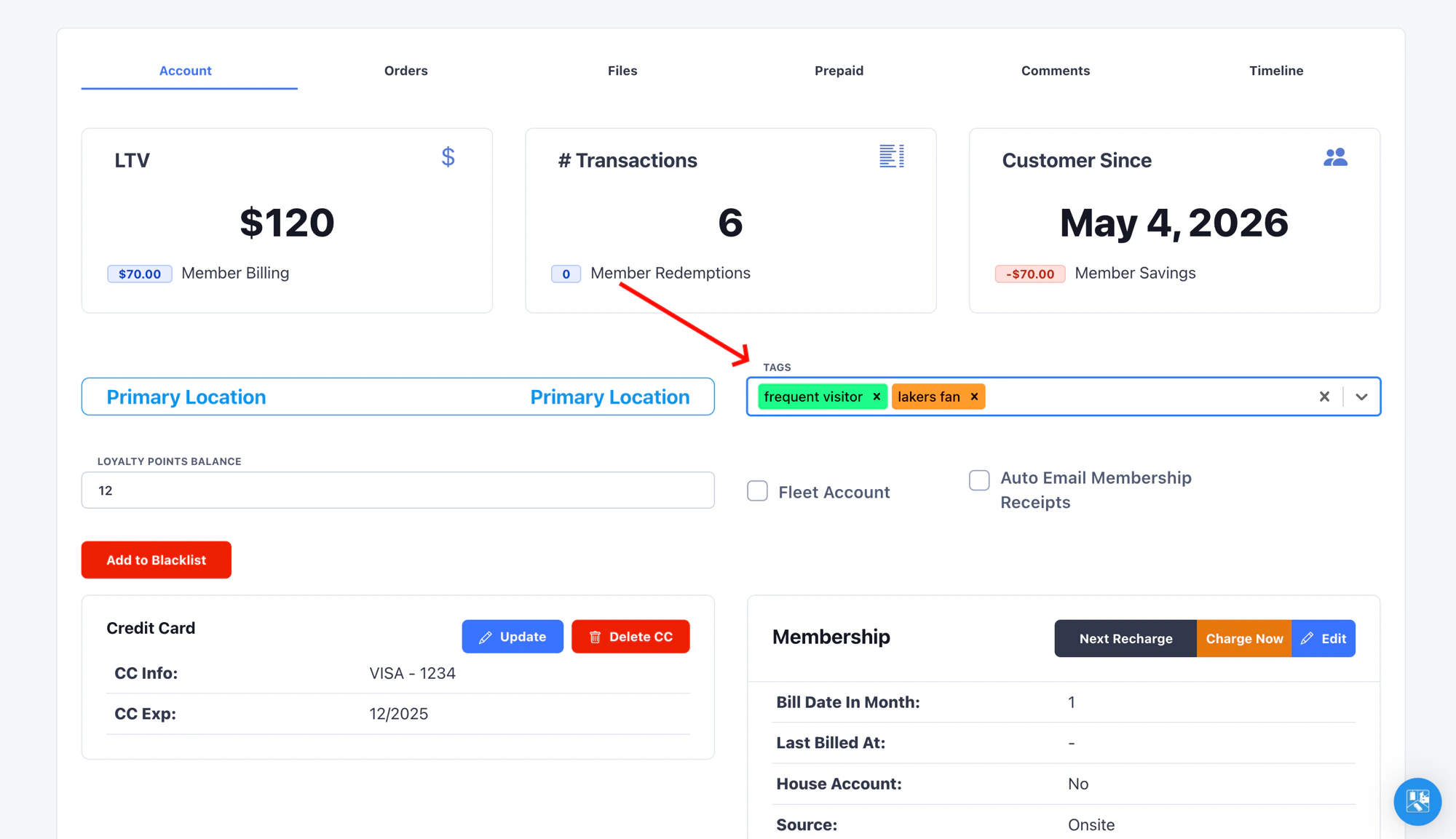
2. Manually from the Pay Tablet
Staff at the lane open a customer card, switch to the Tags tab, and add or remove tags while the customer is in front of them. FlexWash attributes the change to the signed-in employee.3. When a promotion is redeemed
Set an Auto Tag on a promotion. Whenever a customer redeems that promotion at the lane, FlexWash adds the tag to their profile automatically.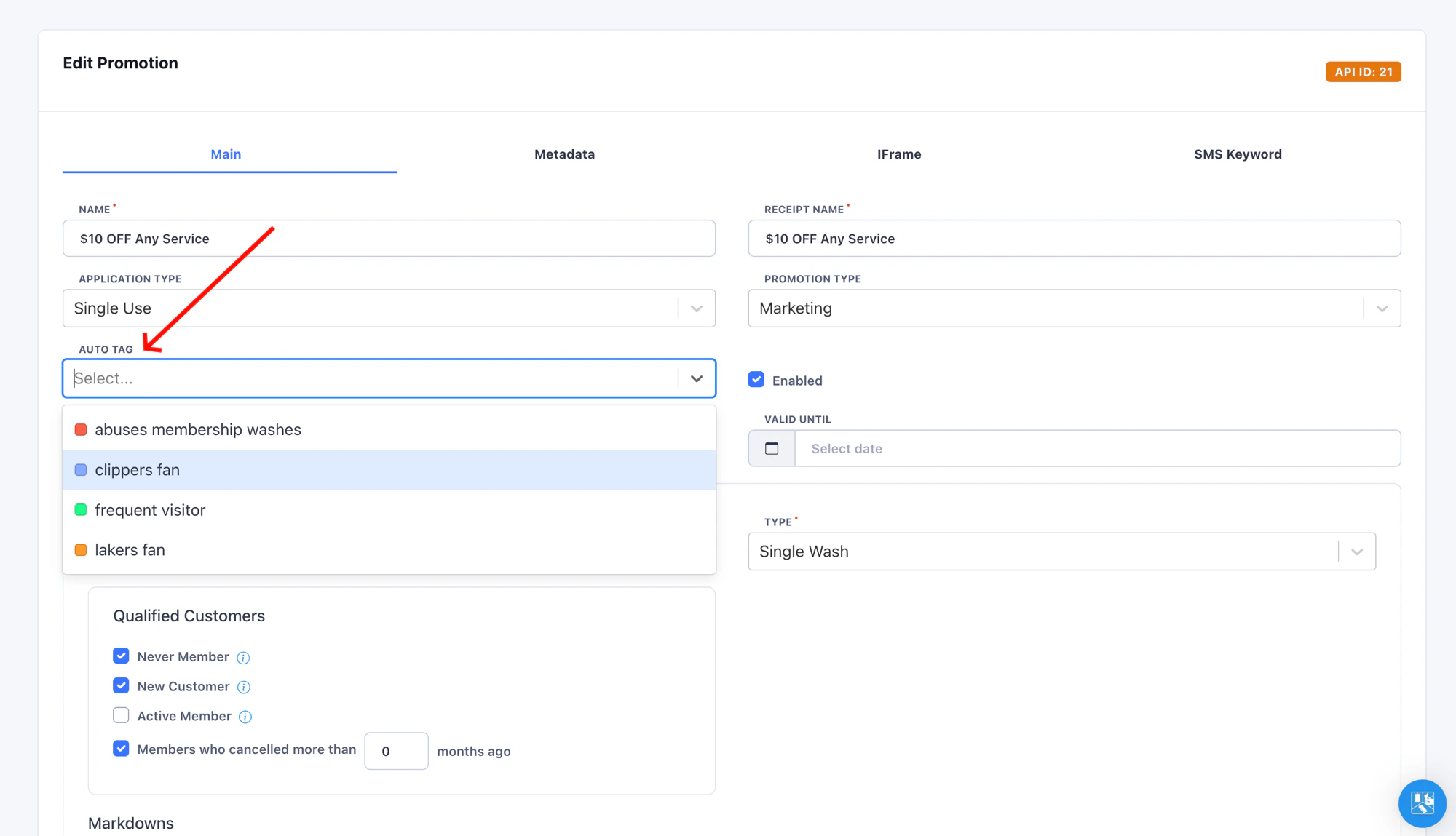
4. When a wash code is redeemed
Wash codes generated from a promotion inherit the promotion’s auto tag at generation time. When the customer presents the code at the lane, FlexWash stamps the tag onto their profile.5. When a survey answer is selected
Every answer on a survey has a tag attached. When a customer picks an answer at the lane, FlexWash applies its tag to their record as the order is recorded.6. When a customer signs up through the membership sign-up portal
Pre-bake a tag into the sign-up portal’s iframe URL using the Auto Tag field on the website admin page. FlexWash tags every member who signs up through that link.7. When a customer redeems through the promotion sign-up portal
Add questions to a promotion’s IFrame tab and attach a tag to each answer. As a customer redeems the promotion through the public sign-up portal and picks answers, FlexWash records the corresponding tags on the redemption and applies them when the wash is processed.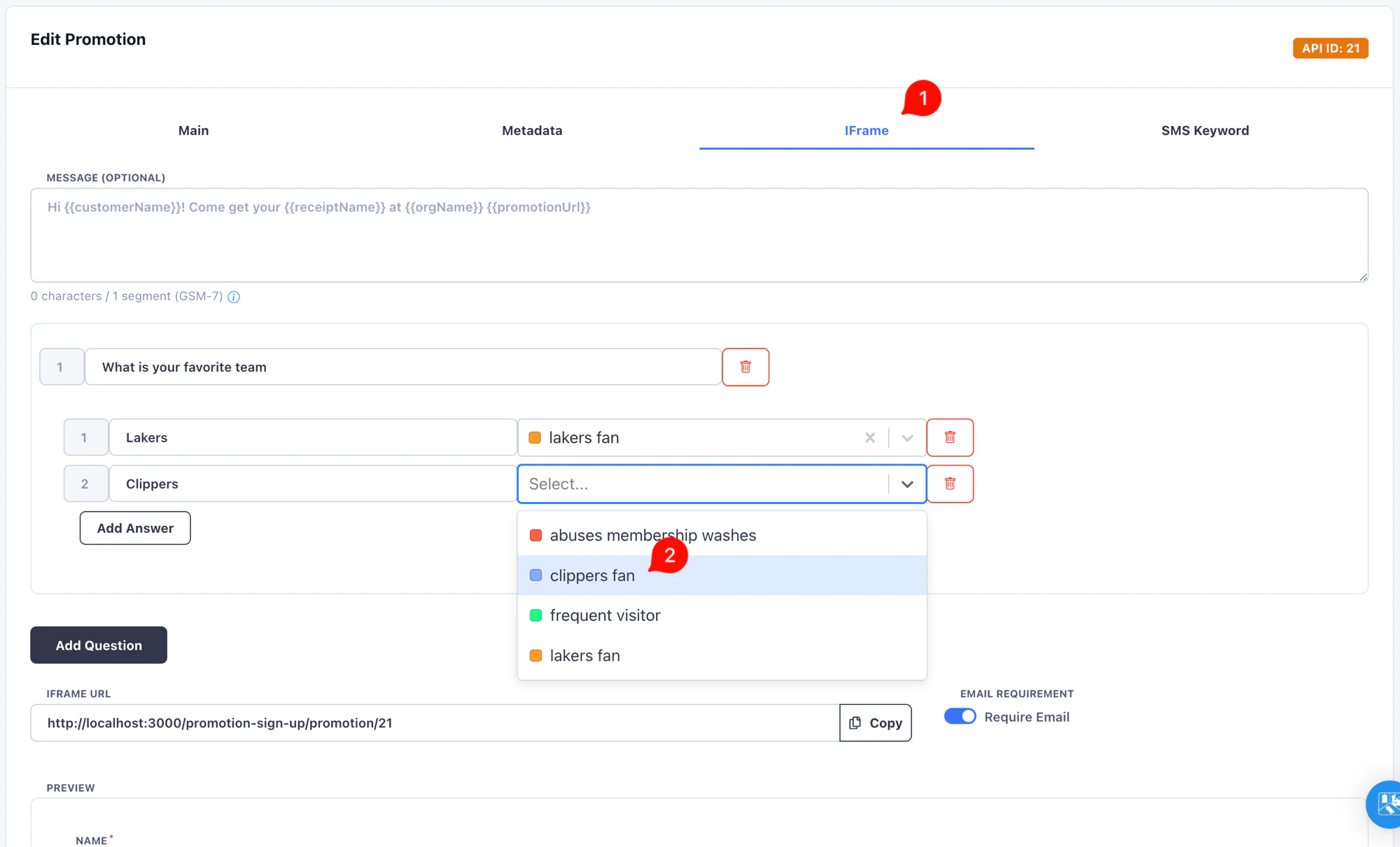
Managing tags
Navigate to Tags in the left sidebar to view, create, edit, and delete tags. Each tag has a name and a color.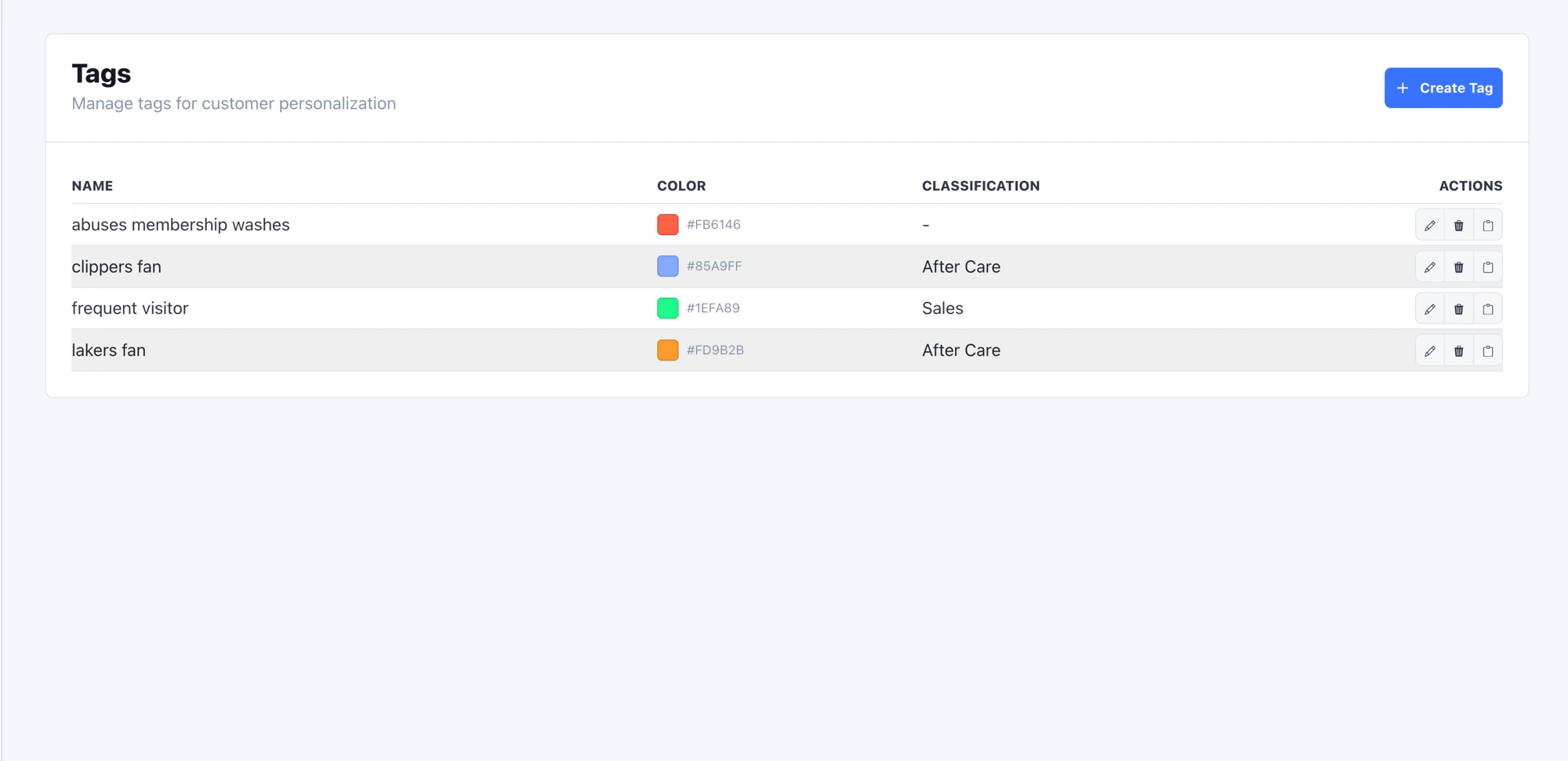
Permissions
Two distinct controls determine who can edit tags on a customer profile.Edit Customer Tags
A role-level permission. Controls who can edit tags from the CRM customer profile. Configure it in Roles.
Can Edit Customer Tags
A per-employee flag on the employee detail page. Controls whether a specific employee can edit tags from the Pay Tablet, regardless of their role.
Pay tablet employees can always view a customer’s tags. This flag only controls whether they can change them.