Auto-Queue is FlexWash’s hands-free dispatch mode for unattended lanes. When a member’s vehicle pulls up and is recognized by LPR or RFID, the gate opens and the wash is queued and sent to the controller automatically. No tablet press, no loader on the lane. The result is faster throughput at peak hours, lower labor cost on quiet shifts, and a frictionless experience for your members. They drive up, get washed, and drive away. Auto-Queue runs on the same wash queue your loader already knows, with the tablet UI automatically switching to a layout designed for self-running lanes.Documentation Index
Fetch the complete documentation index at: https://docs.flexwash.com/llms.txt
Use this file to discover all available pages before exploring further.
Auto-Queue requires a supported wash controller. See Controller
Integrations for the current list of
controllers that support it.
When Auto-Queue applies
A vehicle is auto-queued when all four of the following are true at the moment of detection:Active member
The vehicle’s plate or RFID tag resolves to a customer with an active
membership that includes a wash package.
Recognized at a gate
LPR or RFID picks up the vehicle at a configured entry gate.
Wash package on the plan
The membership’s package maps to a wash on your menu. See Membership
Packages.
Lane is unattended
The lane is set to Unattended in Lane
Config.
- The lane is set to Attended. Auto-Queue is intentionally off when an attendant is on the lane.
- The membership lapsed, was paused, or has no wash package attached.
- The LPR or RFID read missed the vehicle. The next vehicle in line will trigger normally.
What the operator sees
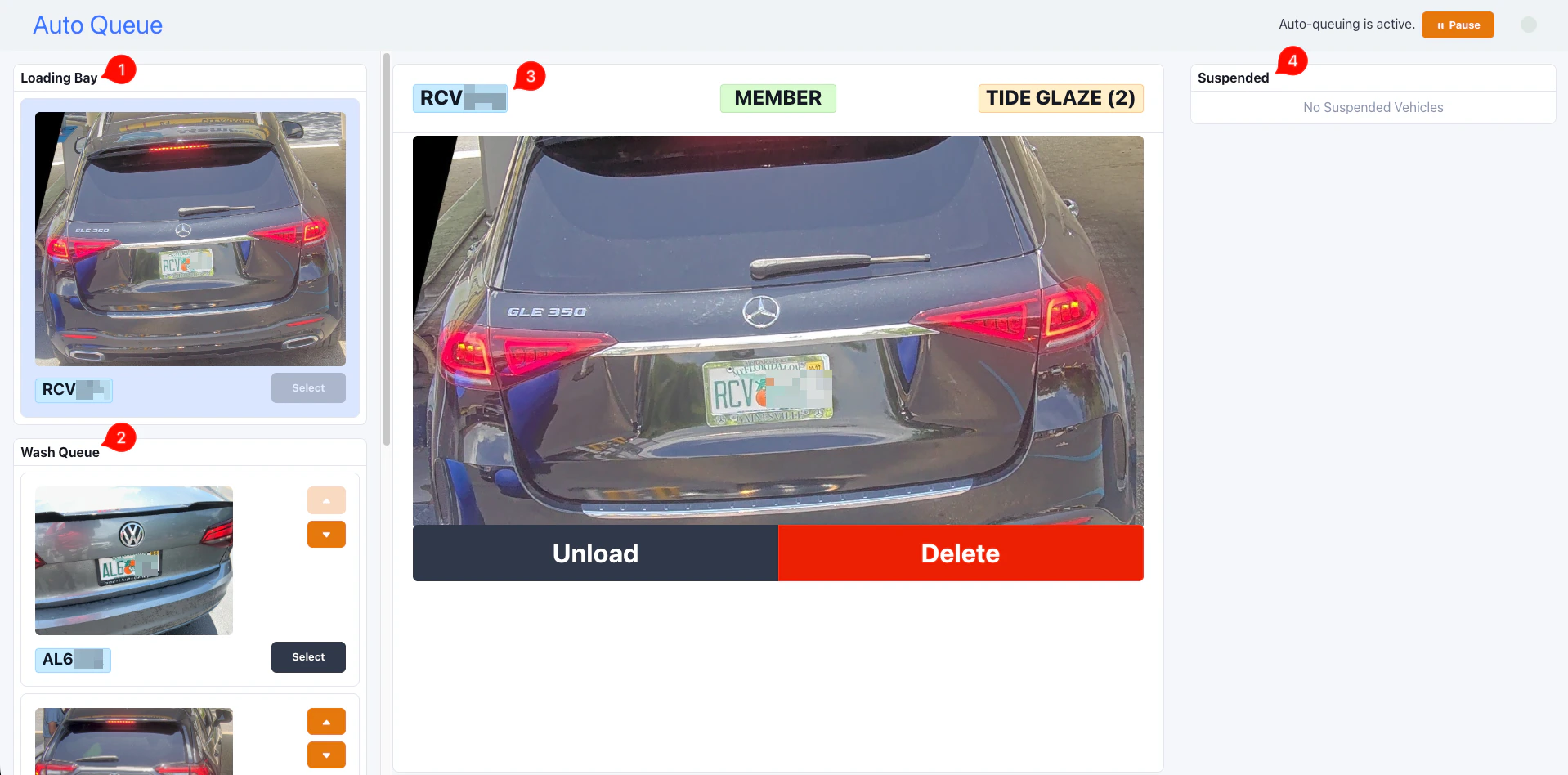
- Loading Bay (top left) shows the vehicle currently being washed. In Auto-Queue mode the loading bay is a single slot. Each new dispatch replaces the previous occupant.
- Current Queue (bottom left) shows vehicles waiting to be sent, oldest first. Re-order with the up and down arrows on each row.
- Selected Car (center) shows the vehicle picked from either pane: plate, photo, package, member badge, and a set of action buttons that changes based on where the vehicle currently sits.
- Suspended Queue (right) shows vehicles the operator has held back.
Action buttons
The buttons under the selected vehicle change with the vehicle’s queue state:| Vehicle in | Buttons |
|---|---|
| Wash queue | Load, Suspend, Delete |
| Loading bay | Unload, Delete |
| Suspended queue | Unsuspend, Delete |
- Load dispatches the wash immediately, ahead of the Auto-Queue’s own pick. Useful when the operator wants to override order.
- Unload pulls the loading-bay vehicle back to the front of the queue and pauses Auto-Queue. See below.
- Suspend moves the vehicle to the suspended pane without sending it. Useful for problem vehicles you want to deal with later.
- Delete removes the vehicle from the queue entirely.
Pause and resume
The header on the Auto-Queue tablet shows whether the queue is active or paused, and a Pause / Resume button to flip it.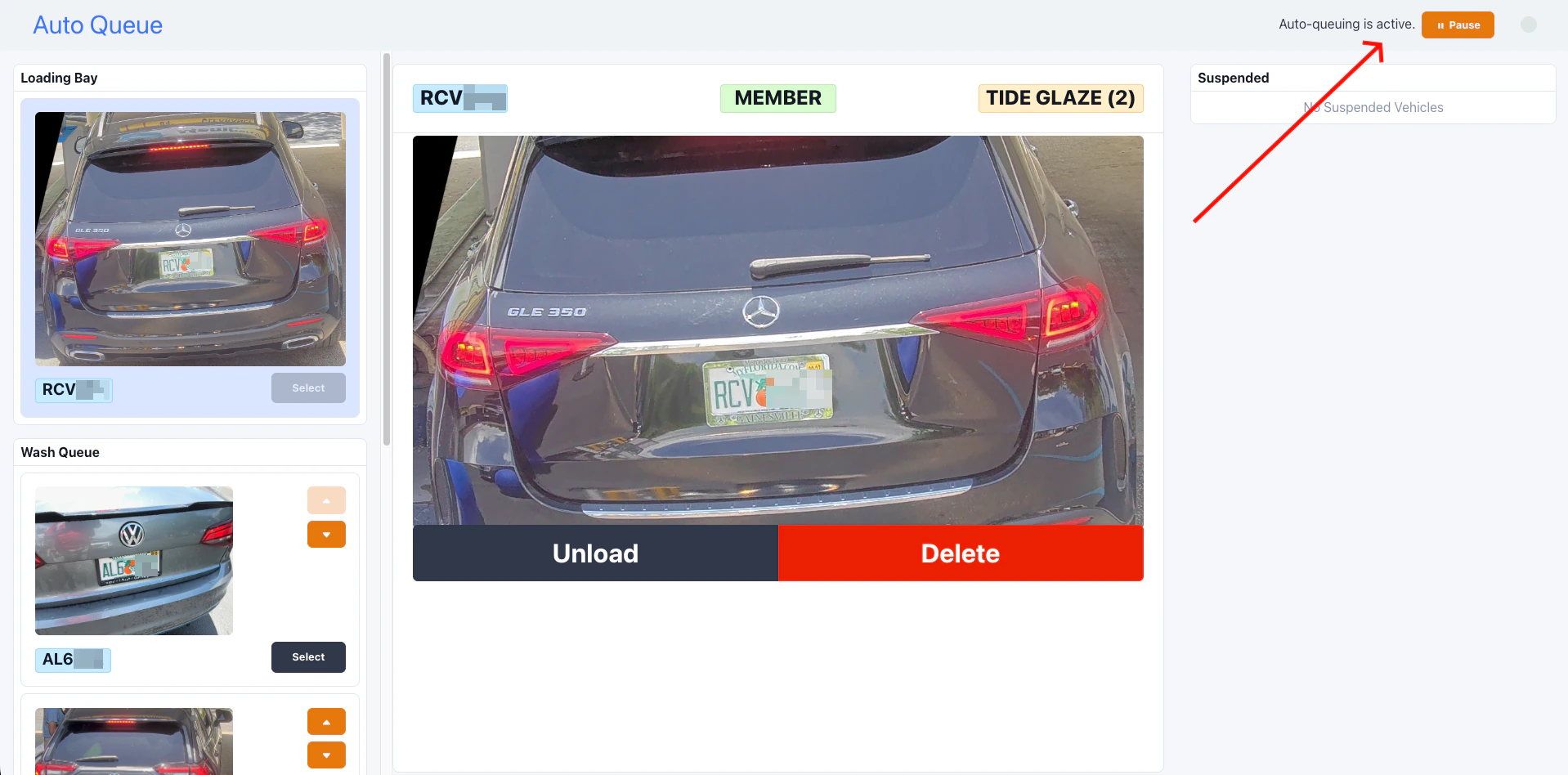
- Active
- Paused
Header reads “Auto-queuing is active.” New members are detected,
queued, and dispatched without operator action.
Auto-pause and auto-resume
Auto-Queue manages pause state on its own in two cases:- Auto-pause on Unload. When the operator pulls the loading-bay vehicle back, the queue pauses. The assumption is that something needs attention (the car was not ready, the customer changed their mind) and the operator wants control before the next car is sent.
- Auto-resume on a manual send. When the operator taps Load on a vehicle, or uses Skip Queue, the queue resumes automatically. There is no need to manually un-pause after intervening.
Pause state lives on the on-site coordinator and is not persisted. If the
on-prem server restarts (for example, after a power blip), Auto-Queue
starts in the active state.
Configuration
Enabling Auto-Queue per site
Auto-Queue is enabled site by site. Contact FlexWash support to turn it on or off for a given car wash. Once enabled, the wash queue tablet automatically switches to the Auto-Queue layout. Operators do not need to change anything on their end.Controller support
Auto-Queue depends on the wash controller exposing a “ready for next wash” signal. The current support matrix is on the Controller Integrations page in the Auto Queue support column. If a controller is replaced or reconfigured, restart the on-site coordinator so Auto-Queue can re-detect controller capability. Auto-Queue checks once at startup.Unattended lane mode
Each lane has an Attended / Unattended toggle in Setup, Car Washes, Edit. Auto-Queue only applies to lanes set to Unattended. See Lane Config for the toggle. Switching a lane between Attended and Unattended takes effect immediately and does not require a restart.Limitations to know about
A few specifics that operators and support reps should be aware of:- Members only. Auto-Queue does not handle non-member traffic. Pay tablet or attended flow still applies for those customers.
- No retracts. Auto-Queue dispatches the member’s wash package as-is. Retract codes (for example, to skip an arch for a tall vehicle) require a manual Load from the operator.
- One coordinator per site. Auto-Queue runs as a single process on the on-site coordinator. There is exactly one queue per car wash.
- Restart to change site flag. Flipping the per-site Auto-Queue flag requires a coordinator restart. Lane-level Attended / Unattended changes do not.
Troubleshooting
A member drove up but no wash dispatched
Check the four conditions in order:- Was the plate or tag read? Open the wash queue tablet. If the vehicle is not there, LPR or RFID missed the read.
- Did the gate open? If the gate opened but the wash did not queue, Auto-Queue may be disabled for the site, or the controller may not support it.
- Is the lane Unattended? A lane in Attended mode never auto-queues.
- Does the membership include a wash package? Lapsed, frozen, or non-wash memberships do not auto-queue.