Camera
We use the AXIS P3275-LVE. This camera comes in two variants for the focal length. If the distance from the gate to the camera is under 40 feet, then use the 10mm variant, otherwise use the 29mm variant. License plates require a minimum pixel width of 120.Mounting
Mount the camera directly on a flat, corrosion-resistant surface as shown below. This provides the best protection against water damage.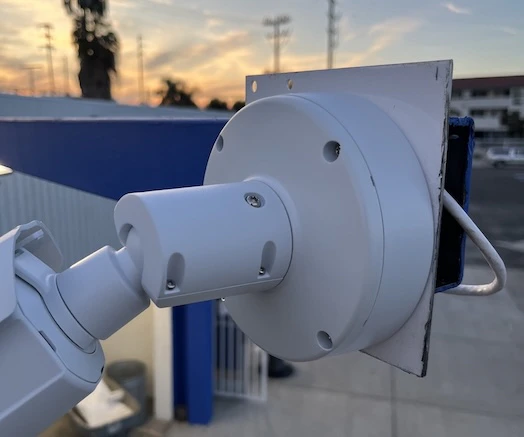
Follow AXIS installation instructions carefully to avoid damaging your cameras.
Requirements
Distance
The ideal distance for the camera is- 30 feet from the gate (or where a gate would be)
- 9 feet above ground
Examples
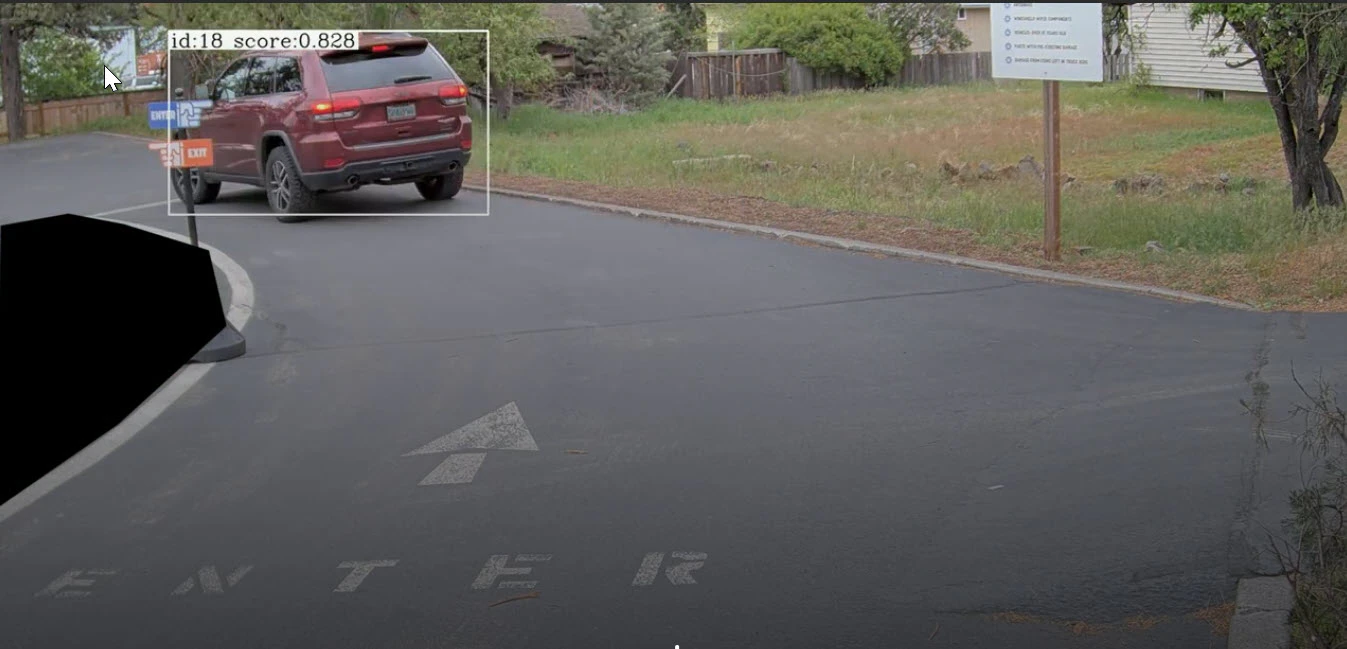
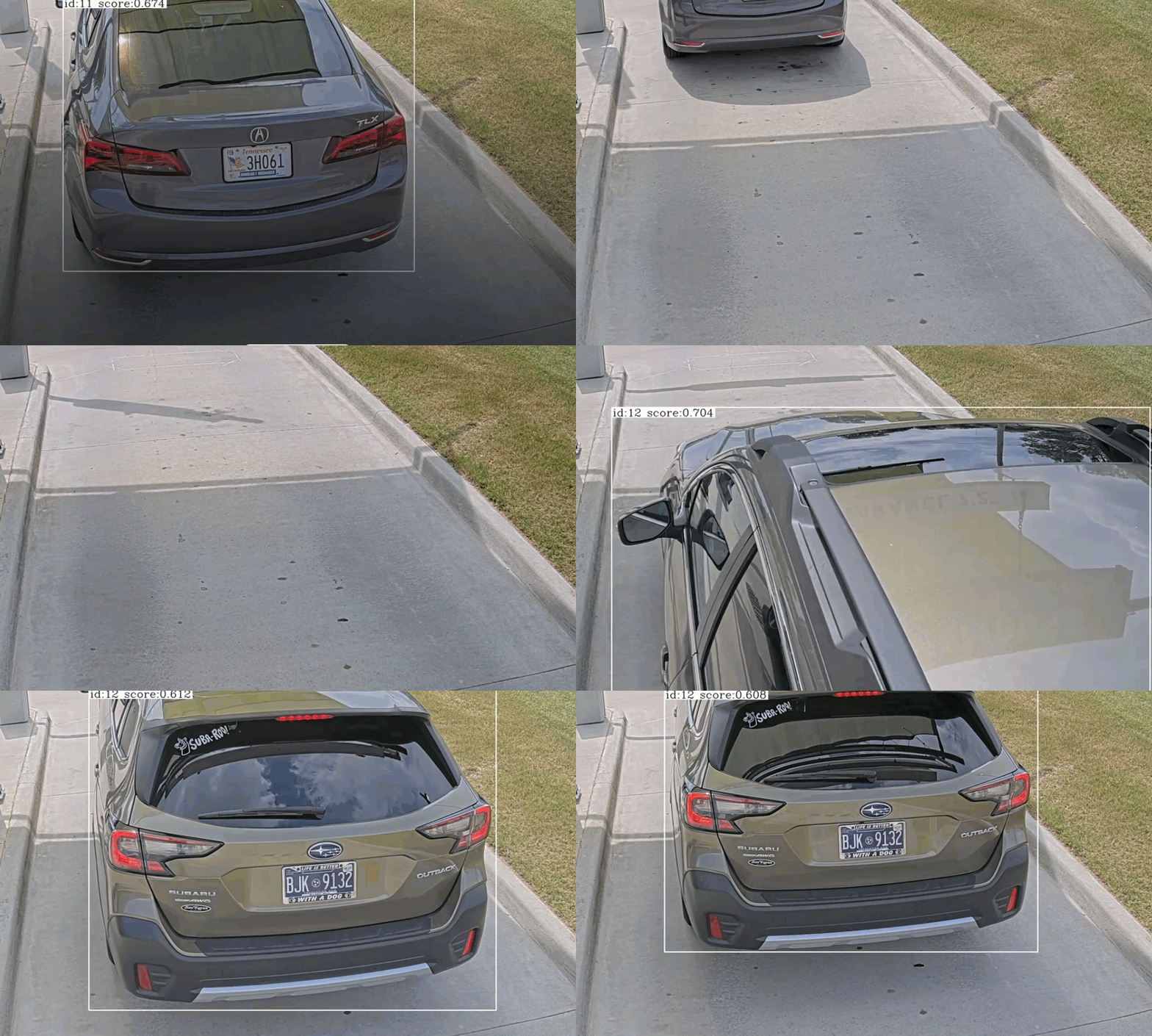
Plates have sufficient pixel width and distance is ideal.
Angles
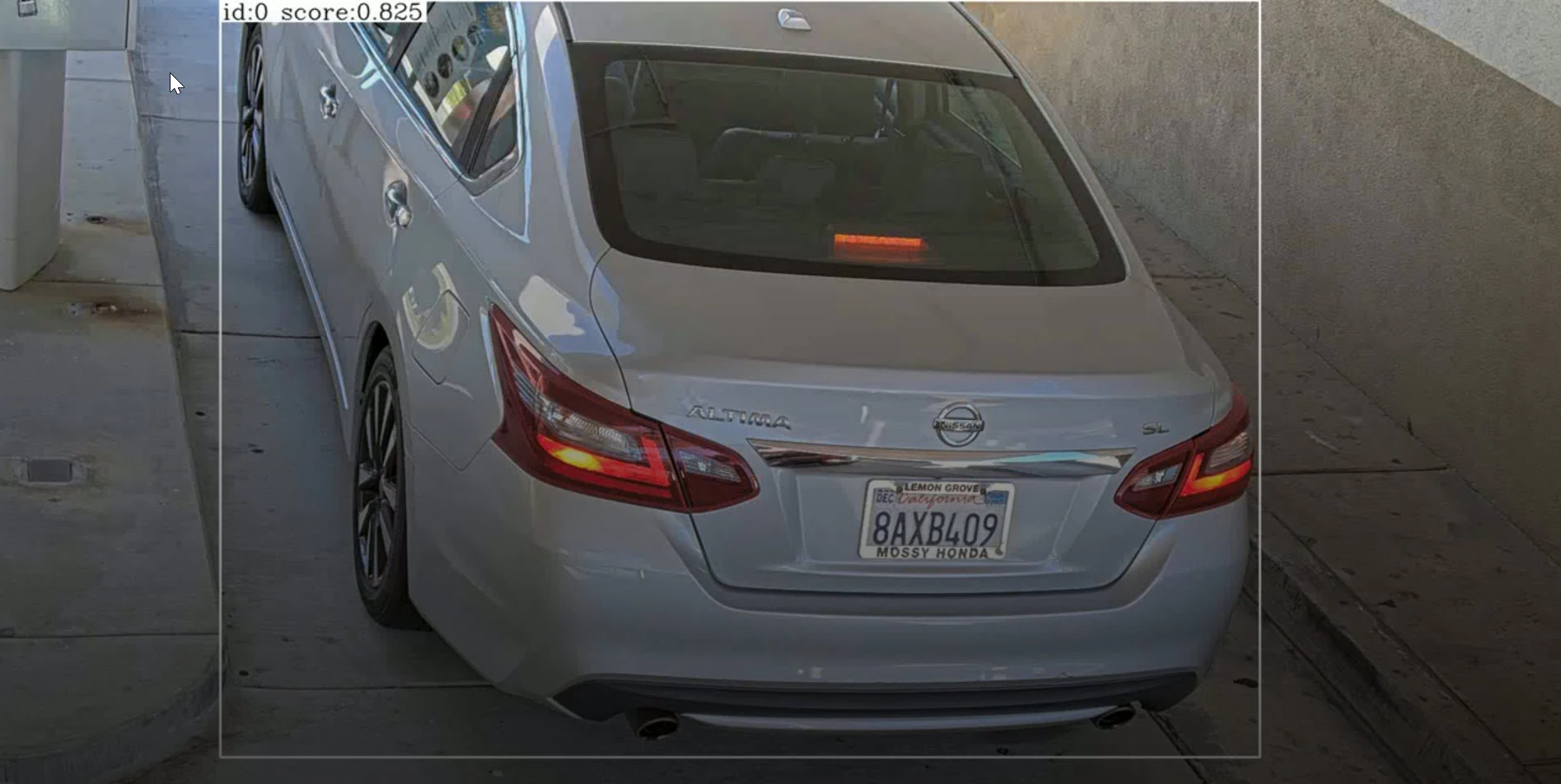
Horizontal and vertical angles should be around 22.5 degrees. Following the distance recommendations above makes this easy to achieve. Avoid angles that are too sharp or too shallow.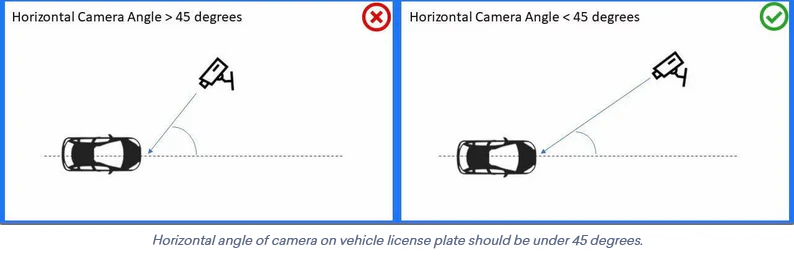
Misreads
Sharp angles cause misreads because the camera cannot see letters clearly.Overlapping Vehicles
Shallow angles cause multiple vehicles to overlap, collapsing them into one. The system deduplicates vehicles using bounding boxes. Vehicles that overlap more than 30% are treated as one.Examples
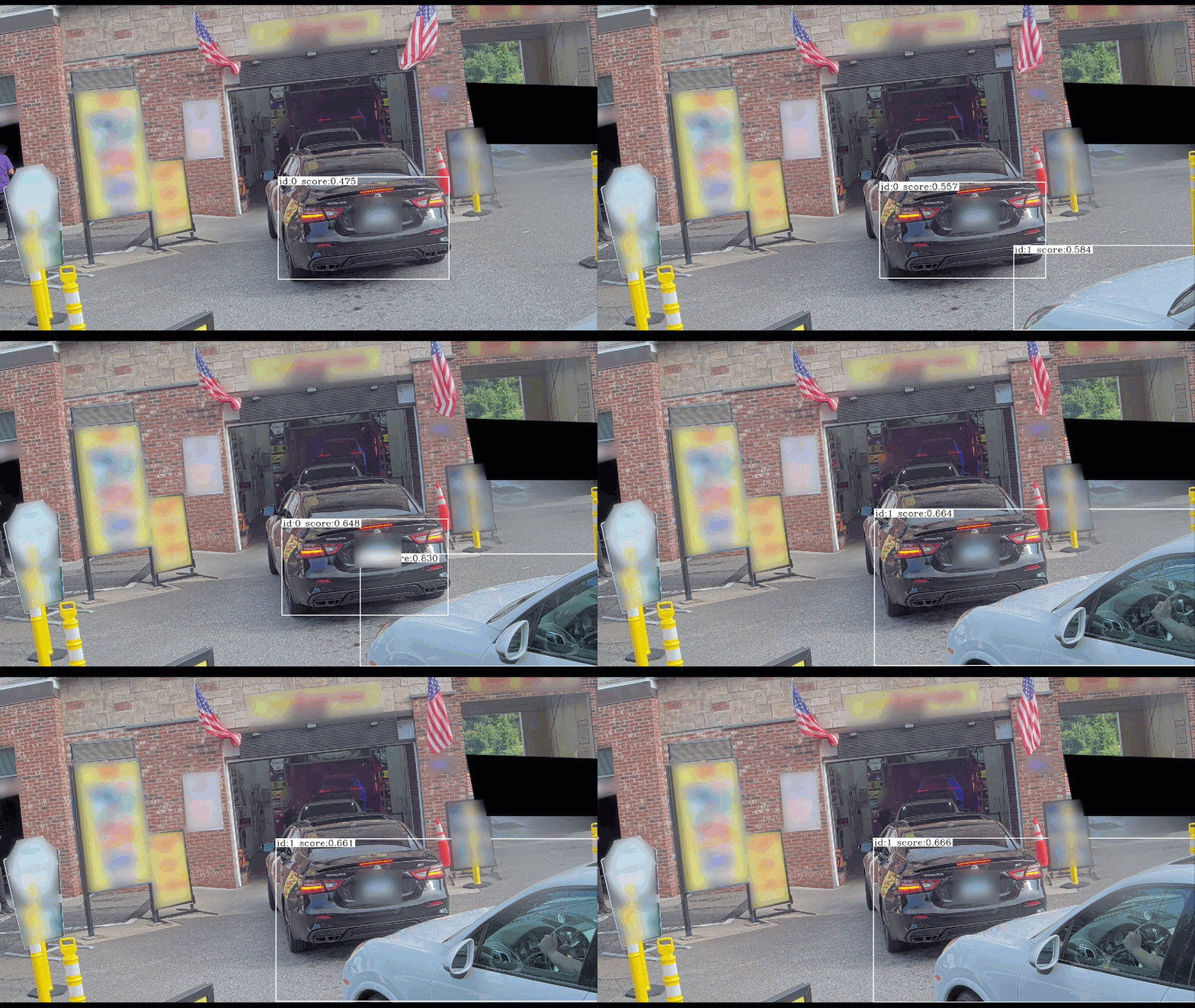
Angles are not too sharp or shallow, vehicles do not overlap.
LPR Calibration
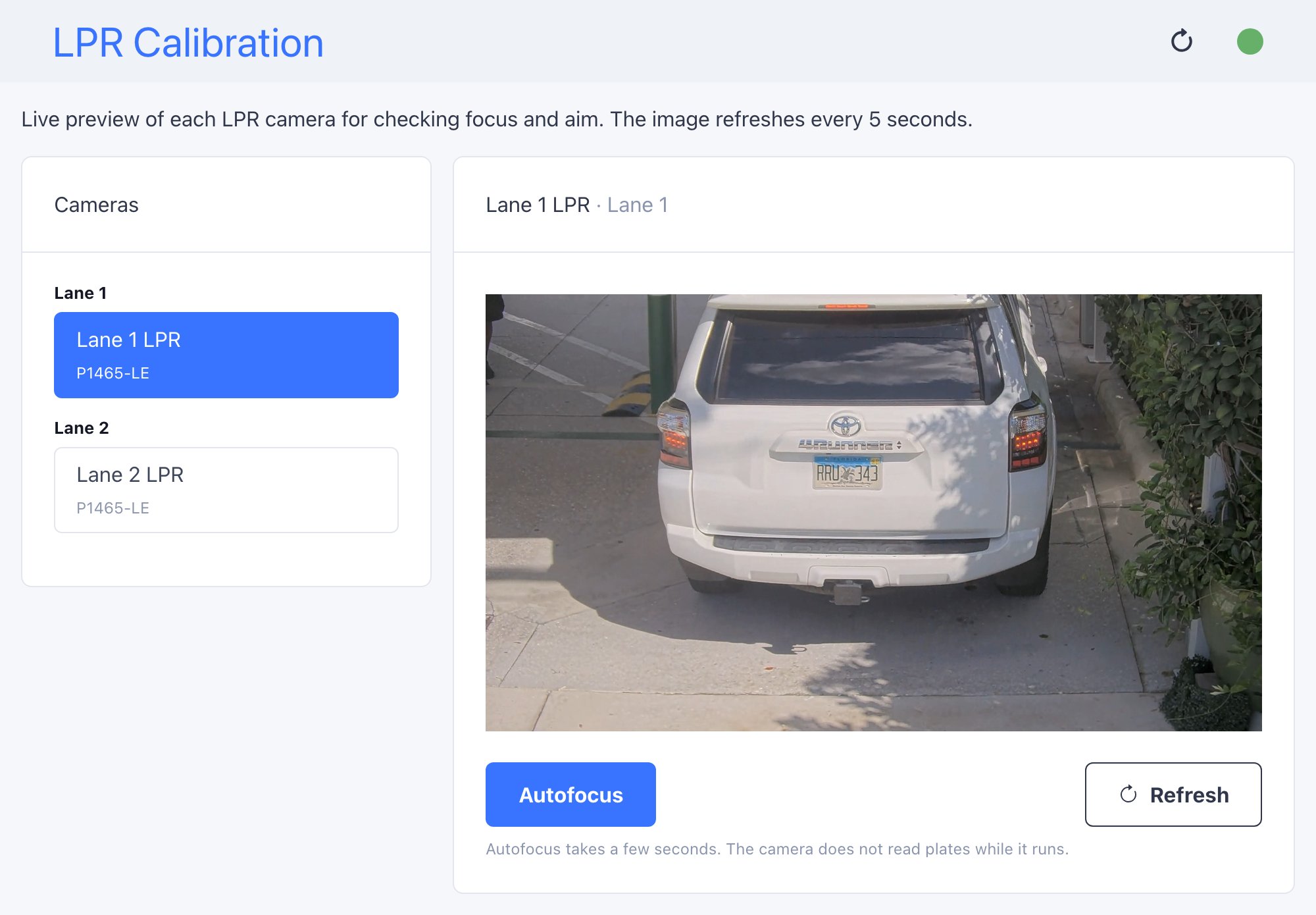
FlexWash sets each camera’s aim, zoom, and focus at installation. If focus drifts, contact support to calibrate the lane with a FlexWash representative. If you calibrate it yourself, follow the steps below. A well-focused plate has crisp characters with sharp edges and no blur or halo around them.Opening the Page
On the pay tablet, open the Coordinator app, then tap LPR Calibration.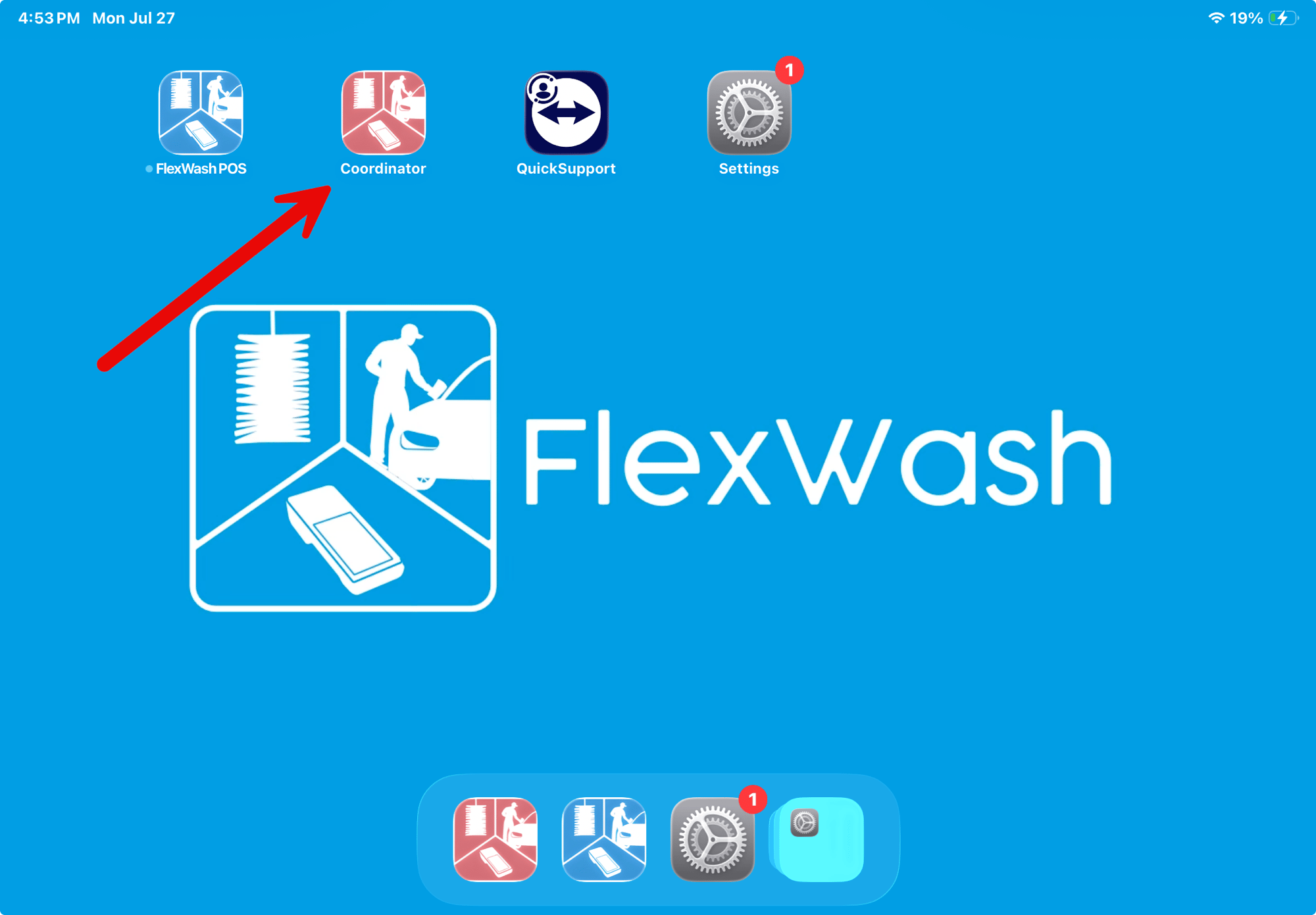
Calibrating a Lane
Close the lane
Stop traffic in the lane. Autofocus takes a few seconds, and the camera
does not read plates while it runs.
Park the test vehicle
Park exactly where customers stop for checkout, using the longest vehicle
available, ideally a long pickup truck. With a shorter vehicle, park about
3 feet further back.
Check the frame
Select the lane’s camera and confirm the whole plate is visible where
plates normally sit. If the plate is cut off or out of frame, stop and
contact support. The camera needs to be re-aimed.
Run autofocus
Tap Autofocus, then confirm the plate characters are crisp. If they are
not, or autofocus fails, tap it again.
Verify and reopen the lane
Park a second vehicle at the normal checkout stop and confirm its plate is
sharp in the preview. Then reopen the lane.
When Reads Are Still Poor
- Check the connection. If the preview shows Camera not responding, the coordinator cannot reach the camera. Check its power and network cable before anything else. See Network.
- Retry autofocus with a plate in view. If autofocus keeps failing, park a vehicle with a visible plate in the lane and try again in daylight.
- Clean the camera housing. Dirt and water spots on the glass blur the whole image.
- Re-check placement against Distance and Angles.
- Check for glare. Glare is time-of-day specific, so re-check at the hour reads fail. See LPR and RFID Limitations.
- Contact support. Do not re-aim the camera yourself.