Why use RFID Tags?
License Plate Recognition (LPR) is fast, but it has limits. Plates get dirty, weather obscures them, and some vehicle designs reflect or block the camera’s view. RFID picks up where the camera leaves off.Faster recognition
RFID reads complete before the camera finishes processing the plate, so
members move through your lane sooner.
Higher confidence
An RFID read is treated as a perfect match and overrides camera reads when
the two conflict.
Works when LPR doesn't
Dirty, snow-covered, or obscured plates that fail the camera still resolve
cleanly via RFID.
Opens the gate automatically
At unattended lanes, an RFID-identified active member triggers the gate to
open without waiting on the camera.
RFID is layered on top of LPR, not a replacement for it. If a vehicle has no
tag, the camera still handles recognition normally.
Assigning a Tag
You can assign or update a vehicle’s RFID tag from two places: the CRM customer detail page, or the Pay Tablet.From the CRM
1
Open the customer's profile
Search for the customer in the CRM and open their profile.
2
Locate the Vehicles section
Scroll to the Vehicles card. The RFID Tag column shows each
vehicle’s current tag, or blank if none is set. Click the pencil icon on
the row you want to edit.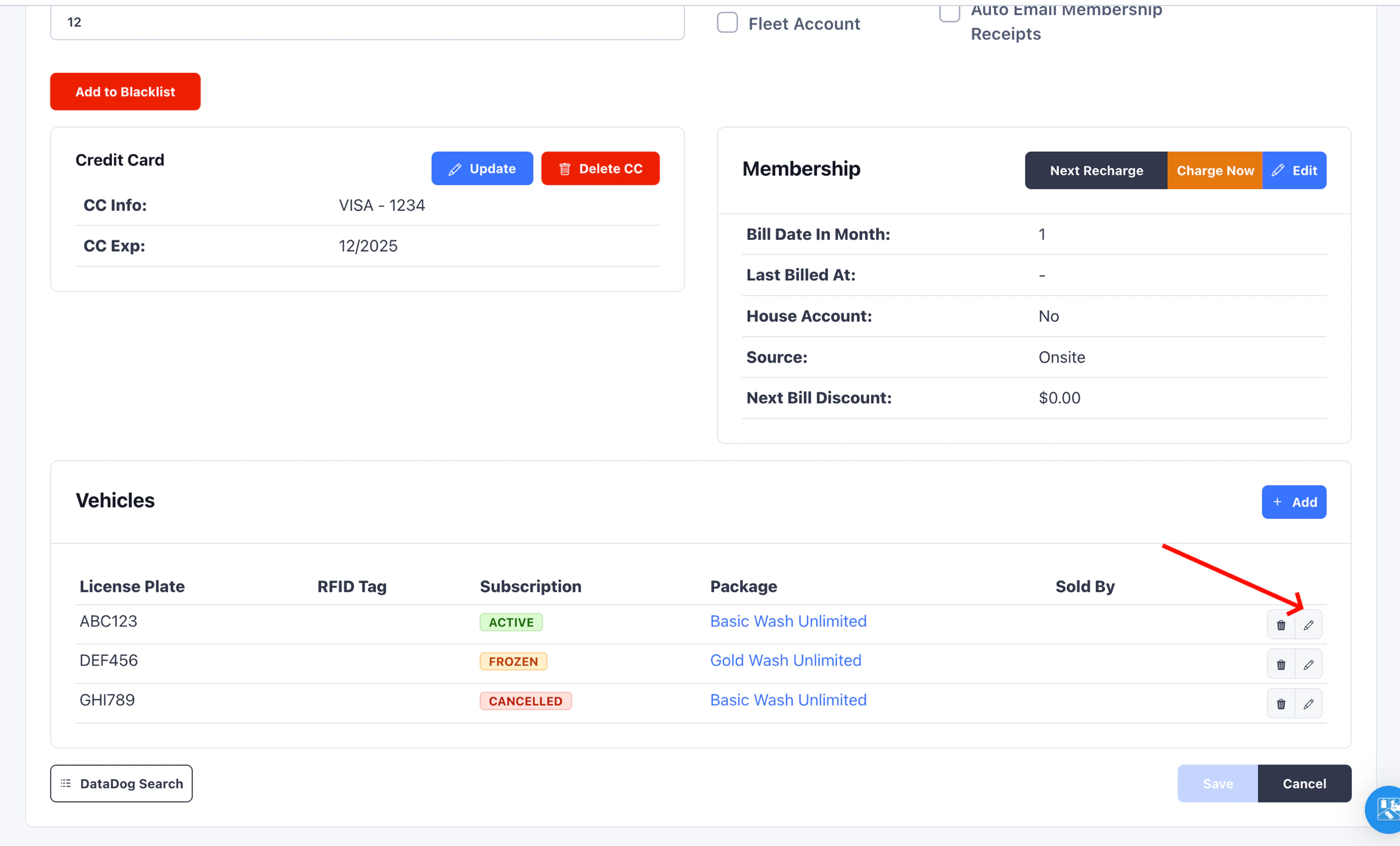
3
Enter the tag
In the Update Vehicle modal, type or paste the tag value into the
RFID Tag field, then click Continue.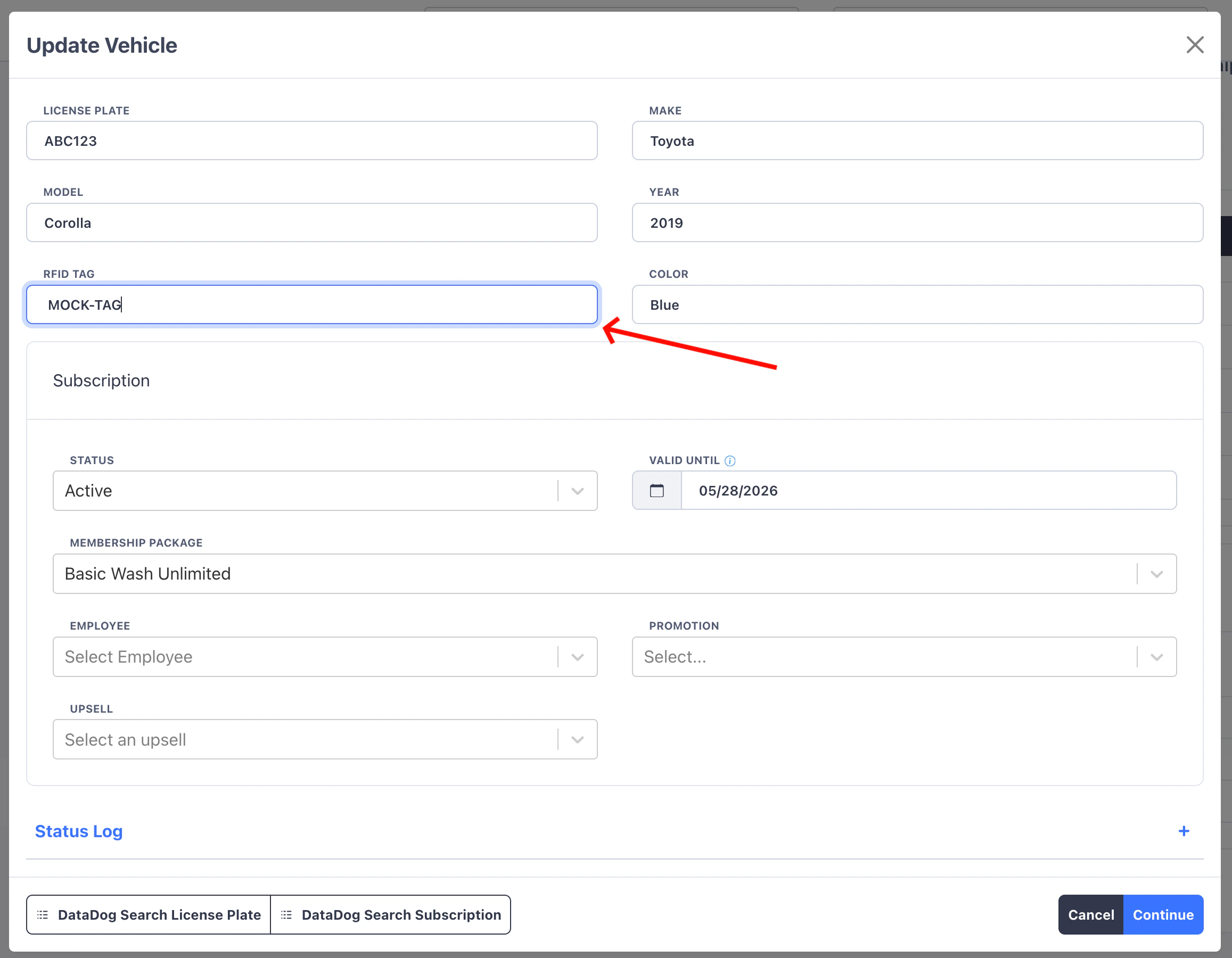
4
Confirm and submit
Add an optional reason for the change on the confirmation step, then
submit. The new tag takes effect immediately.
From the Pay Tablet
1
Open the customer's profile
From the Pay Tablet, search for the customer and open their profile. The
Vehicles tab lists each vehicle on the account.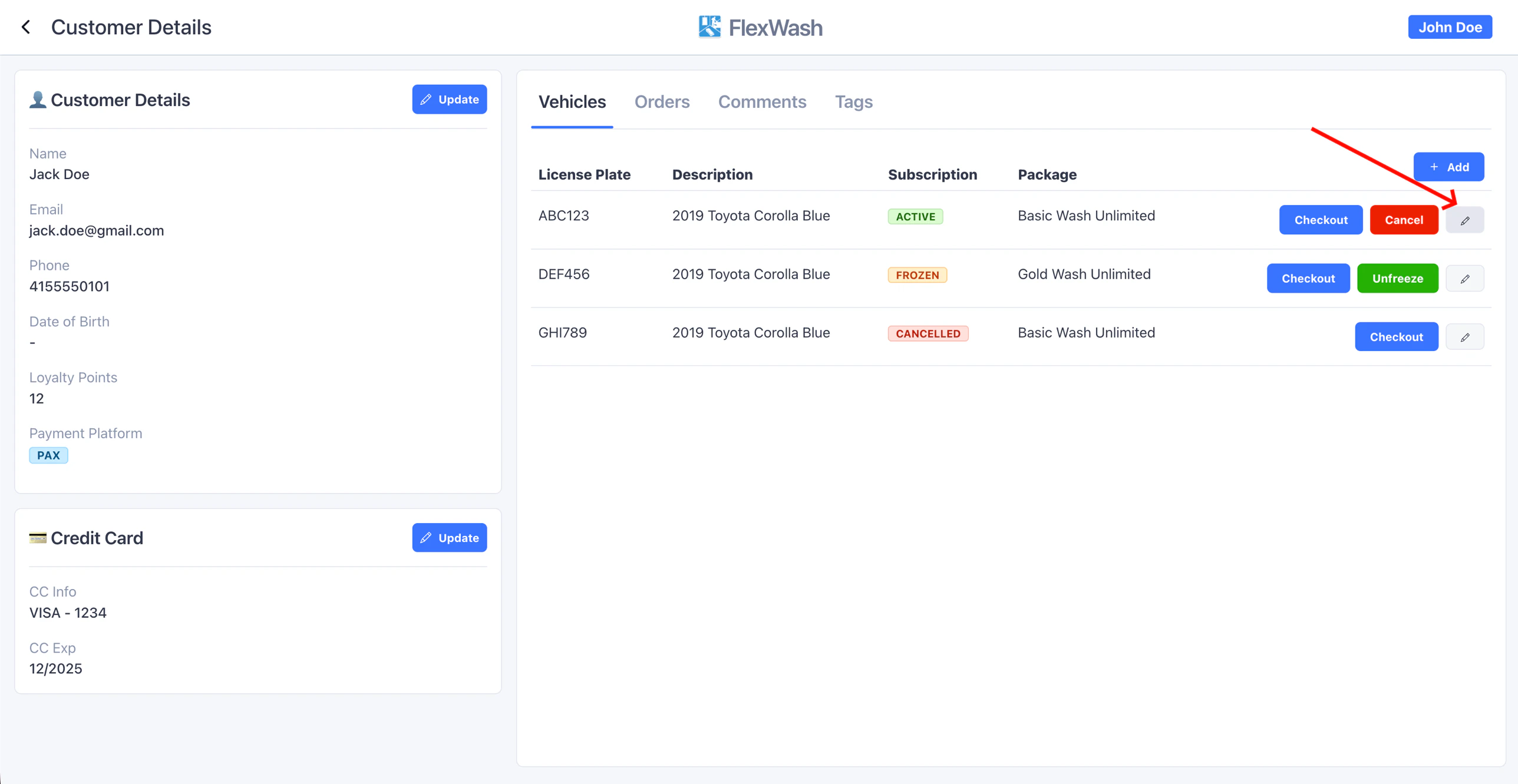
2
Edit the vehicle
Tap the pencil icon on the vehicle you want to update.
3
Enter the tag and update
Enter the tag value in the RFID Tag field of the Edit Vehicle
modal, then tap Update.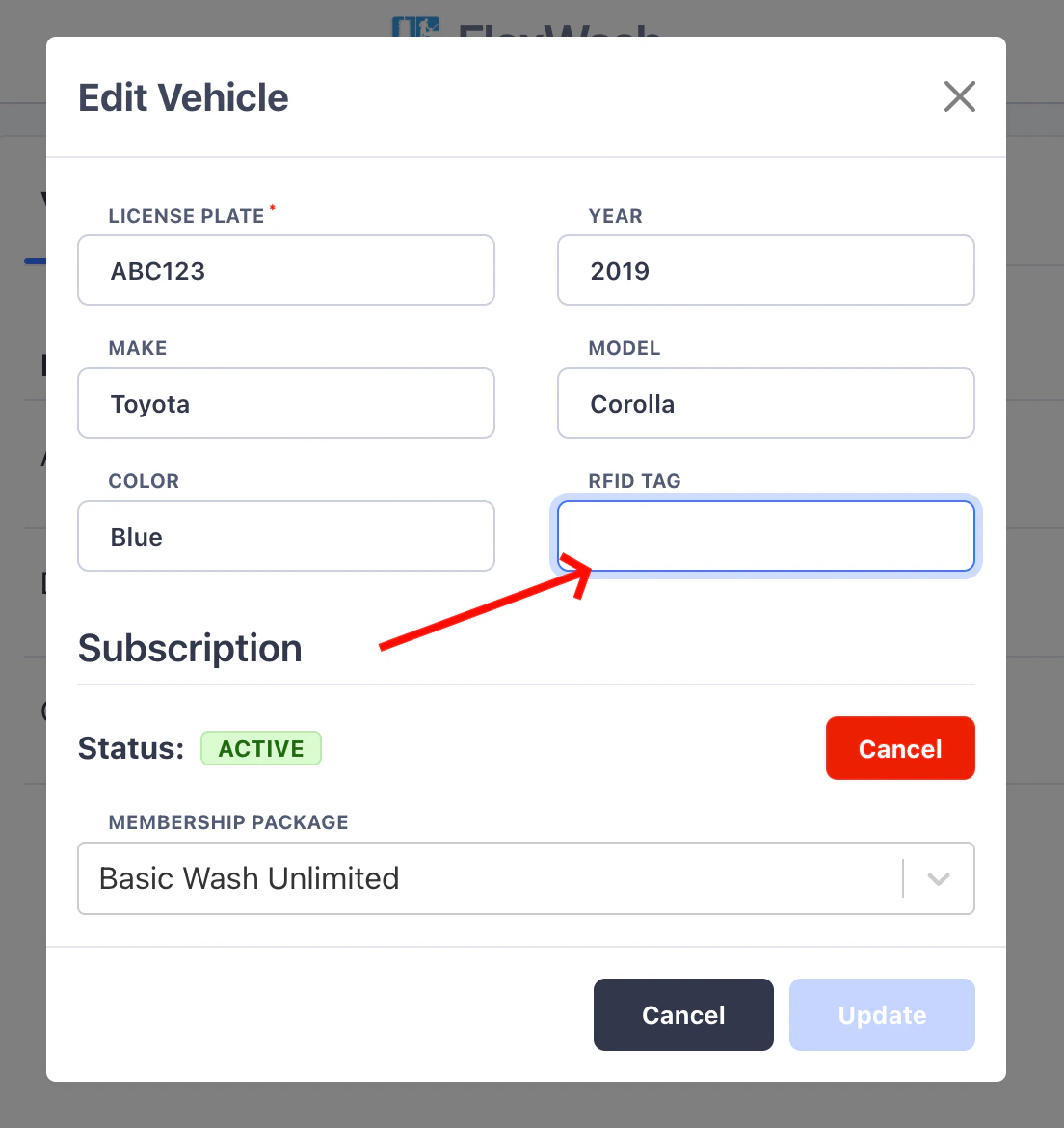
Format and Uniqueness
- Free-form text. Enter the tag exactly as it is printed on the sticker. There is no required length, prefix, or character set.
- Uppercased automatically. Stored tags are always uppercase. You can enter mixed case and the system normalizes it on save.
- Unique within your organization. A tag can only be assigned to one
vehicle in your organization. Attempting to reuse a tag that is already in
use returns a
Duplicate RFID Tagerror.
Audit Trail
Every RFID tag change is captured automatically on the customer’s Comments timeline. Entries record what changed, who changed it, and the reason if one was provided. Use the Comments tab to verify what was changed and by whom.Finding a Customer by RFID
You can find a customer by RFID tag from the customer search page. Enter the tag value, or any portion of it, in the search bar. Tag matches are case-insensitive and partial, so you do not need to format the input.Read Limitations
RFID is reliable, but a small number of vehicles have windshields or hardware that can interfere with the radio signal.Vehicle limitations
See the list of vehicle types whose windshield coatings or hardware can
block RFID and LPR reads.
Reader troubleshooting
For RFID reader hardware checks, including power, cabling, and network
connectivity.