Within the Wash Menu, the initial selection provides the capability to create and configure a new Washbook.
Click on the ‘Create Wash Package’ button.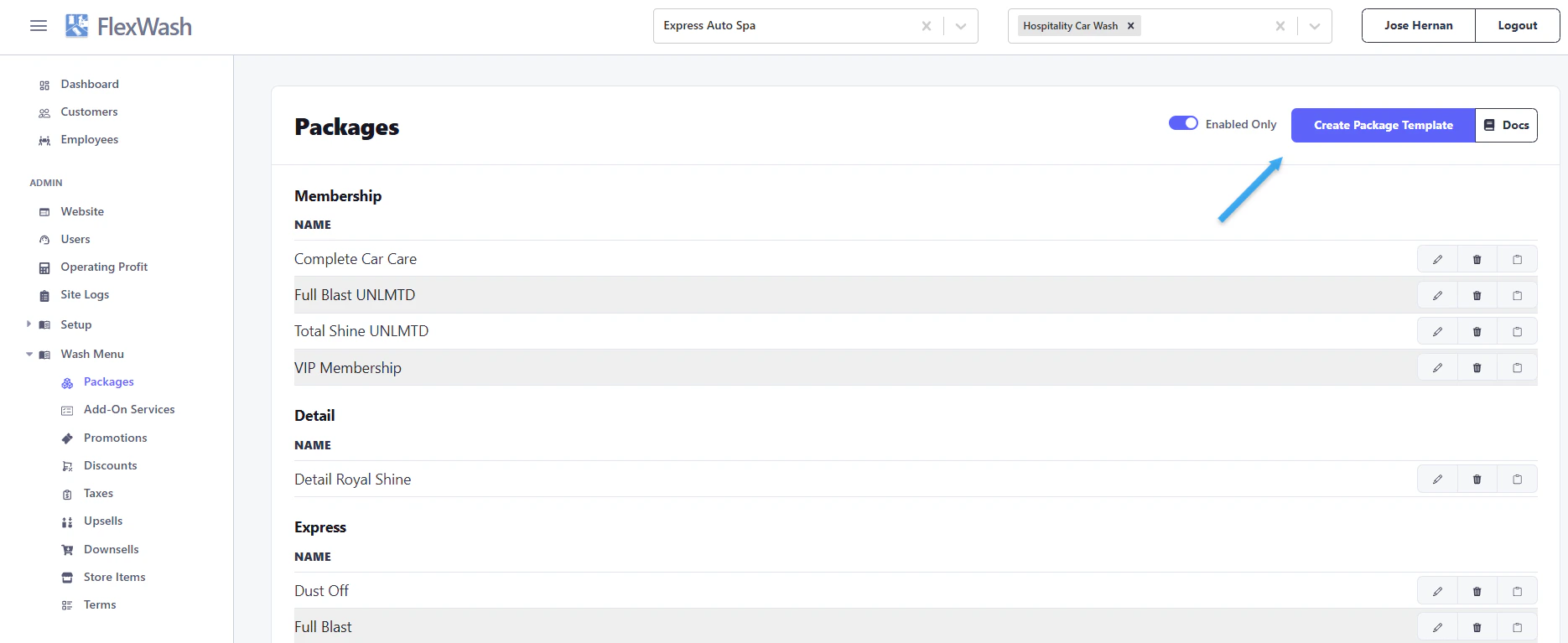
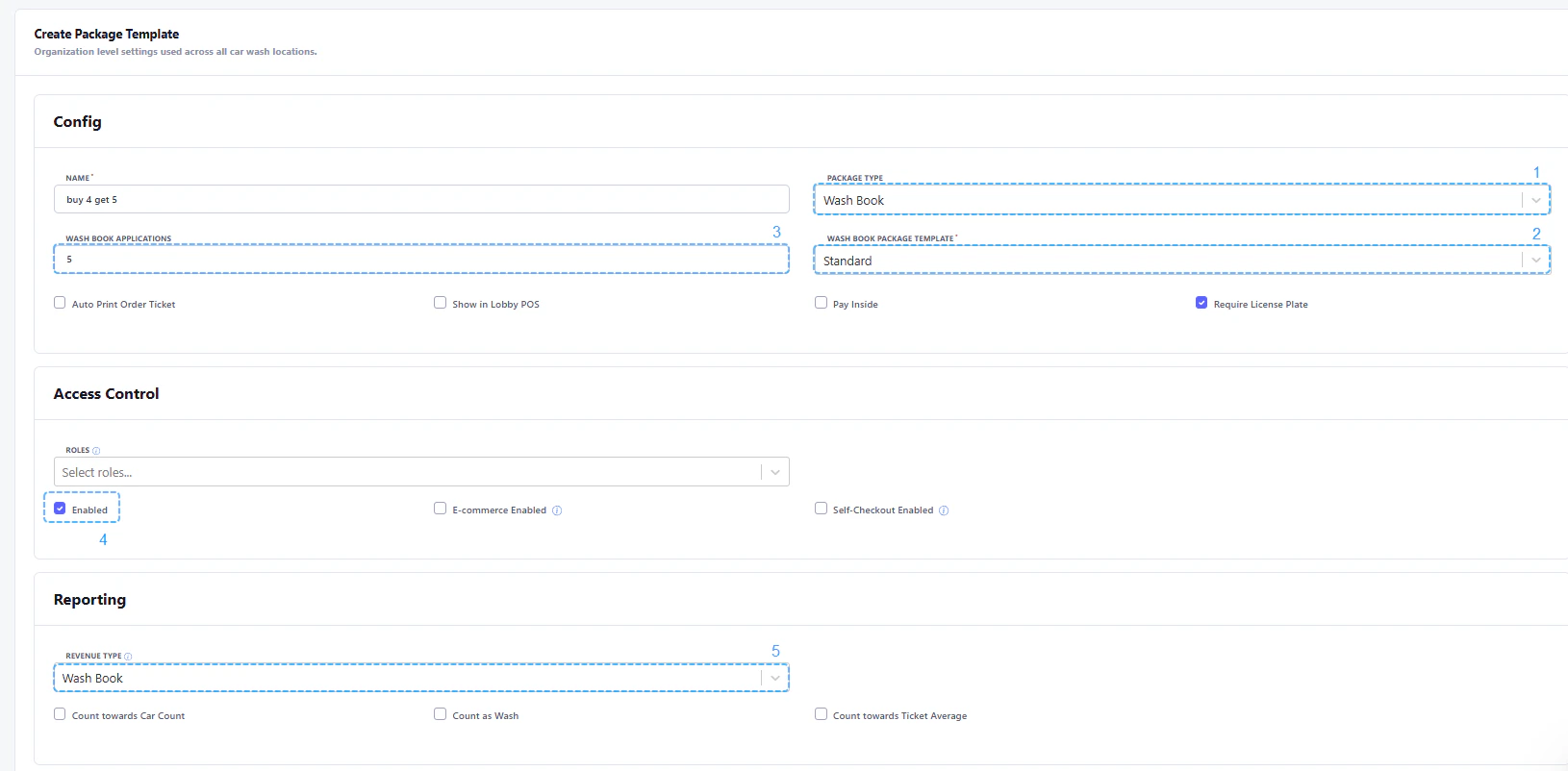
To set up a Wash Book:
- You must select ‘Washbook’ from the ‘Package type’ dropdown menu.
- Select a wash book template.
- Enter the wash applications (the amount of washes per wash book).
- You must always ensure the ‘Enabled’ option is checked. If it is unchecked, the Washbook will not be available on your FlexWash devices.
- Choose “Washbook” for the ‘Revenue Type’ dropdown menu so that the data is accurately reflected in the reports.
- Auto Print Order Ticket: Print order ticket automatically.
- Show in Lobby POS: Display in Lobby Point-of-Sale (POS).
- Pay Inside: Payment inside.
- Require License Plate: To redeem a Washbook, the customer’s license plate is required. This process enables the wash book to be saved to their account.
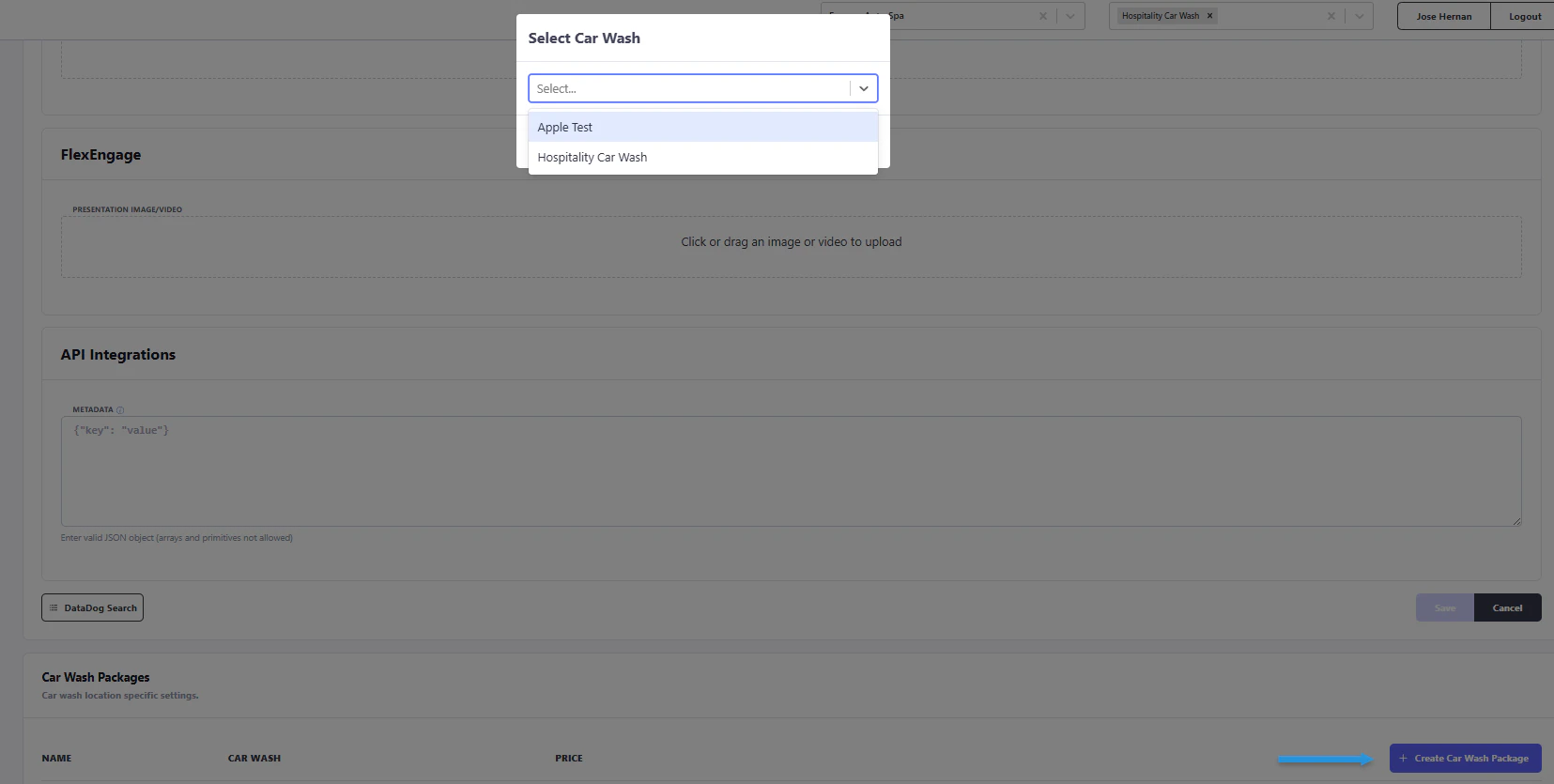
To make the wash book accessible, refresh the config on the payment tablet.