Journeys are part of FlexEngage, a paid product that requires its own
subscription on top of the point of sale. See the
FlexEngage Overview for what the
platform includes.
Journey Categories
Every journey belongs to one category. The category defines who the journey targets, what event starts it, and which milestones it can use. You can run one journey per category at a time, so each category is a single, focused program for that part of the lifecycle.Member
Reward and retain active members. Starts when a member signs up, sends a
thank-you or reward at each wash-count milestone, and drips win-back offers
when a member goes quiet.
Retail customer
Nurture pay-per-wash customers toward membership. Progresses as a customer
completes washes, encourages them to convert at each milestone, and drips
reminders after a stretch of inactivity.
Payment failed
Recover revenue from failed membership payments. Sends a sequence of
billing reminders that prompt customers to update their card details.
Cancelled member
Win back members who cancelled in person. Sends an initial win-back message
and drips follow-up offers over the following days.
Involuntary churn
Win back members lost when a card was declined and could not be recovered.
Sends a win-back message at the next optimal time, then drips follow-ups.
How a Journey is Built
A journey is a graph of two node types laid out on a canvas:- Milestones are the lifecycle moments that anchor the journey, such as a signup, a specific wash count, or a failed payment. A milestone sends a message when a customer reaches it.
- Drips are follow-up messages that send a set number of days after a milestone. Use them to keep nudging a customer who has not moved forward.
Building a journey
1
Open Journeys
Go to Flex Engage > Journeys. Categories you have not set up yet appear
under Available to create with a preview of a sample journey.
2
Create a journey for a category
Click Create Journey on the category you want. The builder opens with
the category’s entry milestone already in place.
3
Add milestones
For categories that support more than one milestone (Member, Retail
customer, Payment failed), add milestones to mark each stage you want to act
on, such as a customer’s 1st, 5th, and 10th wash.
4
Add drips
Add drip follow-ups beneath a milestone and set how many days after the
previous step each one sends.
5
Configure each node
Select any node to open its settings. Choose its delivery channel, write
the message, and set its send timing and thresholds.
6
Enable and save
Toggle the journey to Enabled and save. The journey starts running
immediately. Leave it Disabled to save your work without sending.
Milestones
The first milestone in every journey is its entry milestone, the event that starts the journey. It cannot be removed because it is the trigger. Depending on the category, the entry milestone is either a one-off event (a signup, a cancellation, a card decline) or a threshold (a wash count, a billing attempt). Member, Retail customer, and Payment failed journeys support multiple milestones, so you can act at several points in the lifecycle. Cancelled member and Involuntary churn journeys are single-milestone programs: one entry milestone plus drips.Threshold ranges
Wash-count and payment-attempt milestones use a numeric threshold. Each one can be configured three ways:
For a range, the milestone sends once per unit in the range. A “washes 2 to 5” milestone sends up to four messages, one at each of washes 2, 3, 4, and 5. An “and above” milestone has no send cap.
Drips
A drip is a follow-up message that sends a set number of days after the step before it. Its Days after value is relative to the previous node: a drip set to 7 days under a milestone sends a week after that milestone’s message, and a second drip set to 7 days sends a week after the first drip.Drips are evaluated and sent once per day, so their timing is
day-granular. A “7 days after” drip sends on the seventh day, not at a precise
hour.
Delivery Channels
Every node sends through one delivery channel. FlexEngage delivers each message only to customers who have the contact details and consent level required for that channel.- SMS
- Email
- Push Notification
- No-op
Send a text message. Reaches customers with a phone number on file and the
required opt-in level. Best for time-sensitive offers with a clear call to
action.
For SMS, double opt-in is strongly recommended to maintain 10-DLC compliance.
You control this per channel with the journey’s opt-in levels,
and SMS defaults to double opt-in. See
SMS Requirements for setup
details.
Opt-In Levels
Every journey enforces a minimum opt-in level for each messaging channel. This is the consent threshold a customer must meet before a journey message reaches them. You set it once per journey, at the top of the builder alongside the Enabled toggle, and it applies to every node of that channel type across the whole journey. A journey has two independent controls:- SMS Minimum Opt-In Level applies to every SMS node in the journey.
- Email Minimum Opt-In Level applies to every email node in the journey.
SMS levels
SMS defaults to Double Opt-In, the strictest level.
Email levels
Email defaults to Single Opt-In. Email has no double opt-in level.
Send Timing
Milestone send timing depends on the milestone kind:- Immediate: send as soon as the customer reaches the milestone.
- Delayed: send a set number of minutes later, up to 3 hours after the milestone.
- Next optimal time: FlexEngage picks the best time to send. This is fixed for card-decline and payment-failure milestones because the event usually happens after hours during the nightly billing.
Enabling and Disabling
Every journey has an Enabled / Disabled toggle. While enabled, the journey runs continuously and sends its messages. Disable it to pause the entire journey without losing your configuration, then re-enable it whenever you are ready. Deleting a journey removes it from your list and stops every message it was running. If you only want to pause, disable it instead of deleting it.Node Insights
Select any node in the canvas to see how it is performing. Every node shows a round badge in its top-left corner with the number of customers whose most recent message in the journey came from that step, the members currently sitting there. This badge only appears once the journey is saved and the node is deployed.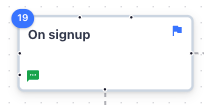
- Total sends (all time): every message this node has ever sent, across every channel.
- Users last messaged here: the same last-messaged count shown on the canvas badge, the members currently sitting at this step.
- Date range: choose a preset, such as Last 7 days or Last 30 days, or set a custom range. It defaults to the trailing 7 days.
- Sends per day: a bar chart of sends within the selected date range, one bar per day.
- Sends: a paginated, newest-first list of individual sends in the selected date range, each with its date, customer, and channel. Select a row to open that customer’s profile in a new tab.
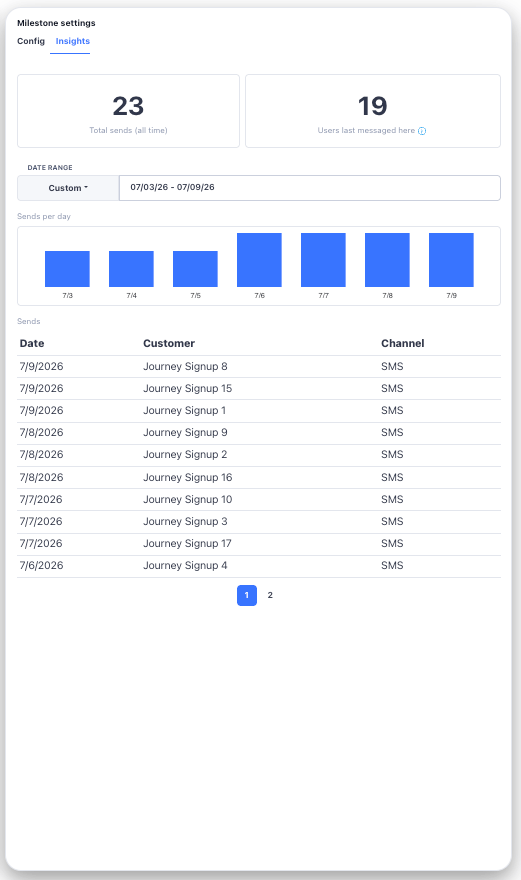
Total sends and the last-messaged count are always all-time figures. Only
the chart and the sends list are scoped to the date range you pick.