- filters that define who receives the message
- delivery channel that defines how the message is delivered
- send schedule that defines when it goes out
Filters
Filters control which customers qualify for a message. You can add a single filter or build complex conditions by combining multiple filters with logical operators.Adding Filters
When creating a Scheduled Blast or Smart Messaging campaign, open the Filters card. Click Add Filter to add your first filter. Each filter row has three parts:- Filter type: Select what customer data to evaluate (e.g., Total Washes, Membership Status). See the Filters page for a complete reference.
- Operator: Select how to compare the data (e.g., Greater than, Equal to, In).
- Value: Enter the threshold or selection to compare against.

Combining Filters with AND/OR
At the top of each filter group is a logical operator selector: AND/OR.- AND: A customer must match all filters in the group to qualify. Use AND when you need customers to meet every condition.
- OR: A customer must match at least one filter in the group to qualify. Use OR when any one condition is sufficient.
- Membership Status = Cancelled AND Total Washes Within X Days > 0 in 30 days
- Billing Attempts >= 3 OR Membership Invalid CC At >= 2025-01-01
Filter Groups
For more advanced targeting, you can nest filter groups. A filter group is a set of filters with its own AND/OR operator, and it evaluates as a single condition within its parent group. Click Add Filter Group to create a nested group. Filter groups can contain filters or additional filter groups.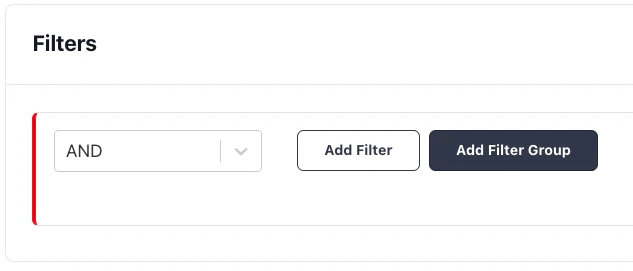
A group can contain only filters or only nested groups, not both at the same
level. Structure your logic by nesting groups when you need to mix AND/OR
conditions.
Estimating Recipients
After configuring your filters, click Estimate Recipient Count to see how many customers currently match your filter criteria. The estimate shows separate counts for SMS-eligible and email-eligible recipients based on their opt-in status and available contact info.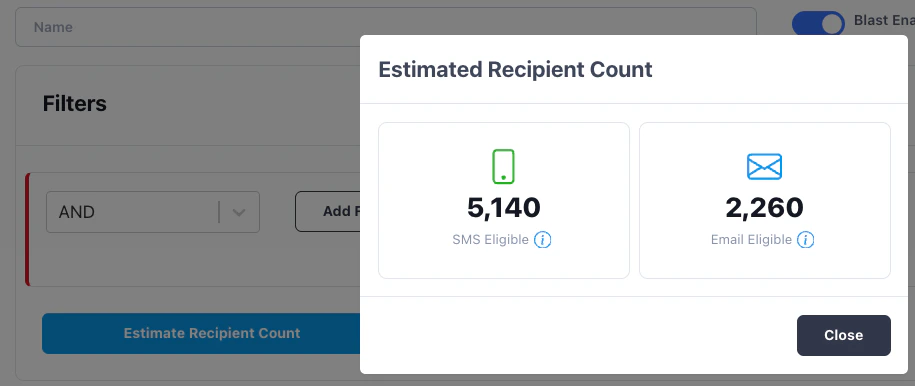
Delivery Channel
The Delivery Channel card controls how the message reaches customers.SMS
Select SMS to send a text message. You write the message content directly in the message field. Only customers with a phone number on file and the required opt-in level will receive the message. For Scheduled Blasts, an Estimate SMS Cost button is available to preview the approximate cost of sending to your filtered audience.Opt-In Levels
FlexEngage respects customer consent preferences. When creating a message, the opt-in level determines which customers are eligible:- Double Opt-In (default for SMS): Only customers who have completed the double opt-in process. This is the safest and most compliant setting.
- Single Opt-In: Customers who have opted in at least once.
- None: All customers who have not explicitly opted out.
Send Schedule
The Send Schedule card controls when the message is sent.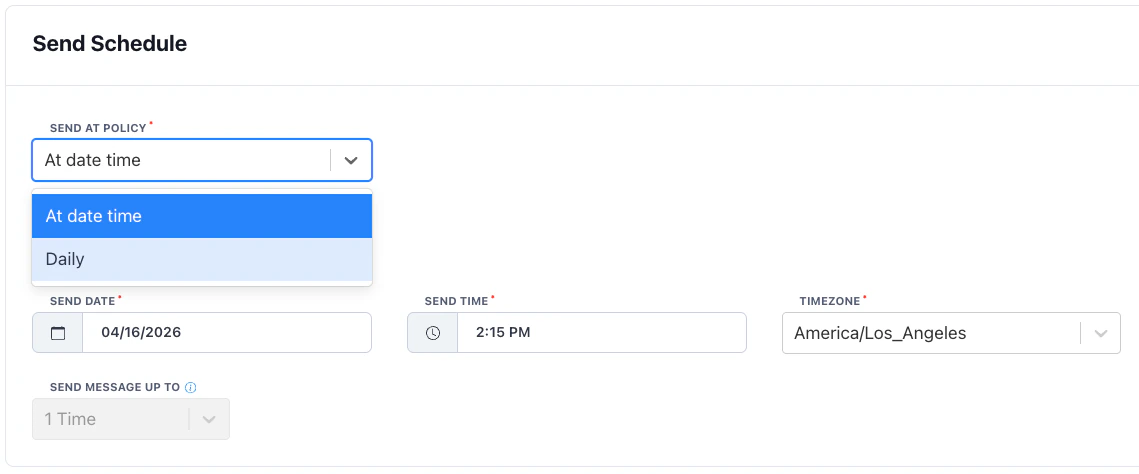
At Date/Time
Send the message once at a specific date and time. Select the date, time, and timezone. The message fires once and the blast moves to a completed state.Recurring
Send the message on a repeating schedule. Recurring blasts are useful for ongoing campaigns that should continuously reach new customers as they meet the filter criteria. When using a recurring schedule, additional recurring filters become available:- Membership Anniversary: Target members approaching a sign up anniversary.
- Offer Expiring in X Days: Target members whose promotional pricing is about to end.