> ## Documentation Index
> Fetch the complete documentation index at: https://docs.flexwash.com/llms.txt
> Use this file to discover all available pages before exploring further.
# Refresh Config
> After updating wash packages, prices, or other settings, it is necessary to select the Refresh Config option to ensure the changes are visible on the pay tablet.
***
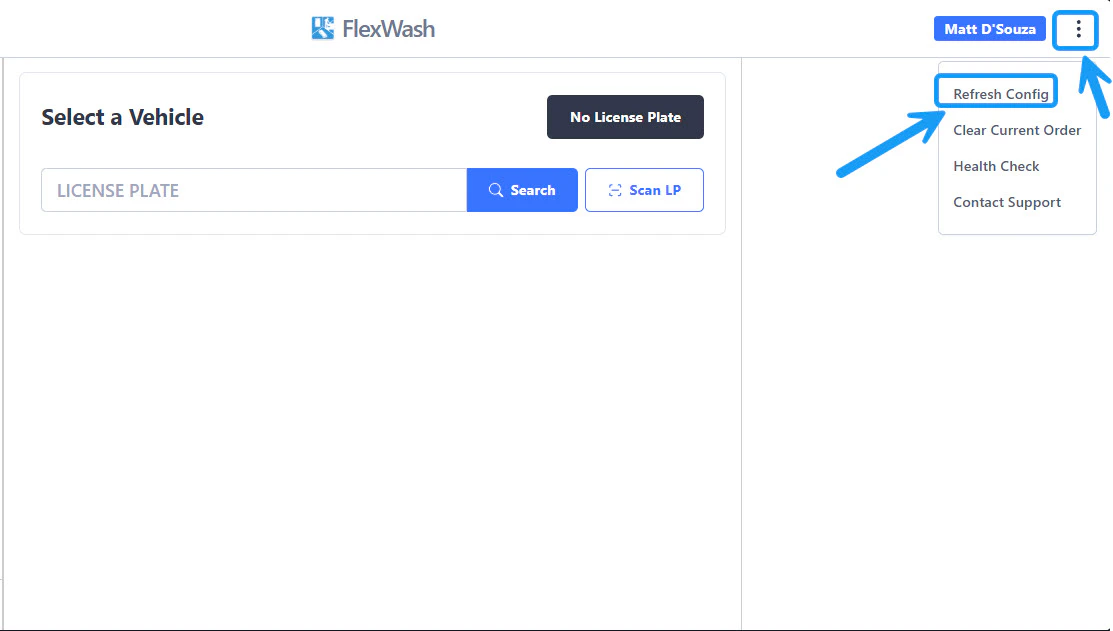 On the Pay Tablets, tap on the 3 vertical dots located on the upper right corner of the screen and then select the "Refresh Config" option. \
\
This will update the wash options, prices, or any other changes made to the wash packages that appear on the Pay Tablet.
#### PAX handhelds
On the Pay Tablets, tap on the 3 vertical dots located on the upper right corner of the screen and then select the "Refresh Config" option. \
\
This will update the wash options, prices, or any other changes made to the wash packages that appear on the Pay Tablet.
#### PAX handhelds
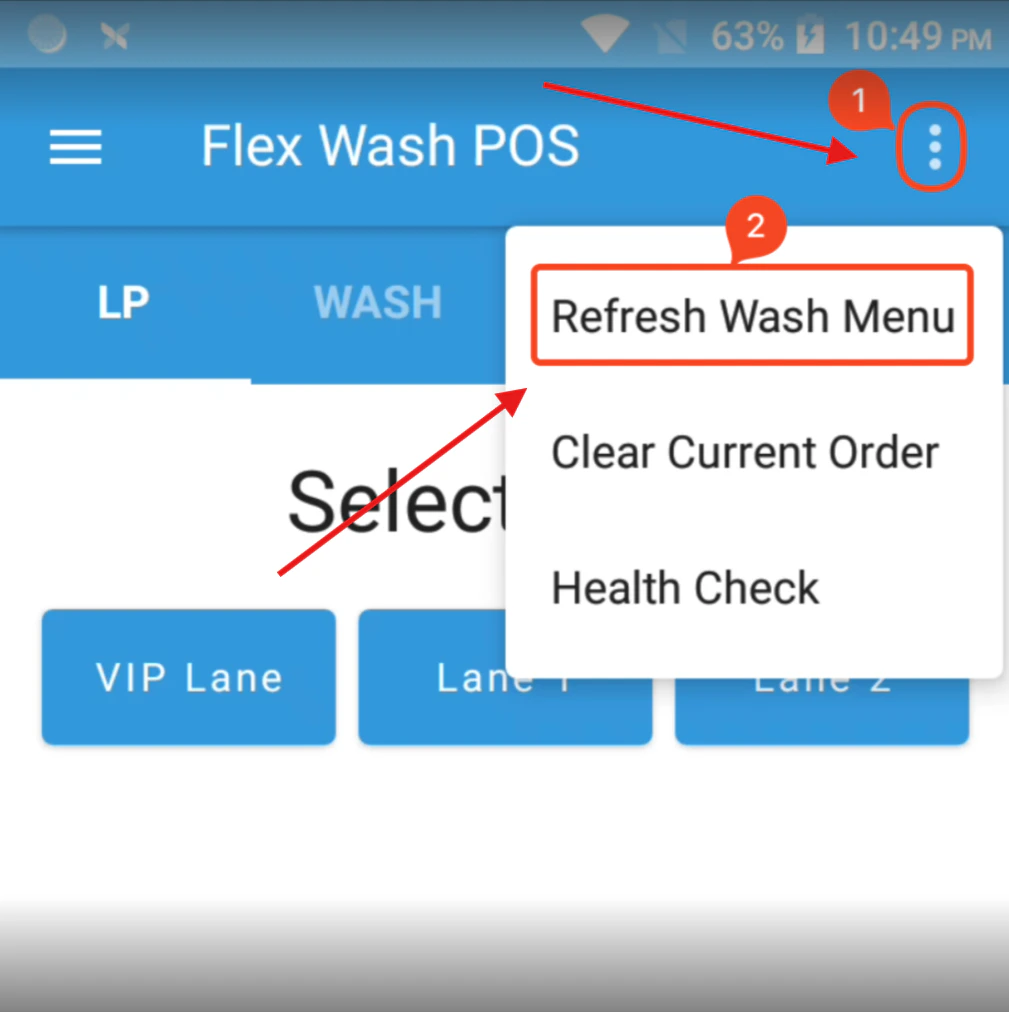 First, tap on the 3 vertical dots that appear on the upper right corner of the screen and then tap on the option named "Refresh Wash Menu".\
\
This will update the wash options, prices, or any other changes made to the wash packages that appear on the handheld device.
First, tap on the 3 vertical dots that appear on the upper right corner of the screen and then tap on the option named "Refresh Wash Menu".\
\
This will update the wash options, prices, or any other changes made to the wash packages that appear on the handheld device.