> ## Documentation Index
> Fetch the complete documentation index at: https://docs.flexwash.com/llms.txt
> Use this file to discover all available pages before exploring further.
# Pay Tablet Issues
> This guide covers troubleshooting a FlexWash Pay Tablet.
## FlexWash WiFi
Make sure that both the Pay Tablet and the Payment Terminal terminal are turned on and connected to the FlexWash WiFi.
### Network Settings
Please ensure these settings are turned off so you do not experience connection
issues on your iPad.
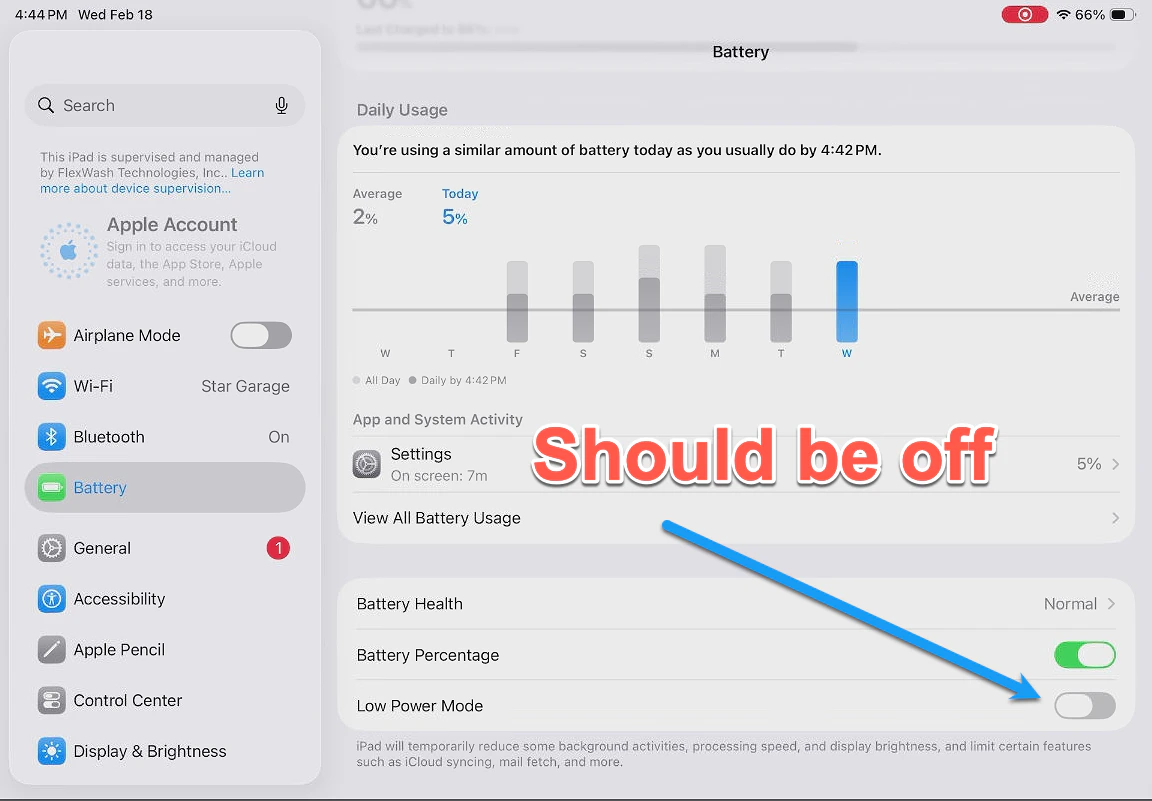
In Settings > Battery *Low Power Mode* is turned off.
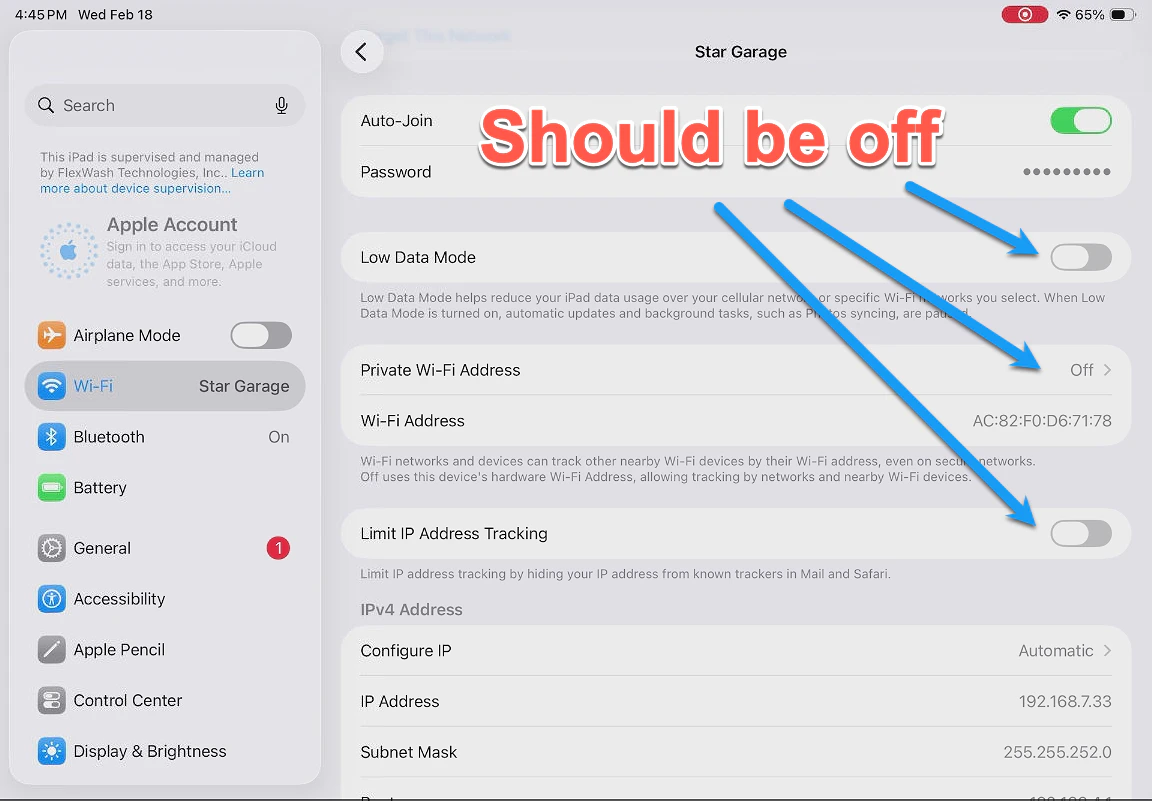
 In Settings > Wi-Fi *Low Data Mode*, *Private Wi-Fi Address*, *Limit IP Address Tracking* are turned off.
 ## Health Check
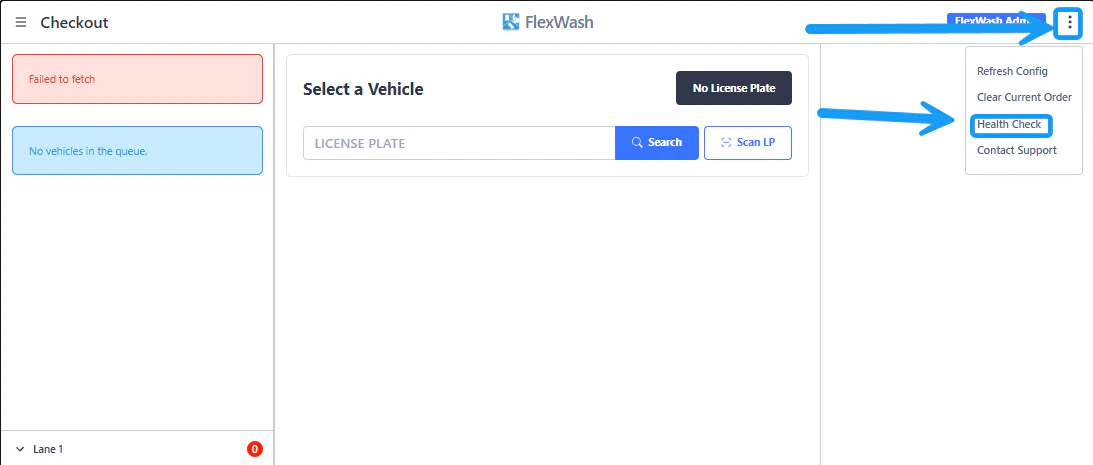 You can verify if the Pay Tablet and the Payment Terminal have communication by tapping on the 3 vertical dots located on the upper right corner of Flexwash App, and then tapping on the "Health Check" option.\
\
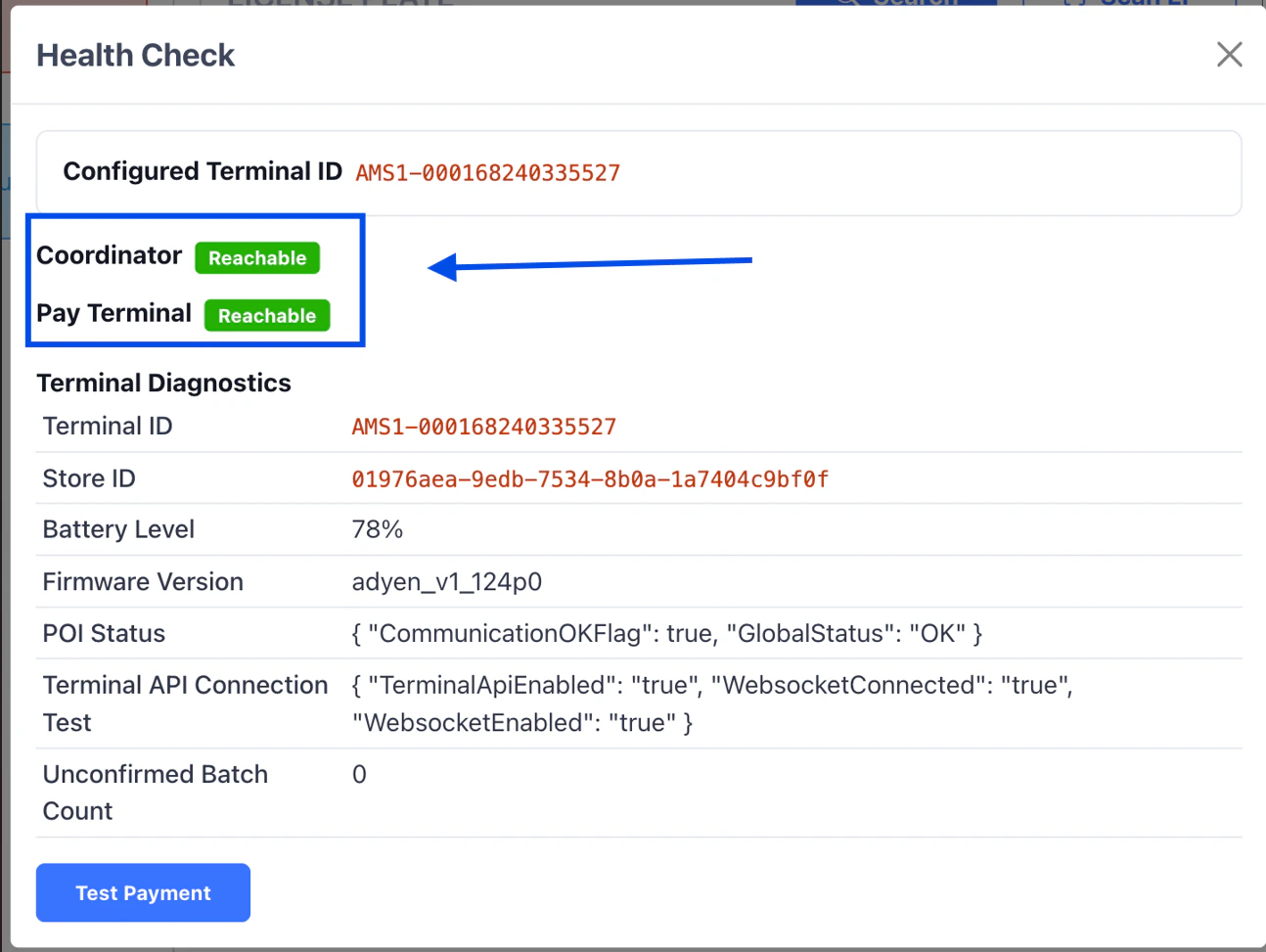
If the devices are communicating as expected, you will get a message like the one in the screenshot below showing "Reachable" for both the Pay Terminal and the Coordinator. If you get a not reachable message for the Pay Terminal continue with the troubleshooting steps below.
You can verify if the Pay Tablet and the Payment Terminal have communication by tapping on the 3 vertical dots located on the upper right corner of Flexwash App, and then tapping on the "Health Check" option.\
\
If the devices are communicating as expected, you will get a message like the one in the screenshot below showing "Reachable" for both the Pay Terminal and the Coordinator. If you get a not reachable message for the Pay Terminal continue with the troubleshooting steps below.
 ### Terminal ID Mismatch
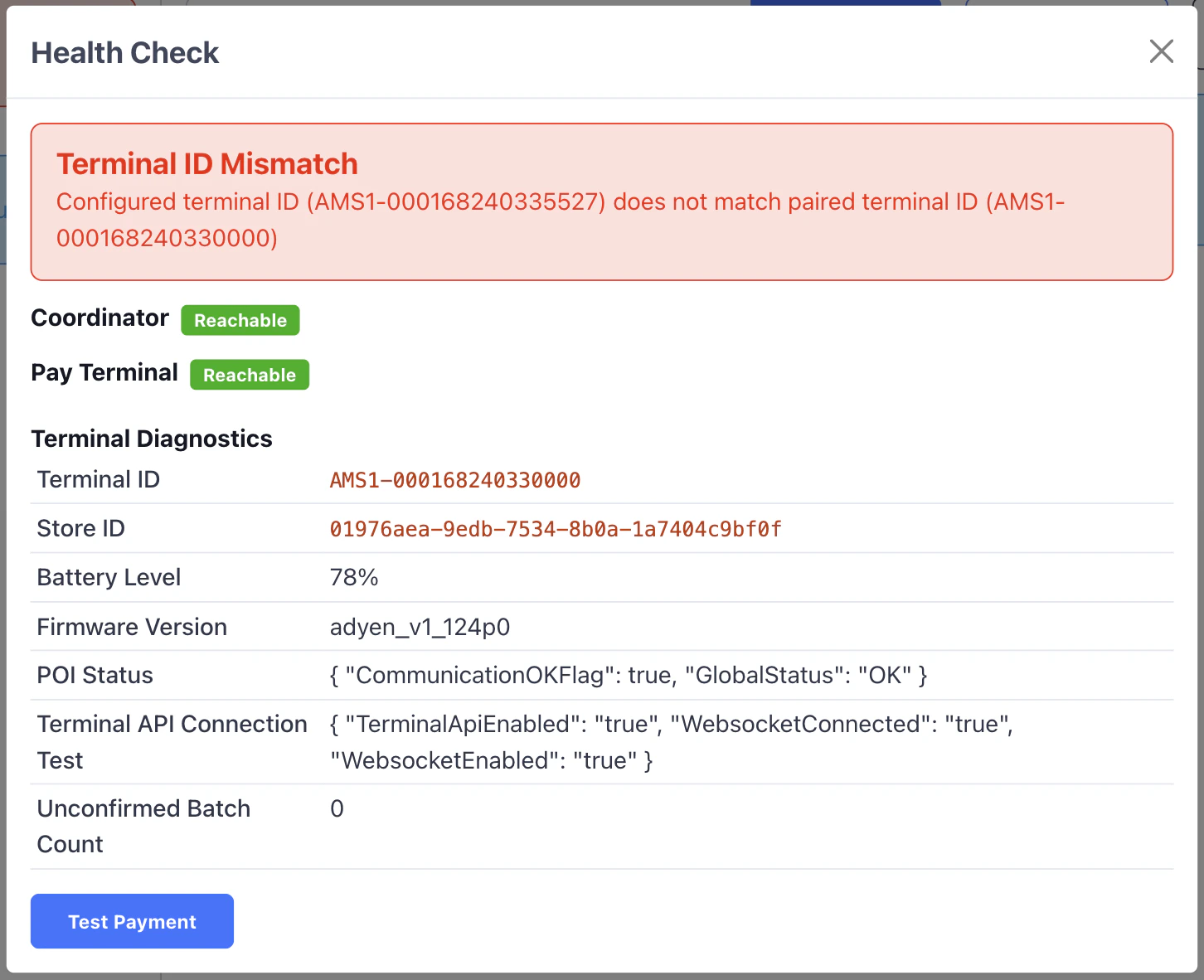 If you get the "Terminal ID Mismatch" error message, that indicates that the wrong Pay Terminal is being used with this Pay Tablet. Make sure you pair the devices accordingly. If this is a new or replacement Pay terminal, please contact Support for further assistance.
## Permissions
Make sure the FlexWash app has the necessary permissions enabled.
1. Open the settings and select Apps.
If you get the "Terminal ID Mismatch" error message, that indicates that the wrong Pay Terminal is being used with this Pay Tablet. Make sure you pair the devices accordingly. If this is a new or replacement Pay terminal, please contact Support for further assistance.
## Permissions
Make sure the FlexWash app has the necessary permissions enabled.
1. Open the settings and select Apps.
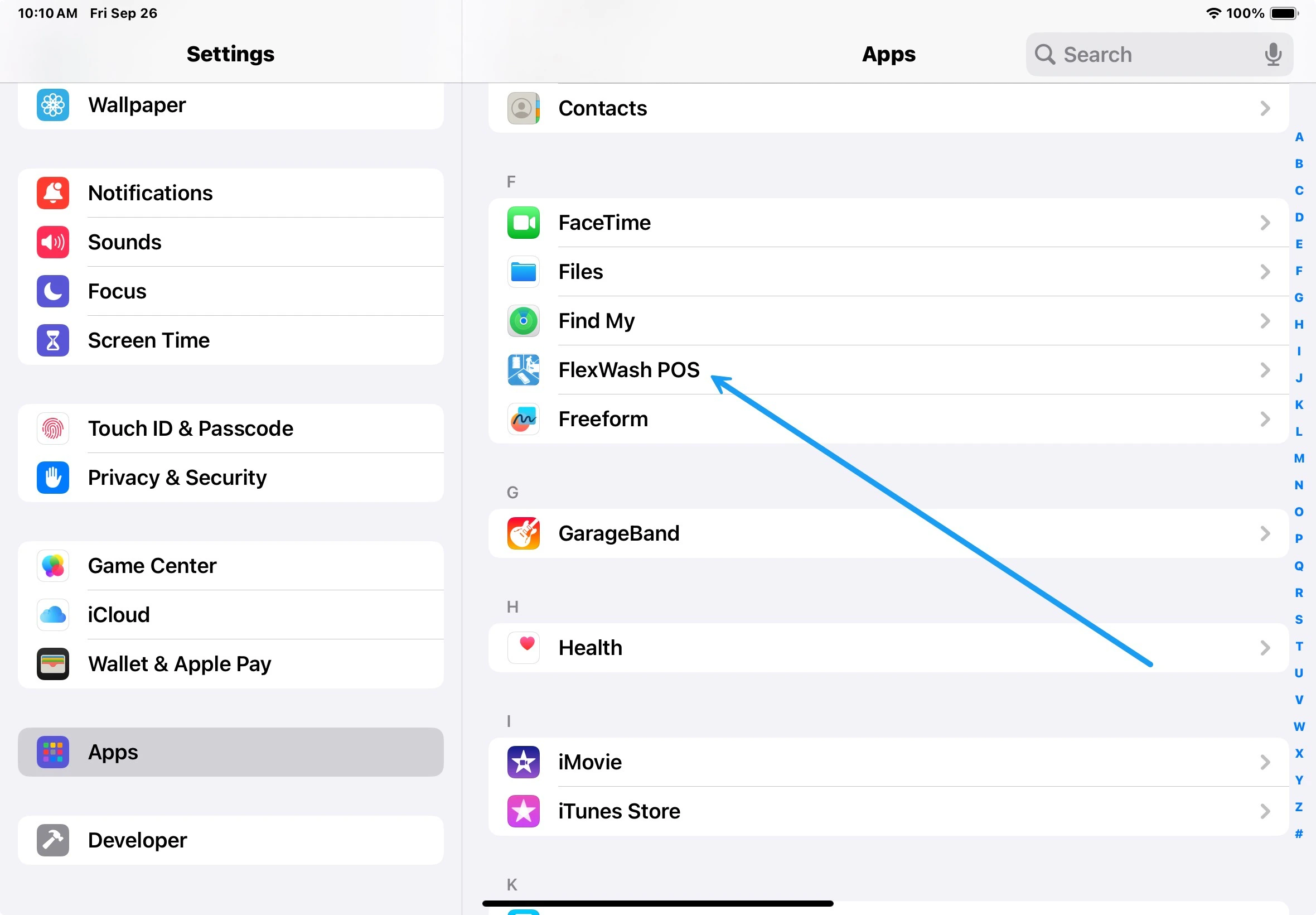
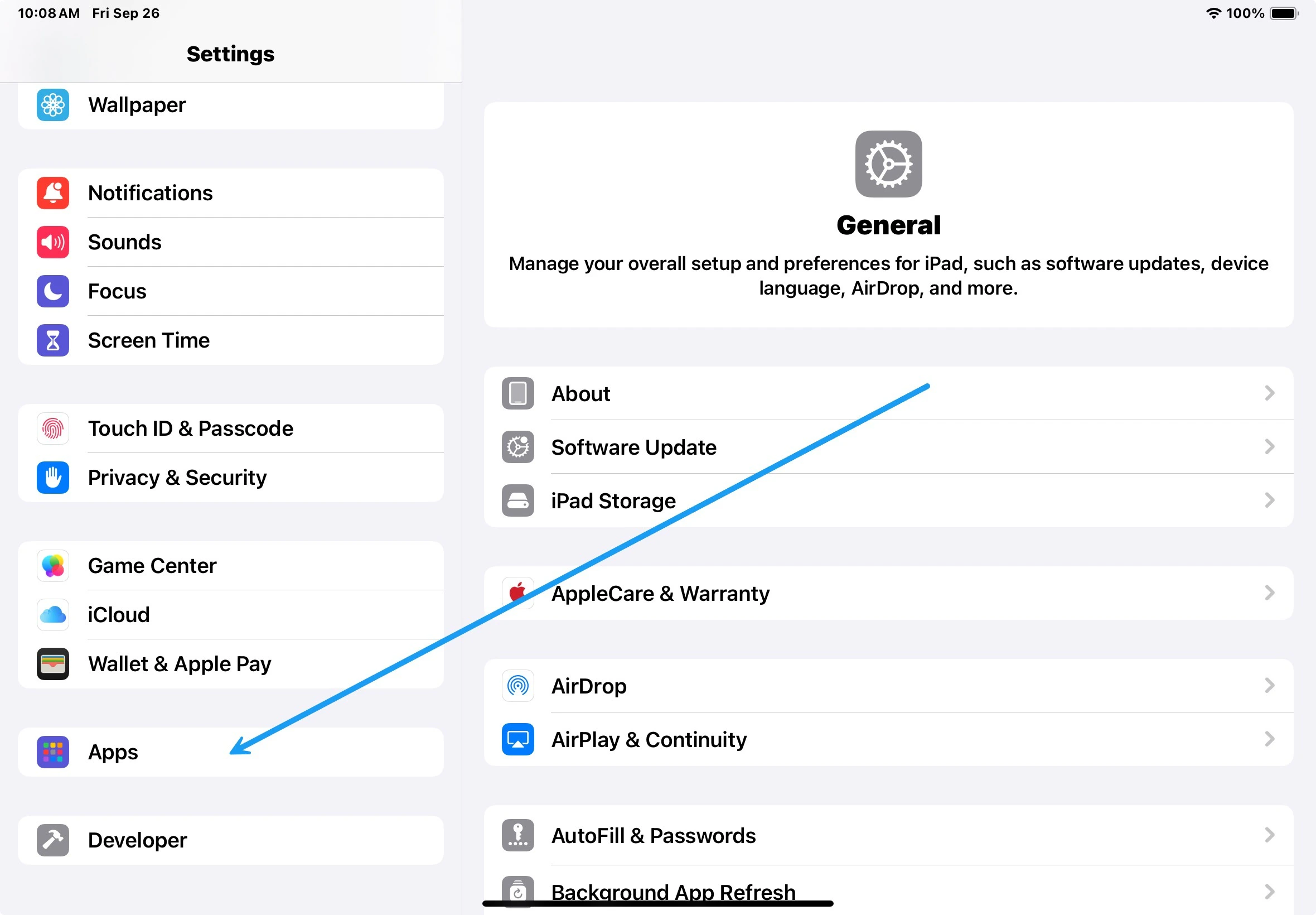 2. Find and select the FlexWash POS app.
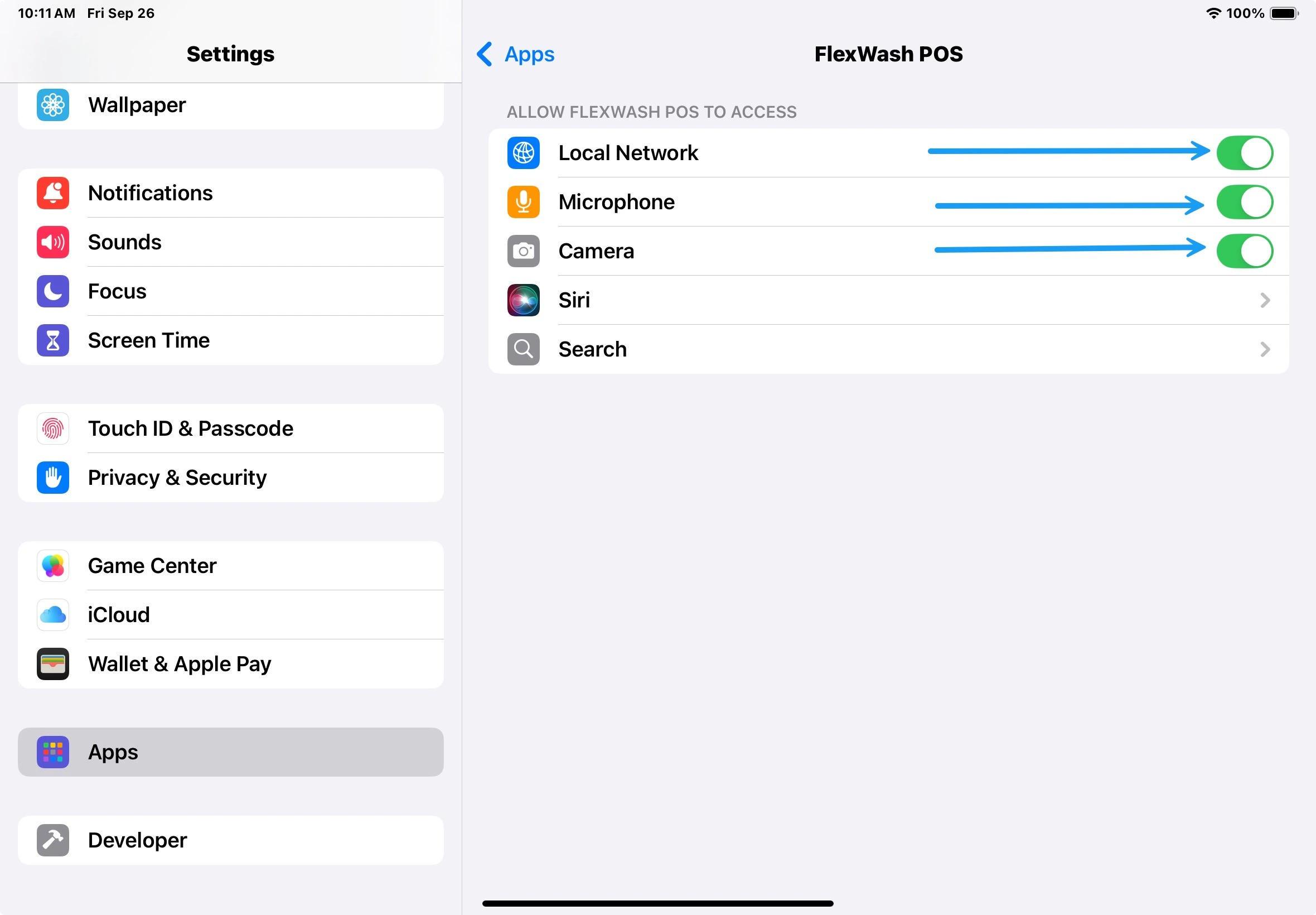
 3. Make sure all three permissions are enabled (audio, camera, local device communication).
 **If you still get the "Terminal Not Reachable" error after enabling the permissions, please try restarting both the Pay Tablet and the Pay Terminal.**
## Update the Pay Terminal
If you are getting an error indicating that a Credit Card is not supported or something similar, verify that the Pay Terminal is updated.
### Settings
**If you still get the "Terminal Not Reachable" error after enabling the permissions, please try restarting both the Pay Tablet and the Pay Terminal.**
## Update the Pay Terminal
If you are getting an error indicating that a Credit Card is not supported or something similar, verify that the Pay Terminal is updated.
### Settings
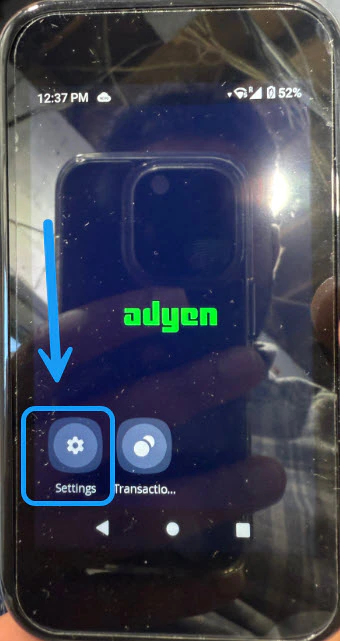 Open the Settings app on the Payment Terminal.
### Configuration
Open the Settings app on the Payment Terminal.
### Configuration
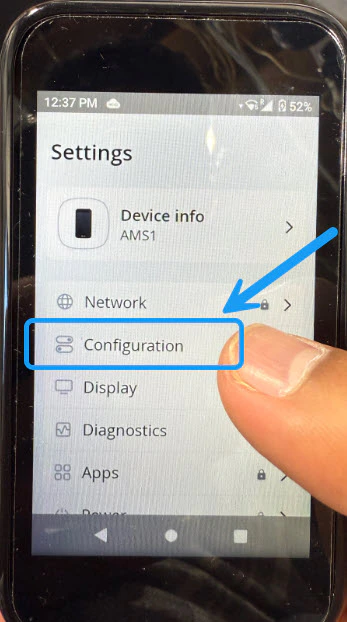 Select the "Configuration" option.
### Check Status
Select the "Configuration" option.
### Check Status
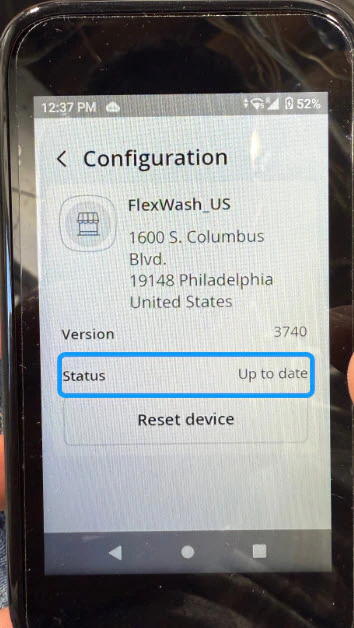 If there is an update pending in the "Status" section proceed to install it and run a Health Check again.
## Removing Pay Terminal from the Pay Tablet's case
As shown on the video above, the Pay Terminal is a separate device from the Pay Tablet, and it can be detached from the case.\
\
Press down on the lever located on the top of the Pay Terminal's compartment. You will hear a clicking noise and the device will come right out. \
\
To put the device back in, put it top first and then push on the bottom until it clicks again.
## How to insert and remove the Pay Tablet from its case
**Removing the iPad from the Case**
1. Flip the case over and push back the small clip on the top of the case.
2. The tablet will slide out.
3. To open the inner portion of the case, locate the small clip and push it down while pulling up, which allows the tablet to come out.
**Putting the iPad Back into the Case**
1. Slide the iPad back into the inner part of the case until it is "pretty snug".
2. Clip the inner case closed on the top, making sure it clips on both sides.
3. When putting the unit back into the outer case, first clip the top part and then push on the bottom until you hear a click.
## Network Issues
You should also rule out potential coordinator and network issues that we cover in [these docs](/technical/troubleshooting/prem-issues).
If there is an update pending in the "Status" section proceed to install it and run a Health Check again.
## Removing Pay Terminal from the Pay Tablet's case
As shown on the video above, the Pay Terminal is a separate device from the Pay Tablet, and it can be detached from the case.\
\
Press down on the lever located on the top of the Pay Terminal's compartment. You will hear a clicking noise and the device will come right out. \
\
To put the device back in, put it top first and then push on the bottom until it clicks again.
## How to insert and remove the Pay Tablet from its case
**Removing the iPad from the Case**
1. Flip the case over and push back the small clip on the top of the case.
2. The tablet will slide out.
3. To open the inner portion of the case, locate the small clip and push it down while pulling up, which allows the tablet to come out.
**Putting the iPad Back into the Case**
1. Slide the iPad back into the inner part of the case until it is "pretty snug".
2. Clip the inner case closed on the top, making sure it clips on both sides.
3. When putting the unit back into the outer case, first clip the top part and then push on the bottom until you hear a click.
## Network Issues
You should also rule out potential coordinator and network issues that we cover in [these docs](/technical/troubleshooting/prem-issues).