> ## Documentation Index
> Fetch the complete documentation index at: https://docs.flexwash.com/llms.txt
> Use this file to discover all available pages before exploring further.
# r-TC (Laguna)
> Bring your existing Laguna r-TC tunnel controller onto FlexWash. No hardware replacement, no rewiring the tunnel.
FlexWash sends wash codes to a Laguna Remote Tunnel Controller (r-TC) over Ethernet. The controller keeps running the tunnel. Complete the steps below. FlexWash handles the rest.
**These settings apply to the Laguna r-TC only.** Other r-TC variants use different network parameters.
## Before you start
* The FlexWash switch and coordinator are installed and online. See [On-Prem Installation](/getting-started/equipment-installation/on-prem-installation).
* A contact at Laguna, they normally set the WAN parameters and enables Ethernet on your packages. An experienced technician can do both instead, with the router and r-TC web interface passwords from Laguna.
* Access to the r-TC network if you are performing these steps yourself, either a laptop connected to it or the HMI.
## Step 1. Connect the r-TC router to the FlexWash switch
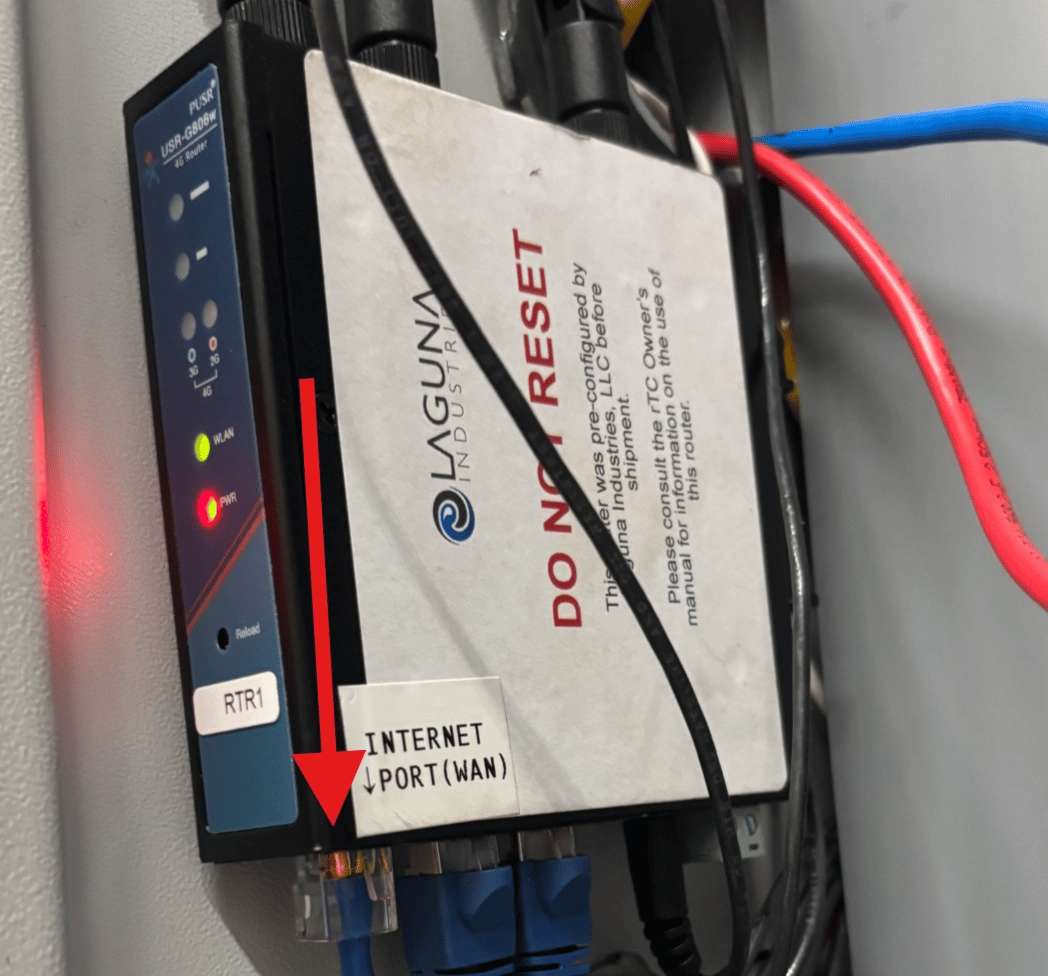
Run an Ethernet cable from **port 23** on the FlexWash switch to Laguna's router, which sits inside the controller enclosure.
The cable must go into the router's **WAN** port. A LAN port will not work for Laguna's r-TC.
 ## Step 2. Set the WAN parameters on the r-TC router
Navigate to `192.168.1.91`.
Credentials vary by site. Factory credentials sometimes work. If they do not, contact Laguna for the password.
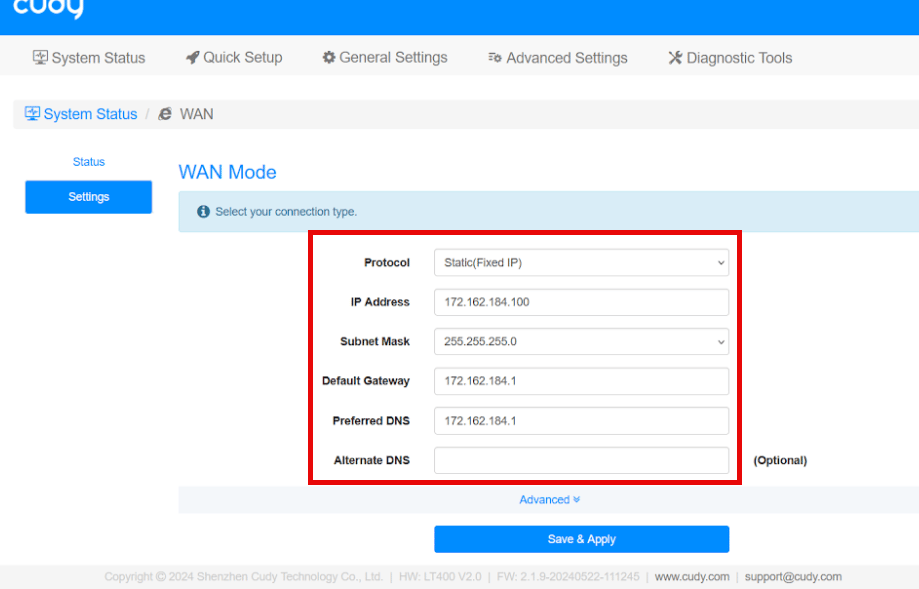
### Apply these settings
| Setting | Value |
| ------------------- | ----------------- |
| WAN connection type | Static IP |
| WAN IP address | `172.162.184.100` |
| Subnet mask | `255.255.255.0` |
| Default gateway | `172.162.184.1` |
| DNS server | `172.162.184.1` |
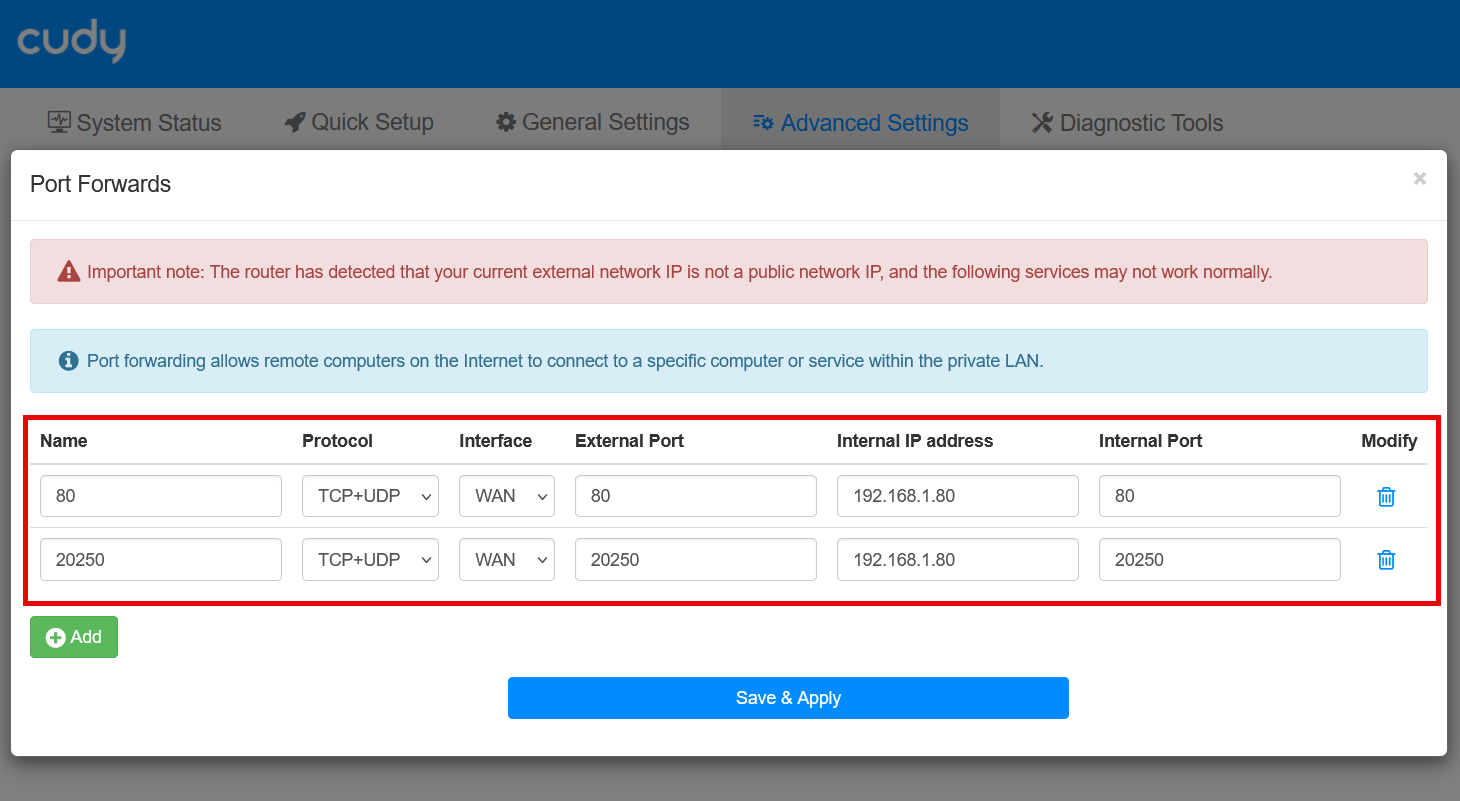
Port forwarding, both entries required:
| External | Internal |
| -------- | -------- |
| `80` | `80` |
| `20250` | `20250` |
The router brand varies between sites. Asus, Cudy, Linksys, and others all appear, so your screens may not match the screenshots below, which come from a Cudy router. The settings and values are the same regardless of brand.
## Step 2. Set the WAN parameters on the r-TC router
Navigate to `192.168.1.91`.
Credentials vary by site. Factory credentials sometimes work. If they do not, contact Laguna for the password.
### Apply these settings
| Setting | Value |
| ------------------- | ----------------- |
| WAN connection type | Static IP |
| WAN IP address | `172.162.184.100` |
| Subnet mask | `255.255.255.0` |
| Default gateway | `172.162.184.1` |
| DNS server | `172.162.184.1` |
Port forwarding, both entries required:
| External | Internal |
| -------- | -------- |
| `80` | `80` |
| `20250` | `20250` |
The router brand varies between sites. Asus, Cudy, Linksys, and others all appear, so your screens may not match the screenshots below, which come from a Cudy router. The settings and values are the same regardless of brand.
 ## Step 3. Enable Ethernet in the r-TC web interface
Laguna normally performs this step. An experienced technician can do it instead.
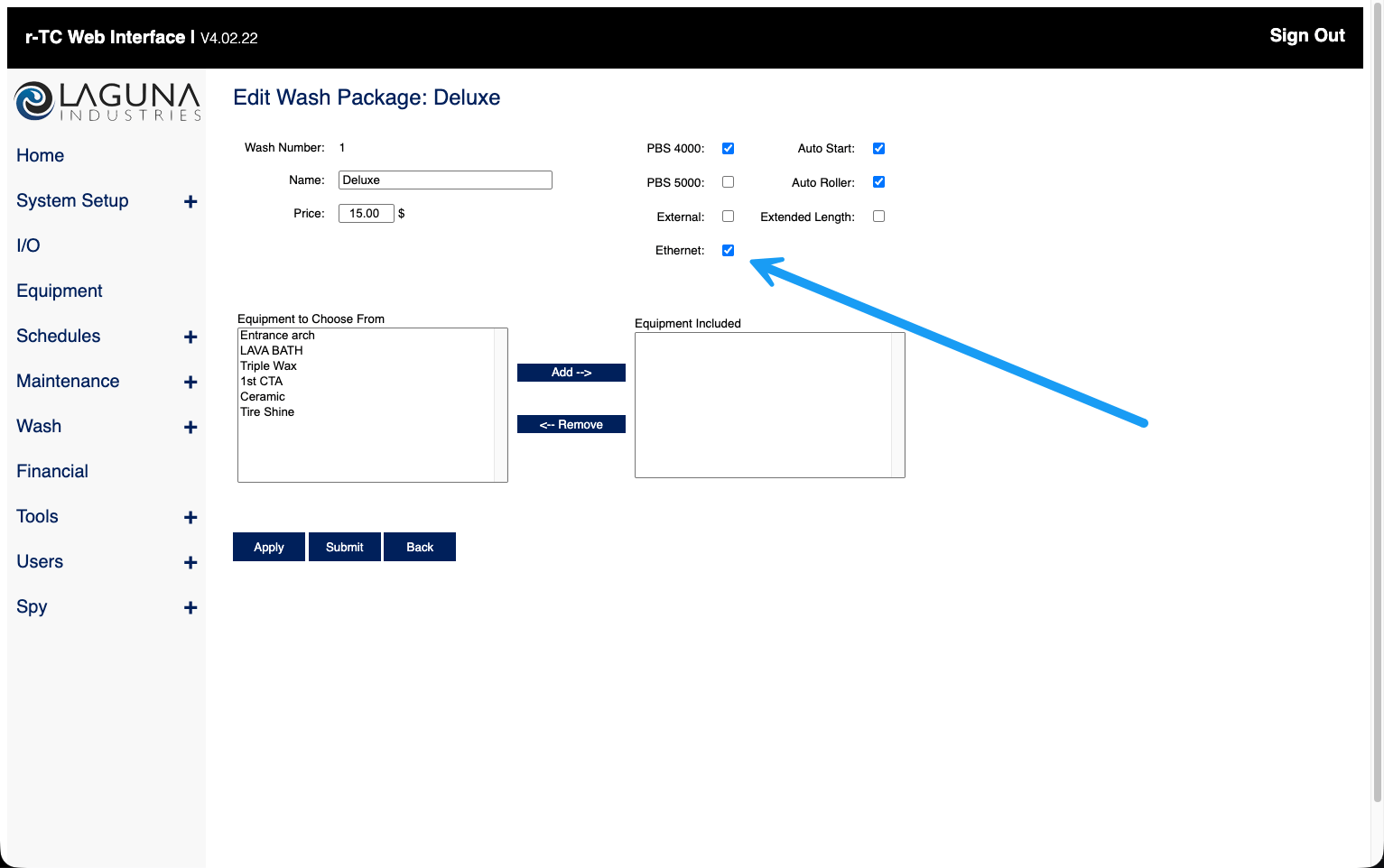
The r-TC web interface is at `192.168.1.80`, the **Ethernet** option must be enabled on every one of your **wash packages** and **retracts**. FlexWash cannot trigger anything without it.
## Step 3. Enable Ethernet in the r-TC web interface
Laguna normally performs this step. An experienced technician can do it instead.
The r-TC web interface is at `192.168.1.80`, the **Ethernet** option must be enabled on every one of your **wash packages** and **retracts**. FlexWash cannot trigger anything without it.
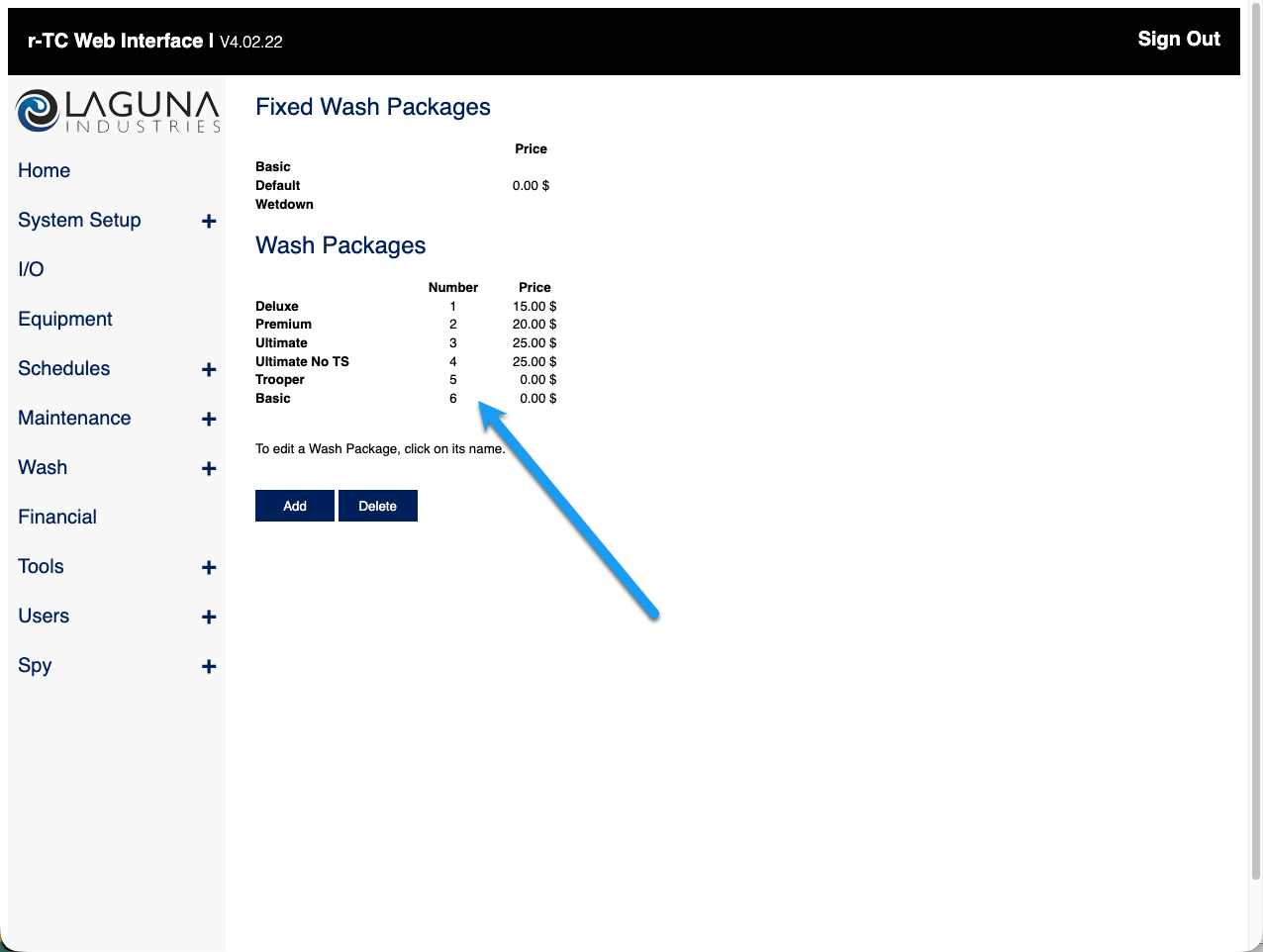
 ## Step 4. Provide your wash codes
Each wash package carries a numerical **wash code**. Send the codes to your onboarding specialist or to Customer Support. FlexWash maps them to your packages.
## Step 4. Provide your wash codes
Each wash package carries a numerical **wash code**. Send the codes to your onboarding specialist or to Customer Support. FlexWash maps them to your packages.
 ## What happens next
FlexWash completes the integration on our side, which includes registering the controller and mapping your wash codes. When that is done, we test a wash and a retract with you before the site goes live.
Once the controller is live, see [Retracts](/configuration/wash-menu/retracts) to configure which equipment can be pulled back per vehicle.
## What happens next
FlexWash completes the integration on our side, which includes registering the controller and mapping your wash codes. When that is done, we test a wash and a retract with you before the site goes live.
Once the controller is live, see [Retracts](/configuration/wash-menu/retracts) to configure which equipment can be pulled back per vehicle.