> ## Documentation Index
> Fetch the complete documentation index at: https://docs.flexwash.com/llms.txt
> Use this file to discover all available pages before exploring further.
# Site Logs
> Record the weather, downtime, and operational changes behind every swing in your numbers.
Numbers only tell half the story. A slow week might be a cold snap, a profit jump
might be the promotion you launched on Monday, and an odd gap might be the
afternoon a pump went down. Site Logs let you capture those events as they happen,
then see them overlaid directly on your [Operating Profit](/reports/operating-profit)
trend so the "why" sits right next to the "what."
You can find Site Logs in the sidebar menu.
## Viewing Logs
Pick a date range and confirm the car wash selection in the top navbar, then click
**Run**. FlexWash lists every log for that period with its date, car wash, type,
and note. Each entry is tagged with color-coded badges for its weather, downtime,
or operational-change flags.
 ## Recording a Log
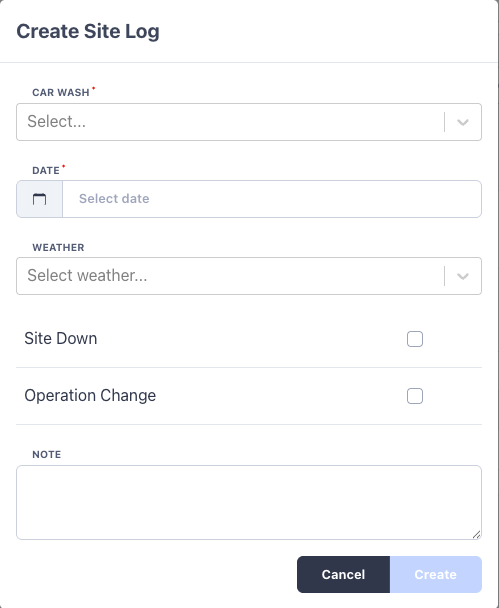
Click **Add** to open the log form. Fill in the details and save.
| Field | Required | Notes |
| ---------------- | -------- | --------------------------------------------------------------------------------------- |
| Car Wash | Yes | The site the log applies to |
| Date | Yes | The day the event occurred |
| Weather | No | One of Overcast, Rain, Snow, or Windy |
| Site Down | No | Check when the site was closed or not operating |
| Operation Change | No | Check for changes such as a promo launch, staff change, hours change, or equipment swap |
| Note | No | Free text to describe what happened |
Every log must have at least one of **Weather**, **Site Down**, or **Operation
Change** set. The **Note** is where the detail lives, for example "Launched \$5
intro promo" or "New site manager started."
## Recording a Log
Click **Add** to open the log form. Fill in the details and save.
| Field | Required | Notes |
| ---------------- | -------- | --------------------------------------------------------------------------------------- |
| Car Wash | Yes | The site the log applies to |
| Date | Yes | The day the event occurred |
| Weather | No | One of Overcast, Rain, Snow, or Windy |
| Site Down | No | Check when the site was closed or not operating |
| Operation Change | No | Check for changes such as a promo launch, staff change, hours change, or equipment swap |
| Note | No | Free text to describe what happened |
Every log must have at least one of **Weather**, **Site Down**, or **Operation
Change** set. The **Note** is where the detail lives, for example "Launched \$5
intro promo" or "New site manager started."
 You can edit or delete any log later from the table.
## How Logs Appear on Profitability
Site Logs are designed to be read alongside the [Operating Profit](/reports/operating-profit)
report. Enable **Show site logs** in that report's Inputs panel and each logged
day is shaded on the profit trend chart, with the note shown in the hover tooltip.
The band color reflects the log type:
| Color | Meaning |
| ---------- | ----------------- |
| Red | Site Down |
| Gray | Weather: Overcast |
| Blue | Weather: Rain |
| Light gray | Weather: Snow |
| Purple | Weather: Windy |
| Orange | Operation Change |
When a day carries more than one flag, the band uses the highest-priority one in
the order Site Down, then Weather, then Operation Change.
The habit pays off quickly: a few seconds logging weather and operational changes
each day turns your profitability trend from a line of numbers into a clear story
of what drives your business.
You can edit or delete any log later from the table.
## How Logs Appear on Profitability
Site Logs are designed to be read alongside the [Operating Profit](/reports/operating-profit)
report. Enable **Show site logs** in that report's Inputs panel and each logged
day is shaded on the profit trend chart, with the note shown in the hover tooltip.
The band color reflects the log type:
| Color | Meaning |
| ---------- | ----------------- |
| Red | Site Down |
| Gray | Weather: Overcast |
| Blue | Weather: Rain |
| Light gray | Weather: Snow |
| Purple | Weather: Windy |
| Orange | Operation Change |
When a day carries more than one flag, the band uses the highest-priority one in
the order Site Down, then Weather, then Operation Change.
The habit pays off quickly: a few seconds logging weather and operational changes
each day turns your profitability trend from a line of numbers into a clear story
of what drives your business.