> ## Documentation Index
> Fetch the complete documentation index at: https://docs.flexwash.com/llms.txt
> Use this file to discover all available pages before exploring further.
# Orders
> This report helps you find any order processed on your Car Wash.
## Orders report
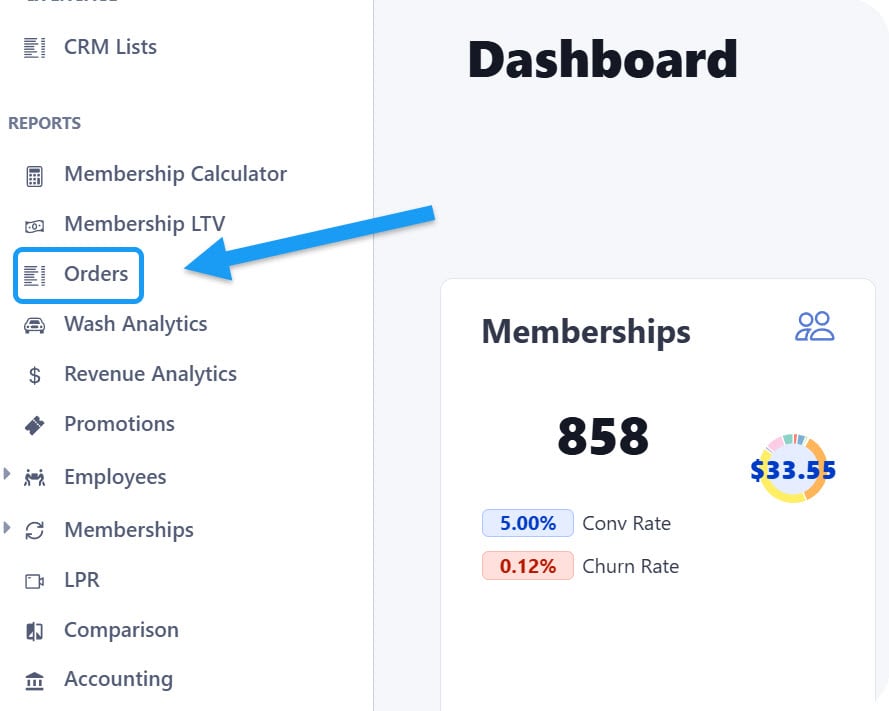 You can find the option under the report's section located on the sidebar menu on the left.
## Select date range
You can find the option under the report's section located on the sidebar menu on the left.
## Select date range
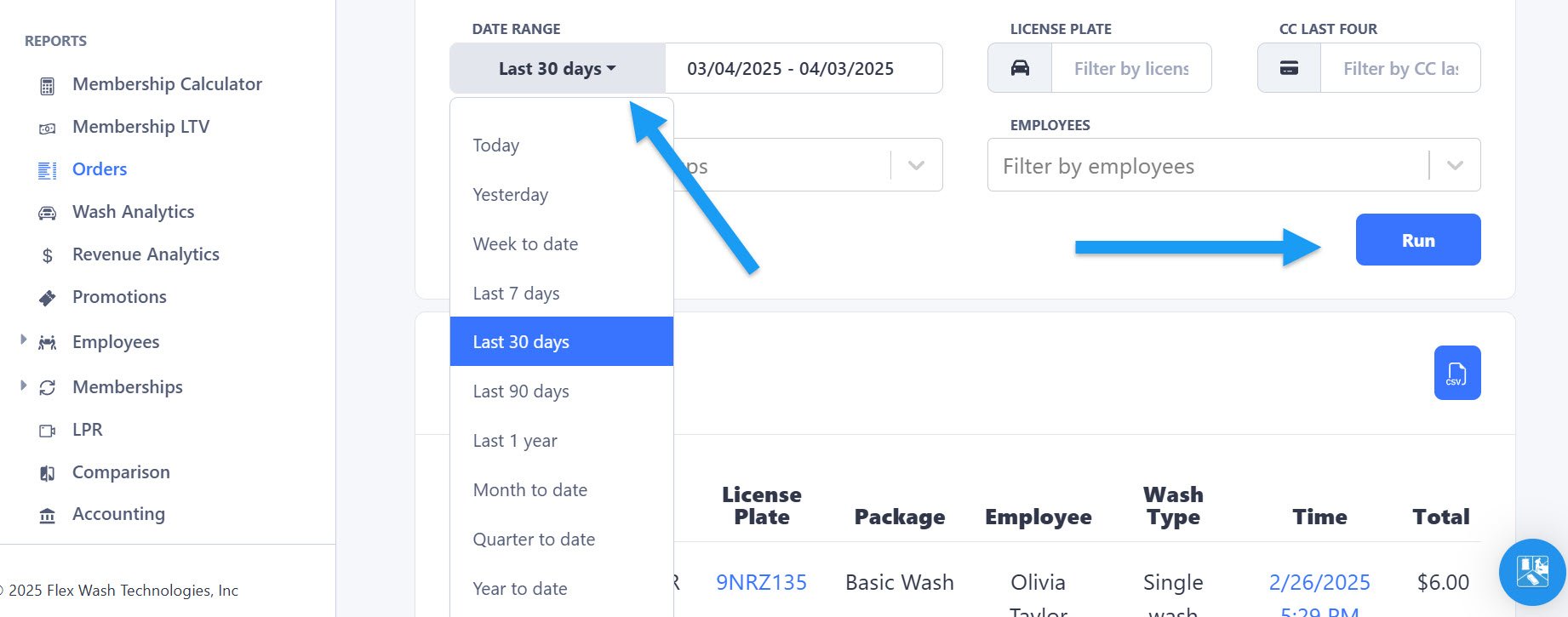 Once you open the report, select a date range option from the dropdown menu and click on the "run" button on the right.
## Filter by License Plate
Once you open the report, select a date range option from the dropdown menu and click on the "run" button on the right.
## Filter by License Plate
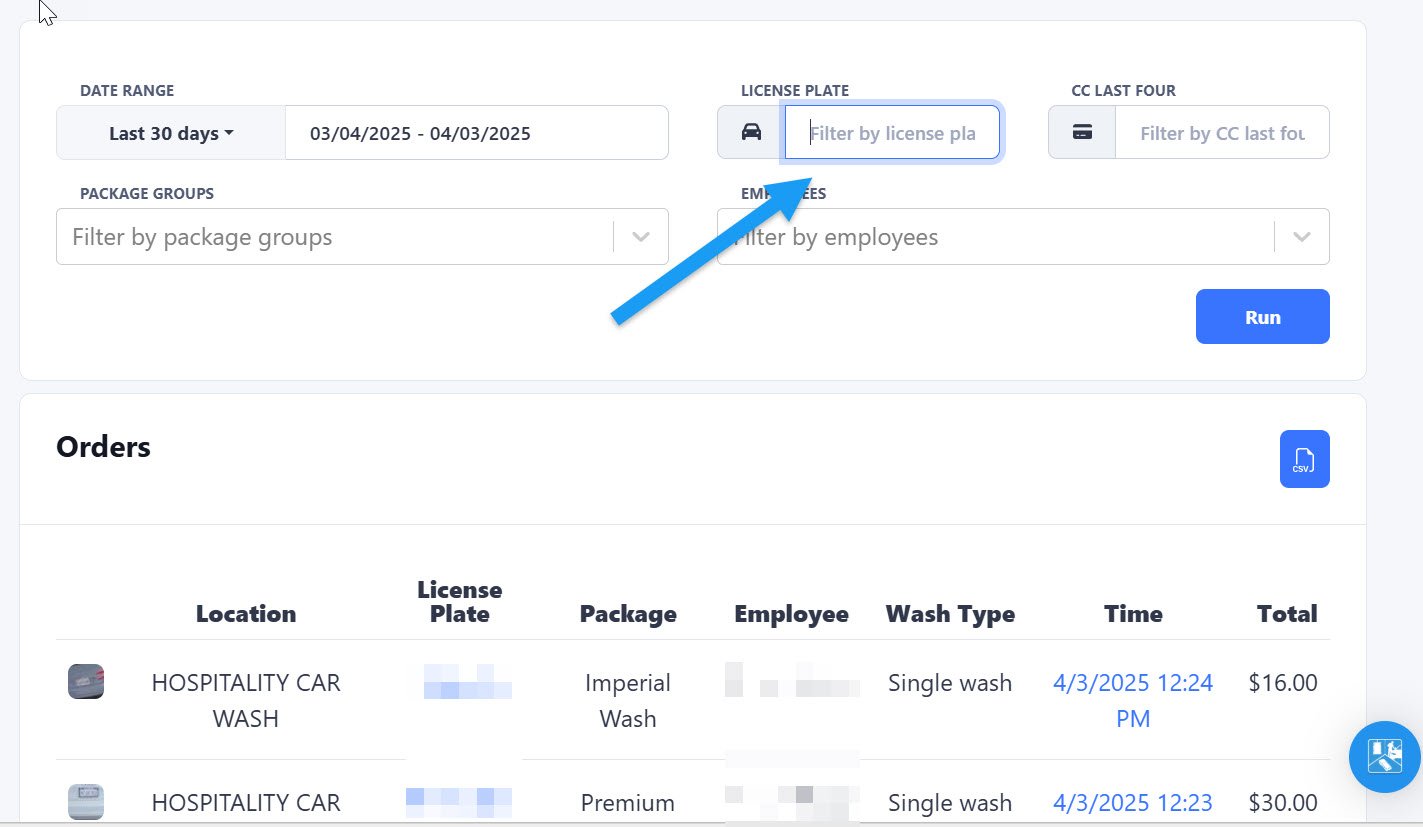 Once the date range is set, you have several options to filter the results if needed. For example, you can enter the License Plate of a customer if you need to find a specific order.
## Filter by Last Four Digits of Credit Card
Once the date range is set, you have several options to filter the results if needed. For example, you can enter the License Plate of a customer if you need to find a specific order.
## Filter by Last Four Digits of Credit Card
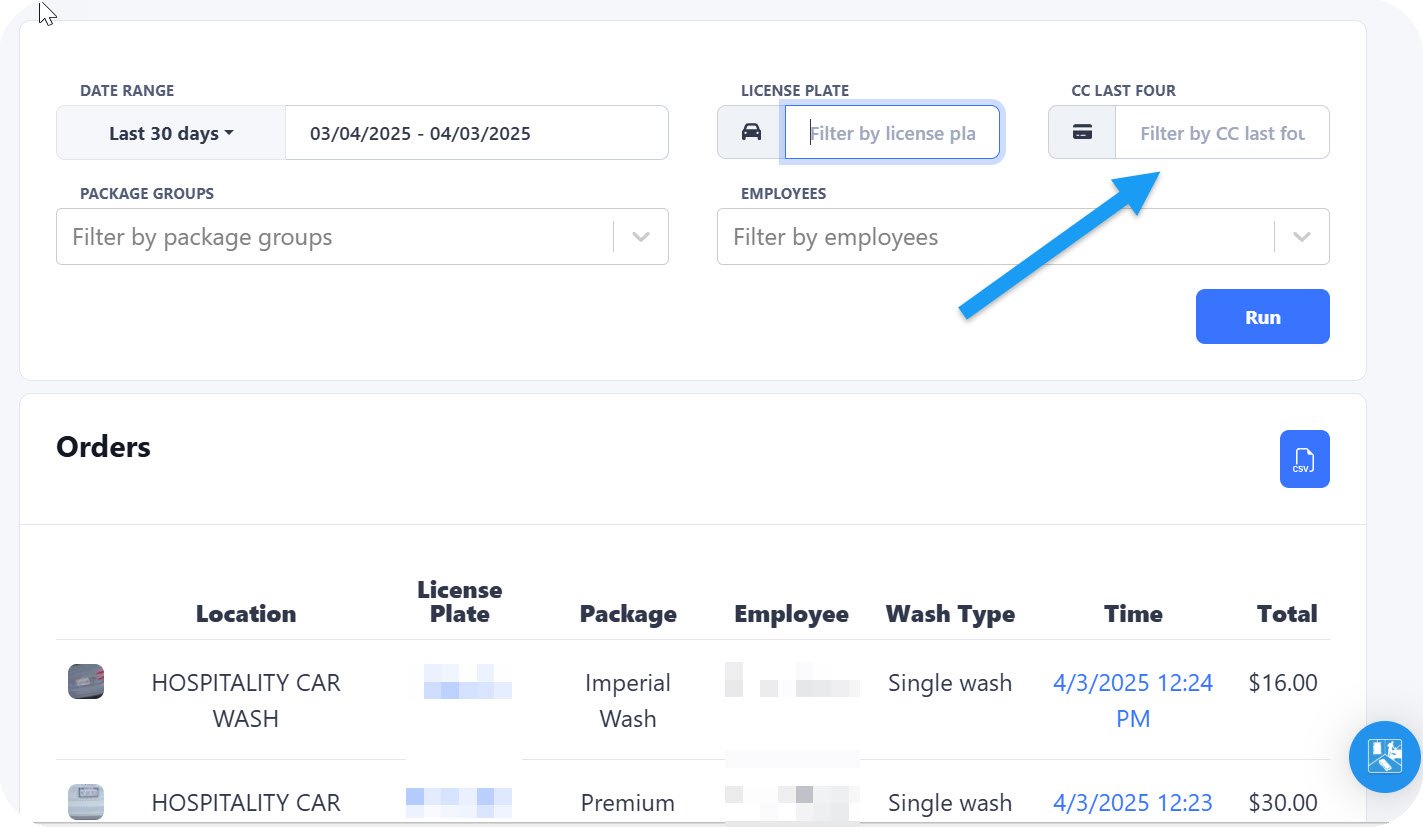 If you have the last four digits of a customer's credit card number, you can enter them here. The results will show all the transactions made during the selected date range that match those last four digits.
## Filter by Package
If you have the last four digits of a customer's credit card number, you can enter them here. The results will show all the transactions made during the selected date range that match those last four digits.
## Filter by Package
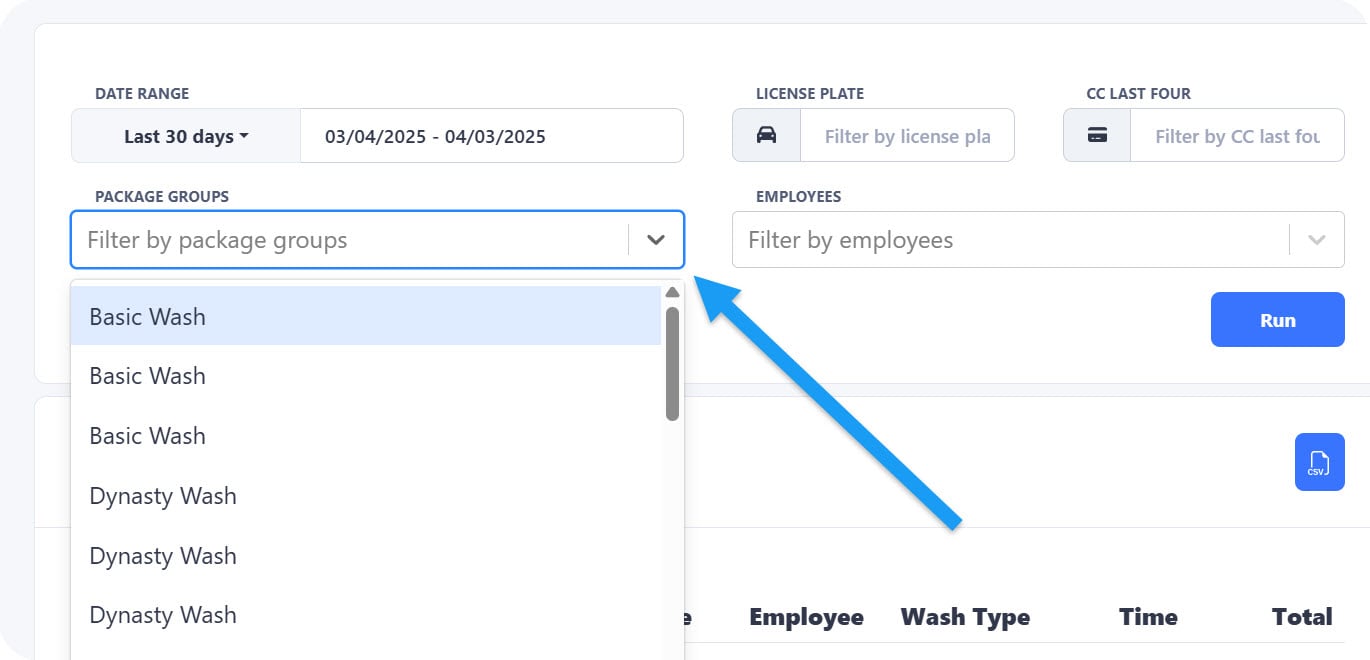 You can also filter the orders by Package. Select the Package from the dropdown list and then click on the "Run" button.
## Filter by Employee
You can also filter the orders by Package. Select the Package from the dropdown list and then click on the "Run" button.
## Filter by Employee
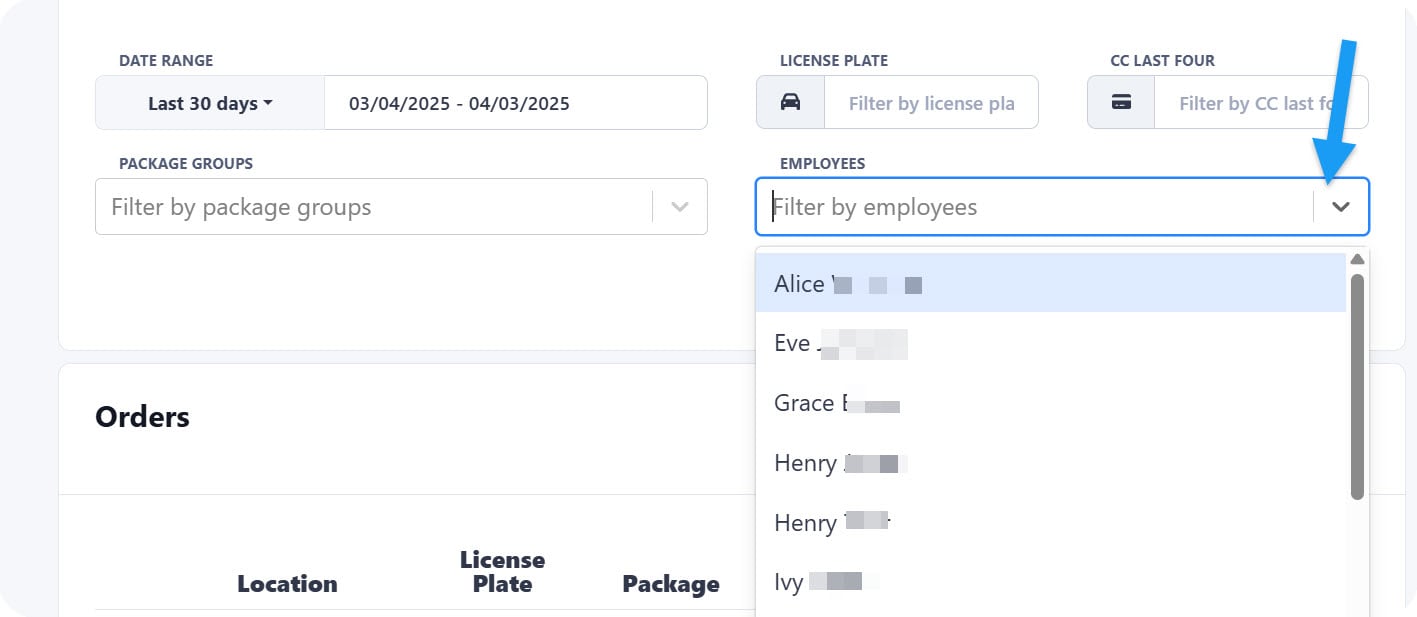 Use this filter if you want to search only the orders that a specific employee has processed during the selected date range. The dropdown menu will show the list of your employees.
## Download the Report
Use this filter if you want to search only the orders that a specific employee has processed during the selected date range. The dropdown menu will show the list of your employees.
## Download the Report
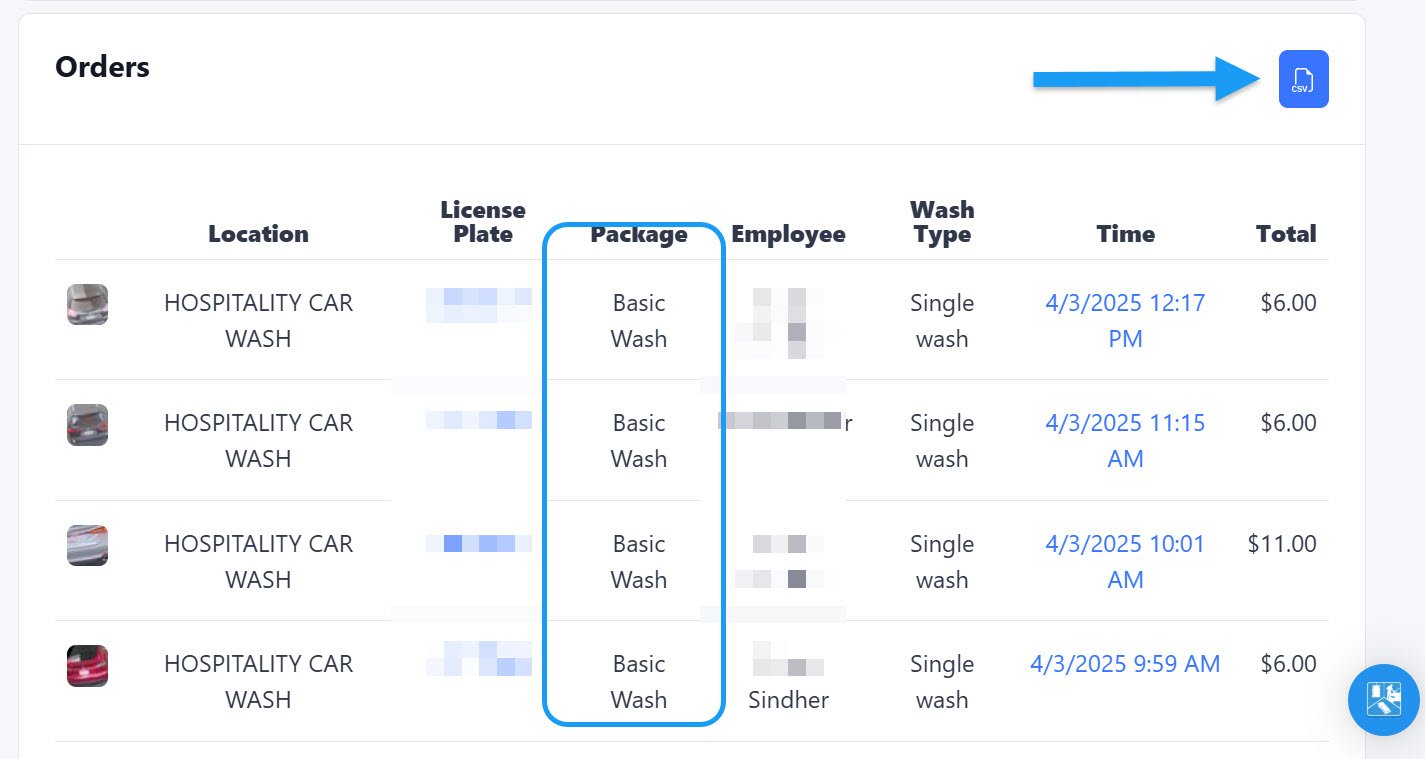 As you can see on the example above, the report will generate the orders according to your selected date range and filter. Here we are filtering by Package. If you want to download the report in Excel format, you can click on the button on the right side.