> ## Documentation Index
> Fetch the complete documentation index at: https://docs.flexwash.com/llms.txt
> Use this file to discover all available pages before exploring further.
# Operating Profit
> Model true site operating profitability by pairing your real revenue and wash volume with your own cost assumptions.
The Operating Profit report turns your raw sales into a clear picture of what
your site actually earns. FlexWash supplies the hard numbers it already knows:
your revenue, wash counts, and labor (if connected), and you supply the cost factors only you
know, such as rent, utilities, and supplies. The result is a powerful trend chart that shows
exactly how your operating profit moves day to day.
You can find Operating Profit in the sidebar menu under the Reports section.
This report is a modeling tool. Revenue and wash volumes are pulled from your
real FlexWash data, but the cost figures are based on the assumptions you enter
in the Inputs panel. It is meant for planning and "what-if" analysis, not as a
substitute for your accounting system.
## Running the Report
Pick a date range and confirm the car wash selection in the top navbar, then
click **Run**. The report loads three summary cards, an Inputs panel, and the
profit trend charts.
 ## Summary Cards
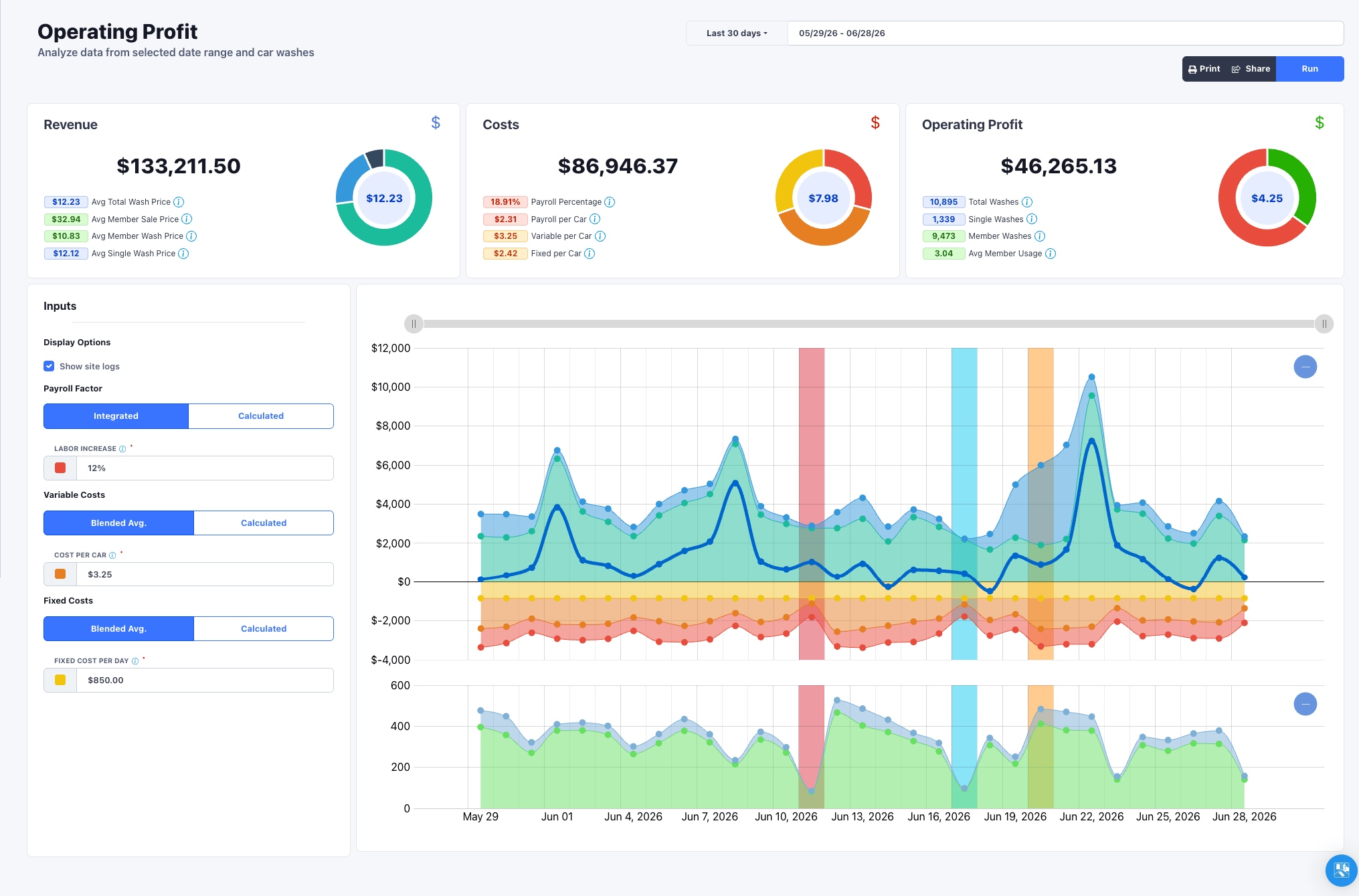
Three cards at the top summarize the selected period. Each shows a headline
figure, a per-car value, and a breakdown chart.
* **Revenue:** total revenue and revenue per car, with a pie chart by package
type. Badges show average total wash price, average member sale price, average
member wash price, and average single wash price.
* **Costs:** total modeled costs and cost per car, with a pie chart of the cost
breakdown. Badges show payroll percentage, payroll per car, variable per car,
and fixed per car.
* **Operating Profit:** revenue minus costs and profit per car, with a profit vs.
cost split. Badges show total washes, single washes, member washes, and average
member usage.
## Inputs
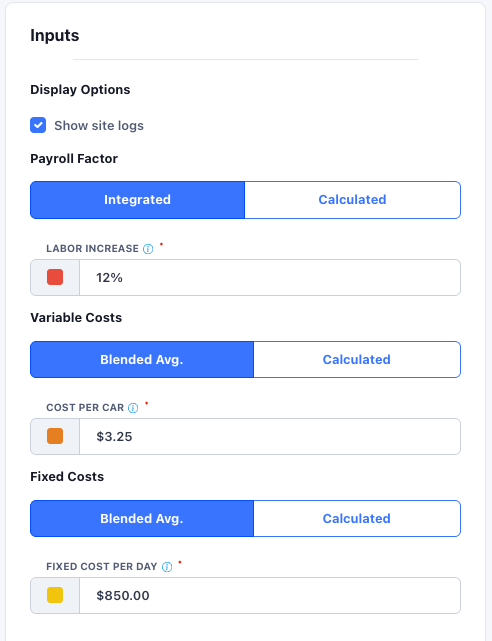
The Inputs panel on the left is where you model your cost structure. Your entries
are saved in your browser, so they carry over the next time you open the report.
### Payroll Factor
| Mode | What it does |
| ---------- | ------------------------------------------------------------------------------------------------------------------------------------------- |
| Integrated | Uses the labor data FlexWash already tracks, then applies a **Labor Increase** percentage to cover taxes, commissions, and similar add-ons. |
| Calculated | You enter a **Total Labor Cost** for the date range, which is spread across the period's washes evenly. |
### Variable Costs
| Mode | What it does |
| ------------ | ---------------------------------------------------------------------------------------------------------------------------------------- |
| Blended Avg. | A single **Cost per Car** covering chemicals, utilities, supplies, and the like. |
| Calculated | Enter totals for **Electric**, **Water**, **Chemicals**, and **Other Supplies** for the range; FlexWash spreads them across your washes. |
### Fixed Costs
| Mode | What it does |
| ------------ | --------------------------------------------------------------------------------------------------------------------------------------------------------------- |
| Blended Avg. | A single **Fixed Cost per Day** covering lease, insurance, internet, and similar bills. |
| Calculated | Enter **Property / Lease**, **Insurances**, **Fixed Bills**, **Debt Servicing**, and **Other**; FlexWash totals them and spreads them across the days in range. |
### Display Options
Toggle **Show site logs** to overlay your [Site Logs](/reports/site-logs) on the
profit trend chart. See [Profit Trend](#profit-trend) below.
## Summary Cards
Three cards at the top summarize the selected period. Each shows a headline
figure, a per-car value, and a breakdown chart.
* **Revenue:** total revenue and revenue per car, with a pie chart by package
type. Badges show average total wash price, average member sale price, average
member wash price, and average single wash price.
* **Costs:** total modeled costs and cost per car, with a pie chart of the cost
breakdown. Badges show payroll percentage, payroll per car, variable per car,
and fixed per car.
* **Operating Profit:** revenue minus costs and profit per car, with a profit vs.
cost split. Badges show total washes, single washes, member washes, and average
member usage.
## Inputs
The Inputs panel on the left is where you model your cost structure. Your entries
are saved in your browser, so they carry over the next time you open the report.
### Payroll Factor
| Mode | What it does |
| ---------- | ------------------------------------------------------------------------------------------------------------------------------------------- |
| Integrated | Uses the labor data FlexWash already tracks, then applies a **Labor Increase** percentage to cover taxes, commissions, and similar add-ons. |
| Calculated | You enter a **Total Labor Cost** for the date range, which is spread across the period's washes evenly. |
### Variable Costs
| Mode | What it does |
| ------------ | ---------------------------------------------------------------------------------------------------------------------------------------- |
| Blended Avg. | A single **Cost per Car** covering chemicals, utilities, supplies, and the like. |
| Calculated | Enter totals for **Electric**, **Water**, **Chemicals**, and **Other Supplies** for the range; FlexWash spreads them across your washes. |
### Fixed Costs
| Mode | What it does |
| ------------ | --------------------------------------------------------------------------------------------------------------------------------------------------------------- |
| Blended Avg. | A single **Fixed Cost per Day** covering lease, insurance, internet, and similar bills. |
| Calculated | Enter **Property / Lease**, **Insurances**, **Fixed Bills**, **Debt Servicing**, and **Other**; FlexWash totals them and spreads them across the days in range. |
### Display Options
Toggle **Show site logs** to overlay your [Site Logs](/reports/site-logs) on the
profit trend chart. See [Profit Trend](#profit-trend) below.
 ## Profit Trend
The main chart stacks revenue above the zero line and costs below it, with a bold
profit line drawn on top so you can see margins at a glance. A second chart below
tracks wash counts (member vs. single) over the same period. The two charts share
a cursor and zoom together, so you can drag to focus on any stretch of dates.
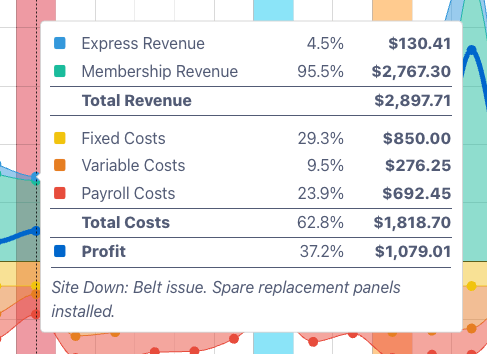
Hover any day to see a full breakdown: revenue by package type, costs by category,
the resulting profit, each as a share of revenue, plus any site log note recorded
for that day.
## Profit Trend
The main chart stacks revenue above the zero line and costs below it, with a bold
profit line drawn on top so you can see margins at a glance. A second chart below
tracks wash counts (member vs. single) over the same period. The two charts share
a cursor and zoom together, so you can drag to focus on any stretch of dates.
Hover any day to see a full breakdown: revenue by package type, costs by category,
the resulting profit, each as a share of revenue, plus any site log note recorded
for that day.
 ### Site Log Overlay
When **Show site logs** is enabled, each day that has a [Site Log](/reports/site-logs)
is shaded on the trend chart so you can connect a dip or spike to what actually
happened on the ground.
If a day has more than one flag, the band uses the highest-priority one in the
order Site Down, then Weather, then Operation Change. The day's note appears in
the hover tooltip as shown above.
### Site Log Overlay
When **Show site logs** is enabled, each day that has a [Site Log](/reports/site-logs)
is shaded on the trend chart so you can connect a dip or spike to what actually
happened on the ground.
If a day has more than one flag, the band uses the highest-priority one in the
order Site Down, then Weather, then Operation Change. The day's note appears in
the hover tooltip as shown above.