> ## Documentation Index
> Fetch the complete documentation index at: https://docs.flexwash.com/llms.txt
> Use this file to discover all available pages before exploring further.
# Downsells Analytics
> See how many cancelling members your save offers rescue, and what those saves are worth in recurring revenue.
The Downsells Analytics report answers three questions about your save offers:
what was offered, who was saved, and what those saves are worth. It is the
companion to [Downsells](/configuration/pricing-and-promotions/downsells), where
the offers themselves are configured.
You can find Downsells Analytics in the sidebar menu under the Reports section.
Access is controlled by the **Downsell Analytics** report permission on the
user's [role](/configuration/users-and-admin/roles). Pair it with the
**Customers** permission, which would be required to drill-in and open
customer records from the report.
## Running the report
Select your location in the top navigation bar. The report runs immediately for today. To see any other period, pick a date range and click **Run**.
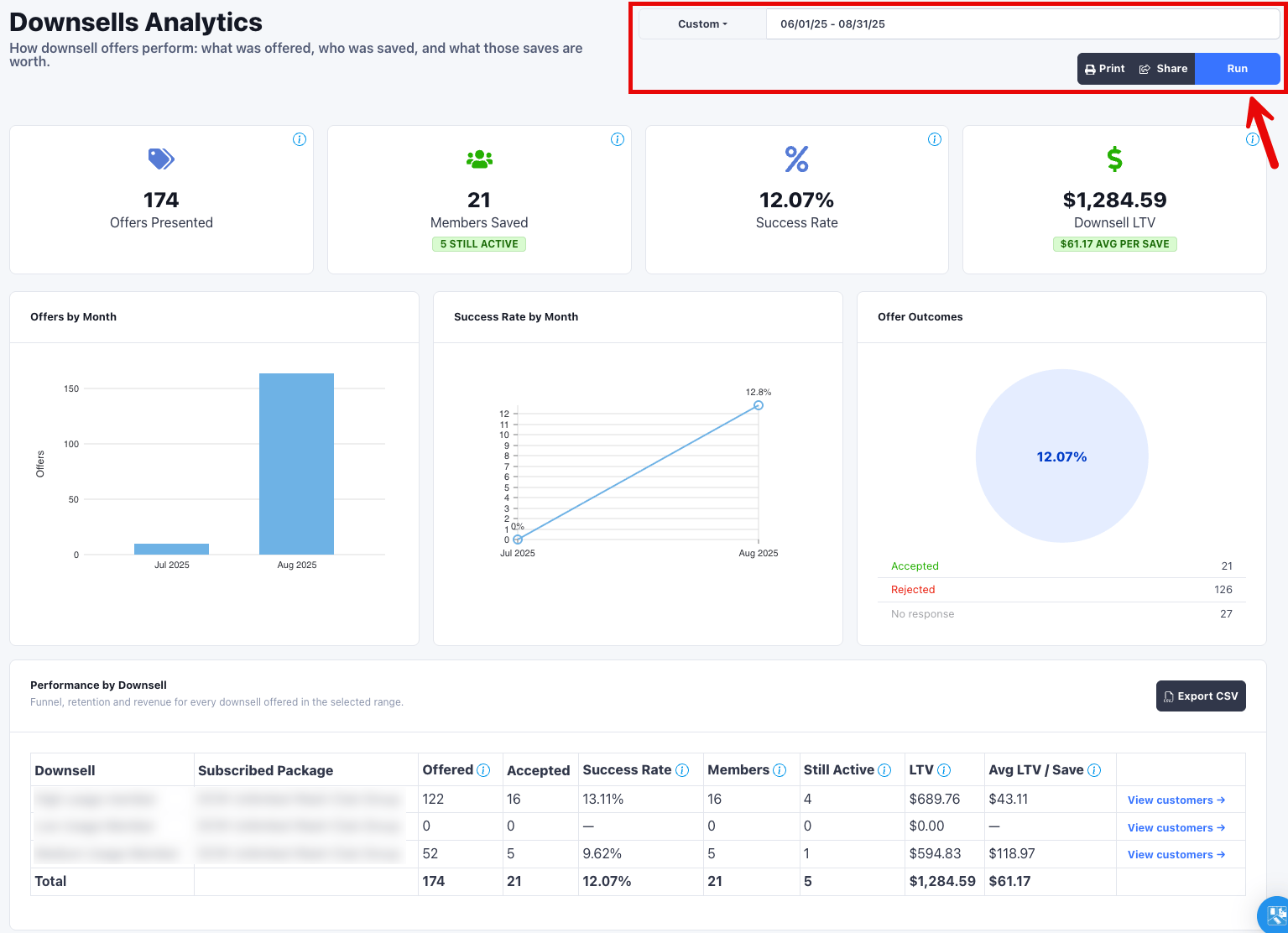 Downsell activity over a single day is usually thin, so the default view often
looks empty. Widen the range to Last 90 Days, Year to Date, or a custom range
before you read anything into the numbers.
The date range shows the results of every downsell opportunity presented during that time. Selecting several locations rolls them up into one set of numbers.
## Summary tiles
Four tiles summarize the cohort. Each carries an information icon with the
same definition documented here.
| Tile | What it counts |
| -------------------- | ------------------------------------------------------------------------------------------------------------------------------------------------------------------- |
| **Offers Presented** | Downsell opportunities presented to members at the selected car washes, by the date the offer was made. |
| **Members Saved** | Distinct customers who accepted a downsell. The badge counts the accepted subscriptions that are still active or frozen today. |
| **Success Rate** | Accepted ÷ offered. Opportunities with no response stay in the denominator, so the rate is comparable to the number that used to live on the Downsells config page. |
| **Downsell LTV** | Membership billing revenue on the saved subscription from acceptance until it cancels, accrued to today; excludes post-reactivation revenue. |
### How Success Rate is calculated
Offers that a member never responded to stay in the denominator. That is
deliberate: it keeps this rate comparable to the lifetime success rate that used
to appear on the Downsells configuration page. A range with many pending offers
reads lower than a range where every offer got an answer.
### How LTV is calculated
**Downsell LTV** is the net sum of membership billing on the saved subscription,
from the moment the offer was accepted, and it accrues to today. Three
consequences are worth knowing:
* **It counts membership billing only.** Wash and retail purchases by a saved
member are not included, only their recurring membership charges.
* **It is not clamped to the date range.** The range picks which saves are in the
cohort. The revenue keeps accumulating past the end date, so the same range run
again next month reports a higher LTV.
* **Discounts pull it down, refunds do not.** The discount the downsell granted is
a negative line item on the subscription, so it reduces LTV, which is the point:
the number reflects what the save actually earned. Refunds are not deducted, and
house accounts are not excluded.
* **It stops at a reactivation.** If a saved member later cancels and comes back,
billing from the reactivation onward is not credited to the downsell.
This is not the same figure as the [Membership LTV](/reports/membership-ltv)
report. That report measures a member's full lifetime value. Downsell LTV
measures one subscription from the moment a save offer was accepted.
**Still Active** is a snapshot of today, not of the end of your date range.
Members who accepted an offer inside the range and cancelled afterwards are
counted in Members Saved but not in Still Active.
## Charts
Three charts sit below the tiles.
* **Offers by Month** plots offers presented per calendar month.
* **Success Rate by Month** plots the monthly accepted share as a percentage.
* **Offer Outcomes** breaks the cohort into accepted, rejected, and no response.
The center of the ring repeats the overall success rate.
## Performance by Downsell
The table breaks the funnel, retention, and revenue out for every downsell
offered in the selected range.
| Column | Definition |
| ---------------------- | --------------------------------------------------------------------------------------------------------- |
| **Downsell** | The offer's name. A **Deleted** badge marks an offer that has since been deleted from your configuration. |
| **Subscribed Package** | The membership package the offer targets. |
| **Offered** | Opportunities presented for this downsell in the range. |
| **Accepted** | How many of those offers the member accepted. |
| **Success Rate** | Accepted divided by offered for this row. Blank as a dash when nothing was offered. |
| **Members** | Distinct customers behind this row's accepted offers. |
| **Still Active** | Accepted offers whose subscription is active or frozen today. |
| **LTV** | Membership billing earned on this row's saved subscriptions, accrued to today. |
| **Avg LTV / Save** | LTV divided by accepted offers. A dash when nothing was accepted. |
A bold total row closes the table.
The **Members** total is a distinct count across the whole report, not the sum
of the column above it. A customer who was offered two different downsells
counts once in the total and once in each row. The same applies to the Members
Saved tile.
Every downsell you currently have configured gets a row, even one with no
activity in the range. A deleted downsell appears only when it was actually
offered during the range, because its offers still count toward the summary tiles
and the table has to explain them.
## View customers
Each row has a **View customers** link. It opens the customer list filtered to
the distinct customers who accepted that downsell, at the selected car washes,
inside the selected date range. The list shows name, email, phone, and vehicle
plates, sorted by most recent acceptance. Click any customer to open their
profile, or use the CSV button to export the whole cohort rather than the page on
screen.
## Exporting
**Export CSV** in the table header downloads one row per table row, with the same
columns plus a **Deleted** flag. The file covers every downsell in the table, and
is named for the range you ran, for example
`downsells-analytics-2026-06-01-to-2026-08-31.csv`.
Pair the export with [Membership LTV](/reports/membership-ltv) when you are
deciding which save offers to keep: this report tells you what a save earns,
and Membership LTV tells you what a full-price member earns over the same
period.
Downsell activity over a single day is usually thin, so the default view often
looks empty. Widen the range to Last 90 Days, Year to Date, or a custom range
before you read anything into the numbers.
The date range shows the results of every downsell opportunity presented during that time. Selecting several locations rolls them up into one set of numbers.
## Summary tiles
Four tiles summarize the cohort. Each carries an information icon with the
same definition documented here.
| Tile | What it counts |
| -------------------- | ------------------------------------------------------------------------------------------------------------------------------------------------------------------- |
| **Offers Presented** | Downsell opportunities presented to members at the selected car washes, by the date the offer was made. |
| **Members Saved** | Distinct customers who accepted a downsell. The badge counts the accepted subscriptions that are still active or frozen today. |
| **Success Rate** | Accepted ÷ offered. Opportunities with no response stay in the denominator, so the rate is comparable to the number that used to live on the Downsells config page. |
| **Downsell LTV** | Membership billing revenue on the saved subscription from acceptance until it cancels, accrued to today; excludes post-reactivation revenue. |
### How Success Rate is calculated
Offers that a member never responded to stay in the denominator. That is
deliberate: it keeps this rate comparable to the lifetime success rate that used
to appear on the Downsells configuration page. A range with many pending offers
reads lower than a range where every offer got an answer.
### How LTV is calculated
**Downsell LTV** is the net sum of membership billing on the saved subscription,
from the moment the offer was accepted, and it accrues to today. Three
consequences are worth knowing:
* **It counts membership billing only.** Wash and retail purchases by a saved
member are not included, only their recurring membership charges.
* **It is not clamped to the date range.** The range picks which saves are in the
cohort. The revenue keeps accumulating past the end date, so the same range run
again next month reports a higher LTV.
* **Discounts pull it down, refunds do not.** The discount the downsell granted is
a negative line item on the subscription, so it reduces LTV, which is the point:
the number reflects what the save actually earned. Refunds are not deducted, and
house accounts are not excluded.
* **It stops at a reactivation.** If a saved member later cancels and comes back,
billing from the reactivation onward is not credited to the downsell.
This is not the same figure as the [Membership LTV](/reports/membership-ltv)
report. That report measures a member's full lifetime value. Downsell LTV
measures one subscription from the moment a save offer was accepted.
**Still Active** is a snapshot of today, not of the end of your date range.
Members who accepted an offer inside the range and cancelled afterwards are
counted in Members Saved but not in Still Active.
## Charts
Three charts sit below the tiles.
* **Offers by Month** plots offers presented per calendar month.
* **Success Rate by Month** plots the monthly accepted share as a percentage.
* **Offer Outcomes** breaks the cohort into accepted, rejected, and no response.
The center of the ring repeats the overall success rate.
## Performance by Downsell
The table breaks the funnel, retention, and revenue out for every downsell
offered in the selected range.
| Column | Definition |
| ---------------------- | --------------------------------------------------------------------------------------------------------- |
| **Downsell** | The offer's name. A **Deleted** badge marks an offer that has since been deleted from your configuration. |
| **Subscribed Package** | The membership package the offer targets. |
| **Offered** | Opportunities presented for this downsell in the range. |
| **Accepted** | How many of those offers the member accepted. |
| **Success Rate** | Accepted divided by offered for this row. Blank as a dash when nothing was offered. |
| **Members** | Distinct customers behind this row's accepted offers. |
| **Still Active** | Accepted offers whose subscription is active or frozen today. |
| **LTV** | Membership billing earned on this row's saved subscriptions, accrued to today. |
| **Avg LTV / Save** | LTV divided by accepted offers. A dash when nothing was accepted. |
A bold total row closes the table.
The **Members** total is a distinct count across the whole report, not the sum
of the column above it. A customer who was offered two different downsells
counts once in the total and once in each row. The same applies to the Members
Saved tile.
Every downsell you currently have configured gets a row, even one with no
activity in the range. A deleted downsell appears only when it was actually
offered during the range, because its offers still count toward the summary tiles
and the table has to explain them.
## View customers
Each row has a **View customers** link. It opens the customer list filtered to
the distinct customers who accepted that downsell, at the selected car washes,
inside the selected date range. The list shows name, email, phone, and vehicle
plates, sorted by most recent acceptance. Click any customer to open their
profile, or use the CSV button to export the whole cohort rather than the page on
screen.
## Exporting
**Export CSV** in the table header downloads one row per table row, with the same
columns plus a **Deleted** flag. The file covers every downsell in the table, and
is named for the range you ran, for example
`downsells-analytics-2026-06-01-to-2026-08-31.csv`.
Pair the export with [Membership LTV](/reports/membership-ltv) when you are
deciding which save offers to keep: this report tells you what a save earns,
and Membership LTV tells you what a full-price member earns over the same
period.