> ## Documentation Index
> Fetch the complete documentation index at: https://docs.flexwash.com/llms.txt
> Use this file to discover all available pages before exploring further.
# CSA Performance
> Track the performance of your employees with precise metrics about their sales.
### Employees
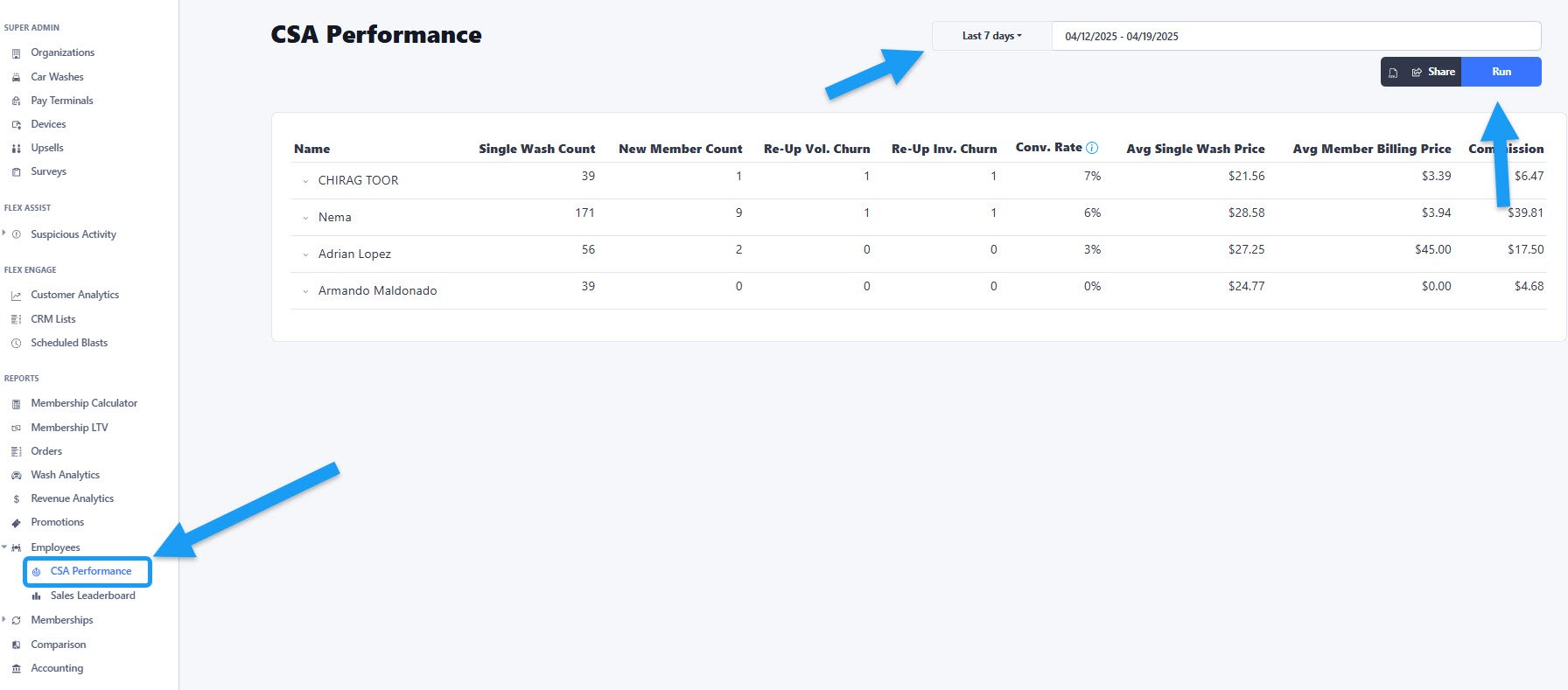 You can find the CSA Performance report under the "Employees" section located on the sidebar menu. After you open it, make sure to select a date range and click on the "Run" button for the data to populate.
### General view
You can find the CSA Performance report under the "Employees" section located on the sidebar menu. After you open it, make sure to select a date range and click on the "Run" button for the data to populate.
### General view
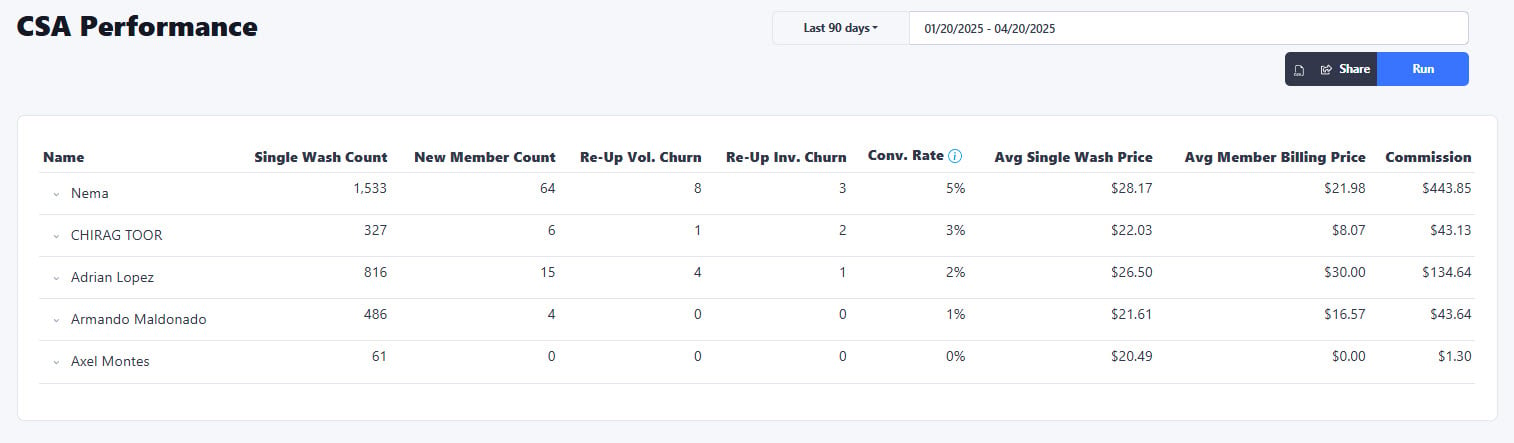 Once the report is generated you get a general view of the stats by employee. You can click on each employee name on the list for a detailed view of the sales that the individual has done during the date range that you selected.
### Detailed view
Once the report is generated you get a general view of the stats by employee. You can click on each employee name on the list for a detailed view of the sales that the individual has done during the date range that you selected.
### Detailed view
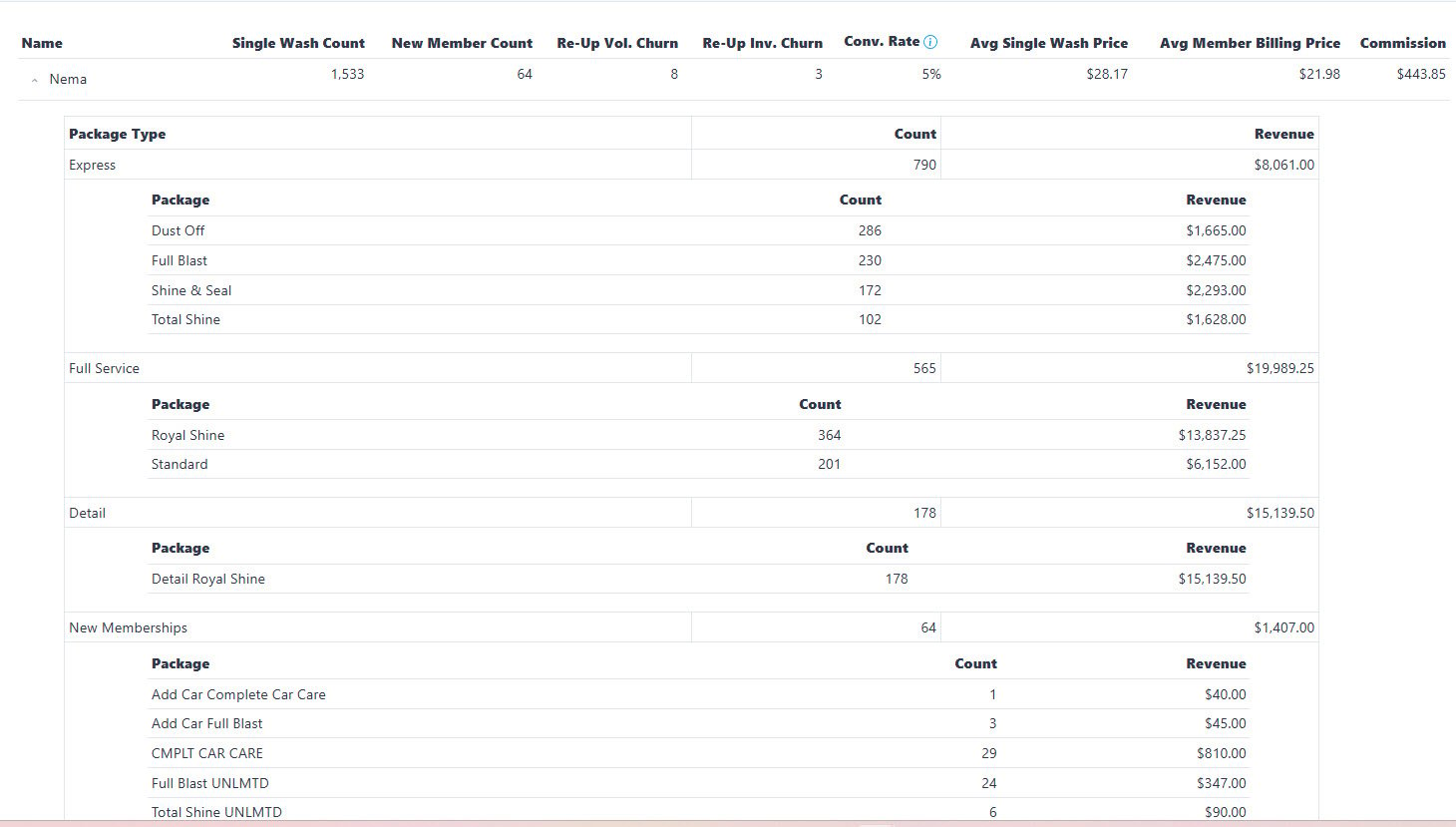 This is how the report expands to show the stats of each employee when you click on a name. You can see how many of each Wash Package has been sold, whether single washes or memberships, how much revenue each package is producing and the employee conversion rate.
#### View sales per Employee
This is how the report expands to show the stats of each employee when you click on a name. You can see how many of each Wash Package has been sold, whether single washes or memberships, how much revenue each package is producing and the employee conversion rate.
#### View sales per Employee
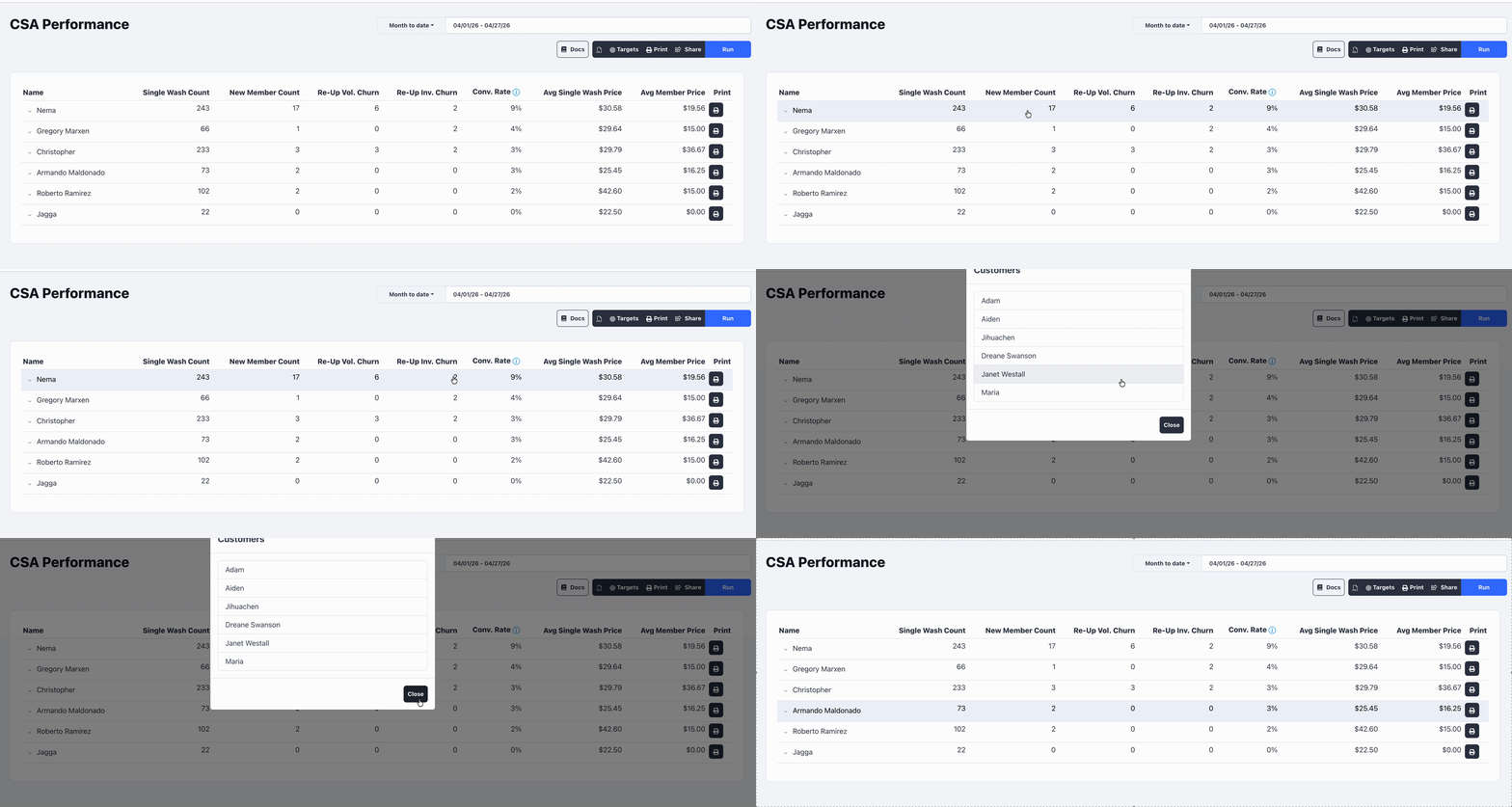 If you hover your mouse over the employee's stats for the "New member count", "Re-up vol. Churn", or "Re-up Inv. Churn", and click on any of those you can view the list of customers associated to each as shown on the capture above.