> ## Documentation Index
> Fetch the complete documentation index at: https://docs.flexwash.com/llms.txt
> Use this file to discover all available pages before exploring further.
# Cash Deposits
> Log daily cash deposits and track the cash flow of your Car Wash.
### Cash Deposits
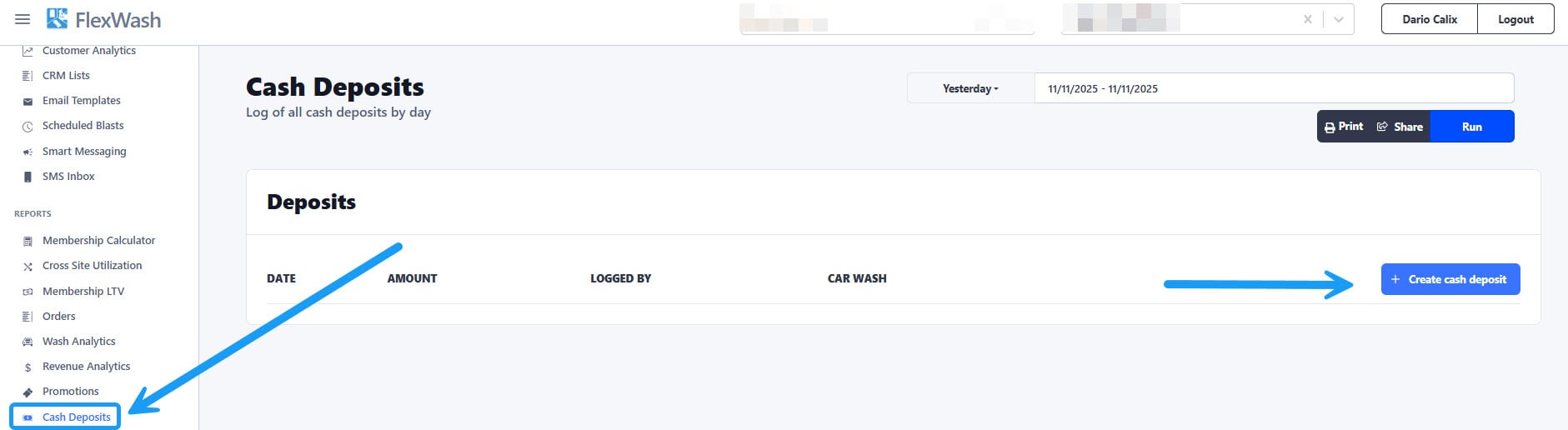 Under the Reports section, click on the “Cash Deposits” option. Then click on the “Create cash deposit” button located on the right side of the screen.
### Create Cash Deposit
Under the Reports section, click on the “Cash Deposits” option. Then click on the “Create cash deposit” button located on the right side of the screen.
### Create Cash Deposit
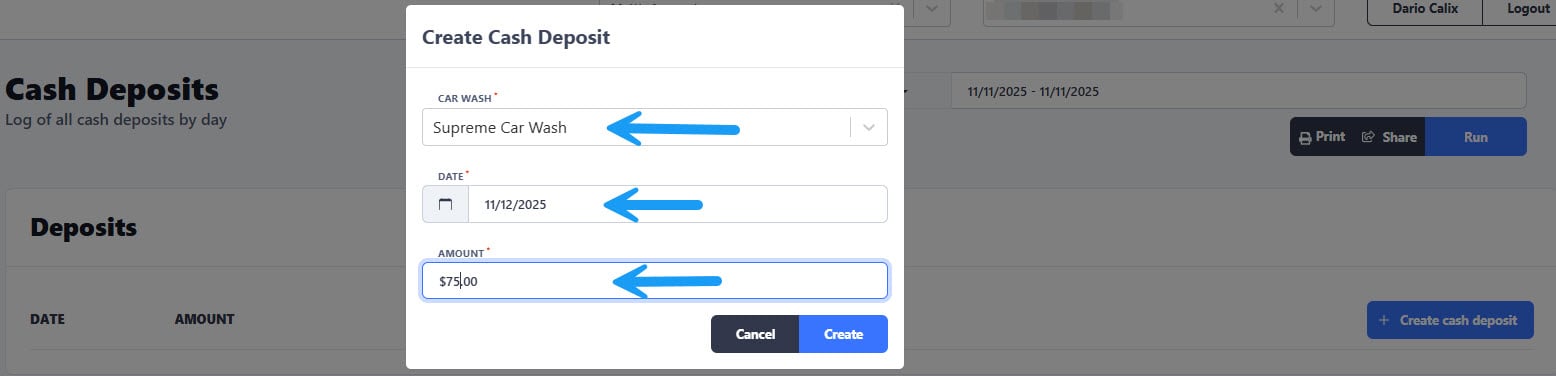 A new window will appear. Select the correct Car Wash, Date, and enter the Amount of cash you are logging at the end of day.
The deposited amount should not include the starting cash balance. For example if you start the day with \$250 in change and at the end of the day the total is \$350, the recorded deposit would be \$100.
Finally, click on the “Create” button to register the deposit.
## Deposits
A new window will appear. Select the correct Car Wash, Date, and enter the Amount of cash you are logging at the end of day.
The deposited amount should not include the starting cash balance. For example if you start the day with \$250 in change and at the end of the day the total is \$350, the recorded deposit would be \$100.
Finally, click on the “Create” button to register the deposit.
## Deposits
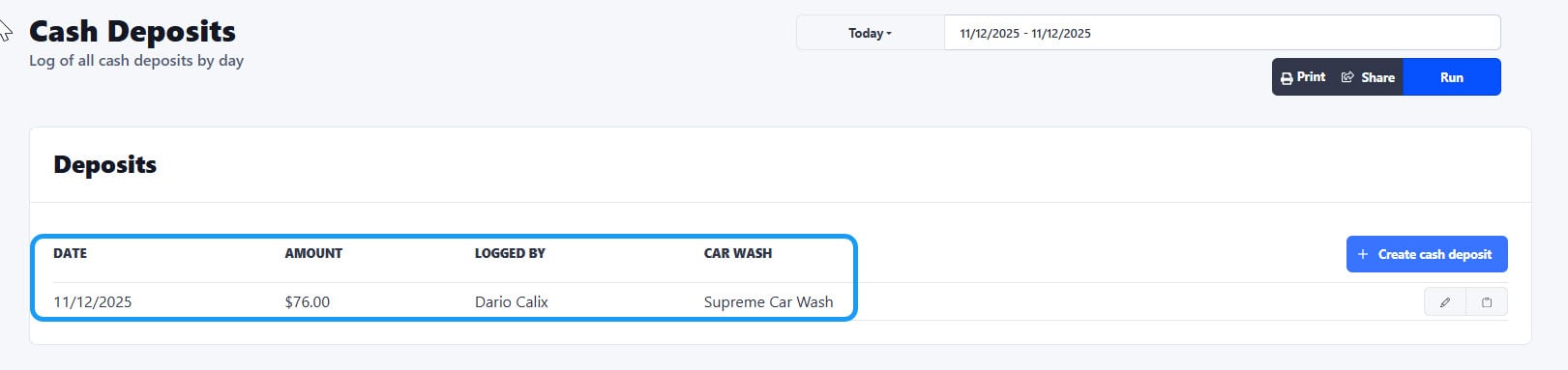 You will now see the cash deposit log with all the pertinent information clearly visible; such as the amount, which employee did it, etc.
### Deposits Report
You will now see the cash deposit log with all the pertinent information clearly visible; such as the amount, which employee did it, etc.
### Deposits Report
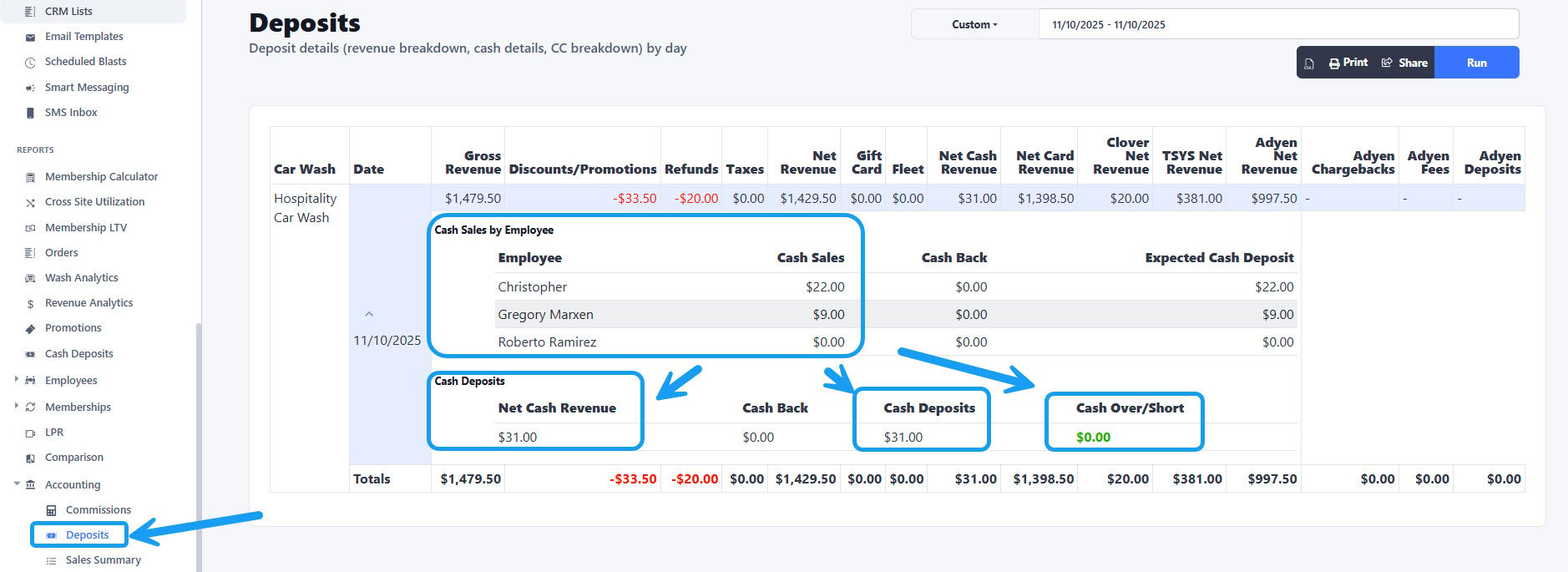 You can track your **Cash Sales** and actual \*\*Cash Deposits \*\*with the “Deposits” report located under the “Accounting” section as shown on the screenshot above.
This report breaks down the **Cash Sales** by**Employee** , the **Net Cash Revenue** and the **Total Cash Deposits** that were logged on each date or date ranges you select. If there were any discrepancies between the sales and the deposits, the “Cash Over/Short” part of the report will let you know.
You can track your **Cash Sales** and actual \*\*Cash Deposits \*\*with the “Deposits” report located under the “Accounting” section as shown on the screenshot above.
This report breaks down the **Cash Sales** by**Employee** , the **Net Cash Revenue** and the **Total Cash Deposits** that were logged on each date or date ranges you select. If there were any discrepancies between the sales and the deposits, the “Cash Over/Short” part of the report will let you know.