> ## Documentation Index
> Fetch the complete documentation index at: https://docs.flexwash.com/llms.txt
> Use this file to discover all available pages before exploring further.
# Wash Queue
> Instructions on how to access the wash queue.
### Flexwash Network
\*\*Before you follow the instructions below, please make sure that the tablet
*is connected to the Flexwash Network (WiFi or Ethernet), otherwise the link
*for the wash queue will not load.**
### Link
Copy and paste the following link on any browser:
[https://coordinator.lan.flexwashvector.com/tablet/wash-queue](https://coordinator.lan.flexwashvector.com/tablet/wash-queue)
### QR code
You can also scan the QR code below to access the site:
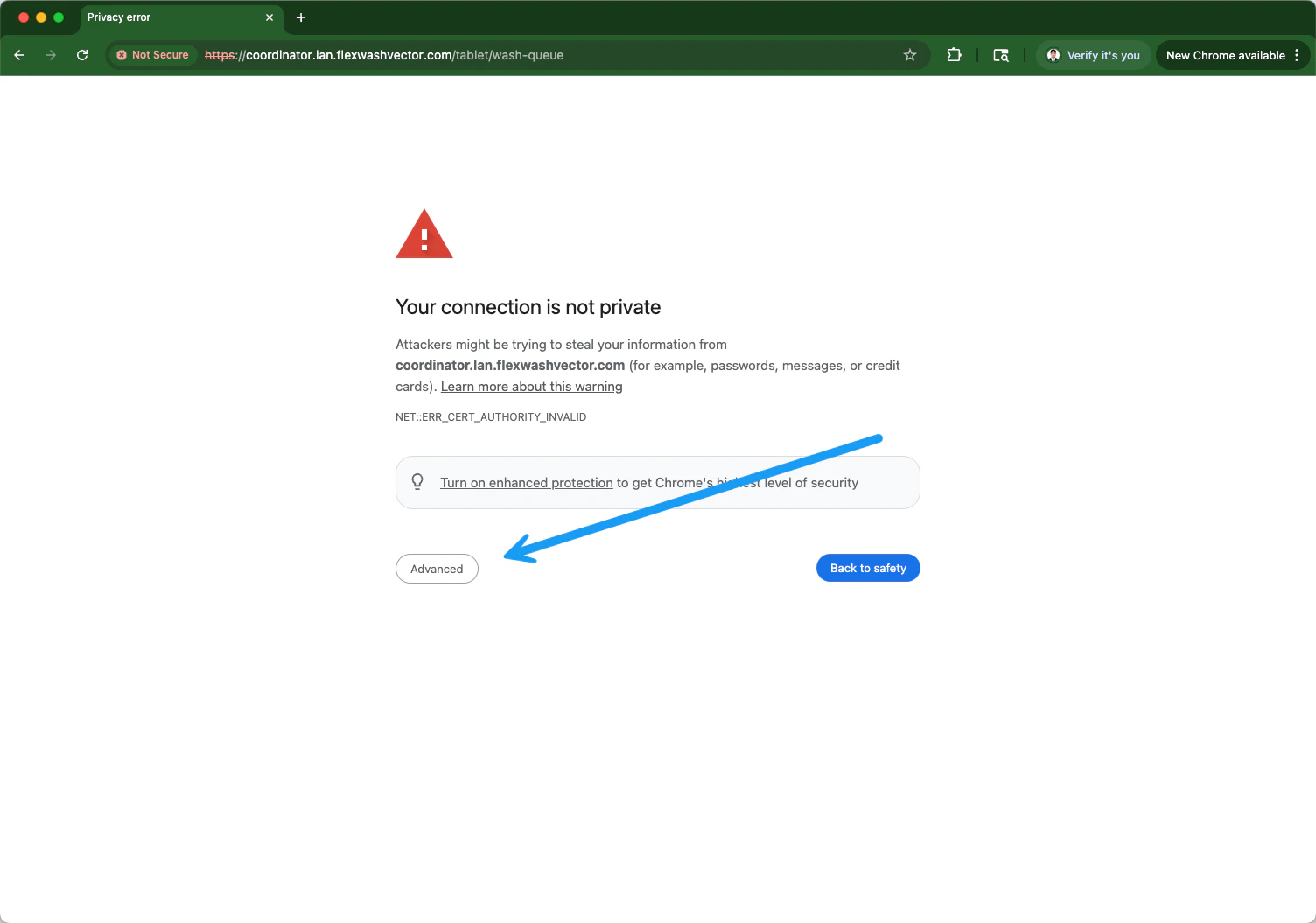
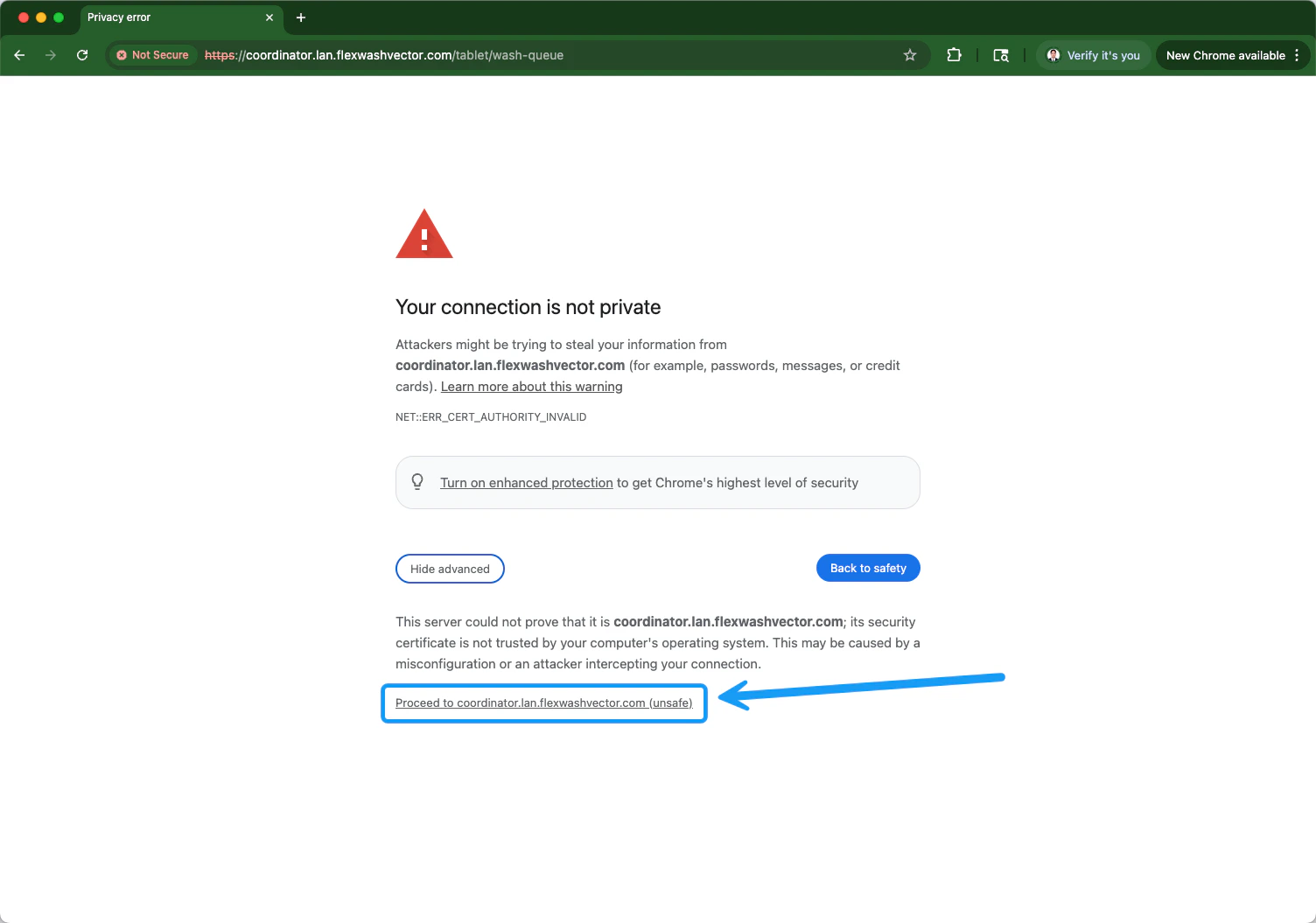
 A "connection is not private" warning message will appear. Click or tap on the "Advanced" option located on the lower left corner as shown on the screenshot below:
 If your site has Auto-Queue enabled, the wash queue tablet automatically
switches to a hands-free layout for unattended lanes. See
[Auto-Queue](/operations/transactions/auto-queue).
### Wash Queue
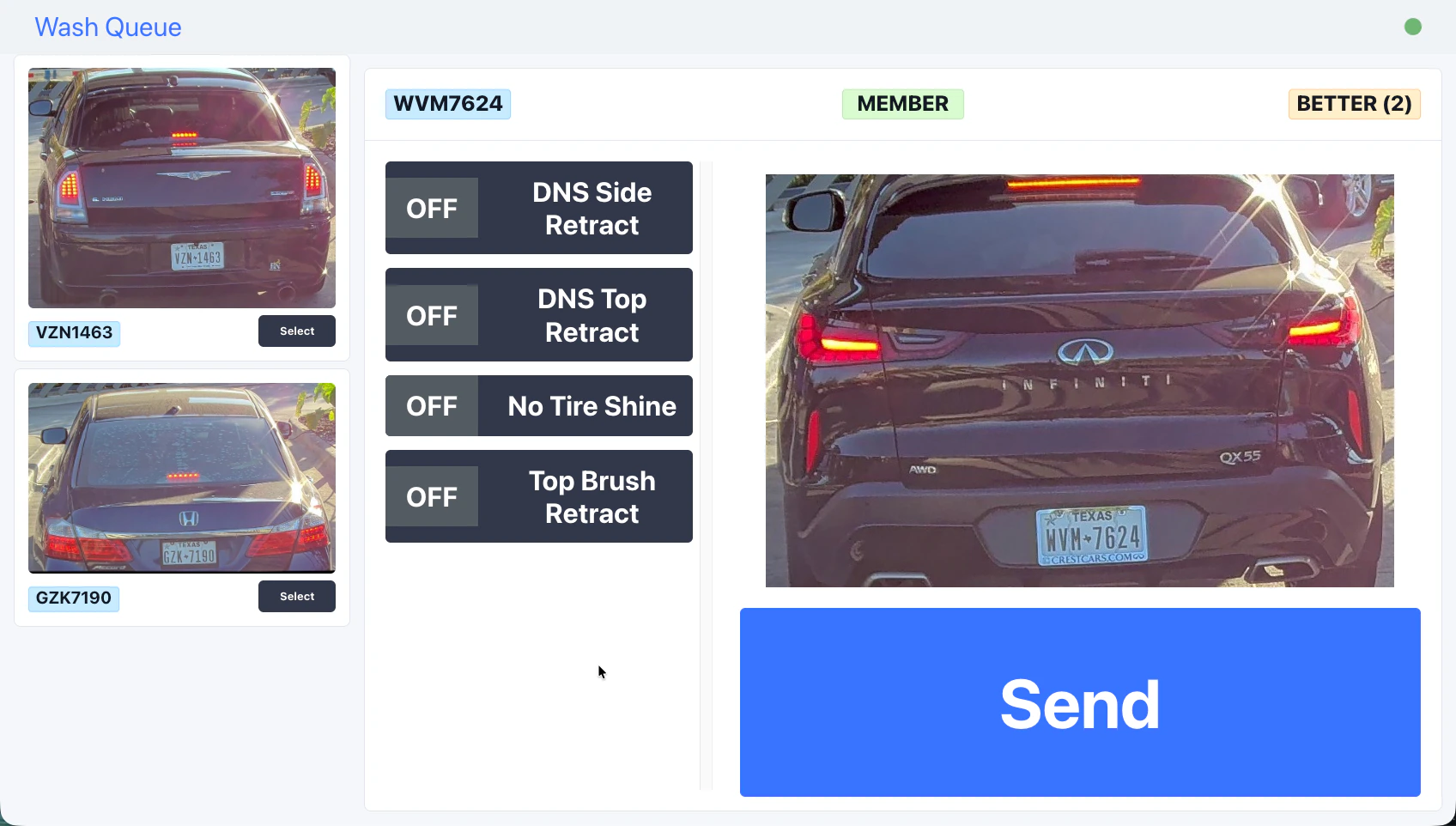
The wash queue will now appear as shown on the screenshot below:
If your site has Auto-Queue enabled, the wash queue tablet automatically
switches to a hands-free layout for unattended lanes. See
[Auto-Queue](/operations/transactions/auto-queue).
### Wash Queue
The wash queue will now appear as shown on the screenshot below:
 ### Delete Vehicle from Wash Queue
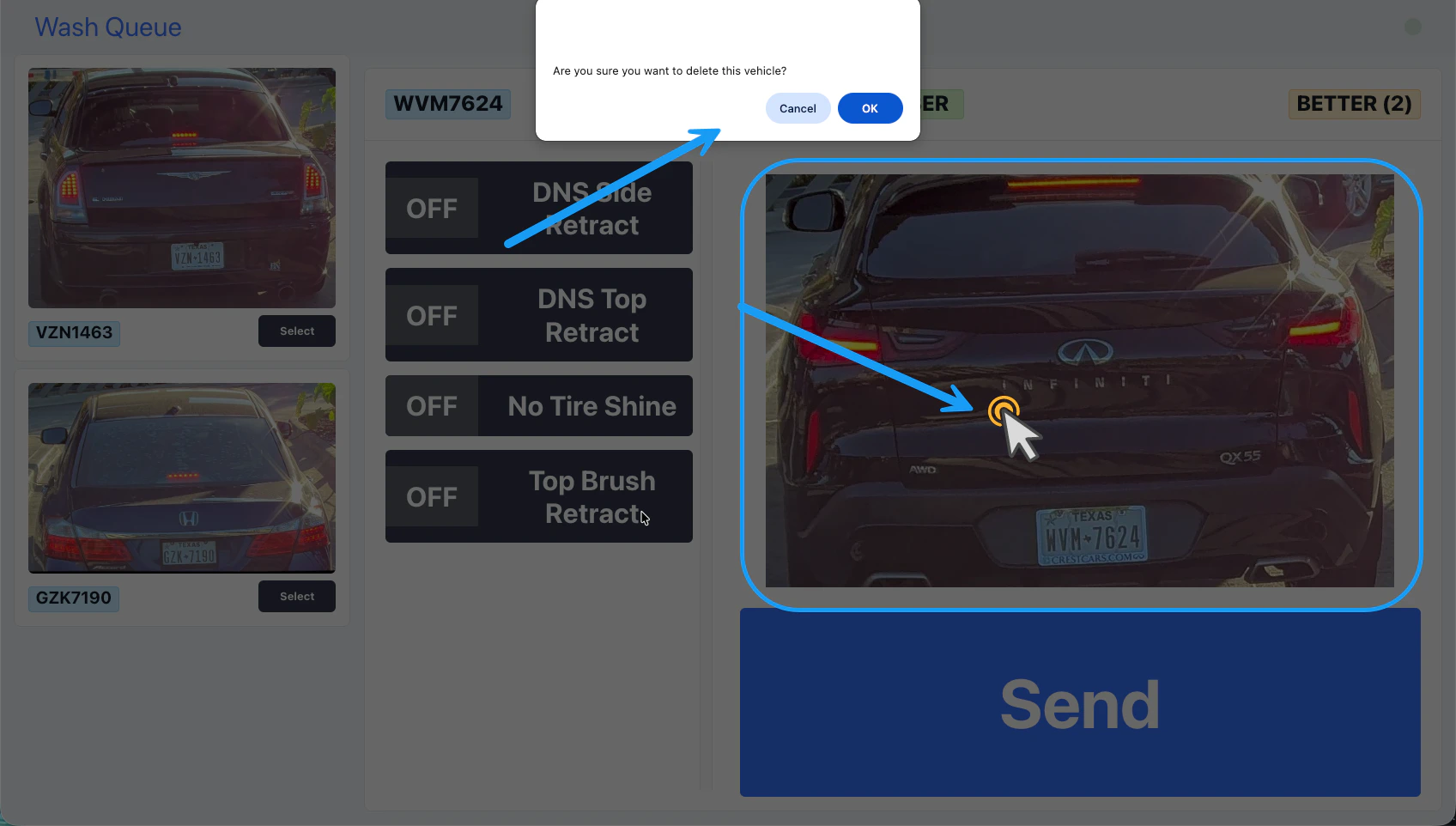 To delete a vehicle from the **Wash Queue**, click or tap anywhere on the vehicle's image. A new window will pop up asking to confirm, select "OK" and the vehicle will be removed.
For the hardware that runs the wash queue in the tunnel, see
[Tunnel Tablet](/technical/hardware/tunnel-tablet).
To delete a vehicle from the **Wash Queue**, click or tap anywhere on the vehicle's image. A new window will pop up asking to confirm, select "OK" and the vehicle will be removed.
For the hardware that runs the wash queue in the tunnel, see
[Tunnel Tablet](/technical/hardware/tunnel-tablet).