> ## Documentation Index
> Fetch the complete documentation index at: https://docs.flexwash.com/llms.txt
> Use this file to discover all available pages before exploring further.
# Gift Cards
> Drive new revenue with gift cards your team can sell and redeem from any FlexWash checkout.
Gift cards are a low-effort way to bring new customers onto your lot and put cash on the books before a single car gets washed. FlexWash sells, scans, and redeems them on every checkout surface, and you can also hand a card to a customer without ringing up an order.
## Sell from a Pay Tablet
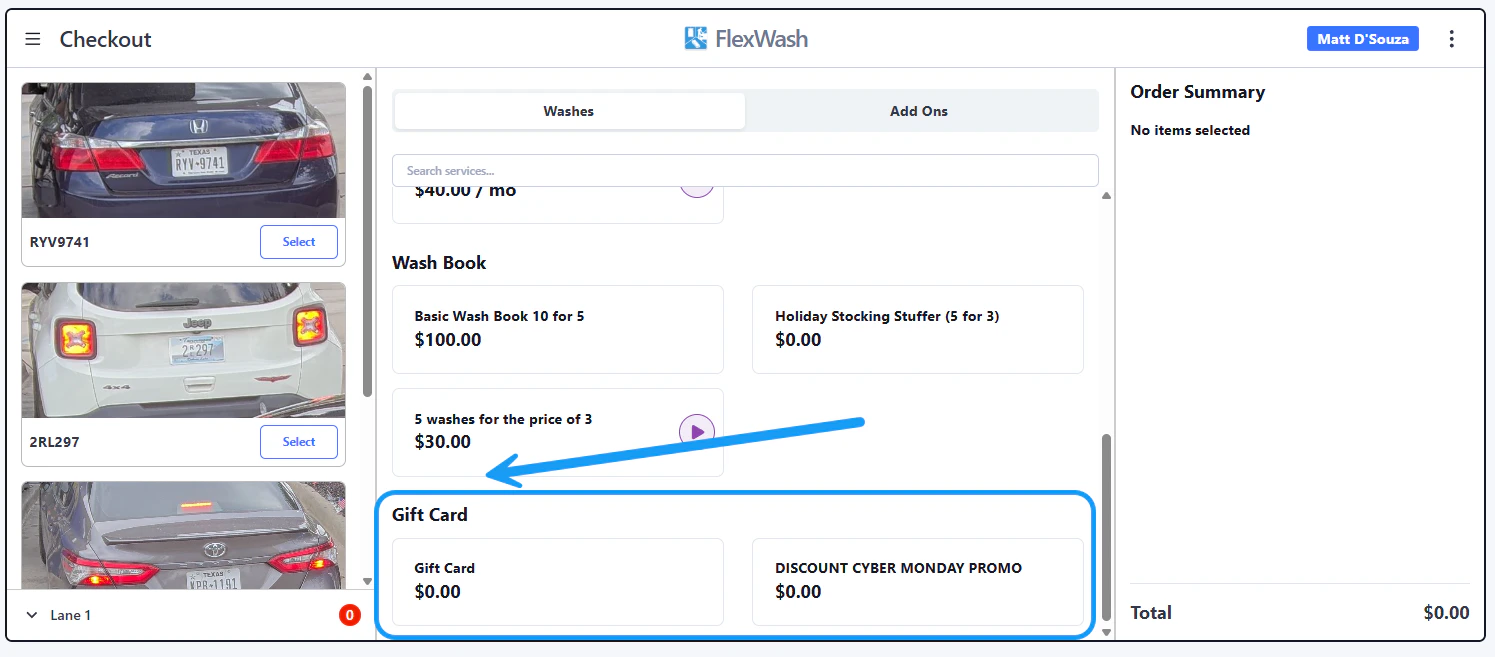
Gift cards appear alongside washes in the Pay Tablet menu.
Tap a gift card from the **Washes** menu to start a sale.
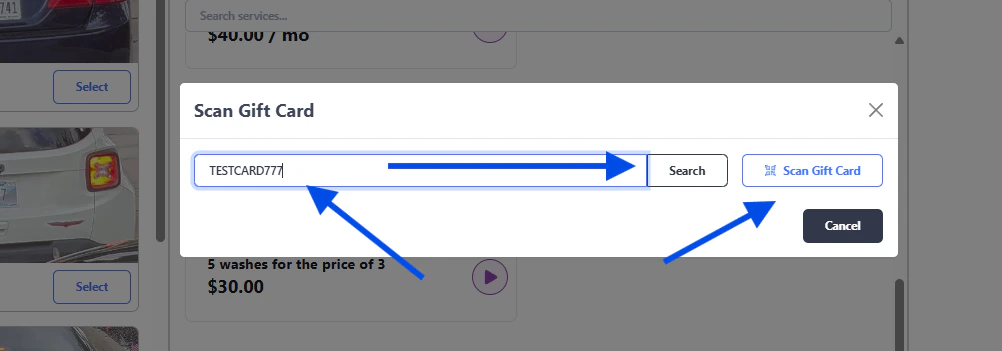
 You have two options:
* **Scan Gift Card** to read the barcode from a physical card.
* **Enter Gift Card manually** to type the code, then tap **Search**.
You have two options:
* **Scan Gift Card** to read the barcode from a physical card.
* **Enter Gift Card manually** to type the code, then tap **Search**.
 Each gift card code must be unique within your organization. FlexWash rejects any attempt to create or import a card whose code matches an existing one, so you can correct the duplicate before issuing the card.
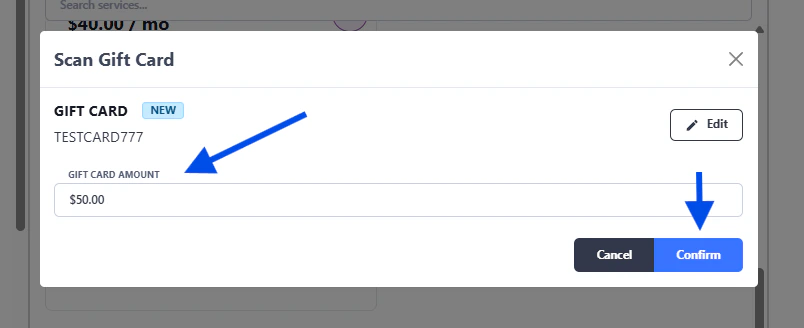
Enter the amount the customer is paying for the card and tap **Confirm**.
Each gift card code must be unique within your organization. FlexWash rejects any attempt to create or import a card whose code matches an existing one, so you can correct the duplicate before issuing the card.
Enter the amount the customer is paying for the card and tap **Confirm**.
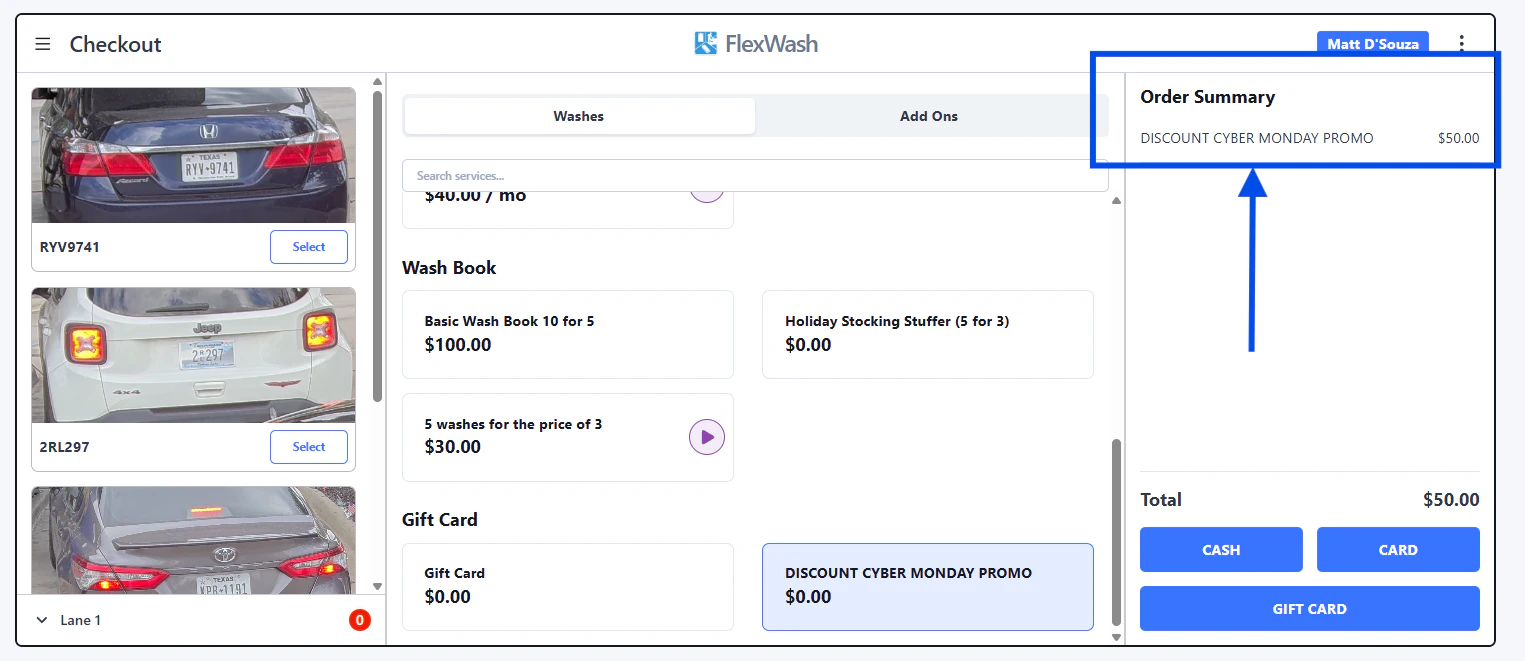
 The card appears on the Order Summary. Pick a payment method below to close out the sale.
 ## Redeem from a Pay Tablet
Gift cards work as a tender on any sale.
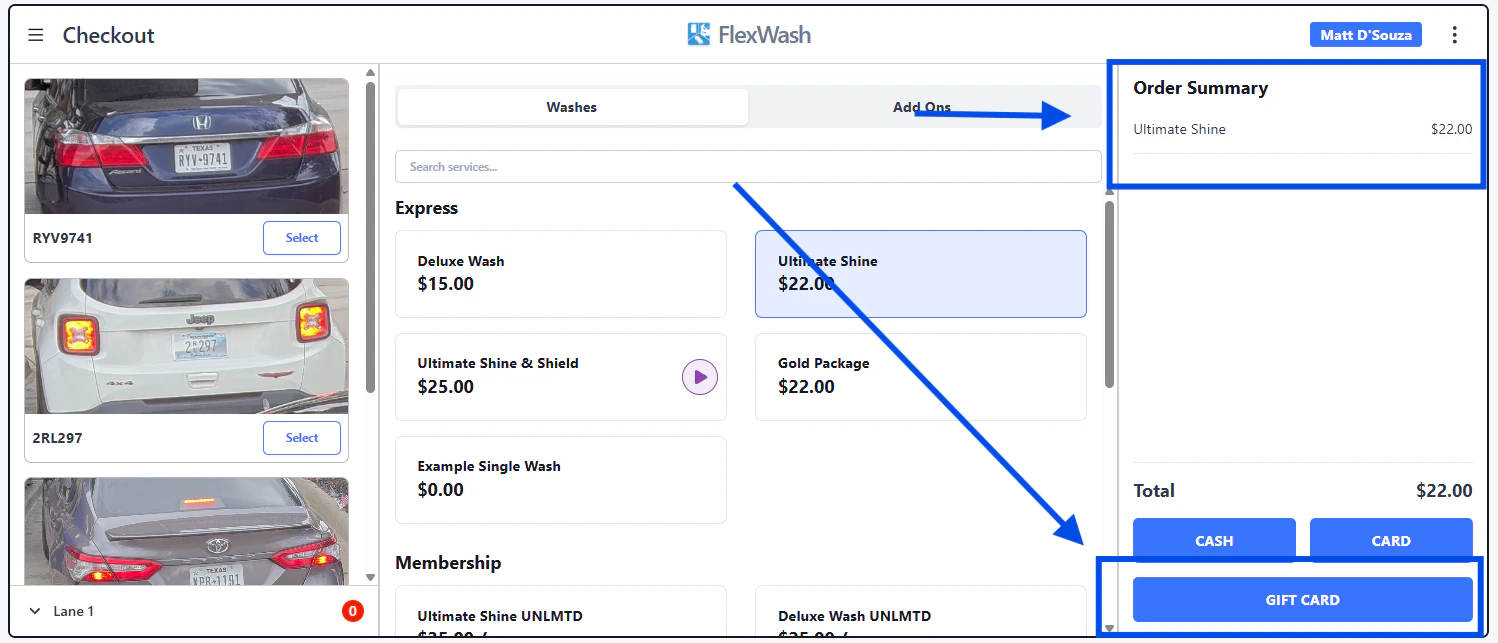
After picking a wash package, select **Gift Card** as the payment method.
## Redeem from a Pay Tablet
Gift cards work as a tender on any sale.
After picking a wash package, select **Gift Card** as the payment method.
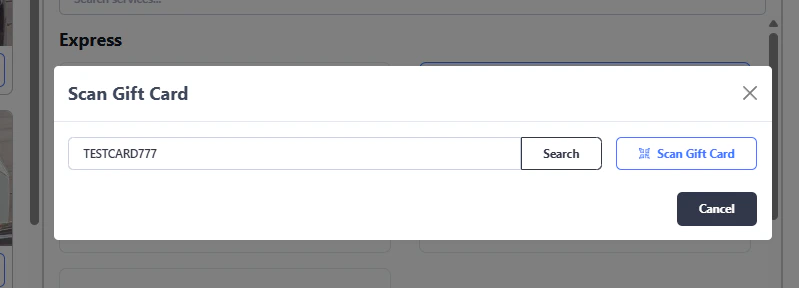
 Scan the customer's gift card, or type the code manually and tap **Search**.
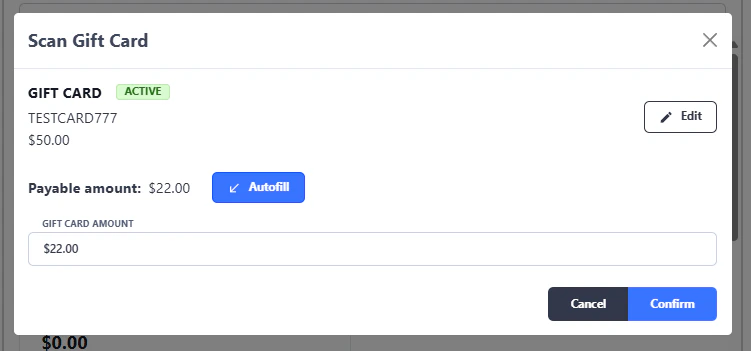
 Tap **Autofill** to deduct the full payable amount from the card, or enter a smaller amount to split payment with another method. Tap **Confirm**.
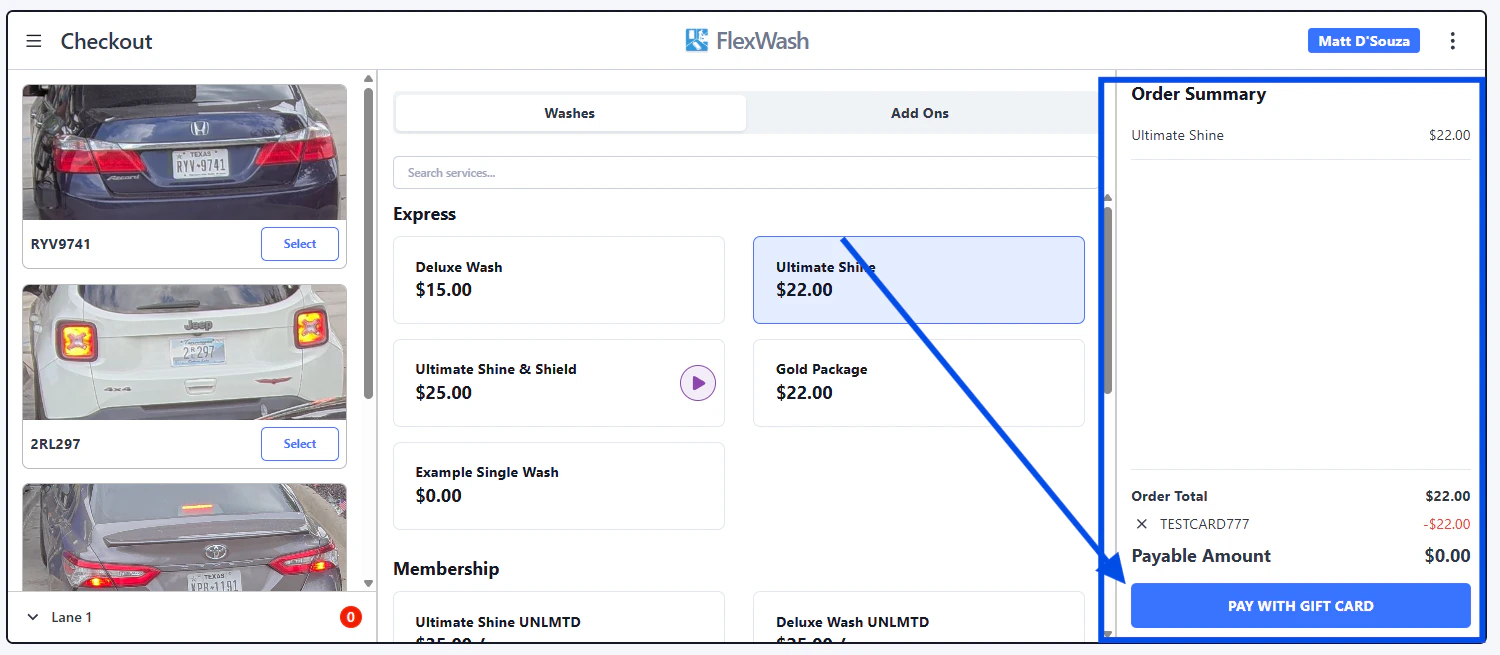
 The Order Summary updates with the gift card payment. Complete the sale as normal.
 ## Sell & Redeem from PAX Handhelds
The same gift card flows work on PAX handhelds, so staff can sell and redeem cards anywhere on the lot. The video below walks through both.
## Add a Gift Card without creating an order
Sometimes you need to hand a customer a gift card without ringing up a sale. Cards issued this way do not affect your revenue reports.
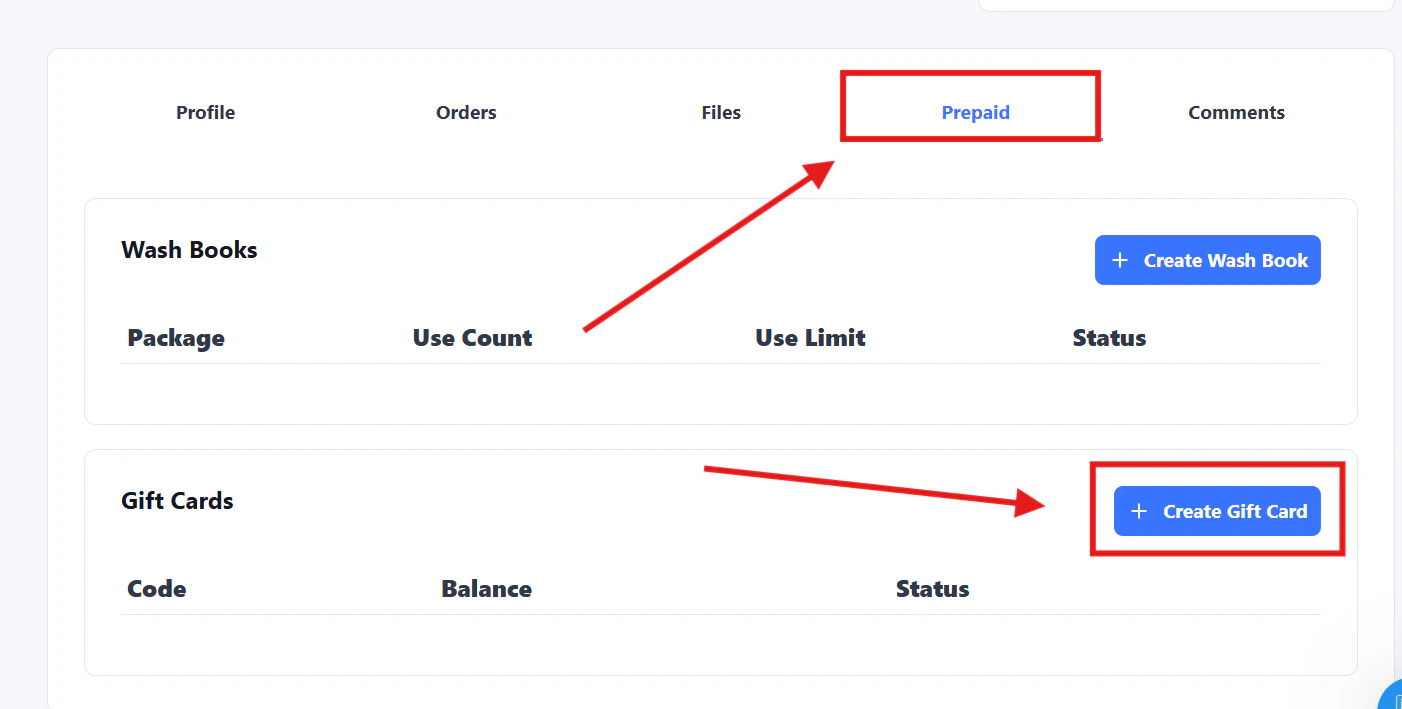
From the customer's account, click the **Prepaid** tab, then click **Create Gift Card**.
## Sell & Redeem from PAX Handhelds
The same gift card flows work on PAX handhelds, so staff can sell and redeem cards anywhere on the lot. The video below walks through both.
## Add a Gift Card without creating an order
Sometimes you need to hand a customer a gift card without ringing up a sale. Cards issued this way do not affect your revenue reports.
From the customer's account, click the **Prepaid** tab, then click **Create Gift Card**.
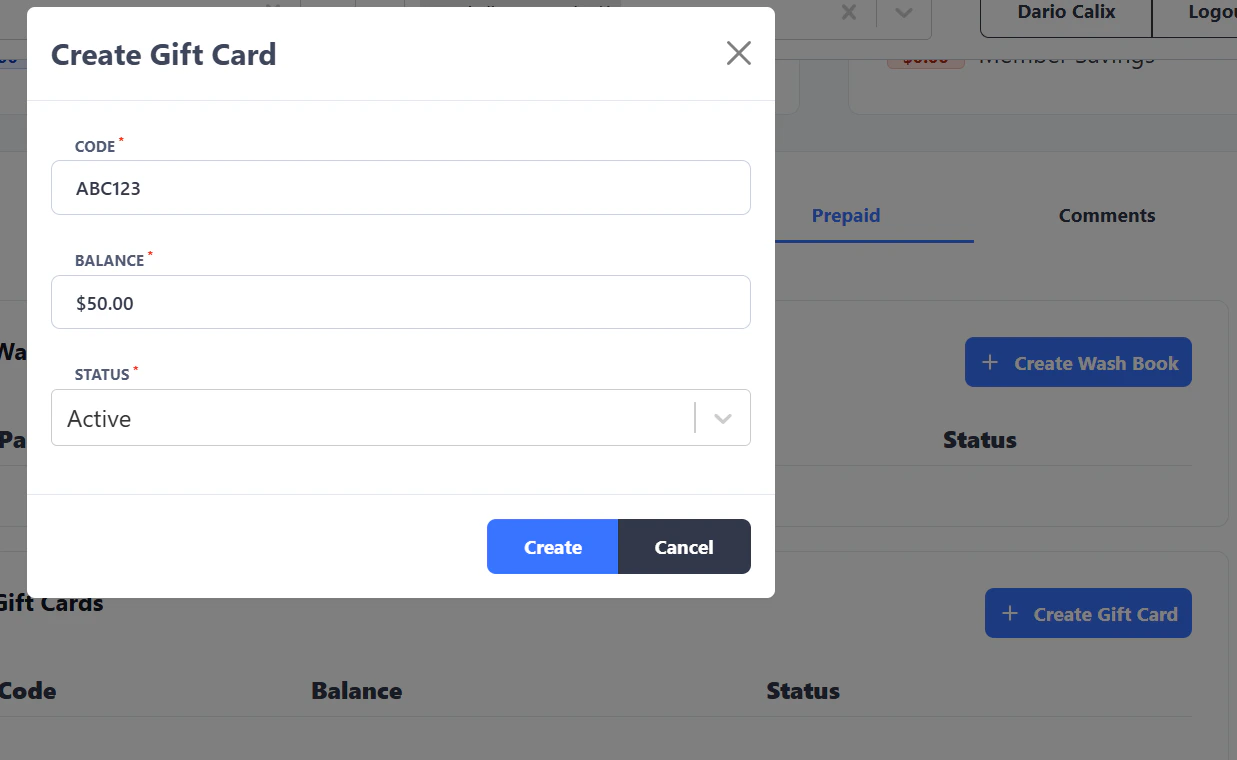
 Enter the barcode printed on the physical card, set the starting balance, and set the status to **Active** so the card can be redeemed.
 ## Physical Gift Card Requirements
Physical gift cards must meet a few requirements before they can be sold and redeemed in FlexWash.
### Supported Barcode Types
FlexWash supports the following barcode formats for physical gift cards:
* QR
* Code39
* Code128
* EAN-8
* EAN-13
* ITF (Interleaved 2 of 5)
* UPC-E
When ordering cards from a print vendor, confirm they use one of these formats.
### Magnetic Stripe Cards Are Not Supported
FlexWash does not support swipe-based (magnetic stripe) gift cards. All gift card lookup and redemption runs through barcode scanning or manual code entry. Order cards with a printed barcode, not a magnetic stripe.
## Physical Gift Card Requirements
Physical gift cards must meet a few requirements before they can be sold and redeemed in FlexWash.
### Supported Barcode Types
FlexWash supports the following barcode formats for physical gift cards:
* QR
* Code39
* Code128
* EAN-8
* EAN-13
* ITF (Interleaved 2 of 5)
* UPC-E
When ordering cards from a print vendor, confirm they use one of these formats.
### Magnetic Stripe Cards Are Not Supported
FlexWash does not support swipe-based (magnetic stripe) gift cards. All gift card lookup and redemption runs through barcode scanning or manual code entry. Order cards with a printed barcode, not a magnetic stripe.