> ## Documentation Index
> Fetch the complete documentation index at: https://docs.flexwash.com/llms.txt
> Use this file to discover all available pages before exploring further.
# Billing History and Refunding Orders from the Pay Tablets
> We show you how to find the Billing History of your members and how to refund an order directly from your Pay Tablets.
### Menu
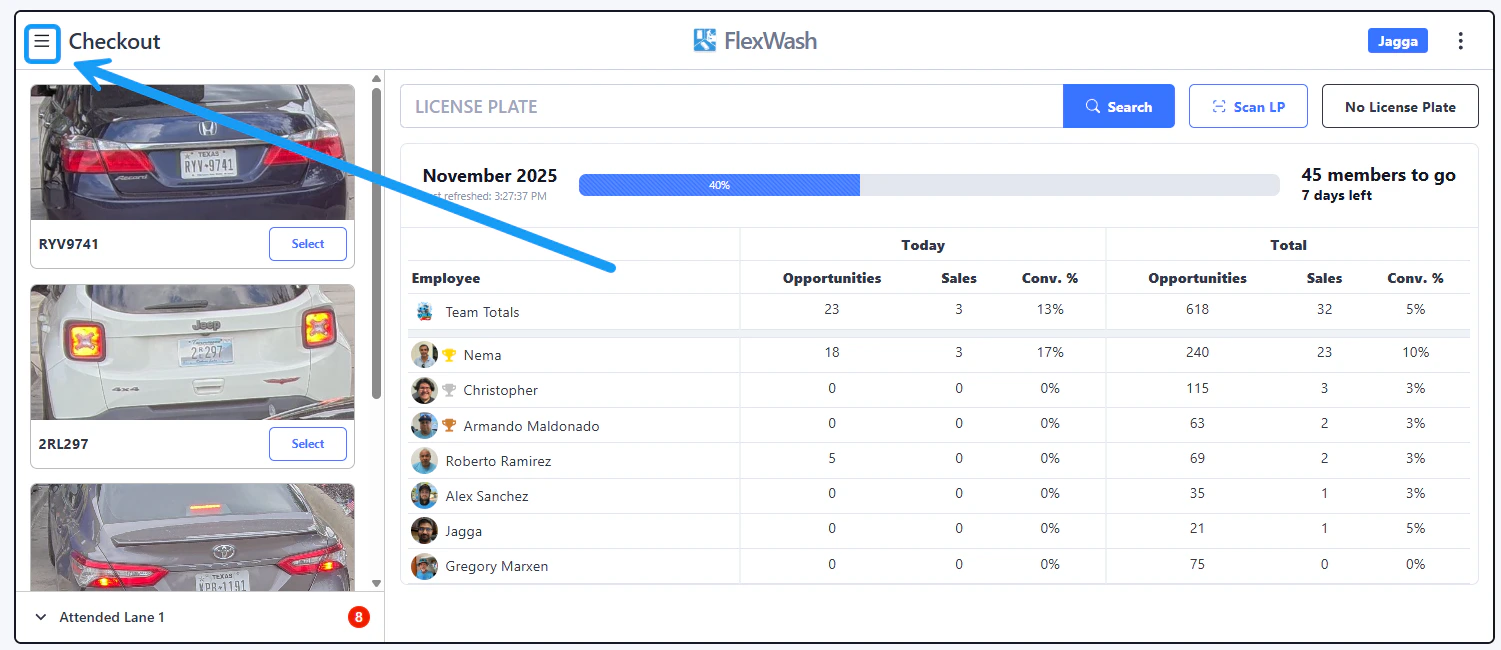 Tap on the upper left corner to open the menu.
### Search Customers
Tap on the upper left corner to open the menu.
### Search Customers
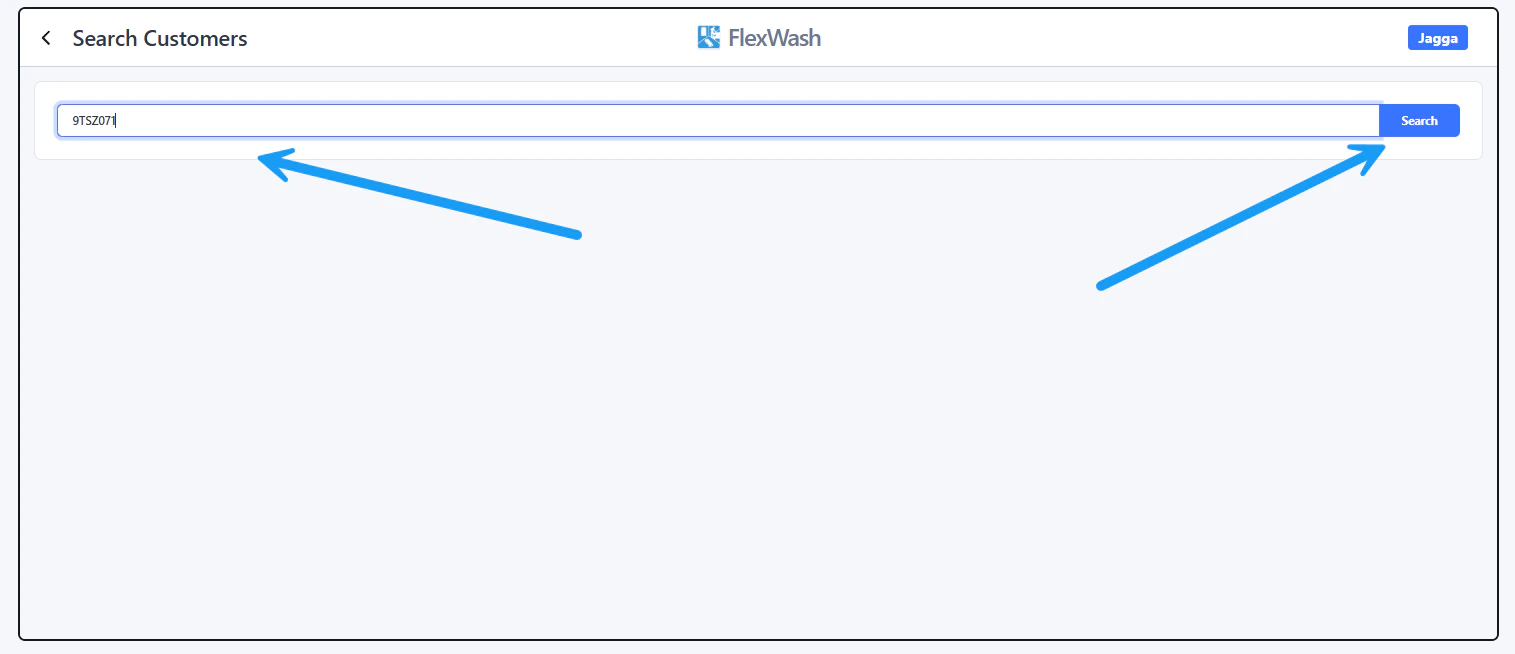
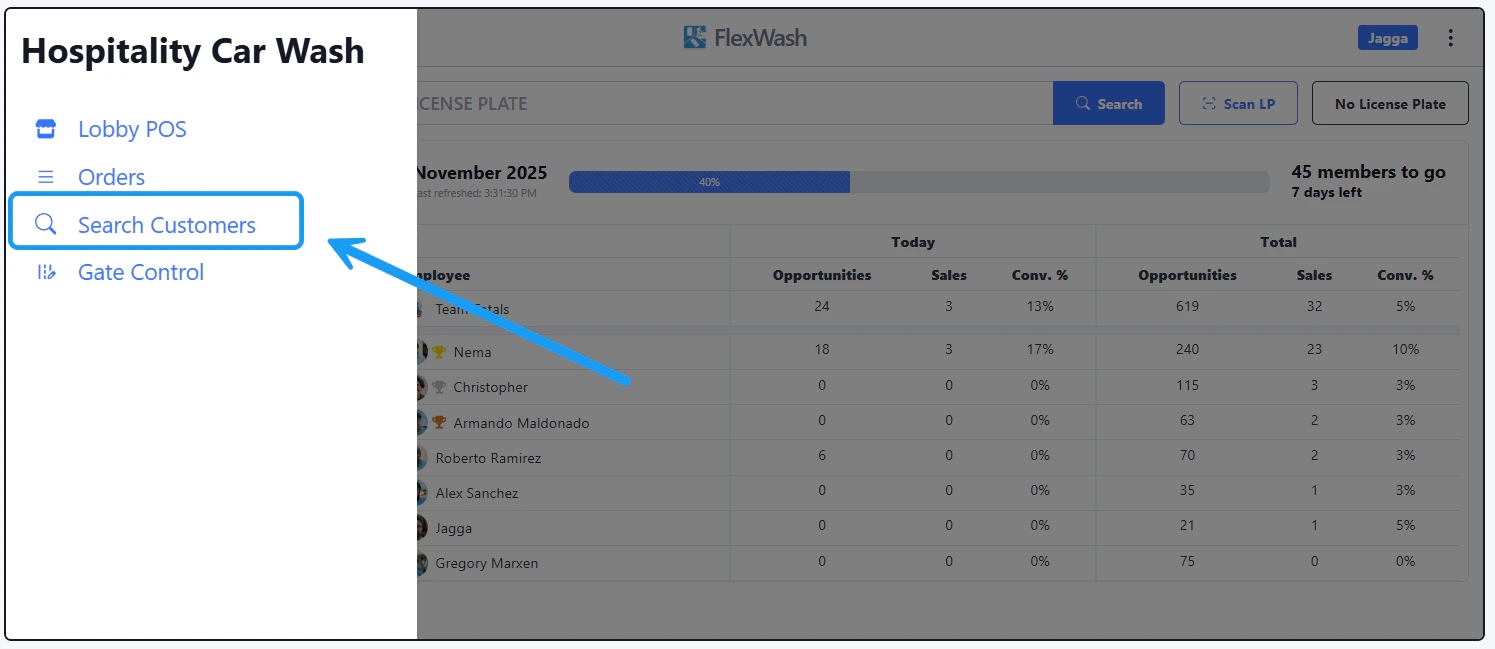 Select the **"Search Customers"** option. You can search by customer's name, phone number, email, License Plate or the last four digits of the credit card:
 ### Orders
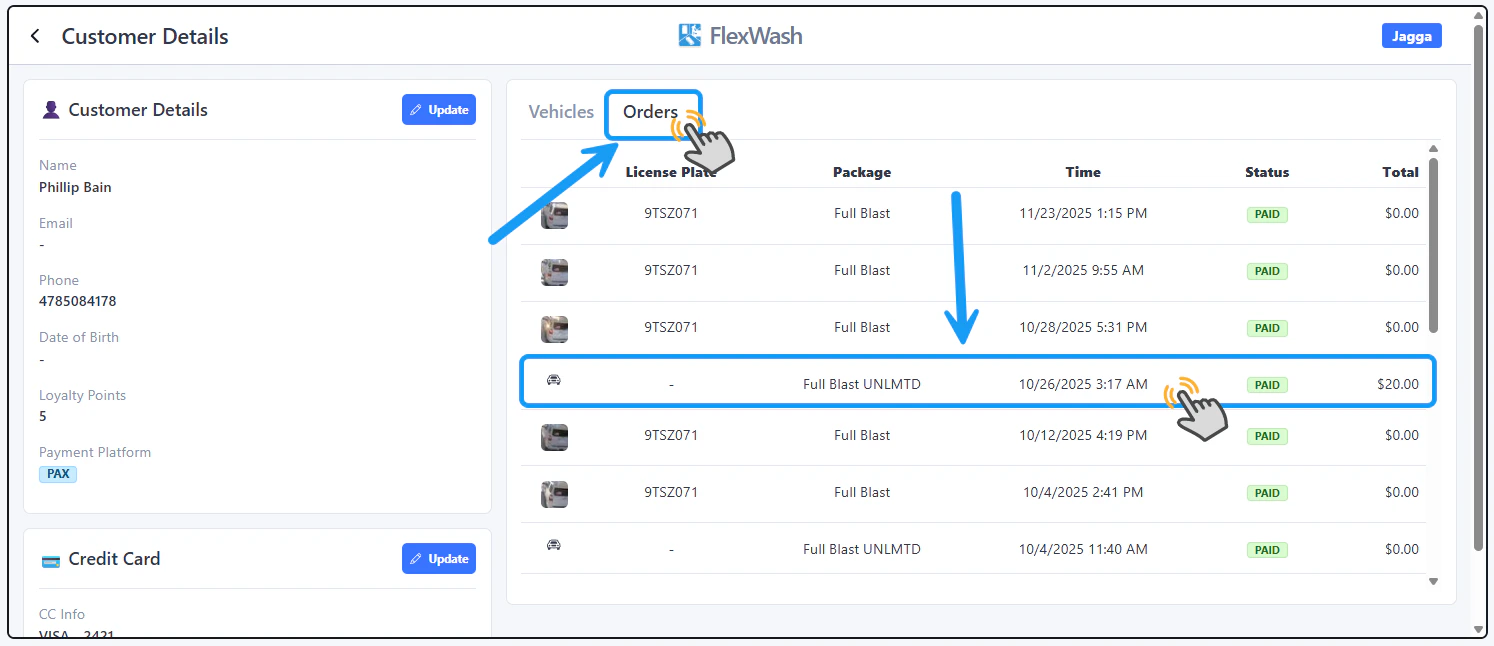 To view the **Billing History** of the customer, tap on the **Orders** tab. The list of orders will appear as shown on the image above. If you wish to refund one of the orders, tap on it for a more detailed view of it. In this example, we are selecting the membership monthly charge that happened on 10/26/2025.
### Refund Order
To view the **Billing History** of the customer, tap on the **Orders** tab. The list of orders will appear as shown on the image above. If you wish to refund one of the orders, tap on it for a more detailed view of it. In this example, we are selecting the membership monthly charge that happened on 10/26/2025.
### Refund Order
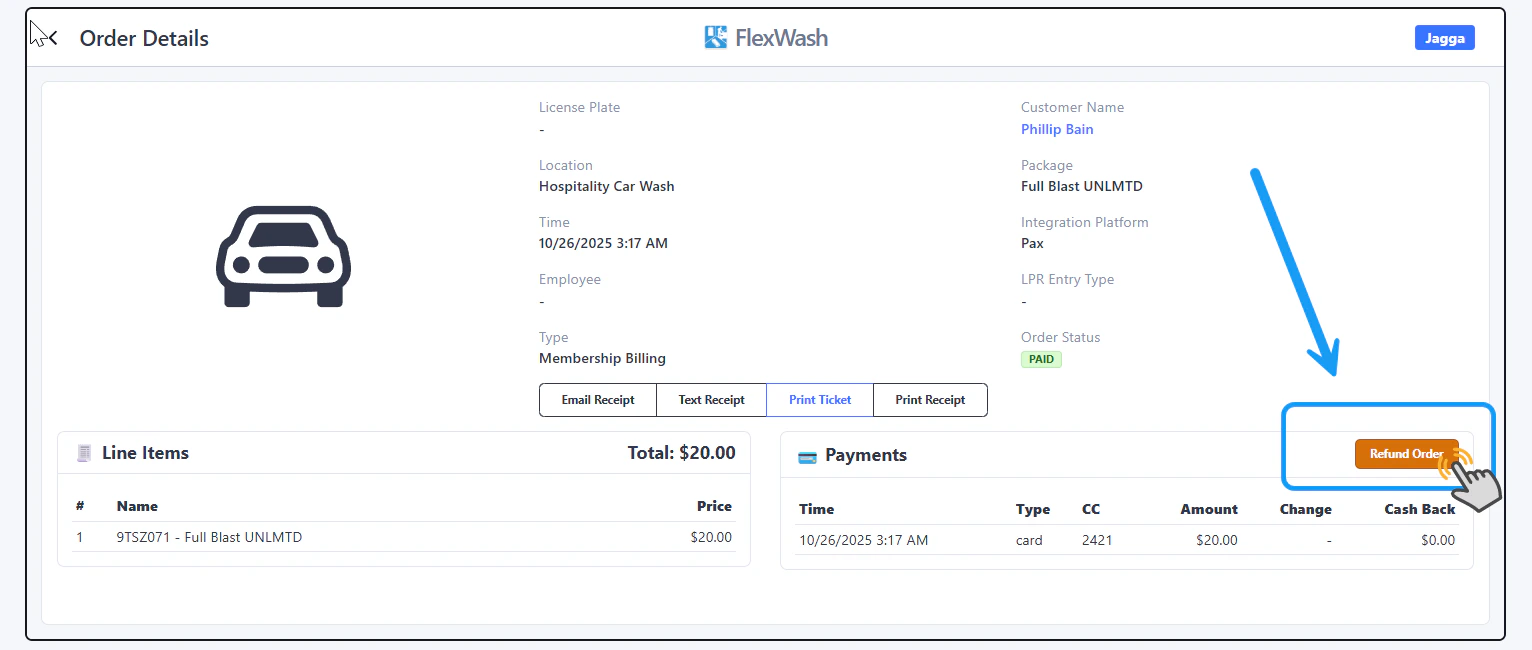 If the Refund button does not appear, contact your organization's administrators so they can grant your user the required permission.
\
Finally, tap on the "Refund Order" button.
For Partial Refunds, please check our [Full Refunds and Partial Refunds article](/operations/transactions/partial-refunds).
If the Refund button does not appear, contact your organization's administrators so they can grant your user the required permission.
\
Finally, tap on the "Refund Order" button.
For Partial Refunds, please check our [Full Refunds and Partial Refunds article](/operations/transactions/partial-refunds).