> ## Documentation Index
> Fetch the complete documentation index at: https://docs.flexwash.com/llms.txt
> Use this file to discover all available pages before exploring further.
# After Care
> Ask every customer how their wash went before they leave the lot, and capture their feedback.
After Care collects customer feedback at the lane, right after the service. Your
attendant opens the tablet, picks the vehicle, asks how the wash went, and
records a rating in seconds.
Each survey is tied to the order, the vehicle, and the attendant who collected
it. You see which washes disappointed, which crew earned the top ratings, and you
learn it the same day.
## Opening After Care
Tap the menu on the pay tablet to open the navigation panel.
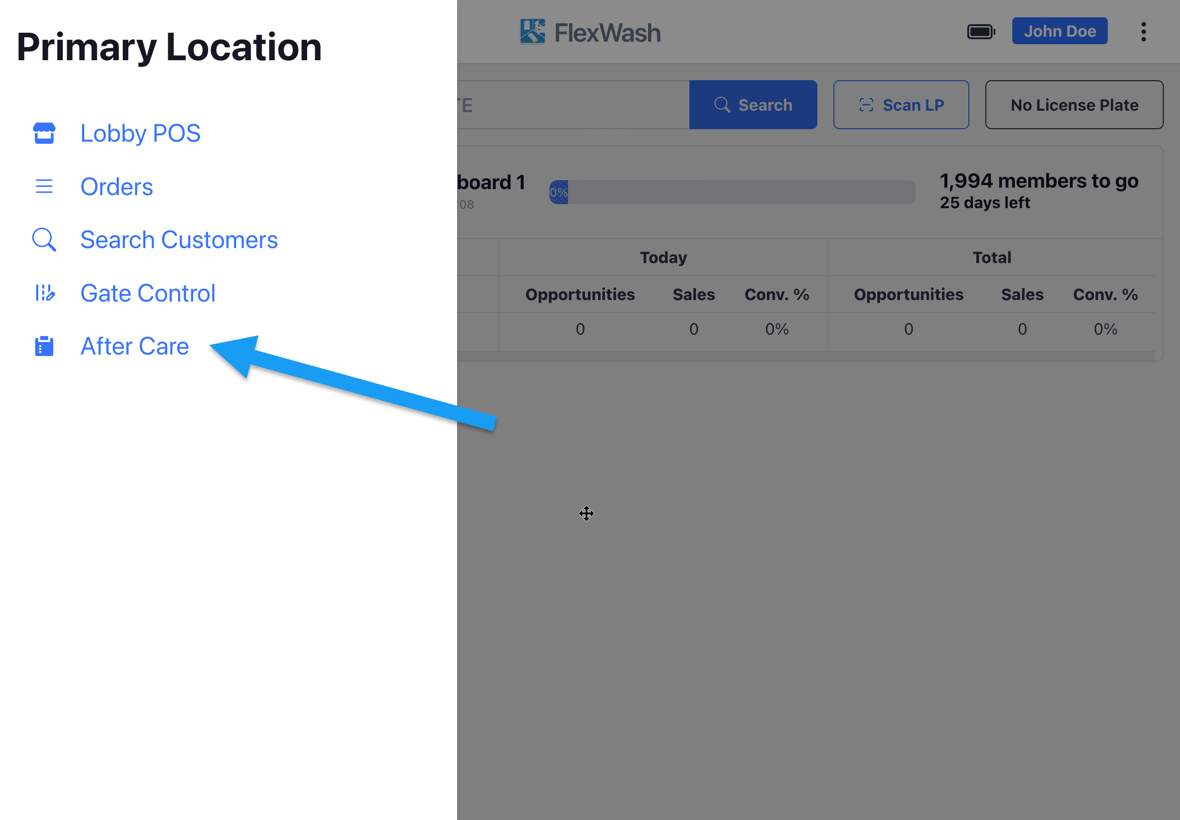 The vehicle list opens, showing the washes that still need a survey.
 ### The vehicle list
FlexWash groups the washes into four columns, each with a live count in its
header:
| Column | What it holds |
| ------------------ | -------------------------------- |
| Member Washes | Washes redeemed on a membership |
| Retail Washes | Single washes paid at the lane |
| Promotional Washes | Washes that redeemed a promotion |
| Interior Services | Full service and detail work |
The list shows only today's paid wash orders at that car wash, newest first.
Orders drop off the list once someone submits or skips their survey.
## Running a Survey
Tap a vehicle to open its survey.
### The vehicle list
FlexWash groups the washes into four columns, each with a live count in its
header:
| Column | What it holds |
| ------------------ | -------------------------------- |
| Member Washes | Washes redeemed on a membership |
| Retail Washes | Single washes paid at the lane |
| Promotional Washes | Washes that redeemed a promotion |
| Interior Services | Full service and detail work |
The list shows only today's paid wash orders at that car wash, newest first.
Orders drop off the list once someone submits or skips their survey.
## Running a Survey
Tap a vehicle to open its survey.
 The left panel contains the customer's information, including their name,
assigned tags, recent orders, and a badge denoting whether they are **Member**,
**Non Member**, **New Customer**, **Returning Unknown Customer**, or **Fleet**.
The right panel holds the survey itself. Ask **How was your wash today?**, tap the
star count the customer gives you, then tap **Submit**. **Skip** records the order
as surveyed without a rating.
A happy customer at the lane is your best membership prospect. **Checkout**
opens a new checkout with that vehicle's plate already loaded, so the attendant
can turn a five-star wash into a membership sale without retyping anything.
## Audio
Audio recording is enabled separately, per car wash. [Contact FlexWash
Support](/technical/troubleshooting/contact-support) to turn it on for your
site.
Once it is on, FlexWash captures the conversation while the survey screen is open
and attaches it to the survey when the attendant taps **Submit**.
The rating tells you what happened. The recording tells you why, in the
customer's own words.
Skipped surveys carry no audio. Only a submitted survey attaches a recording.
The left panel contains the customer's information, including their name,
assigned tags, recent orders, and a badge denoting whether they are **Member**,
**Non Member**, **New Customer**, **Returning Unknown Customer**, or **Fleet**.
The right panel holds the survey itself. Ask **How was your wash today?**, tap the
star count the customer gives you, then tap **Submit**. **Skip** records the order
as surveyed without a rating.
A happy customer at the lane is your best membership prospect. **Checkout**
opens a new checkout with that vehicle's plate already loaded, so the attendant
can turn a five-star wash into a membership sale without retyping anything.
## Audio
Audio recording is enabled separately, per car wash. [Contact FlexWash
Support](/technical/troubleshooting/contact-support) to turn it on for your
site.
Once it is on, FlexWash captures the conversation while the survey screen is open
and attaches it to the survey when the attendant taps **Submit**.
The rating tells you what happened. The recording tells you why, in the
customer's own words.
Skipped surveys carry no audio. Only a submitted survey attaches a recording.