> ## Documentation Index
> Fetch the complete documentation index at: https://docs.flexwash.com/llms.txt
> Use this file to discover all available pages before exploring further.
# Family Plan
> Put multiple vehicles on one account, one card, and one billing date.
A Family Plan keeps several vehicles on a single customer account. The customer
holds one membership, and each vehicle on it has its own subscription and
package. When a customer adds another vehicle, you attach it to their existing
account in a few taps at the Pay Tablet instead of creating a separate customer.
Every subscription on the plan bills to the same card on file on one shared
date, so the customer is billed once each cycle, not once per vehicle.
The new vehicle joins the member's current cycle, so the first charge
covers only the days remaining until their next billing date.
## Adding a Vehicle to a Family Plan
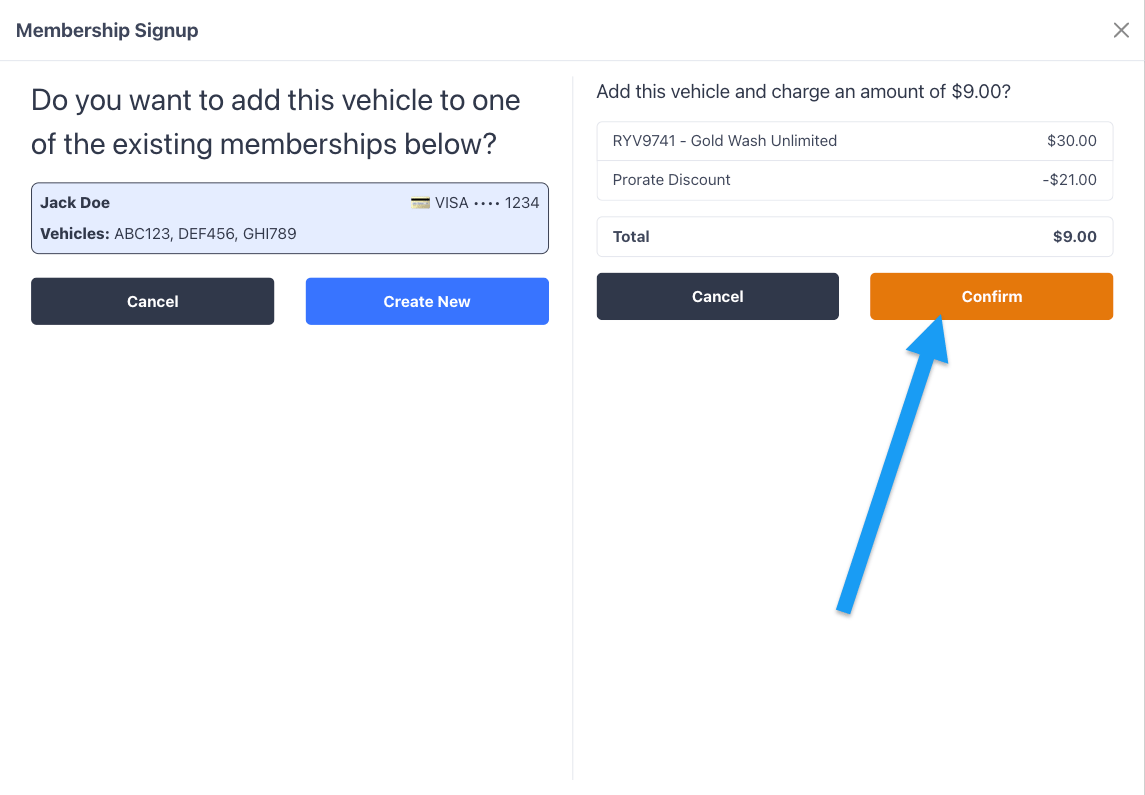
At Checkout, an unrecognized license plate shows as a **New Customer**.
Under **Membership**, select the package for the new vehicle, then tap
**Sign Up**.
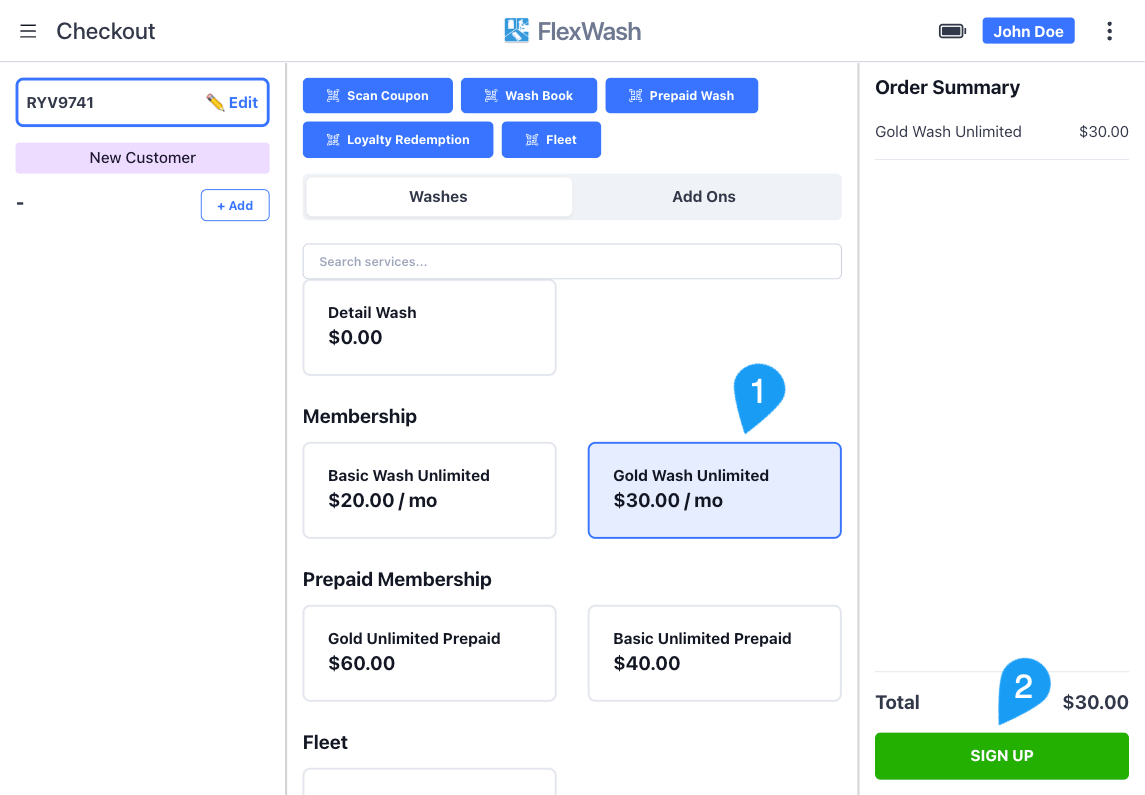 Enter the customer's **Name** and **Phone Number**, and opt them into
marketing if they agree. When the package has terms configured, the member
also reviews the Terms and Conditions and signs. Tap **Sign Up**.
Enter the phone number already on the existing member's account. FlexWash
uses the phone number to find the account this vehicle should join.
Enter the customer's **Name** and **Phone Number**, and opt them into
marketing if they agree. When the package has terms configured, the member
also reviews the Terms and Conditions and signs. Tap **Sign Up**.
Enter the phone number already on the existing member's account. FlexWash
uses the phone number to find the account this vehicle should join.
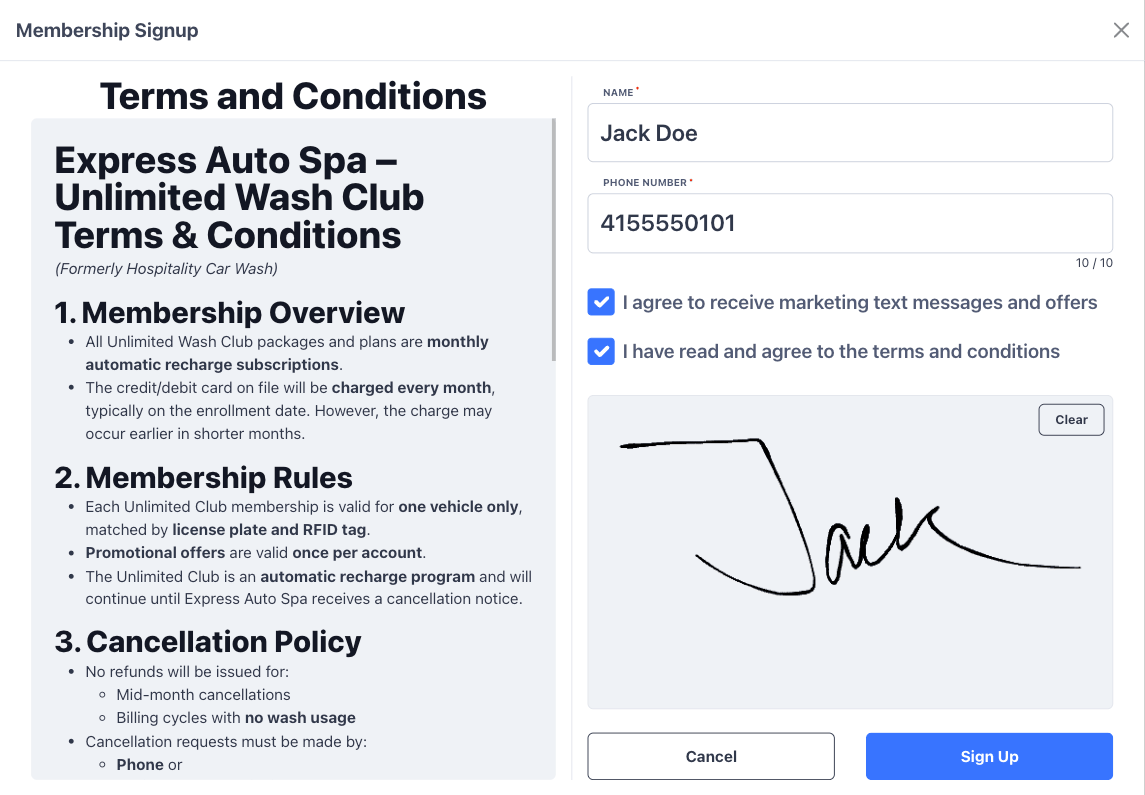 FlexWash lists the accounts that match the phone number you entered. Each
card shows the member's name, the card on file, and the vehicles already on
the account. Tap the member you want to add this vehicle to.
FlexWash lists the accounts that match the phone number you entered. Each
card shows the member's name, the card on file, and the vehicles already on
the account. Tap the member you want to add this vehicle to.
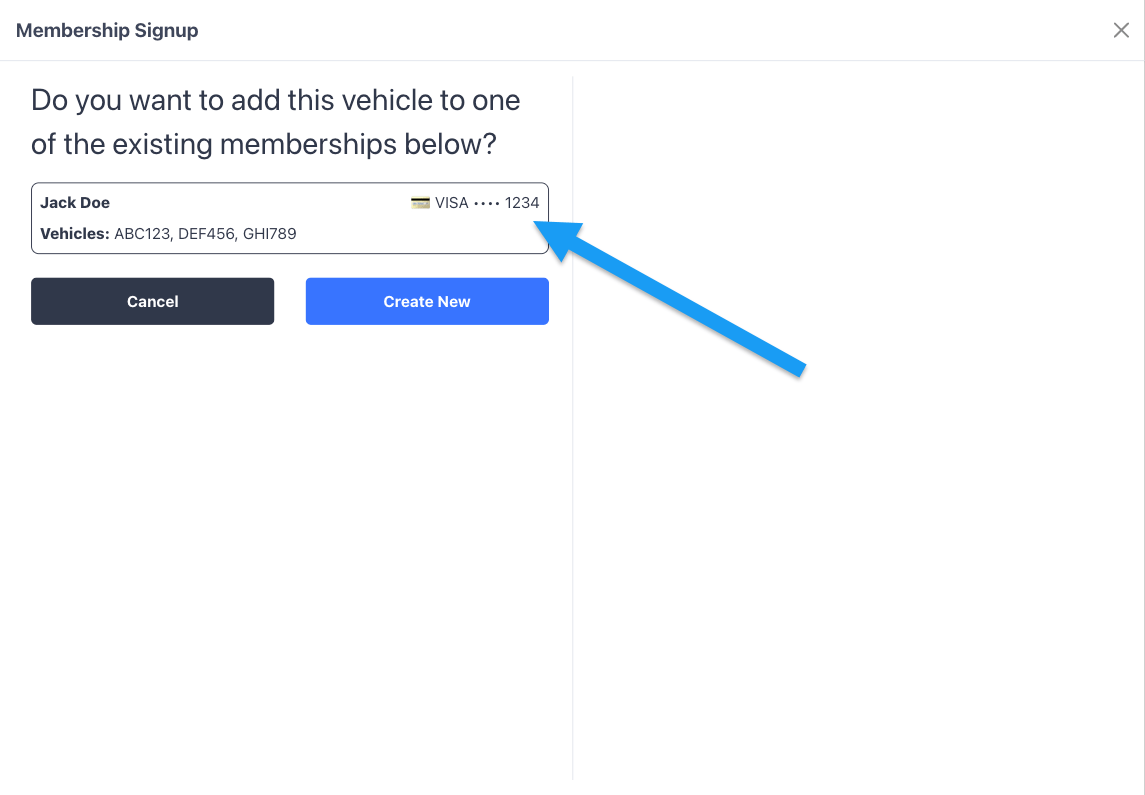 The prorated amount appears on the right, itemized as the package price
less a **Prorate Discount**. Tap **Confirm** to charge the member's card on
file and add the vehicle to their account. For how this amount is
calculated, see [Prorated Charges](/memberships/prorating).
The prorated amount appears on the right, itemized as the package price
less a **Prorate Discount**. Tap **Confirm** to charge the member's card on
file and add the vehicle to their account. For how this amount is
calculated, see [Prorated Charges](/memberships/prorating).