> ## Documentation Index
> Fetch the complete documentation index at: https://docs.flexwash.com/llms.txt
> Use this file to discover all available pages before exploring further.
# Customer Timeline
> Track every membership event, billing charge, and account change in one chronological view.
## Overview
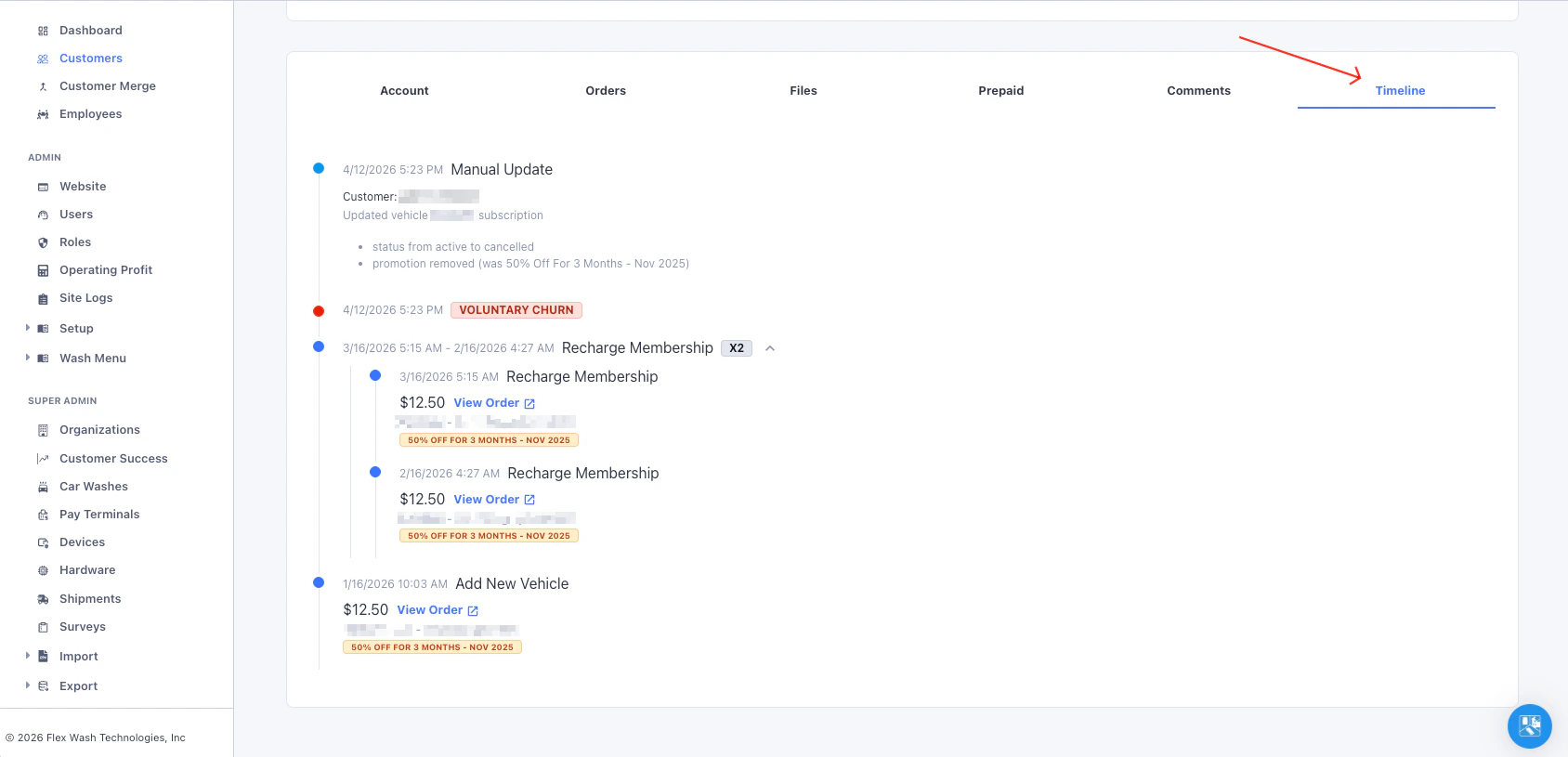
The Customer Timeline gives you a complete, chronological history of every significant event associated with a customer. Instead of checking multiple tabs or reports, the Timeline consolidates billing activity, membership status changes, account edits, and import events into a single view.
***
## How to Access
Navigate to **Customers** from the left sidebar, select a customer, then click the **Timeline** tab.
 ***
## Event Types
Each event on the timeline includes a timestamp, a colored indicator, and relevant details. Below is a breakdown of every event type you may encounter.
### Recharge Membership
A recurring membership billing charge was processed. This appears each time a customer's membership auto-renews.
**Details shown:**
* Charge amount
* Vehicle and subscription line items
* Applied [promotions](/configuration/pricing-and-promotions/promotions), [upsells](/configuration/pricing-and-promotions/upsells), or [downsells](/configuration/pricing-and-promotions/downsells)
* **View Order** link to the full order
Consecutive recharge events are automatically grouped together. Click the expand arrow to view individual charges within a group.
***
### Add New Vehicle
A new vehicle was added to the customer's membership. This generates a billing order for the new subscription.
**Details shown:**
* Charge amount
* Vehicle and subscription line items
* Applied promotions, upsells, or downsells
* **View Order** link
***
### Reactivate Membership
A previously cancelled customer was re-enrolled in a membership plan. The event name specifies whether it was a reactivation from voluntary churn or involuntary churn.
**Details shown:**
* Charge amount
* Vehicle and subscription line items
* **View Order** link
***
### Voluntary Churn
The customer's membership was cancelled intentionally. This could be initiated by the customer or by a staff member on their behalf.
Displayed as a red **VOLUNTARY CHURN** badge.
**Details shown:**
* Employee who performed the cancellation (if applicable)
***
### Involuntary Churn
The customer's membership was cancelled due to a failed payment (invalid or declined credit card).
Displayed as a red **INVOLUNTARY CHURN** badge.
**Details shown:**
* Employee (if applicable)
***
### Manual Update
An edit was made to the customer's account. This captures changes made from the web app, pay tablet, or member portal.
**Details shown:**
* Who made the change (employee name, customer, or system)
* A detailed breakdown of exactly what changed (for example: status updates, promotion additions or removals, credit card changes, and subscription modifications)
Manual Update entries are auto-generated whenever a staff member or customer modifies account details. They provide a complete audit trail without any extra effort.
***
### Added Interim Import
The customer was imported as an interim member during a POS migration. Interim members are active but do not yet have a credit card on file.
**Details shown:**
* Employee who performed the import (if applicable)
For more on interim imports, see [Interim Import](/data-import/interim-import).
***
### Tokenized Interim Member
An interim member's credit card was successfully captured, converting them into a full active member. This is the final step of a POS migration for that customer.
**Details shown:**
* License plate of the tokenized vehicle
* Employee (if applicable)
For more on token migrations, see [Member Token Migration](/data-import/member-token-migration).
***
## Reading the Timeline
Events are displayed in reverse chronological order, with the most recent at the top. Each event has a colored dot indicating its category:
* **Blue** - Billing events (recharges, new vehicles, reactivations)
* **Red** - Churn events (voluntary and involuntary cancellations)
* **Light blue** - Manual updates (account edits and modifications)
* **Green** - Import events (interim imports and tokenizations)
***
## Event Types
Each event on the timeline includes a timestamp, a colored indicator, and relevant details. Below is a breakdown of every event type you may encounter.
### Recharge Membership
A recurring membership billing charge was processed. This appears each time a customer's membership auto-renews.
**Details shown:**
* Charge amount
* Vehicle and subscription line items
* Applied [promotions](/configuration/pricing-and-promotions/promotions), [upsells](/configuration/pricing-and-promotions/upsells), or [downsells](/configuration/pricing-and-promotions/downsells)
* **View Order** link to the full order
Consecutive recharge events are automatically grouped together. Click the expand arrow to view individual charges within a group.
***
### Add New Vehicle
A new vehicle was added to the customer's membership. This generates a billing order for the new subscription.
**Details shown:**
* Charge amount
* Vehicle and subscription line items
* Applied promotions, upsells, or downsells
* **View Order** link
***
### Reactivate Membership
A previously cancelled customer was re-enrolled in a membership plan. The event name specifies whether it was a reactivation from voluntary churn or involuntary churn.
**Details shown:**
* Charge amount
* Vehicle and subscription line items
* **View Order** link
***
### Voluntary Churn
The customer's membership was cancelled intentionally. This could be initiated by the customer or by a staff member on their behalf.
Displayed as a red **VOLUNTARY CHURN** badge.
**Details shown:**
* Employee who performed the cancellation (if applicable)
***
### Involuntary Churn
The customer's membership was cancelled due to a failed payment (invalid or declined credit card).
Displayed as a red **INVOLUNTARY CHURN** badge.
**Details shown:**
* Employee (if applicable)
***
### Manual Update
An edit was made to the customer's account. This captures changes made from the web app, pay tablet, or member portal.
**Details shown:**
* Who made the change (employee name, customer, or system)
* A detailed breakdown of exactly what changed (for example: status updates, promotion additions or removals, credit card changes, and subscription modifications)
Manual Update entries are auto-generated whenever a staff member or customer modifies account details. They provide a complete audit trail without any extra effort.
***
### Added Interim Import
The customer was imported as an interim member during a POS migration. Interim members are active but do not yet have a credit card on file.
**Details shown:**
* Employee who performed the import (if applicable)
For more on interim imports, see [Interim Import](/data-import/interim-import).
***
### Tokenized Interim Member
An interim member's credit card was successfully captured, converting them into a full active member. This is the final step of a POS migration for that customer.
**Details shown:**
* License plate of the tokenized vehicle
* Employee (if applicable)
For more on token migrations, see [Member Token Migration](/data-import/member-token-migration).
***
## Reading the Timeline
Events are displayed in reverse chronological order, with the most recent at the top. Each event has a colored dot indicating its category:
* **Blue** - Billing events (recharges, new vehicles, reactivations)
* **Red** - Churn events (voluntary and involuntary cancellations)
* **Light blue** - Manual updates (account edits and modifications)
* **Green** - Import events (interim imports and tokenizations)