> ## Documentation Index
> Fetch the complete documentation index at: https://docs.flexwash.com/llms.txt
> Use this file to discover all available pages before exploring further.
# Customer Tags
> Label customers automatically based on behavior, promotions, and surveys to power personalized service and targeted marketing.
Tags are colored labels you attach to customer profiles. They turn one-off observations ("Lakers fan", "abuses membership washes", "frequent visitor") into structured data you can search, filter, and segment on across the platform.
You can apply tags by hand, or let promotions, surveys, and sign-up portals stamp them onto customers automatically. The result is a CRM that enriches itself in the background, with no extra effort from your staff.
## Why use tags?
Recognize loyal customers, regulars, or VIPs the moment the lane reads their license plate, and tailor the interaction.
Build Flex Engage audiences off the same tags that drive your reports, so your messaging lines up with the customers it targets.
Promotions, surveys, and sign-up portals can stamp tags onto customers automatically. No staff time required.
Customer Analytics, Membership LTV, and customer search all accept tag filters, so you can slice your data by any cohort you define.
## Where tags appear
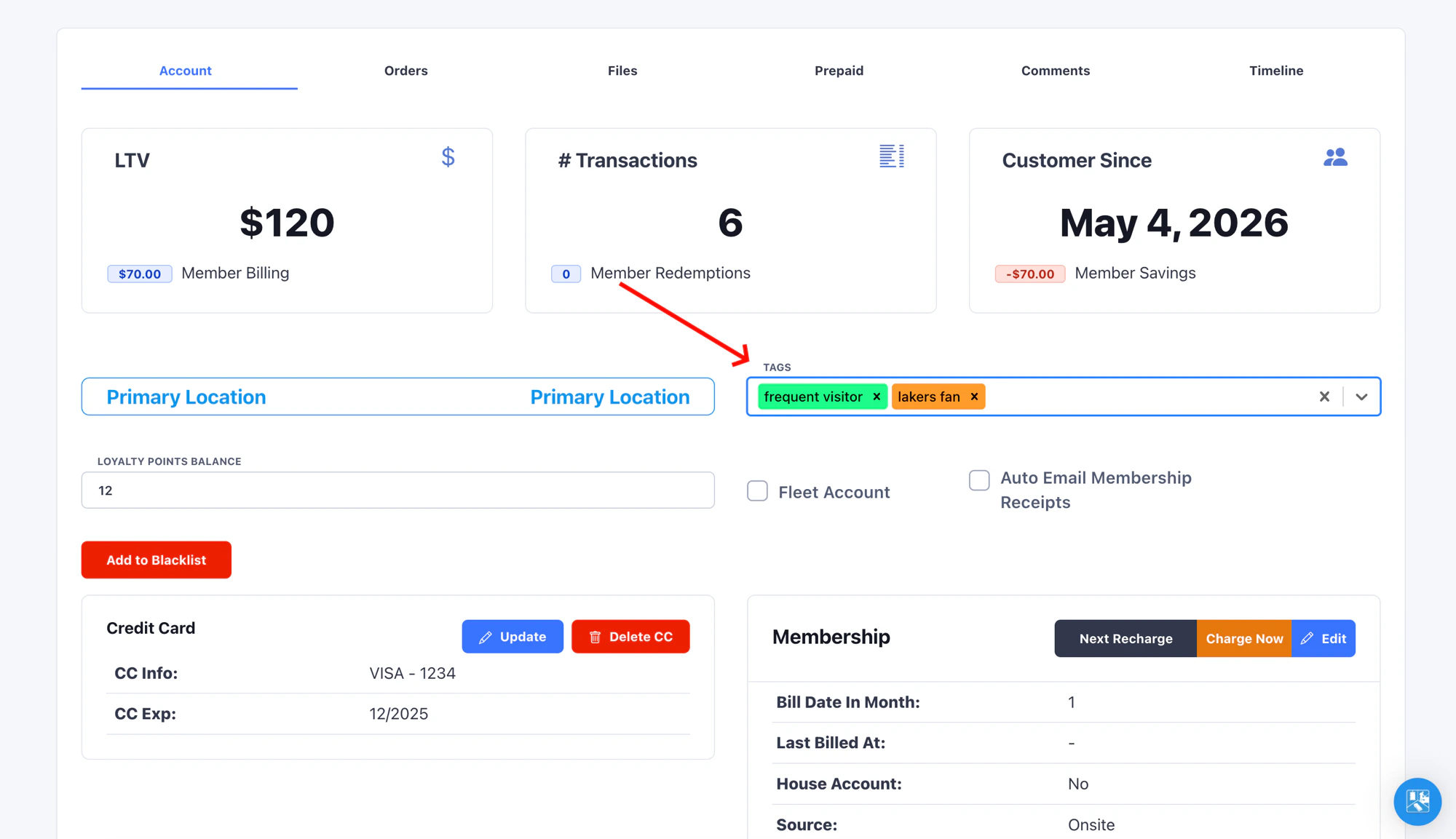
The **Tags** field on a customer's profile shows every tag attached to that customer.
The **Tags** tab on the customer card lets staff add or remove tags during a wash.
Filter the customer list to any combination of tags.
Filter the report by tag, then export the matching customers as a Flex Engage CRM list.
Slice membership lifetime value by customer tag.
Use a tag as a filter leaf inside the segment builder to drive automated messaging.
Pick an **Auto Tag** that fires on every redemption, or attach tags to a promotion's question answers so the choices customers make during sign-up flow onto their profile.
Each survey answer carries a tag. Picking that answer applies its tag to the customer.
## How customers get tagged
Seven distinct paths result in a tag landing on a customer profile.
### 1. Manually from the CRM
Open a customer's profile and edit the **Tags** field directly.
 ### 2. Manually from the Pay Tablet
Staff at the lane open a customer card, switch to the **Tags** tab, and add or remove tags while the customer is in front of them. FlexWash attributes the change to the signed-in employee.
### 3. When a promotion is redeemed
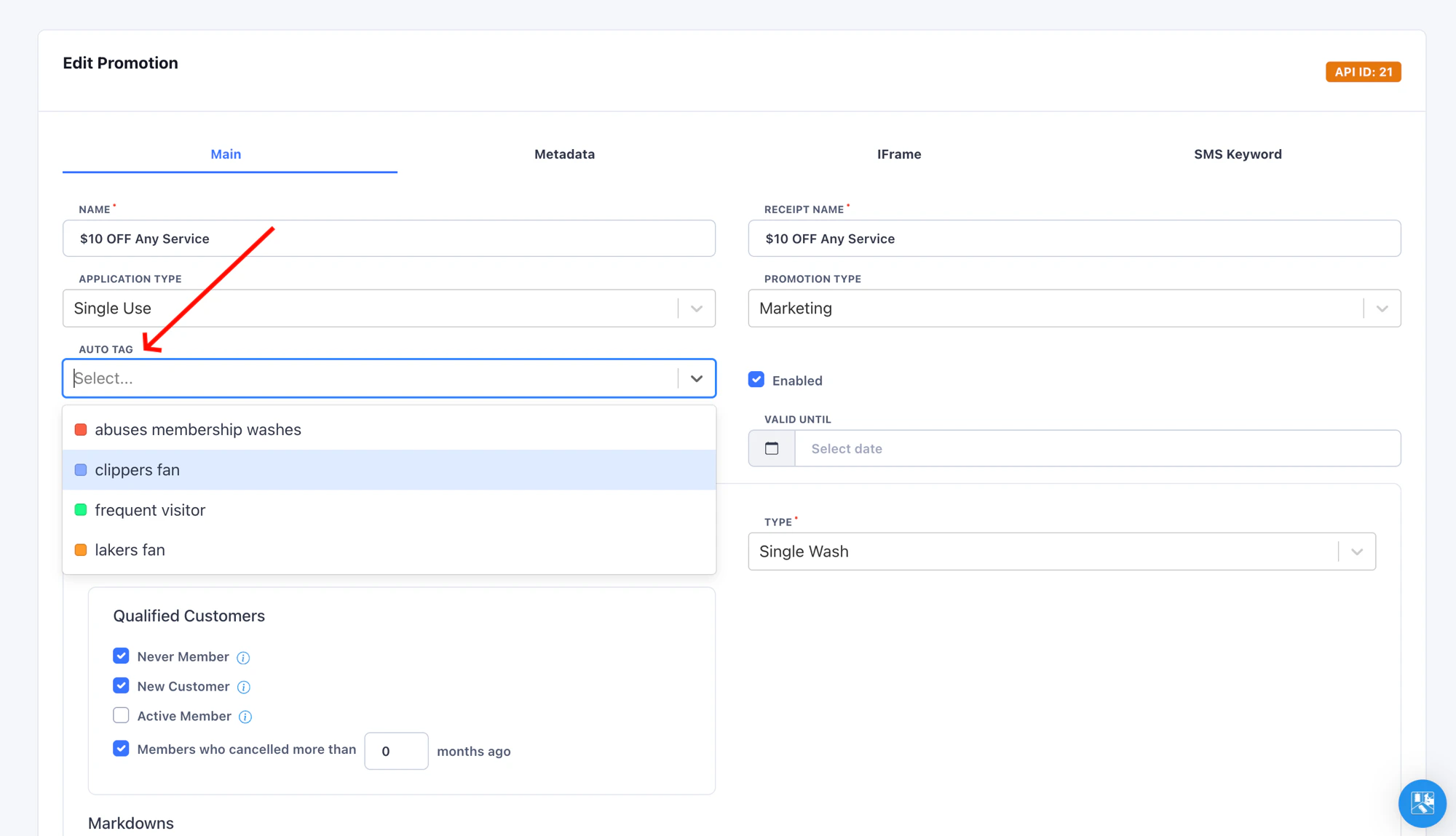
Set an **Auto Tag** on a promotion. Whenever a customer redeems that promotion at the lane, FlexWash adds the tag to their profile automatically.
### 2. Manually from the Pay Tablet
Staff at the lane open a customer card, switch to the **Tags** tab, and add or remove tags while the customer is in front of them. FlexWash attributes the change to the signed-in employee.
### 3. When a promotion is redeemed
Set an **Auto Tag** on a promotion. Whenever a customer redeems that promotion at the lane, FlexWash adds the tag to their profile automatically.
 ### 4. When a wash code is redeemed
Wash codes generated from a promotion inherit the promotion's auto tag at generation time. When the customer presents the code at the lane, FlexWash stamps the tag onto their profile.
### 5. When a survey answer is selected
Every answer on a survey has a tag attached. When a customer picks an answer at the lane, FlexWash applies its tag to their record as the order is recorded.
### 6. When a customer signs up through the membership sign-up portal
Pre-bake a tag into the sign-up portal's iframe URL using the **Auto Tag** field on the website admin page. FlexWash tags every member who signs up through that link.
### 7. When a customer redeems through the promotion sign-up portal
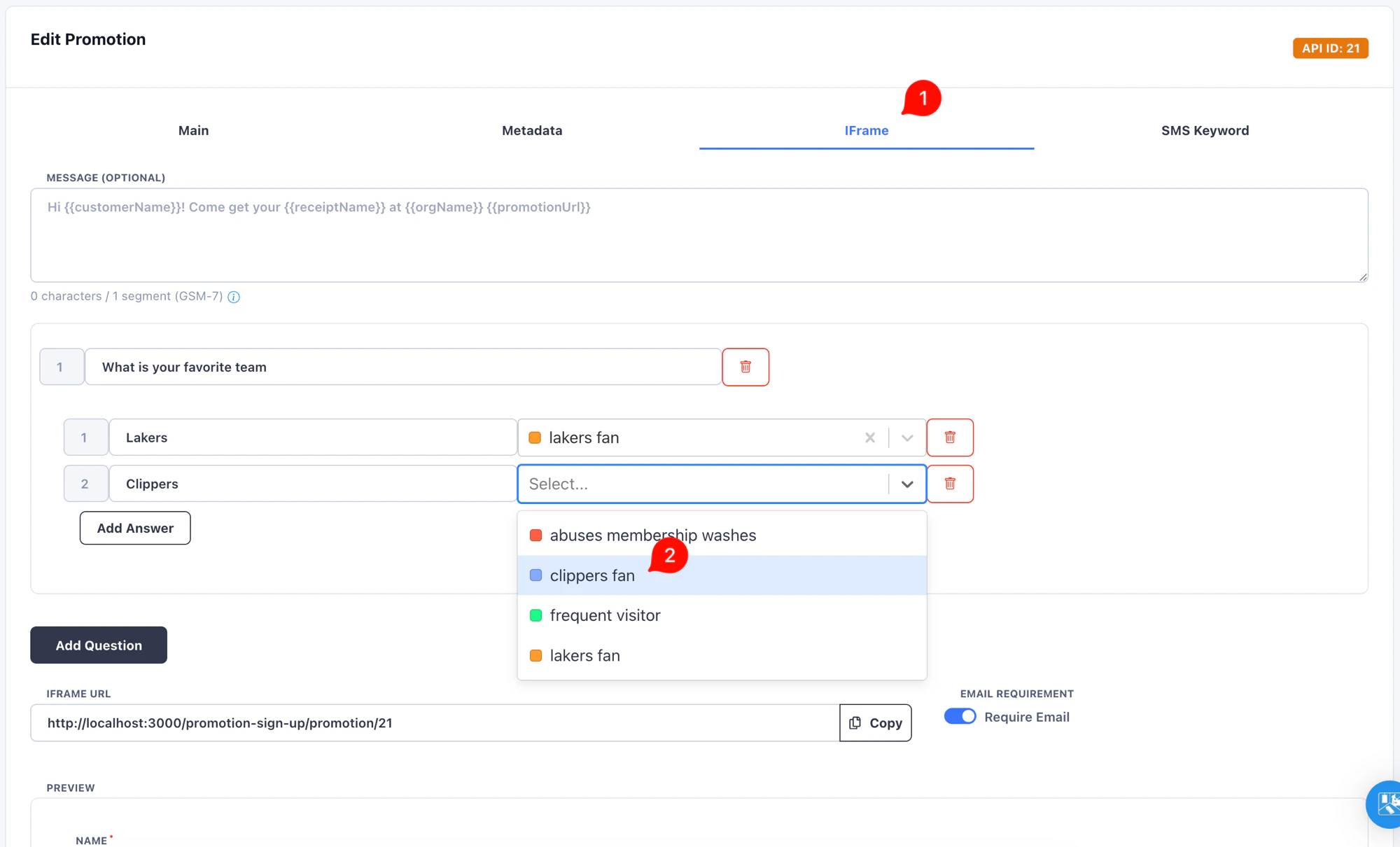
Add questions to a promotion's **IFrame** tab and attach a tag to each answer. As a customer redeems the promotion through the public sign-up portal and picks answers, FlexWash records the corresponding tags on the redemption and applies them when the wash is processed.
### 4. When a wash code is redeemed
Wash codes generated from a promotion inherit the promotion's auto tag at generation time. When the customer presents the code at the lane, FlexWash stamps the tag onto their profile.
### 5. When a survey answer is selected
Every answer on a survey has a tag attached. When a customer picks an answer at the lane, FlexWash applies its tag to their record as the order is recorded.
### 6. When a customer signs up through the membership sign-up portal
Pre-bake a tag into the sign-up portal's iframe URL using the **Auto Tag** field on the website admin page. FlexWash tags every member who signs up through that link.
### 7. When a customer redeems through the promotion sign-up portal
Add questions to a promotion's **IFrame** tab and attach a tag to each answer. As a customer redeems the promotion through the public sign-up portal and picks answers, FlexWash records the corresponding tags on the redemption and applies them when the wash is processed.
 ## Managing tags
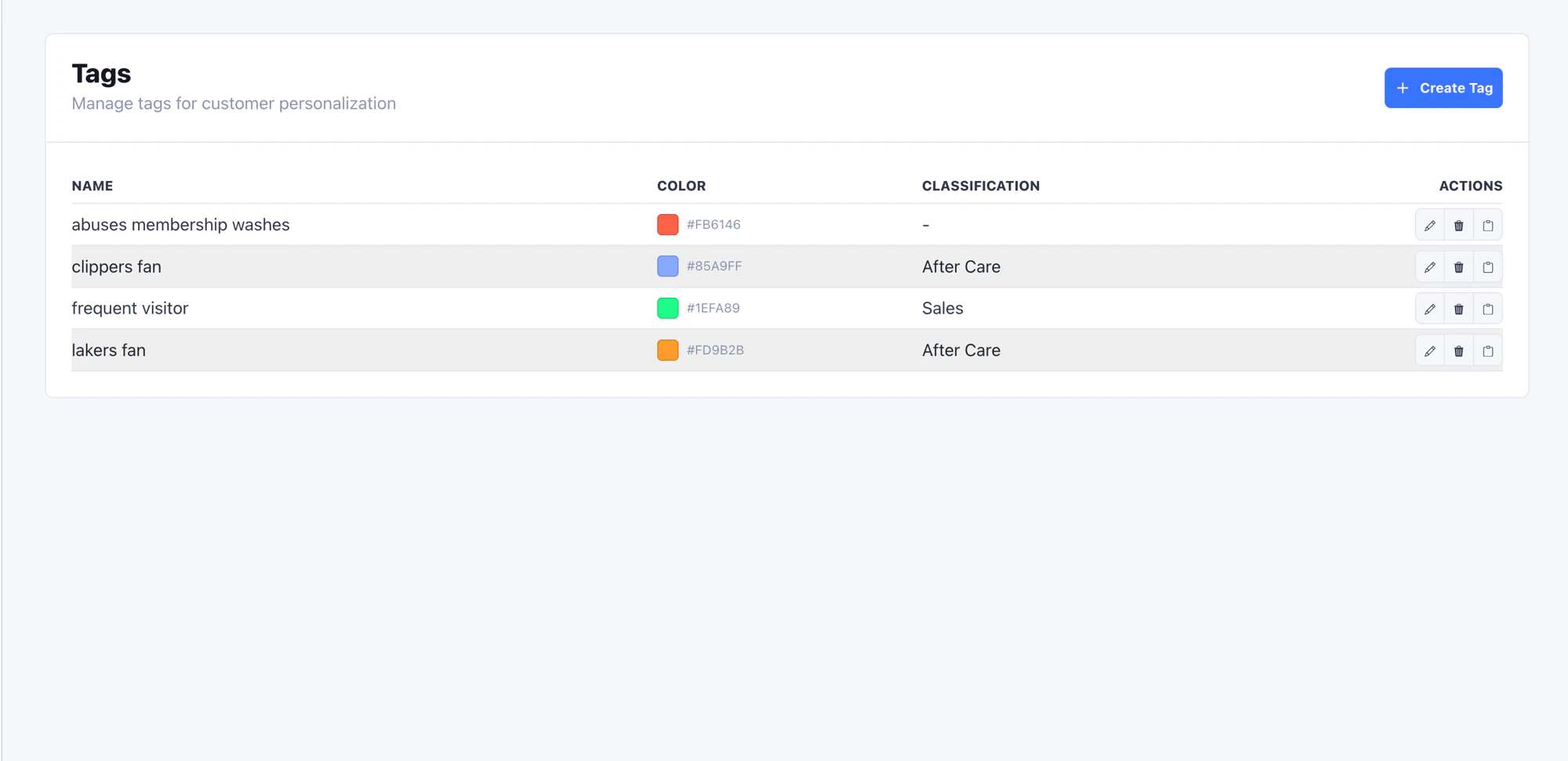
Navigate to **Tags** in the left sidebar to view, create, edit, and delete tags. Each tag has a name and a color.
## Managing tags
Navigate to **Tags** in the left sidebar to view, create, edit, and delete tags. Each tag has a name and a color.
 Tag names are case-insensitive and unique within your organization. When you delete a tag, FlexWash soft-deletes it: history on past customers stays intact even after the tag is retired.
You do not have to visit the Tags page to create a tag. Anywhere a tag dropdown appears (customer profile, promotion auto tag, survey answer), type a new name and select **Create...** to mint it inline. The new tag becomes available everywhere immediately.
## Permissions
Two distinct controls determine who can edit tags on a customer profile.
A role-level permission. Controls who can edit tags from the CRM customer profile. Configure it in **Roles**.
A per-employee flag on the employee detail page. Controls whether a specific employee can edit tags from the Pay Tablet, regardless of their role.
Pay tablet employees can always view a customer's tags. This flag only controls whether they can change them.
Tag names are case-insensitive and unique within your organization. When you delete a tag, FlexWash soft-deletes it: history on past customers stays intact even after the tag is retired.
You do not have to visit the Tags page to create a tag. Anywhere a tag dropdown appears (customer profile, promotion auto tag, survey answer), type a new name and select **Create...** to mint it inline. The new tag becomes available everywhere immediately.
## Permissions
Two distinct controls determine who can edit tags on a customer profile.
A role-level permission. Controls who can edit tags from the CRM customer profile. Configure it in **Roles**.
A per-employee flag on the employee detail page. Controls whether a specific employee can edit tags from the Pay Tablet, regardless of their role.
Pay tablet employees can always view a customer's tags. This flag only controls whether they can change them.