> ## Documentation Index
> Fetch the complete documentation index at: https://docs.flexwash.com/llms.txt
> Use this file to discover all available pages before exploring further.
# Customer Blacklist
> Stop fraudulent and non-paying customers at the lane before they cost you another wash.
## Overview
Blacklisting a customer prevents their vehicles from being serviced at any of your wash sites. Use it to shut down repeat offenders: fraudulent chargebacks, non-payment, abusive behavior, or property damage.
When a blacklisted customer's license plate is scanned or entered at the POS, the wash is blocked and the reason you recorded is shown to your operator on the spot.
***
## Add a Customer to the Blacklist
### 1. Open the Customer Profile
Navigate to **Customers** from the left sidebar and select the customer you want to blacklist.
### 2. Click "Add to Blacklist"
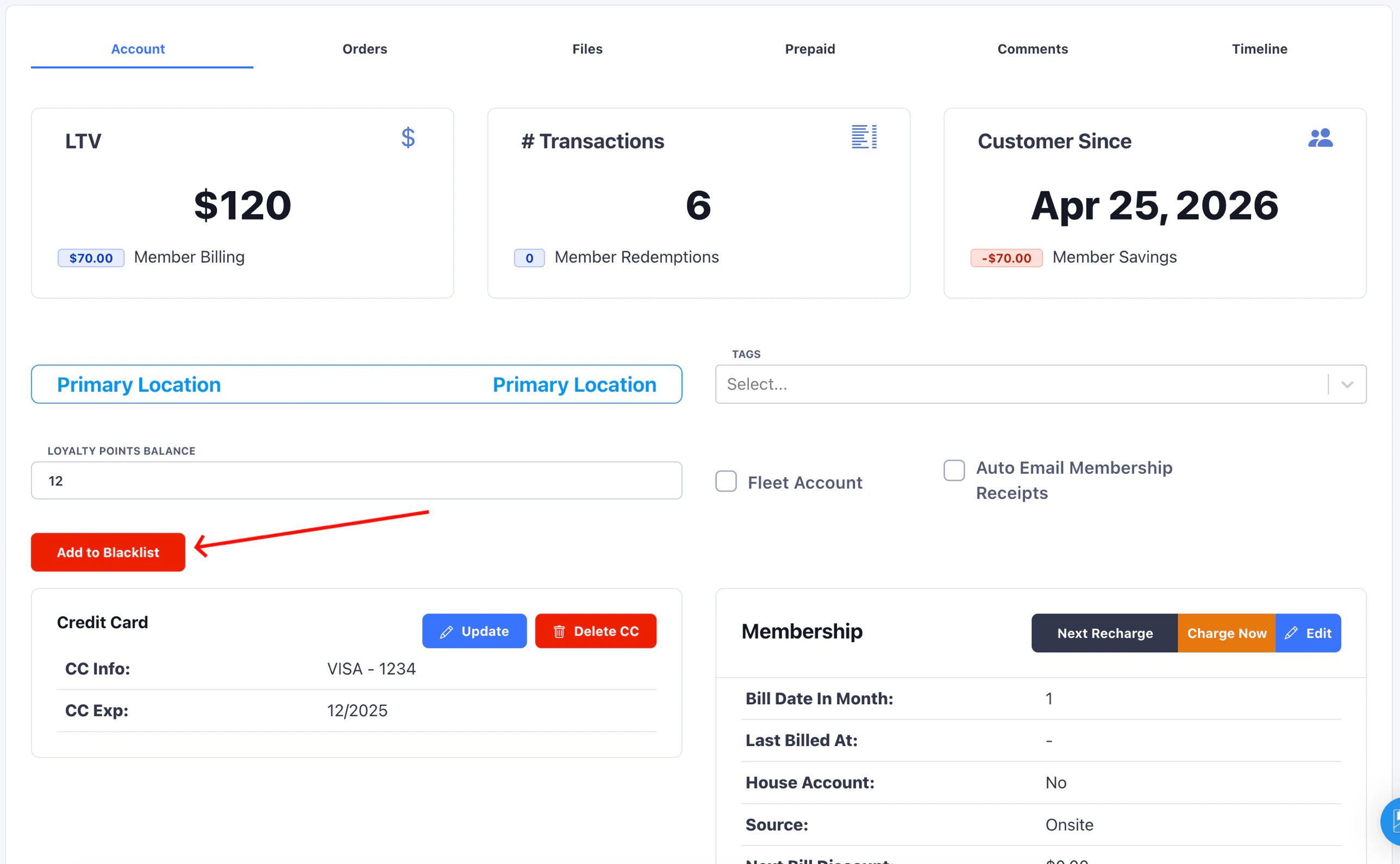
On the **Account** tab, click the red **Add to Blacklist** button.
 ### 3. Enter a Blacklist Note
Enter the reason for blacklisting in the **Blacklist Note** field, then click **Blacklist Customer**.
### 3. Enter a Blacklist Note
Enter the reason for blacklisting in the **Blacklist Note** field, then click **Blacklist Customer**.
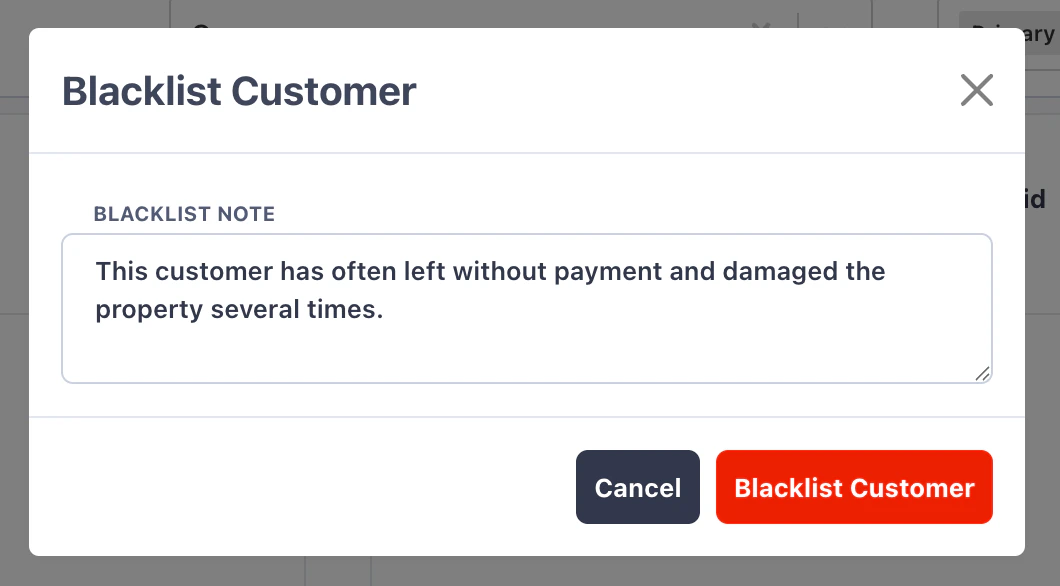 The blacklist note is shown to operators at the POS when the customer's license plate is scanned. Write it so your team understands the situation at a glance.
***
## Active Members Cannot Be Blacklisted
A customer who has any vehicle with an active subscription cannot be added to the blacklist. This protects you from billing a blacklisted customer and the chargebacks that follow.
To blacklist an active member, first cancel every vehicle's subscription and set the valid until date to past. See [Manual Status Change](/memberships/manual-status-change) and [Valid Until](/memberships/valid-until) for the steps.
Attempting to blacklist an active member opens a modal explaining why the action is blocked. The blacklist note field does not appear until every subscription is fully wound down.
***
## What Happens at the POS
When a blacklisted customer's license plate is entered or scanned at the lane, the POS displays a **Blacklisted Customer** dialog with the note you recorded.
The blacklist note is shown to operators at the POS when the customer's license plate is scanned. Write it so your team understands the situation at a glance.
***
## Active Members Cannot Be Blacklisted
A customer who has any vehicle with an active subscription cannot be added to the blacklist. This protects you from billing a blacklisted customer and the chargebacks that follow.
To blacklist an active member, first cancel every vehicle's subscription and set the valid until date to past. See [Manual Status Change](/memberships/manual-status-change) and [Valid Until](/memberships/valid-until) for the steps.
Attempting to blacklist an active member opens a modal explaining why the action is blocked. The blacklist note field does not appear until every subscription is fully wound down.
***
## What Happens at the POS
When a blacklisted customer's license plate is entered or scanned at the lane, the POS displays a **Blacklisted Customer** dialog with the note you recorded.
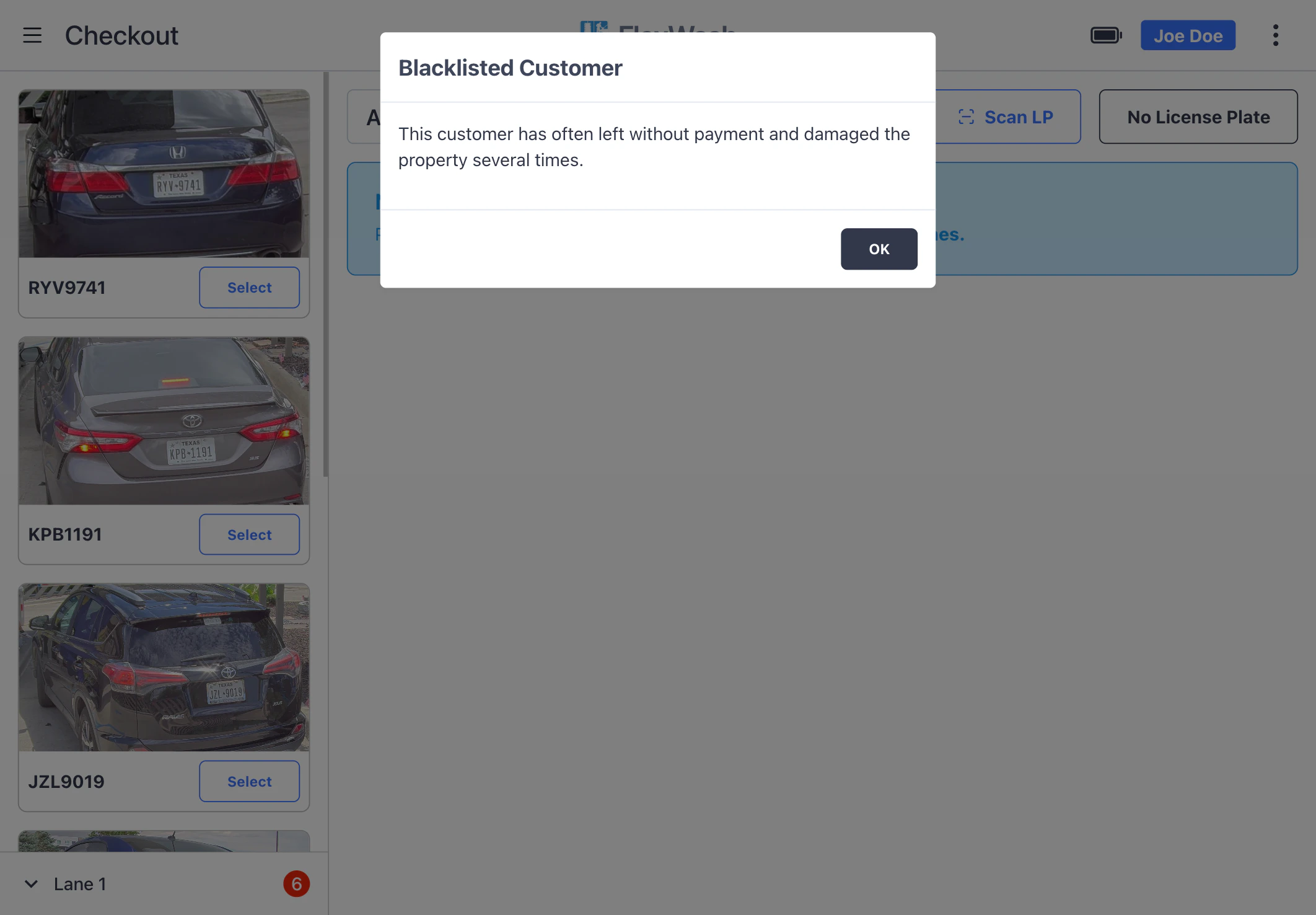 The operator can dismiss the dialog with **OK**, but the wash cannot be processed. The vehicle must be turned away or routed off the lane.
***
## Remove a Customer from the Blacklist
To restore service, navigate back to the customer's profile. The **Add to Blacklist** button is replaced by an orange **Remove from Blacklist** button along with a red **Blacklisted** banner showing the current note.
The operator can dismiss the dialog with **OK**, but the wash cannot be processed. The vehicle must be turned away or routed off the lane.
***
## Remove a Customer from the Blacklist
To restore service, navigate back to the customer's profile. The **Add to Blacklist** button is replaced by an orange **Remove from Blacklist** button along with a red **Blacklisted** banner showing the current note.
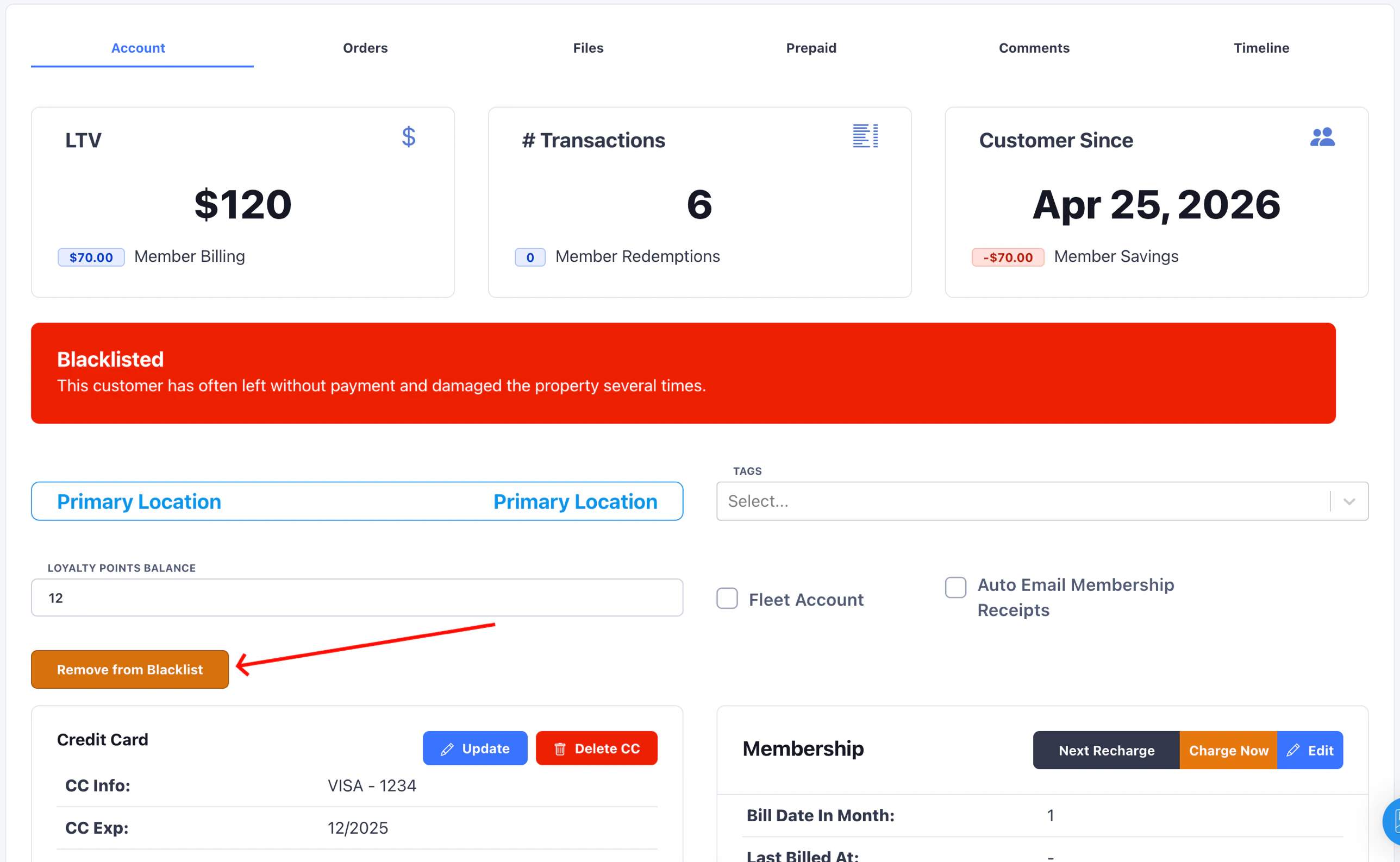 Click **Remove from Blacklist** and confirm. The customer is immediately eligible to be serviced again.