> ## Documentation Index
> Fetch the complete documentation index at: https://docs.flexwash.com/llms.txt
> Use this file to discover all available pages before exploring further.
# Reassign sale to another Employee
> If a sale was processed while the wrong employee was logged in on the Flexwash device, you can reassign it to the correct one with these simple steps.
## Permissions
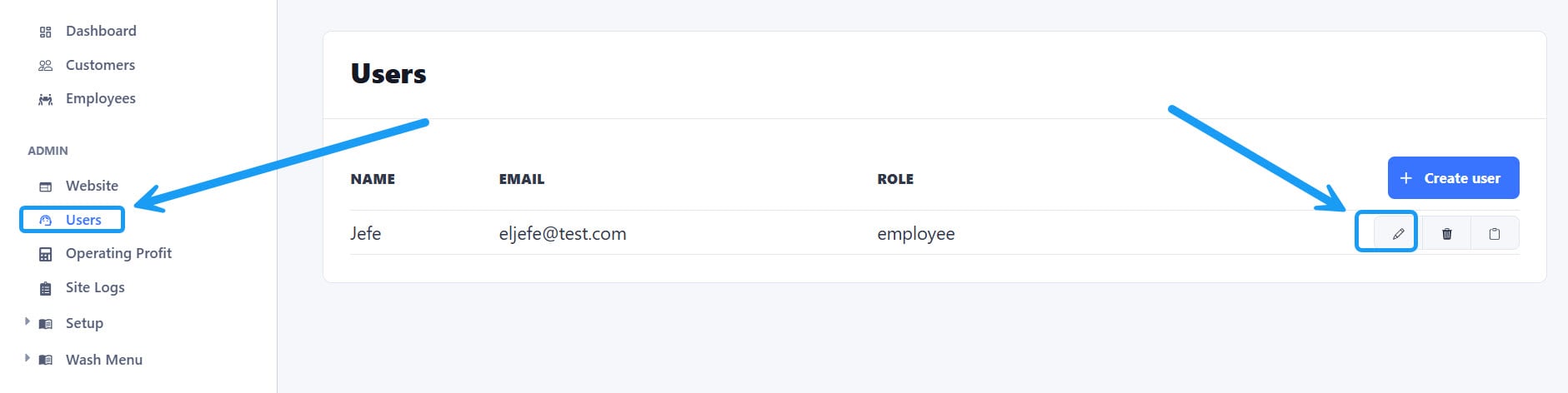 Users require a special permission to make this type of change. To enable or disable this permission, go to the “Users” section and then click on the “edit” button.
## Change Employee Attribution
Users require a special permission to make this type of change. To enable or disable this permission, go to the “Users” section and then click on the “edit” button.
## Change Employee Attribution
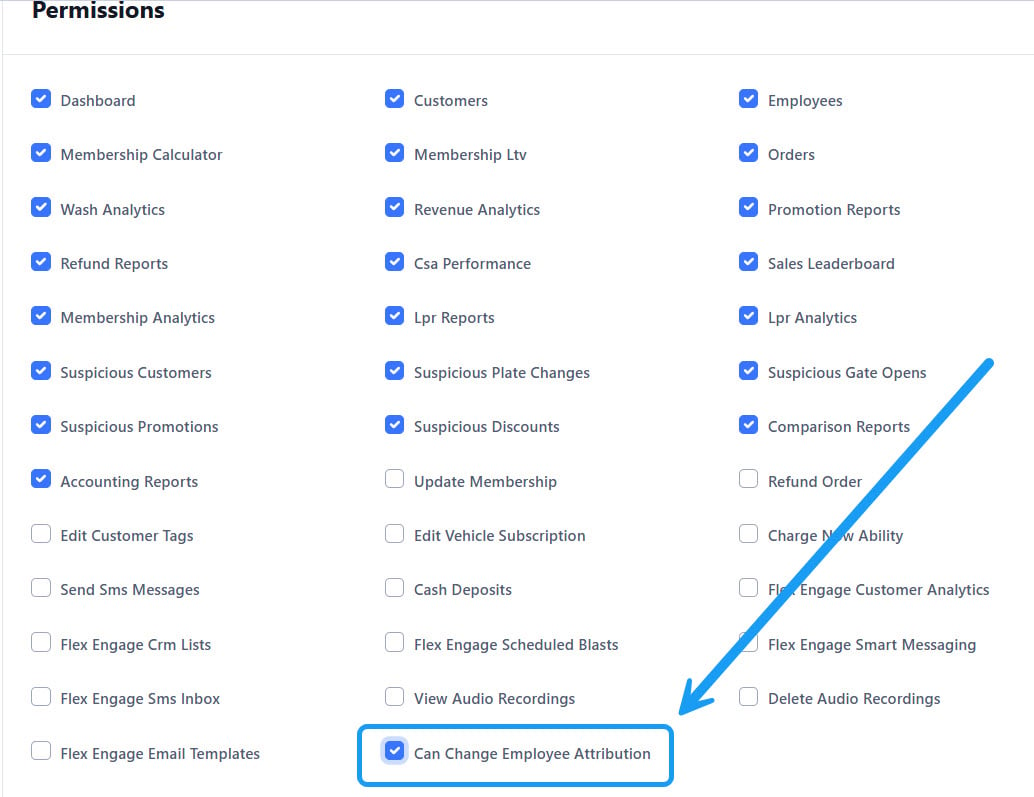 Check the “Can Change Employee Attribution" permission and save the change to allow a user to make this change.
If your user does not have this permission enabled, and you need to make this change, please request it to your Organization's administrators.
## Edit Vehicle
Check the “Can Change Employee Attribution" permission and save the change to allow a user to make this change.
If your user does not have this permission enabled, and you need to make this change, please request it to your Organization's administrators.
## Edit Vehicle
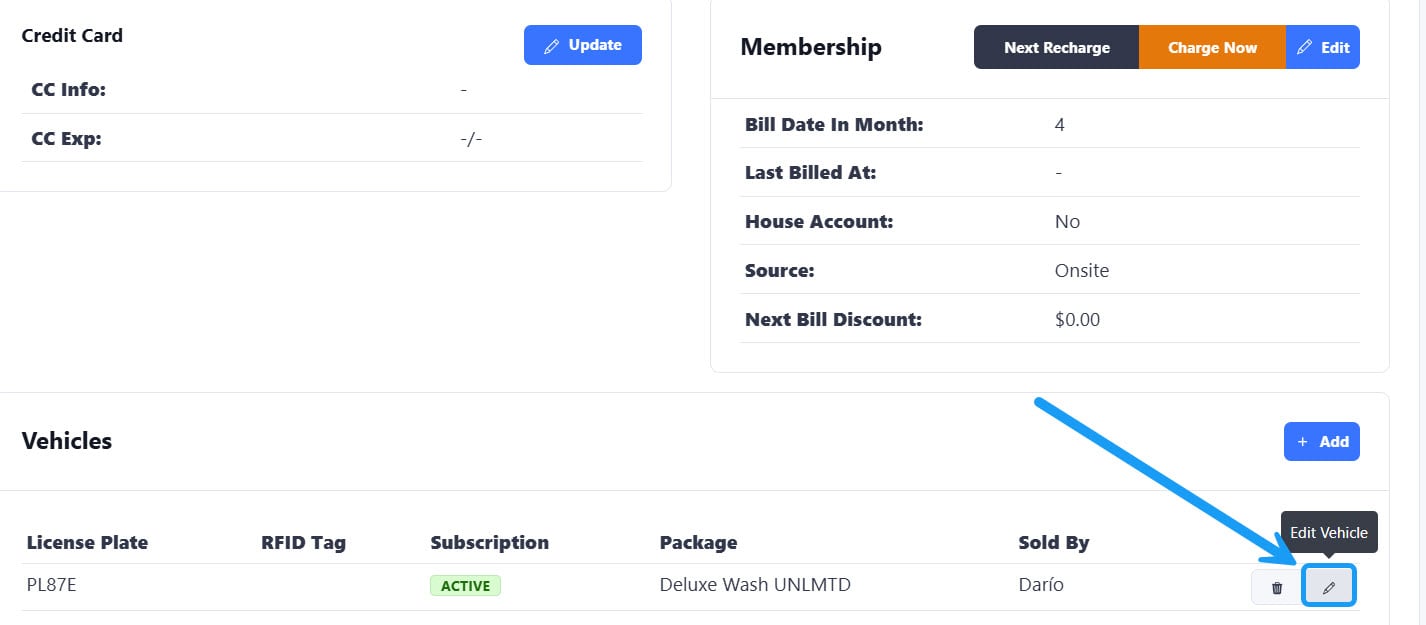 On the “Vehicles” section of the account, click on the edit button.
## Employee
On the “Vehicles” section of the account, click on the edit button.
## Employee
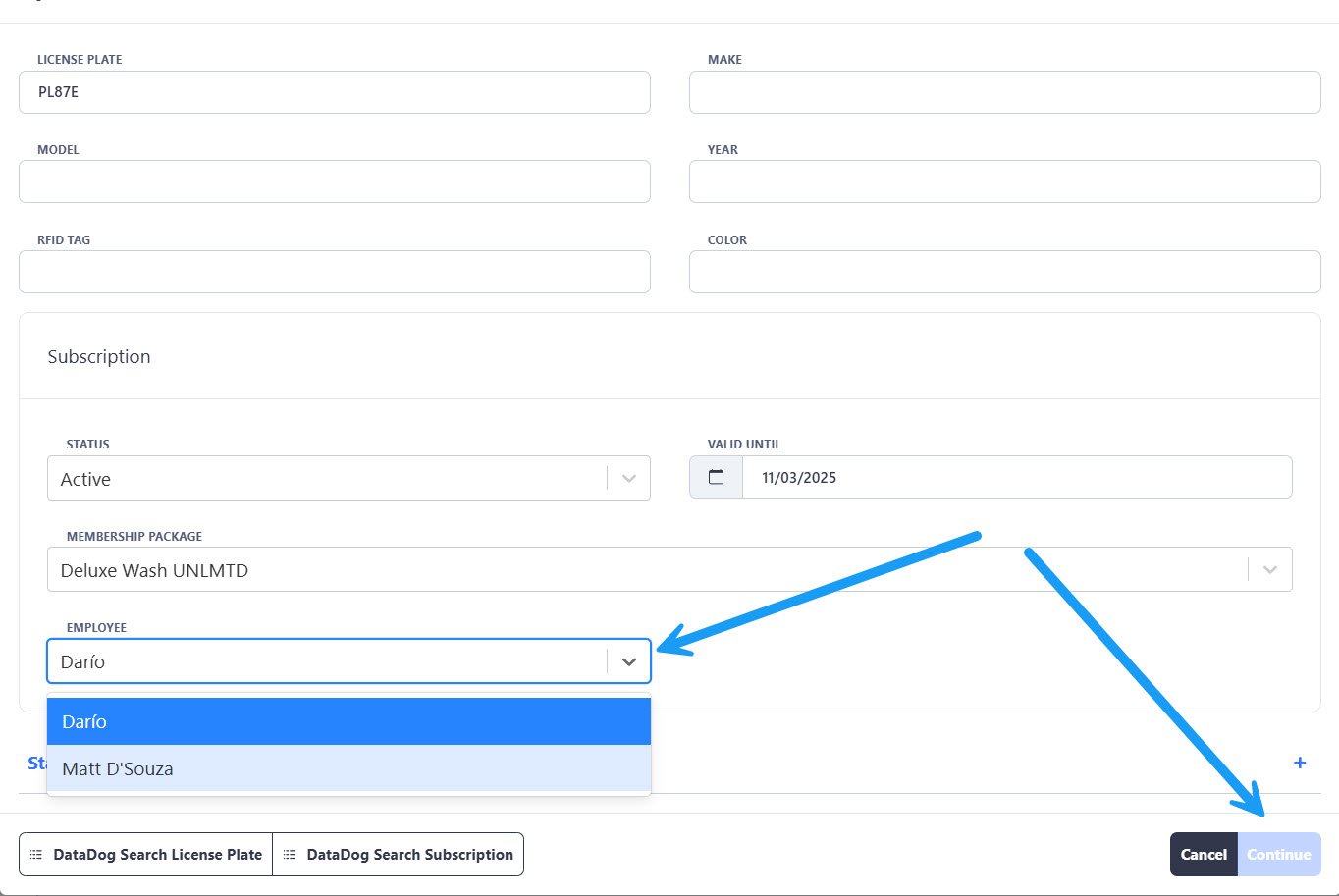 A new window will pop up. Click on the “Employee” dropdown button to see the list of your employees, and select the correct one.
## Accept changes
A new window will pop up. Click on the “Employee” dropdown button to see the list of your employees, and select the correct one.
## Accept changes
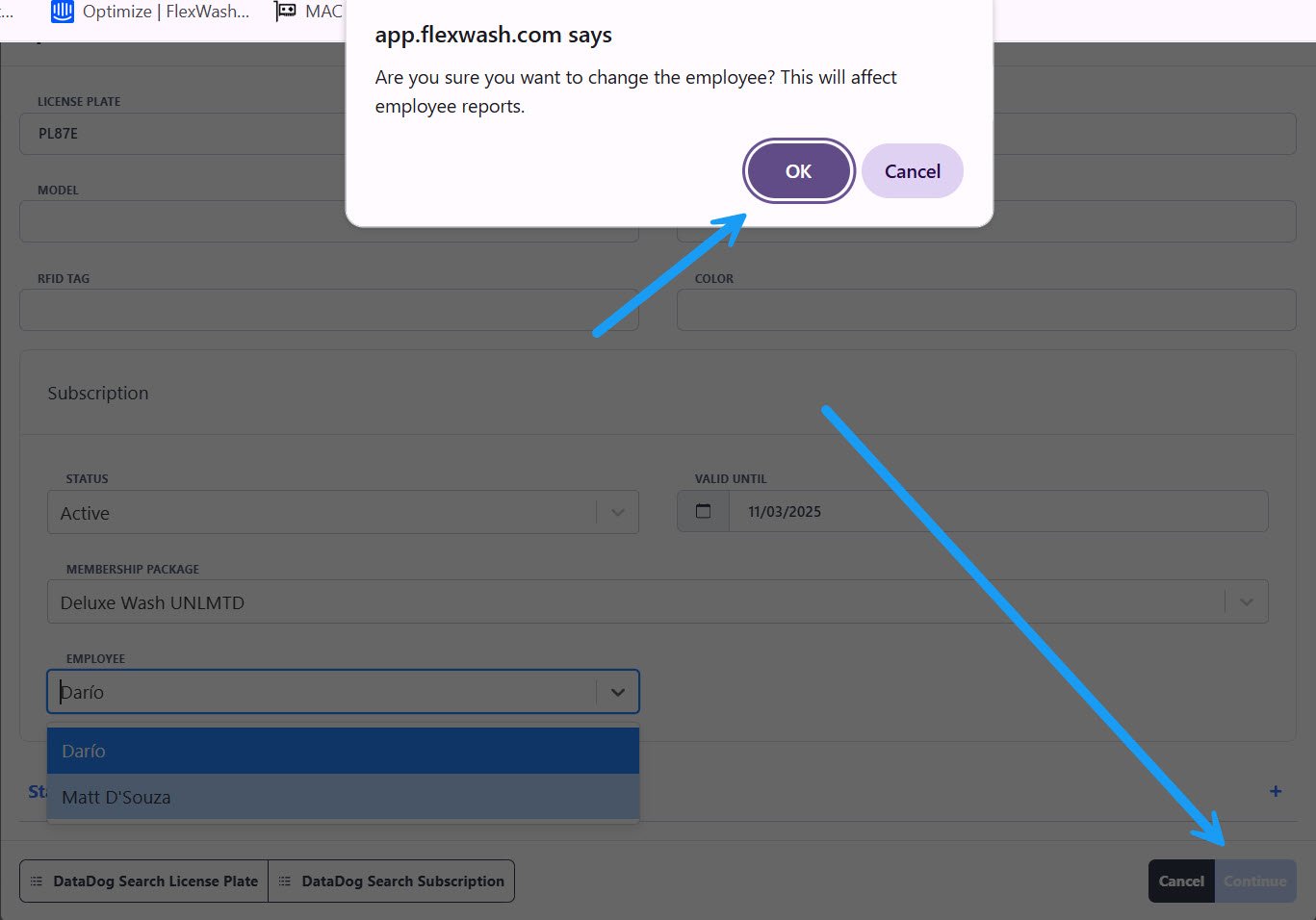 A warning message will appear after you select a different employee. Accept the changes, and then click on “Continue”.
## Add Comment
A warning message will appear after you select a different employee. Accept the changes, and then click on “Continue”.
## Add Comment
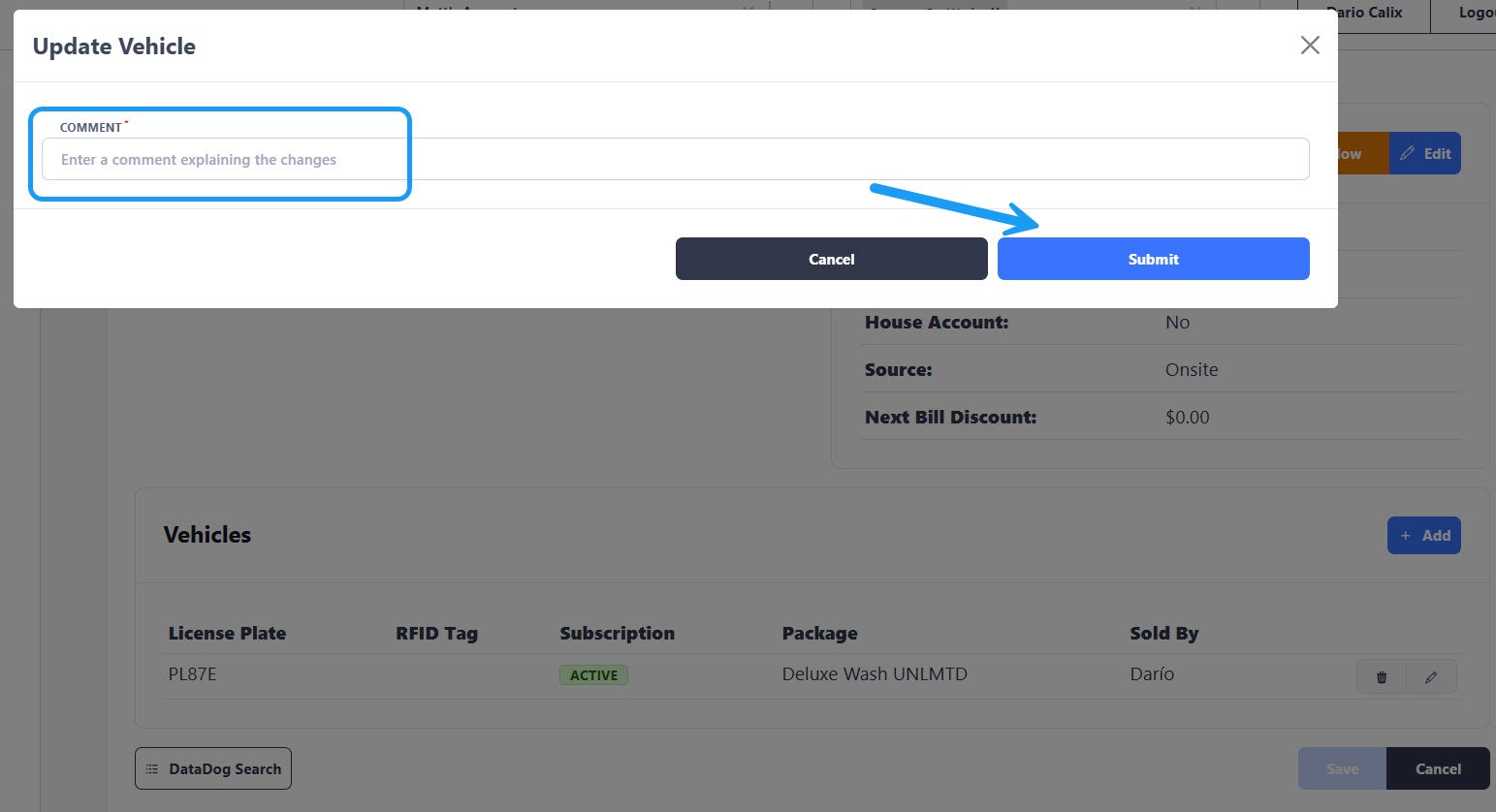 A new window will appear so you can add context to the change. Click on the “Submit” button to complete the process. You will now see the sale under the correct employee:
