> ## Documentation Index
> Fetch the complete documentation index at: https://docs.flexwash.com/llms.txt
> Use this file to discover all available pages before exploring further.
# Magic Links
> Turn every message into action. Members complete tasks with one tap, straight from a text or email, with no password and no sign-in.
A magic link is a personal link you add to a FlexEngage message. When a member
taps it, FlexWash signs them in for one specific task and takes them straight
to it, skipping the member portal login entirely.
Every extra step between your message and the action you want costs you
members. Forgotten passwords, one-time codes, and menus to dig through all give
a member a reason to walk away. Magic links remove those steps: the member taps
and lands exactly where they need to be.
 ## Magic Link Types
Lets a member whose payment failed put a new card on file and retry the
charge, without signing in. The page finds the failed membership on its
own, so there is nothing to configure beyond a name.
## Creating a Magic Link
Open **FlexEngage -> Magic Links** in the left navigation, click **Create magic
link**, and pick the link type.
## Magic Link Types
Lets a member whose payment failed put a new card on file and retry the
charge, without signing in. The page finds the failed membership on its
own, so there is nothing to configure beyond a name.
## Creating a Magic Link
Open **FlexEngage -> Magic Links** in the left navigation, click **Create magic
link**, and pick the link type.
 Enter a **Name**, such as "Failed Payment Card Update". Only your team sees
the name. It labels the link in the Magic Links list and in the message
builders.
Leave **Enabled** on to make the link available in your messages. Click
**Save**.
The link type cannot be changed after creation. Links already sent were
created for that type, so to offer a different task, create a new magic link.
Managing magic links and viewing their insights requires the **Flex Engage
Magic Links** permission on the user's [role](/configuration/users-and-admin/roles).
Admins always have access. Users who can edit Smart Messaging, Scheduled
Blasts, or Journeys can pick an existing magic link in their messages.
## Adding a Magic Link to a Message
Magic links work in Scheduled Blasts, Smart Messaging, and
[Customer Journeys](/marketing-and-ai/flex-engage/customer-journeys), on both
the SMS and email channels. In the **Delivery Channels** card:
Select it in the **Magic Link (optional)** dropdown. The dropdown lists
only enabled magic links.
For SMS, click the **Magic Link** variable button to insert
`{{magicLink}}` into the message. The button stays disabled until you pick
a magic link. For email, place `{{magicLink}}` in the email body, for
example as the target of a button or link.
Enter a **Name**, such as "Failed Payment Card Update". Only your team sees
the name. It labels the link in the Magic Links list and in the message
builders.
Leave **Enabled** on to make the link available in your messages. Click
**Save**.
The link type cannot be changed after creation. Links already sent were
created for that type, so to offer a different task, create a new magic link.
Managing magic links and viewing their insights requires the **Flex Engage
Magic Links** permission on the user's [role](/configuration/users-and-admin/roles).
Admins always have access. Users who can edit Smart Messaging, Scheduled
Blasts, or Journeys can pick an existing magic link in their messages.
## Adding a Magic Link to a Message
Magic links work in Scheduled Blasts, Smart Messaging, and
[Customer Journeys](/marketing-and-ai/flex-engage/customer-journeys), on both
the SMS and email channels. In the **Delivery Channels** card:
Select it in the **Magic Link (optional)** dropdown. The dropdown lists
only enabled magic links.
For SMS, click the **Magic Link** variable button to insert
`{{magicLink}}` into the message. The button stays disabled until you pick
a magic link. For email, place `{{magicLink}}` in the email body, for
example as the target of a button or link.
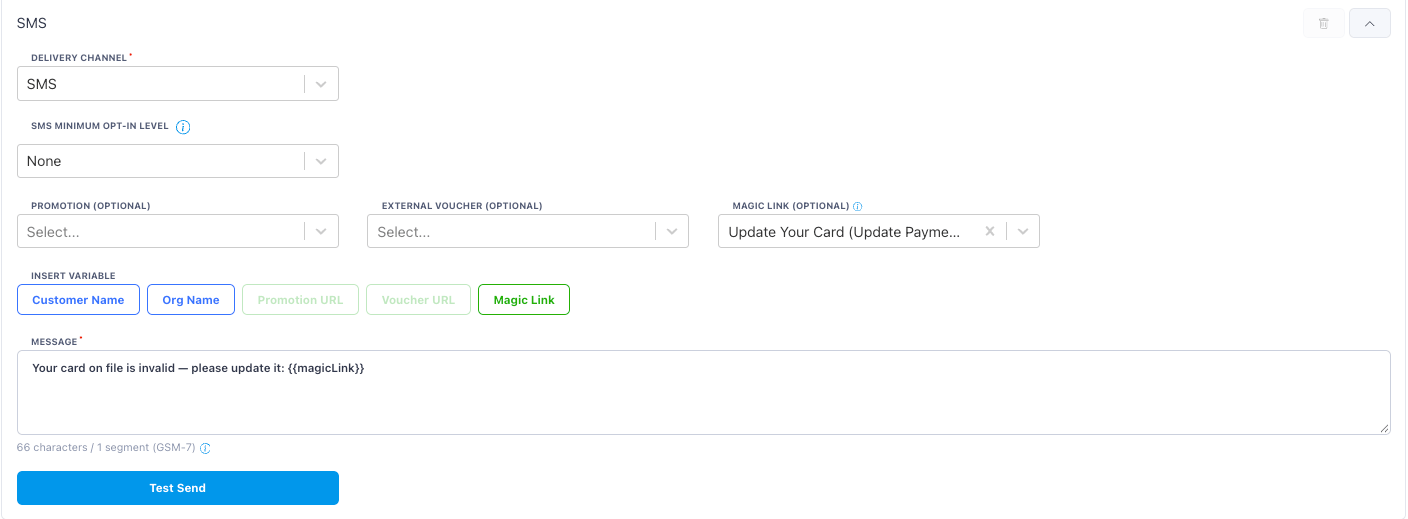 At send time, FlexEngage replaces `{{magicLink}}` with a link that is unique
to each recipient. A member who receives the message on both SMS and email gets
a separate link on each channel, so insights show which channel they opened it
from.
## What the Member Sees
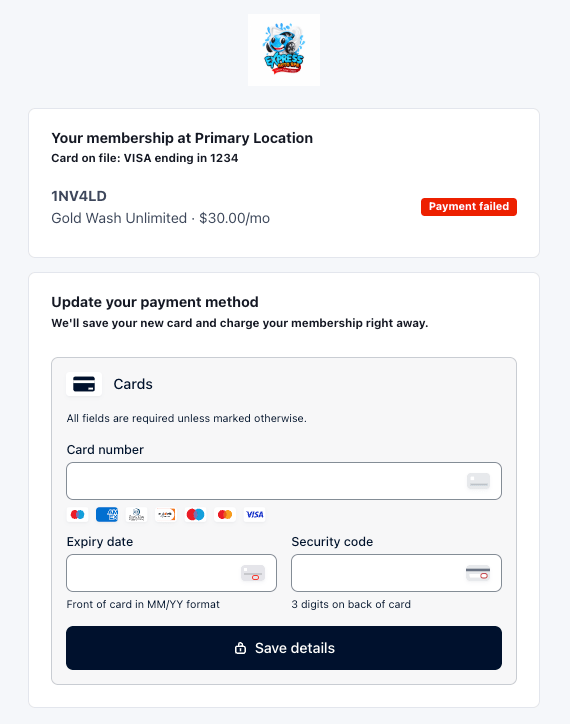
The link opens a mobile-friendly page branded with your organization's logo,
or its name if no logo is set. For Update Payment Method, the page shows:
* The car wash the membership belongs to and the card currently on file
* Each vehicle on the membership, with its plan, monthly price, and a
**Payment failed** or **Active** badge
* A card form to enter a new card
At send time, FlexEngage replaces `{{magicLink}}` with a link that is unique
to each recipient. A member who receives the message on both SMS and email gets
a separate link on each channel, so insights show which channel they opened it
from.
## What the Member Sees
The link opens a mobile-friendly page branded with your organization's logo,
or its name if no logo is set. For Update Payment Method, the page shows:
* The car wash the membership belongs to and the card currently on file
* Each vehicle on the membership, with its plan, monthly price, and a
**Payment failed** or **Active** badge
* A card form to enter a new card
 When the member saves a new card, FlexWash stores it and retries the failed
membership charge immediately:
* **Charge succeeds**: the member sees "Your membership is active again" with a
link to their receipt.
* **Charge declined**: the member sees the decline and can try a different
card. The link stays usable until it expires. The new card stays on file,
so the nightly billing run charges it as well.
If the member opens the link after their payment is already fixed, the page
confirms their payment is up to date.
## Link Expiry
Each link works for **72 hours** after it is sent. The member can open it as
many times as they need within that window.
When a member opens a link that has expired, the page explains that the link is
no longer valid and redirects them to your
[member portal](/configuration/portals/management-portal) sign-in, where they
can sign in with their phone number and update their card there.
## Tracking Results
The Magic Links list shows, for each link:
* **Links sent**: how many personal links went out
* **Redeemed**: how many were opened while still valid, and the share of links
sent
* **Completed**: how many finished the task, and the share of links sent. For
Update Payment Method, a link completes when the new card is charged and the
membership is active again.
* **Last sent**: when the most recent link went out
Click the **Links sent** count to open the link's insights.
When the member saves a new card, FlexWash stores it and retries the failed
membership charge immediately:
* **Charge succeeds**: the member sees "Your membership is active again" with a
link to their receipt.
* **Charge declined**: the member sees the decline and can try a different
card. The link stays usable until it expires. The new card stays on file,
so the nightly billing run charges it as well.
If the member opens the link after their payment is already fixed, the page
confirms their payment is up to date.
## Link Expiry
Each link works for **72 hours** after it is sent. The member can open it as
many times as they need within that window.
When a member opens a link that has expired, the page explains that the link is
no longer valid and redirects them to your
[member portal](/configuration/portals/management-portal) sign-in, where they
can sign in with their phone number and update their card there.
## Tracking Results
The Magic Links list shows, for each link:
* **Links sent**: how many personal links went out
* **Redeemed**: how many were opened while still valid, and the share of links
sent
* **Completed**: how many finished the task, and the share of links sent. For
Update Payment Method, a link completes when the new card is charged and the
membership is active again.
* **Last sent**: when the most recent link went out
Click the **Links sent** count to open the link's insights.
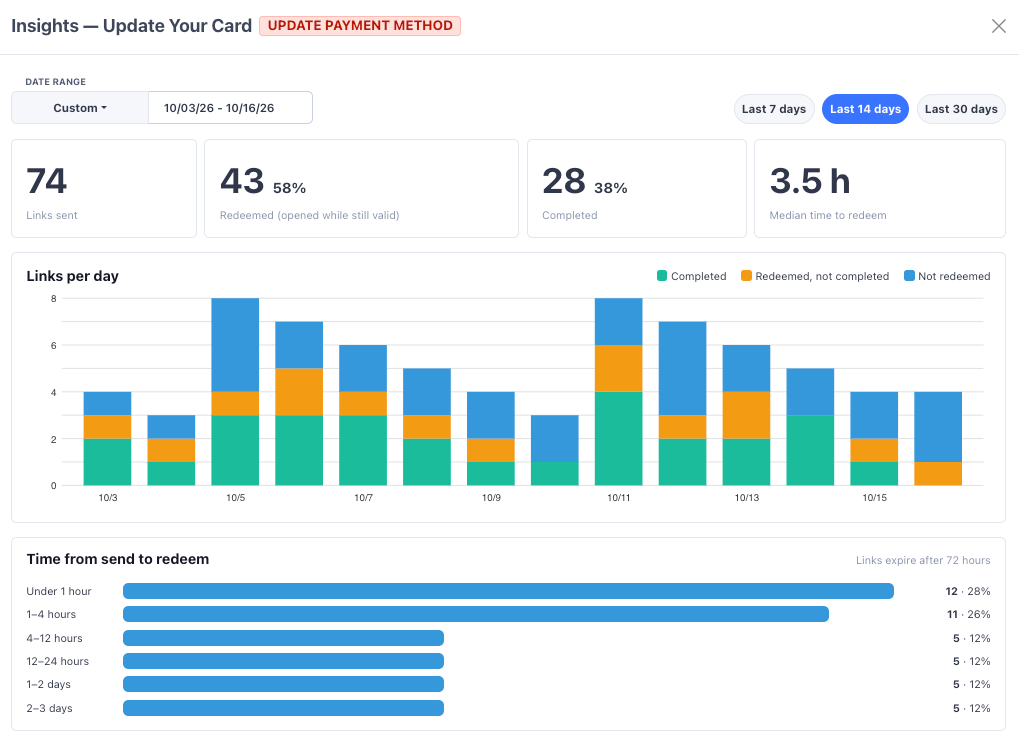 Insights cover any date range, with **Last 7 days**, **Last 14 days**, and
**Last 30 days** presets, and include:
* **Summary tiles**: links sent, redeemed, completed, and the median time from
send to redeem
* **Links per day**: each day's sends, split into completed, redeemed but not
completed, and not redeemed
* **Time from send to redeem**: how quickly members act, from under one hour to
two to three days
* **Recent links**: each link's send time, customer, channel, and when it was
redeemed and completed
## Disabling and Deleting
Turn off **Enabled** to pause a magic link, or delete it from the Magic Links
list. Use the **Enabled only** switch to hide disabled links from the list.
Disabling or deleting a magic link immediately stops every link already sent
from it. Members who tap one are sent to the member portal sign-in instead.
Messages that still use the magic link fail to send until you pick an
enabled magic link or remove `{{magicLink}}` from the message. The message
builder flags these messages with a warning.
This documentation is built and hosted on [Mintlify](https://mintlify.com), a developer documentation platform.
Insights cover any date range, with **Last 7 days**, **Last 14 days**, and
**Last 30 days** presets, and include:
* **Summary tiles**: links sent, redeemed, completed, and the median time from
send to redeem
* **Links per day**: each day's sends, split into completed, redeemed but not
completed, and not redeemed
* **Time from send to redeem**: how quickly members act, from under one hour to
two to three days
* **Recent links**: each link's send time, customer, channel, and when it was
redeemed and completed
## Disabling and Deleting
Turn off **Enabled** to pause a magic link, or delete it from the Magic Links
list. Use the **Enabled only** switch to hide disabled links from the list.
Disabling or deleting a magic link immediately stops every link already sent
from it. Members who tap one are sent to the member portal sign-in instead.
Messages that still use the magic link fail to send until you pick an
enabled magic link or remove `{{magicLink}}` from the message. The message
builder flags these messages with a warning.
This documentation is built and hosted on [Mintlify](https://mintlify.com), a developer documentation platform.