> ## Documentation Index
> Fetch the complete documentation index at: https://docs.flexwash.com/llms.txt
> Use this file to discover all available pages before exploring further.
# External Vouchers
> Partner with local businesses and reward your customers with real, scannable offers, delivered automatically by FlexEngage.
An external voucher is an offer from a partner business, such as a coffee shop
or restaurant near your wash, that you attach to FlexEngage messages. Each
recipient gets a link to a mobile-friendly voucher page they present at the
partner's point of sale, where it scans like any of the partner's own coupons.
Cross-promotions like this are a powerful retention tool: your members get a
tangible perk, the partner business gets foot traffic, and you get a reason to
show up in your customers' inbox that isn't another discount on washes.
 ## Voucher Types
Backed by a batch of one-time-use codes supplied by the partner business
and [imported from a CSV](/data-import/external-voucher-codes-import).
Each recipient is assigned their own code at send time, so every code
redeems exactly once.
One shared code that every recipient receives, such as a store-wide
discount code the partner accepts repeatedly. No import needed. The
barcode is optional; without one the voucher page shows the code as plain
text.
The voucher type cannot be changed after creation. If you need to switch a
partner offer from a shared code to unique codes, create a new voucher.
## Creating a Voucher
Open **FlexEngage -> External Vouchers** in the left navigation and click
**Create External Voucher**. You need at least the Admin role to manage
external vouchers.
## Voucher Types
Backed by a batch of one-time-use codes supplied by the partner business
and [imported from a CSV](/data-import/external-voucher-codes-import).
Each recipient is assigned their own code at send time, so every code
redeems exactly once.
One shared code that every recipient receives, such as a store-wide
discount code the partner accepts repeatedly. No import needed. The
barcode is optional; without one the voucher page shows the code as plain
text.
The voucher type cannot be changed after creation. If you need to switch a
partner offer from a shared code to unique codes, create a new voucher.
## Creating a Voucher
Open **FlexEngage -> External Vouchers** in the left navigation and click
**Create External Voucher**. You need at least the Admin role to manage
external vouchers.
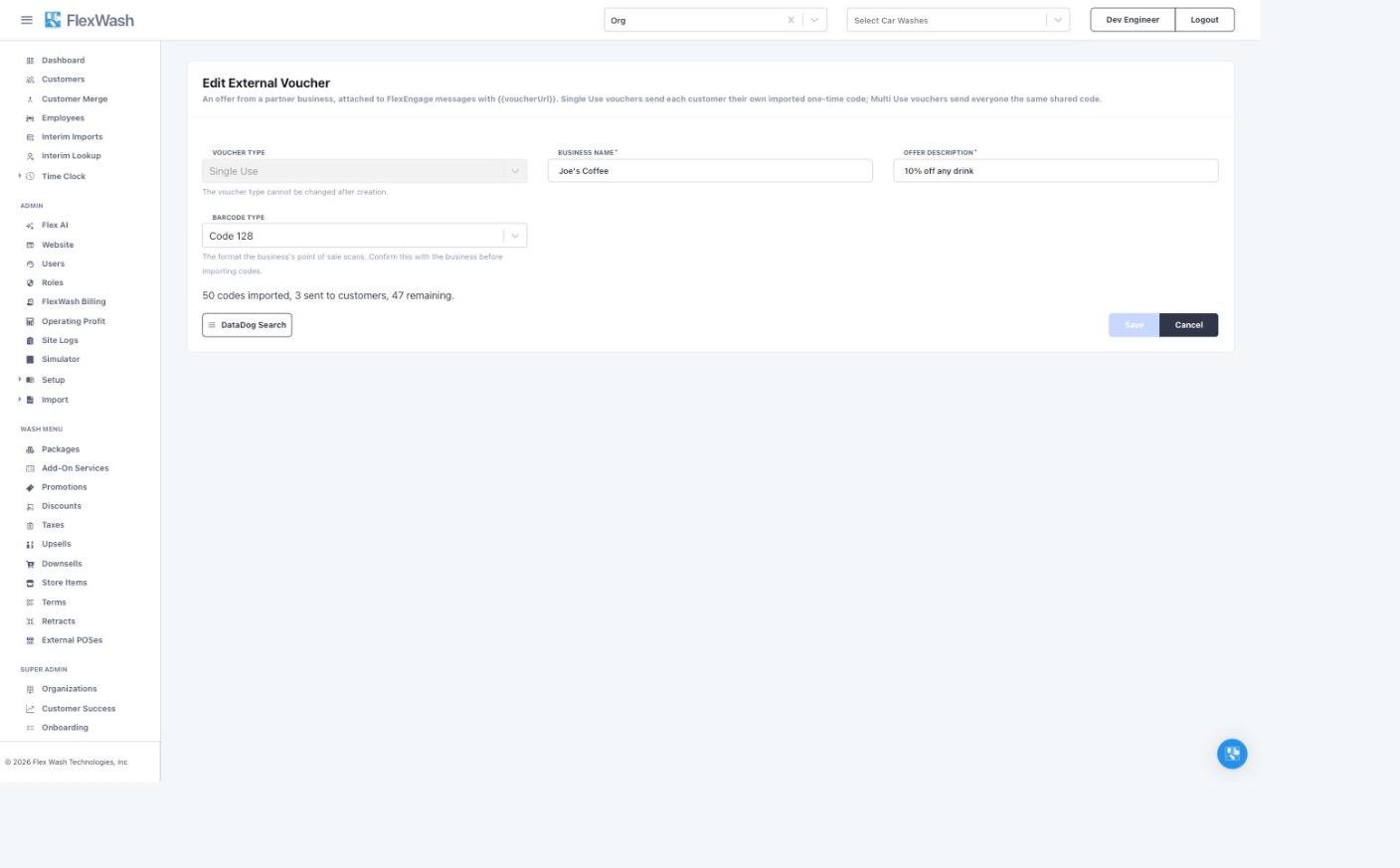 Enter the **Business Name** and an **Offer Description** (for example,
"10% off any drink"). Both appear on the voucher page the customer
presents at the partner business.
Select **Single Use** for imported one-time codes or **Multi Use** for a
shared code. Multi Use vouchers also require the **Shared Code** itself.
Choose the format the partner's point of sale scans: **Code 39**,
**Code 128**, or **QR Code**. For Multi Use vouchers the barcode is
optional; leave it empty to show the code as plain text.
Confirm the barcode format with the partner business before importing
codes. A voucher rendered in a symbology their scanner cannot read is
worthless at the register, and imported codes are validated against the
barcode type you pick here.
Load the partner's code batch through the
[Voucher Code Import](/data-import/external-voucher-codes-import). The
voucher's detail page and the master list show how many codes are
imported, sent, and remaining.
## Attaching a Voucher to a Message
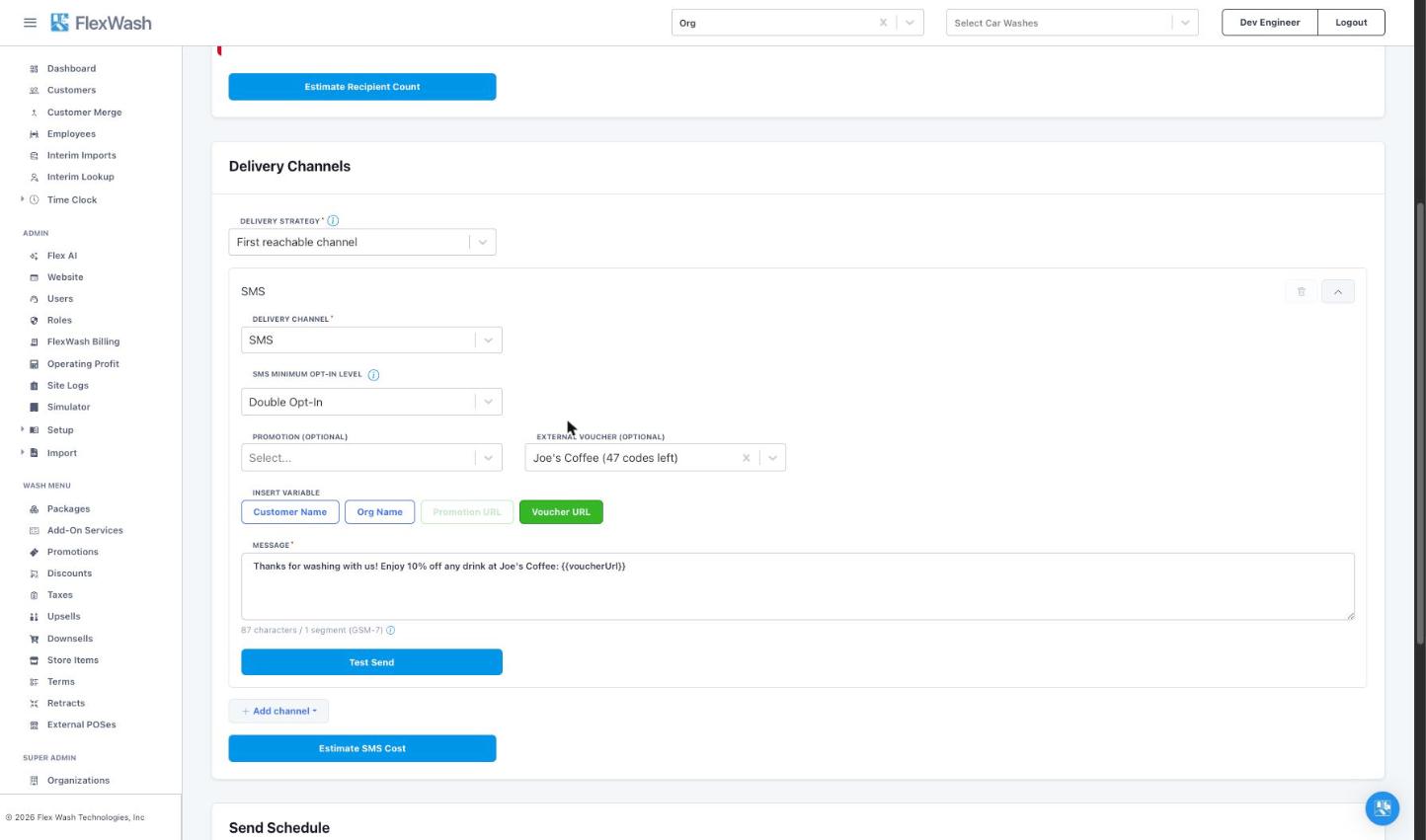
External vouchers work in both Scheduled Blasts and Smart Messaging, on the
SMS and email channels. In the **Delivery Channels** card, pick the voucher in
the **External Voucher** dropdown, then insert the **Voucher URL** variable
into your message. The dropdown shows how many codes each Single Use voucher
has left.
Enter the **Business Name** and an **Offer Description** (for example,
"10% off any drink"). Both appear on the voucher page the customer
presents at the partner business.
Select **Single Use** for imported one-time codes or **Multi Use** for a
shared code. Multi Use vouchers also require the **Shared Code** itself.
Choose the format the partner's point of sale scans: **Code 39**,
**Code 128**, or **QR Code**. For Multi Use vouchers the barcode is
optional; leave it empty to show the code as plain text.
Confirm the barcode format with the partner business before importing
codes. A voucher rendered in a symbology their scanner cannot read is
worthless at the register, and imported codes are validated against the
barcode type you pick here.
Load the partner's code batch through the
[Voucher Code Import](/data-import/external-voucher-codes-import). The
voucher's detail page and the master list show how many codes are
imported, sent, and remaining.
## Attaching a Voucher to a Message
External vouchers work in both Scheduled Blasts and Smart Messaging, on the
SMS and email channels. In the **Delivery Channels** card, pick the voucher in
the **External Voucher** dropdown, then insert the **Voucher URL** variable
into your message. The dropdown shows how many codes each Single Use voucher
has left.
 At send time, FlexEngage replaces `{{voucherUrl}}` with a link that is unique
to each recipient:
* **Single Use**: each customer is assigned their own code from the imported
pool. Codes are handed out oldest import first. A customer who receives the
same voucher on both SMS and email in one blast gets one code, not two.
* **Multi Use**: every customer's link opens the same shared code.
## What the Customer Sees
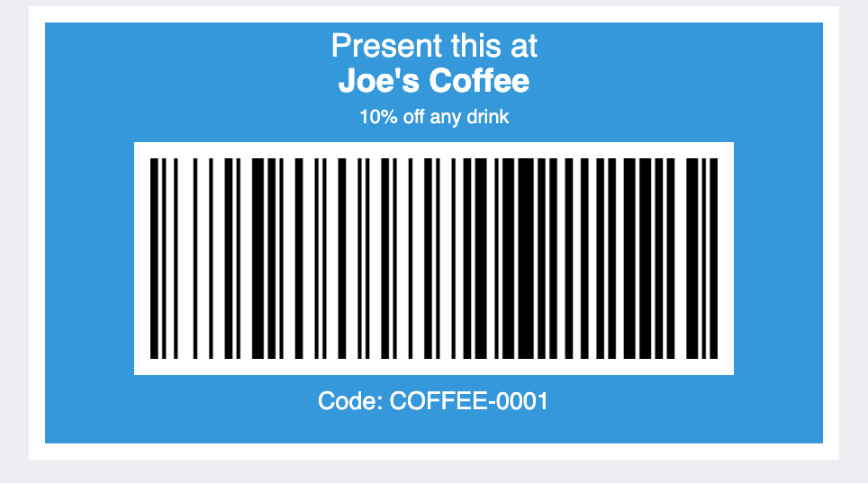
The link opens a public voucher page with the partner's business name, the
offer, and the code rendered in the barcode format you configured. The
customer presents it at the partner business, which scans it like any of its
own coupons.
At send time, FlexEngage replaces `{{voucherUrl}}` with a link that is unique
to each recipient:
* **Single Use**: each customer is assigned their own code from the imported
pool. Codes are handed out oldest import first. A customer who receives the
same voucher on both SMS and email in one blast gets one code, not two.
* **Multi Use**: every customer's link opens the same shared code.
## What the Customer Sees
The link opens a public voucher page with the partner's business name, the
offer, and the code rendered in the barcode format you configured. The
customer presents it at the partner business, which scans it like any of its
own coupons.
 ## Code Pool Behavior
Single Use vouchers draw from a finite pool, and FlexEngage protects you from
overdrawing it:
* A scheduled blast claims all of its codes up front, before anything sends.
If the pool cannot cover every recipient, the blast fails without sending
and without consuming a single code. Import more codes and try again.
* A smart message claims one code per triggered send, only after the message
passes its sendability checks, so skipped sends never consume codes.
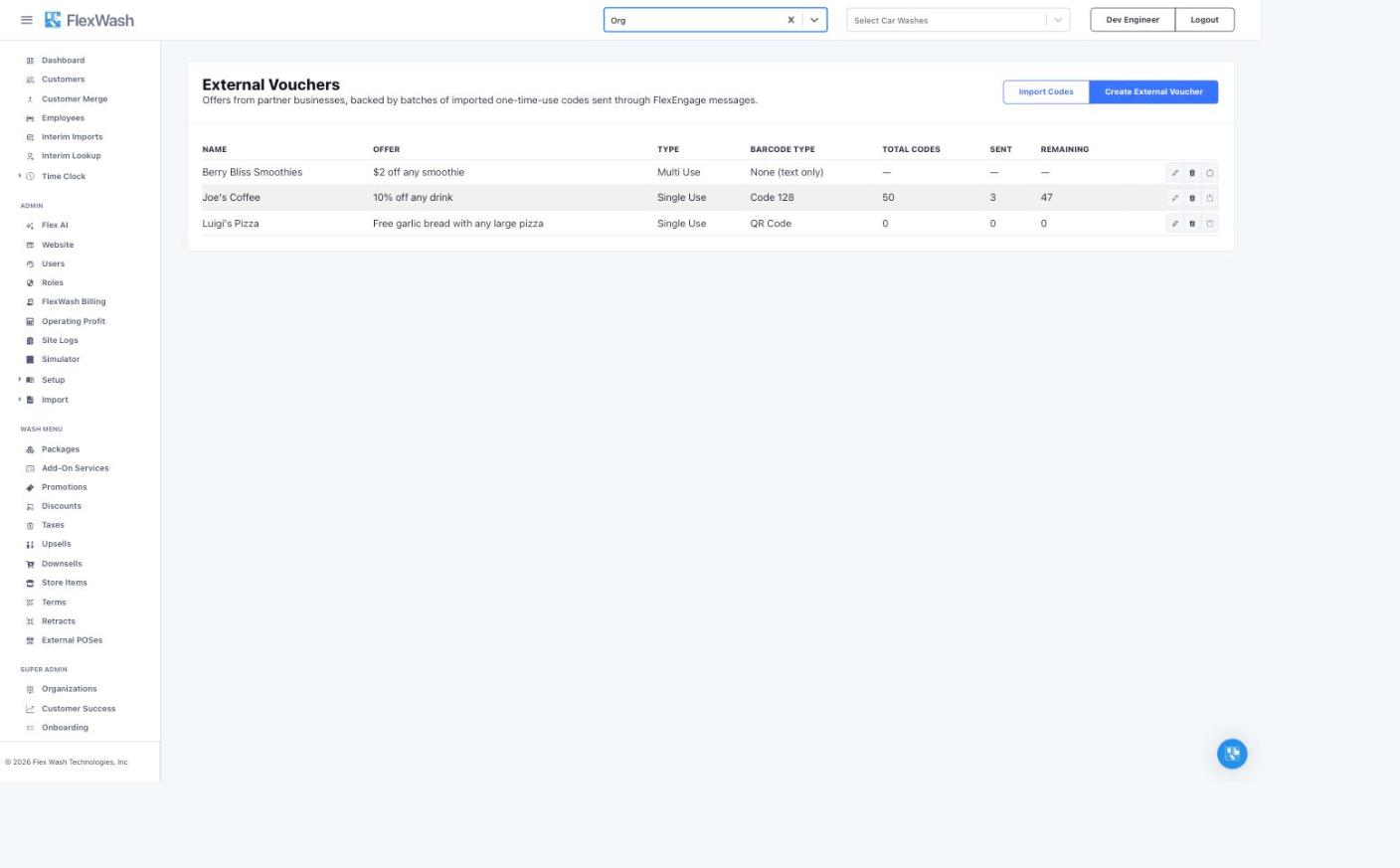
* Track the pool from the External Vouchers list: **Total Codes**, **Sent**,
and **Remaining** columns update as codes are claimed.
Before scheduling a blast, click **Estimate Recipient Count** and compare it
against the voucher's remaining codes. If the estimate exceeds the pool,
import more codes first.
## Deleting a Voucher
Deleting removes the voucher from the External Vouchers list and from the
channel dropdowns. FlexWash refuses to delete a voucher that an active
scheduled blast or smart message still references; remove it from those
messages first.
Deleting a voucher also disables its public voucher pages, including links
already delivered to customers. Delete a voucher only once its campaign is
fully wound down.
## Code Pool Behavior
Single Use vouchers draw from a finite pool, and FlexEngage protects you from
overdrawing it:
* A scheduled blast claims all of its codes up front, before anything sends.
If the pool cannot cover every recipient, the blast fails without sending
and without consuming a single code. Import more codes and try again.
* A smart message claims one code per triggered send, only after the message
passes its sendability checks, so skipped sends never consume codes.
* Track the pool from the External Vouchers list: **Total Codes**, **Sent**,
and **Remaining** columns update as codes are claimed.
Before scheduling a blast, click **Estimate Recipient Count** and compare it
against the voucher's remaining codes. If the estimate exceeds the pool,
import more codes first.
## Deleting a Voucher
Deleting removes the voucher from the External Vouchers list and from the
channel dropdowns. FlexWash refuses to delete a voucher that an active
scheduled blast or smart message still references; remove it from those
messages first.
Deleting a voucher also disables its public voucher pages, including links
already delivered to customers. Delete a voucher only once its campaign is
fully wound down.