> ## Documentation Index
> Fetch the complete documentation index at: https://docs.flexwash.com/llms.txt
> Use this file to discover all available pages before exploring further.
# Configuring Messages
> Build targeted campaigns by combining filters with AND/OR logic, choosing a delivery channel, and scheduling when messages go out.
FlexEngage messages are built from three components:
* [**filters**](#filters) that define who receives the message
* [**delivery channel**](#delivery-channel) that defines how the message is delivered
* [**send schedule**](#send-schedule) that defines when it goes out
Multiple messages can be chained together to build a [customer journey](/marketing-and-ai/flex-engage/customer-journeys).
## Filters
Filters control which customers qualify for a message. You can add a single filter or build complex conditions by combining multiple filters with logical operators.
### Adding Filters
When creating a Scheduled Blast or Smart Messaging campaign, open the **Filters** card. Click **Add Filter** to add your first filter. Each filter row has three parts:
1. **Filter type**: Select what customer data to evaluate (e.g., Total Washes, Membership Status). See the [Filters](/marketing-and-ai/flex-engage/filters) page for a complete reference.
2. **Operator**: Select how to compare the data (e.g., Greater than, Equal to, In).
3. **Value**: Enter the threshold or selection to compare against.
To remove a filter, click the **X** button on its row.
 ### Combining Filters with AND/OR
At the top of each filter group is a logical operator selector: **AND**/**OR**.
* **AND**: A customer must match **all** filters in the group to qualify. Use AND when you need customers to meet every condition.
* **OR**: A customer must match **at least one** filter in the group to qualify. Use OR when any one condition is sufficient.
**Example with AND**: Target cancelled members who have washed recently.
* Membership Status = Cancelled **AND** Total Washes Within X Days > 0 in 30 days
**Example with OR**: Reach customers who are at risk of churning for different reasons.
* Billing Attempts >= 3 **OR** Membership Invalid CC At >= 2025-01-01
### Filter Groups
For more advanced targeting, you can nest filter groups. A filter group is a set of filters with its own AND/OR operator, and it evaluates as a single condition within its parent group.
Click **Add Filter Group** to create a nested group. Filter groups can contain filters or additional filter groups.
### Combining Filters with AND/OR
At the top of each filter group is a logical operator selector: **AND**/**OR**.
* **AND**: A customer must match **all** filters in the group to qualify. Use AND when you need customers to meet every condition.
* **OR**: A customer must match **at least one** filter in the group to qualify. Use OR when any one condition is sufficient.
**Example with AND**: Target cancelled members who have washed recently.
* Membership Status = Cancelled **AND** Total Washes Within X Days > 0 in 30 days
**Example with OR**: Reach customers who are at risk of churning for different reasons.
* Billing Attempts >= 3 **OR** Membership Invalid CC At >= 2025-01-01
### Filter Groups
For more advanced targeting, you can nest filter groups. A filter group is a set of filters with its own AND/OR operator, and it evaluates as a single condition within its parent group.
Click **Add Filter Group** to create a nested group. Filter groups can contain filters or additional filter groups.
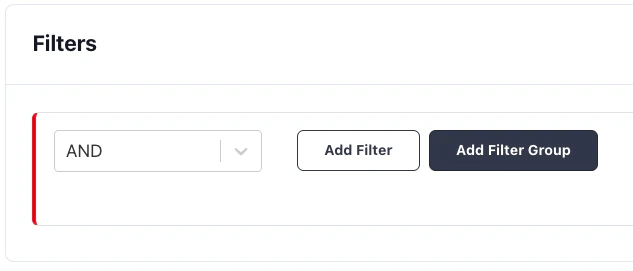 **Example with nested groups**: Target active members at a specific location who either have high loyalty points or many washes.
```
AND
├── Membership Status = Active
├── Customer Primary Car Wash = Main Street Location
└── OR
├── Loyalty Points Balance >= 100
└── Total Washes >= 20
```
In this example, a customer must be an active member at the Main Street location **and** must also have either 100+ loyalty points **or** 20+ total washes.
A group can contain only filters or only nested groups, not both at the same
level. Structure your logic by nesting groups when you need to mix AND/OR
conditions.
### Estimating Recipients
After configuring your filters, click **Estimate Recipient Count** to see how many customers currently match your filter criteria. The estimate shows separate counts for SMS-eligible and email-eligible recipients based on their opt-in status and available contact info.
**Example with nested groups**: Target active members at a specific location who either have high loyalty points or many washes.
```
AND
├── Membership Status = Active
├── Customer Primary Car Wash = Main Street Location
└── OR
├── Loyalty Points Balance >= 100
└── Total Washes >= 20
```
In this example, a customer must be an active member at the Main Street location **and** must also have either 100+ loyalty points **or** 20+ total washes.
A group can contain only filters or only nested groups, not both at the same
level. Structure your logic by nesting groups when you need to mix AND/OR
conditions.
### Estimating Recipients
After configuring your filters, click **Estimate Recipient Count** to see how many customers currently match your filter criteria. The estimate shows separate counts for SMS-eligible and email-eligible recipients based on their opt-in status and available contact info.
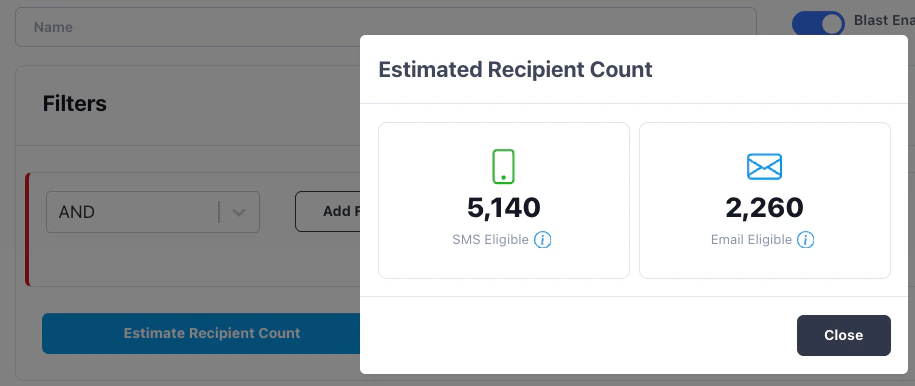 Use this to validate your targeting before scheduling the message. If the count is unexpectedly high or low, adjust your filters.
## Delivery Channel
The **Delivery Channel** card controls how the message reaches customers.
### SMS
Select SMS to send a text message. You write the message content directly in the message field. Only customers with a phone number on file and the required opt-in level will receive the message.
For Scheduled Blasts, an **Estimate SMS Cost** button is available to preview the approximate cost of sending to your filtered audience.
### Email
Select Email to send an email. You configure the subject line and email body content. Only customers with an email address on file and the required opt-in level will receive the message.
### Opt-In Levels
FlexEngage respects customer consent preferences. When creating a message, the opt-in level determines which customers are eligible:
* **Double Opt-In** (default for SMS): Only customers who have completed the double opt-in process. This is the safest and most compliant setting.
* **Single Opt-In**: Customers who have opted in at least once.
* **None**: All customers who have not explicitly opted out.
For SMS campaigns, double opt-in is strongly recommended to maintain 10-DLC
compliance. See the [FlexEngage Overview](/marketing-and-ai/flex-engage/overview) for setup
requirements.
## Send Schedule
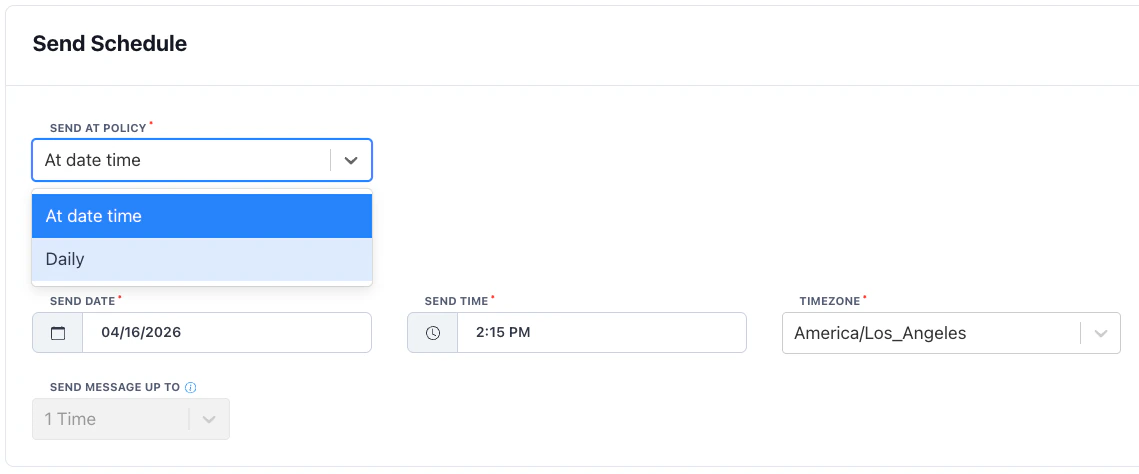
The **Send Schedule** card controls when the message is sent.
Use this to validate your targeting before scheduling the message. If the count is unexpectedly high or low, adjust your filters.
## Delivery Channel
The **Delivery Channel** card controls how the message reaches customers.
### SMS
Select SMS to send a text message. You write the message content directly in the message field. Only customers with a phone number on file and the required opt-in level will receive the message.
For Scheduled Blasts, an **Estimate SMS Cost** button is available to preview the approximate cost of sending to your filtered audience.
### Email
Select Email to send an email. You configure the subject line and email body content. Only customers with an email address on file and the required opt-in level will receive the message.
### Opt-In Levels
FlexEngage respects customer consent preferences. When creating a message, the opt-in level determines which customers are eligible:
* **Double Opt-In** (default for SMS): Only customers who have completed the double opt-in process. This is the safest and most compliant setting.
* **Single Opt-In**: Customers who have opted in at least once.
* **None**: All customers who have not explicitly opted out.
For SMS campaigns, double opt-in is strongly recommended to maintain 10-DLC
compliance. See the [FlexEngage Overview](/marketing-and-ai/flex-engage/overview) for setup
requirements.
## Send Schedule
The **Send Schedule** card controls when the message is sent.
 ### At Date/Time
Send the message once at a specific date and time. Select the date, time, and timezone. The message fires once and the blast moves to a completed state.
### Recurring
Send the message on a repeating schedule. Recurring blasts are useful for ongoing campaigns that should continuously reach new customers as they meet the filter criteria.
When using a recurring schedule, additional **recurring filters** become available:
* **Membership Anniversary**: Target members approaching a sign up anniversary.
* **Offer Expiring in X Days**: Target members whose promotional pricing is about to end.
These filters only make sense with a recurring schedule because they evaluate time-sensitive conditions that change daily.
### Duplicate Prevention
By default if a customer has already received a specific Scheduled Blast or Smart Messaging campaign, they will not receive it again, even if they still match the filter criteria.
You can edit this with a **send limit** that controls how many times a single customer can receive the message. Use this carefully because a customer can continuously meet defined filter conditions leading to repeated messaging.
# Enabling and Disabling
Every Scheduled Blast has an **enabled/disabled** toggle. When disabled, the message will not send even if the schedule fires. Use this to pause a campaign without deleting it.
A blast can be cancelled at any time before it completes. Once cancelled or completed, the blast enters a terminal state and cannot be modified further.
### At Date/Time
Send the message once at a specific date and time. Select the date, time, and timezone. The message fires once and the blast moves to a completed state.
### Recurring
Send the message on a repeating schedule. Recurring blasts are useful for ongoing campaigns that should continuously reach new customers as they meet the filter criteria.
When using a recurring schedule, additional **recurring filters** become available:
* **Membership Anniversary**: Target members approaching a sign up anniversary.
* **Offer Expiring in X Days**: Target members whose promotional pricing is about to end.
These filters only make sense with a recurring schedule because they evaluate time-sensitive conditions that change daily.
### Duplicate Prevention
By default if a customer has already received a specific Scheduled Blast or Smart Messaging campaign, they will not receive it again, even if they still match the filter criteria.
You can edit this with a **send limit** that controls how many times a single customer can receive the message. Use this carefully because a customer can continuously meet defined filter conditions leading to repeated messaging.
# Enabling and Disabling
Every Scheduled Blast has an **enabled/disabled** toggle. When disabled, the message will not send even if the schedule fires. Use this to pause a campaign without deleting it.
A blast can be cancelled at any time before it completes. Once cancelled or completed, the blast enters a terminal state and cannot be modified further.