> ## Documentation Index
> Fetch the complete documentation index at: https://docs.flexwash.com/llms.txt
> Use this file to discover all available pages before exploring further.
# Discounts
> This tool provides a breakdown of the discounts processed by your employees.
#### Discounts
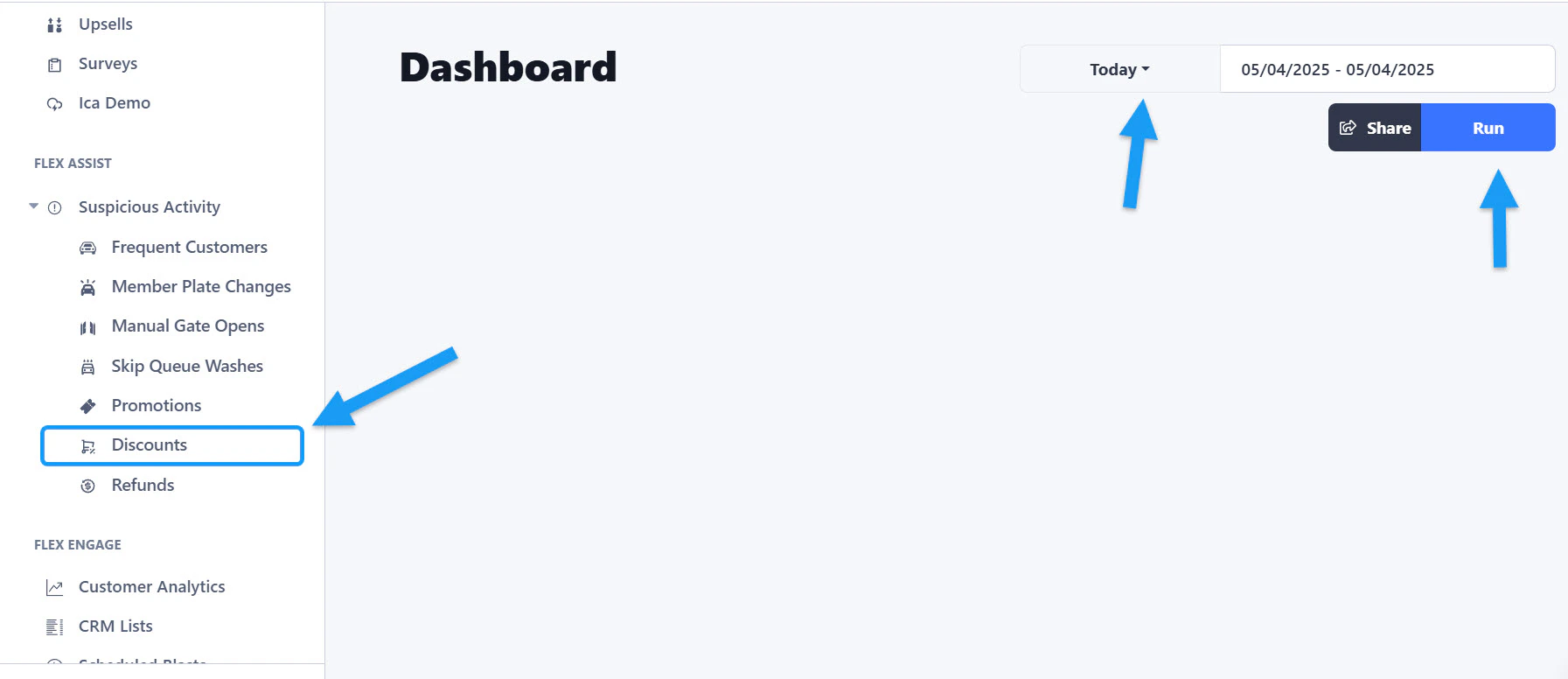 You can find the option under the "Flex Assist" section located on the sidebar menu. Once you open it, select a date range and then click the "Run" button to get the data.
#### Total & Percentage
You can find the option under the "Flex Assist" section located on the sidebar menu. Once you open it, select a date range and then click the "Run" button to get the data.
#### Total & Percentage
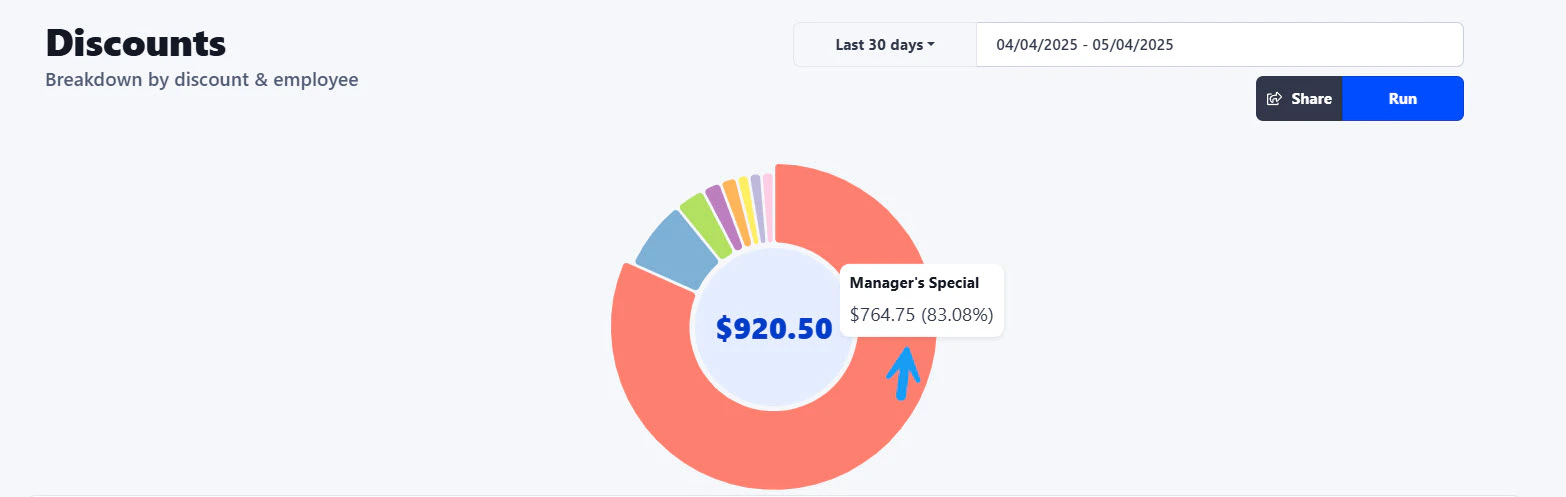 First you will see a graph showing the total amount of money that has been discounted during the selected date range. The data is also broken down in the graph by each discount, you can get the details of each by hovering your mouse over each section. On the example above, we can see that \$762.75 (83%) were discounted with the discount named "Manager's Special".
#### Breakdown by Discount & Employee
First you will see a graph showing the total amount of money that has been discounted during the selected date range. The data is also broken down in the graph by each discount, you can get the details of each by hovering your mouse over each section. On the example above, we can see that \$762.75 (83%) were discounted with the discount named "Manager's Special".
#### Breakdown by Discount & Employee
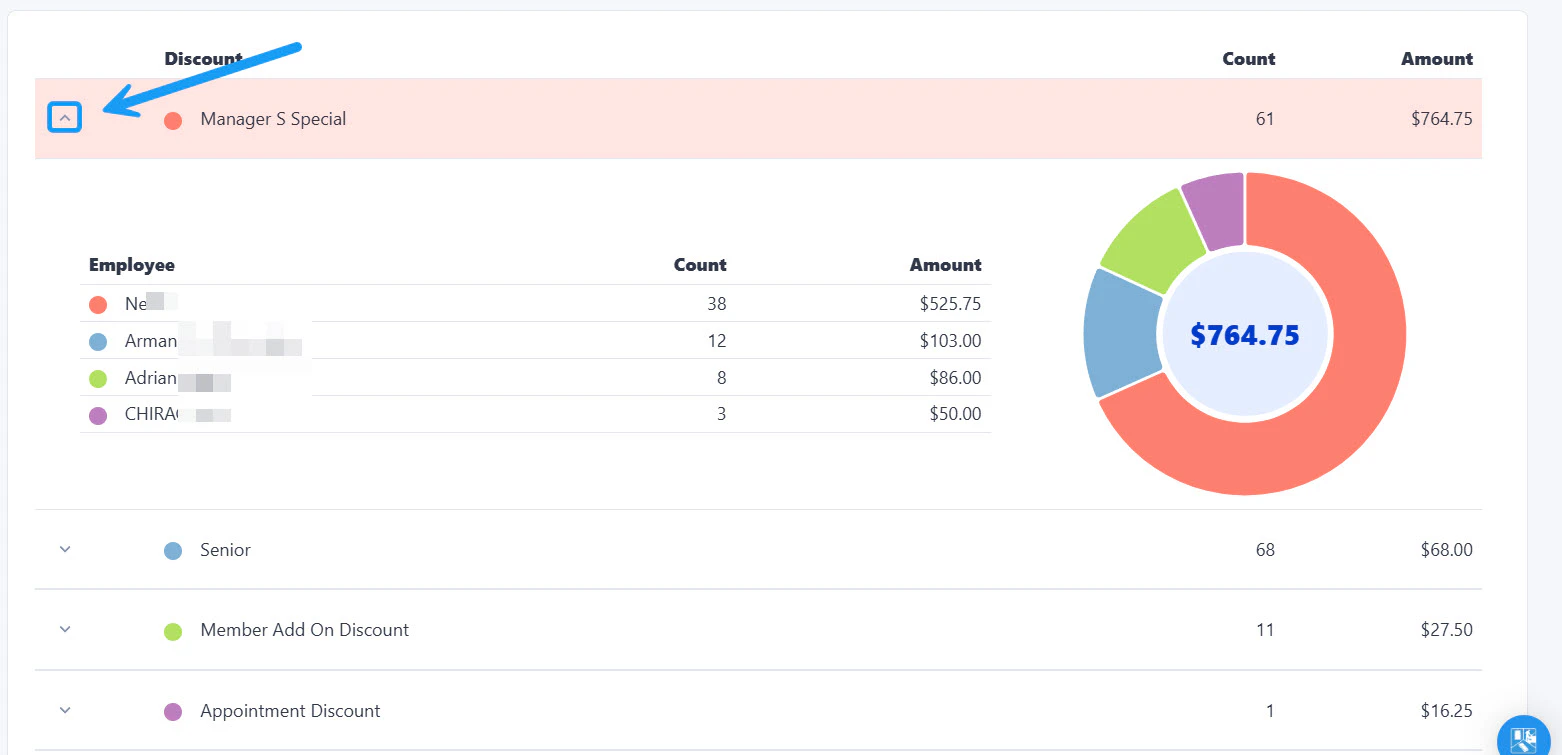 To get a detailed breakdown of the discounts provided by Employee, click on the arrow located on the left side of each Discount. This will open a table and a graph with the statistics.