> ## Documentation Index
> Fetch the complete documentation index at: https://docs.flexwash.com/llms.txt
> Use this file to discover all available pages before exploring further.
# Vehicle Import
> Onboard fleet rosters and house accounts in a single upload, with optional memberships, normalized plates, and full audit trail.
A single Vehicles upload can create vehicles, group them under existing
or new customers, optionally attach a membership and a vehicle
subscription, and flag the resulting customer accounts as fleet or house
accounts.
 ## When Not to Use This Importer
Pick a different tool if any of these match your situation.
| Situation | Use this instead |
| -------------------------------------------------------------------- | ------------------------------------------------------------------------ |
| Daily membership feed so existing members are recognized at the gate | [Interim Imports](/data-import/interim-import) |
| Migrating credit card tokens from a previous processor | [Member Token Migration](/data-import/member-token-migration) |
| Adding a single vehicle to a customer | The Pay Tablet vehicle workflow or the customer profile in the admin app |
## Where to Find It
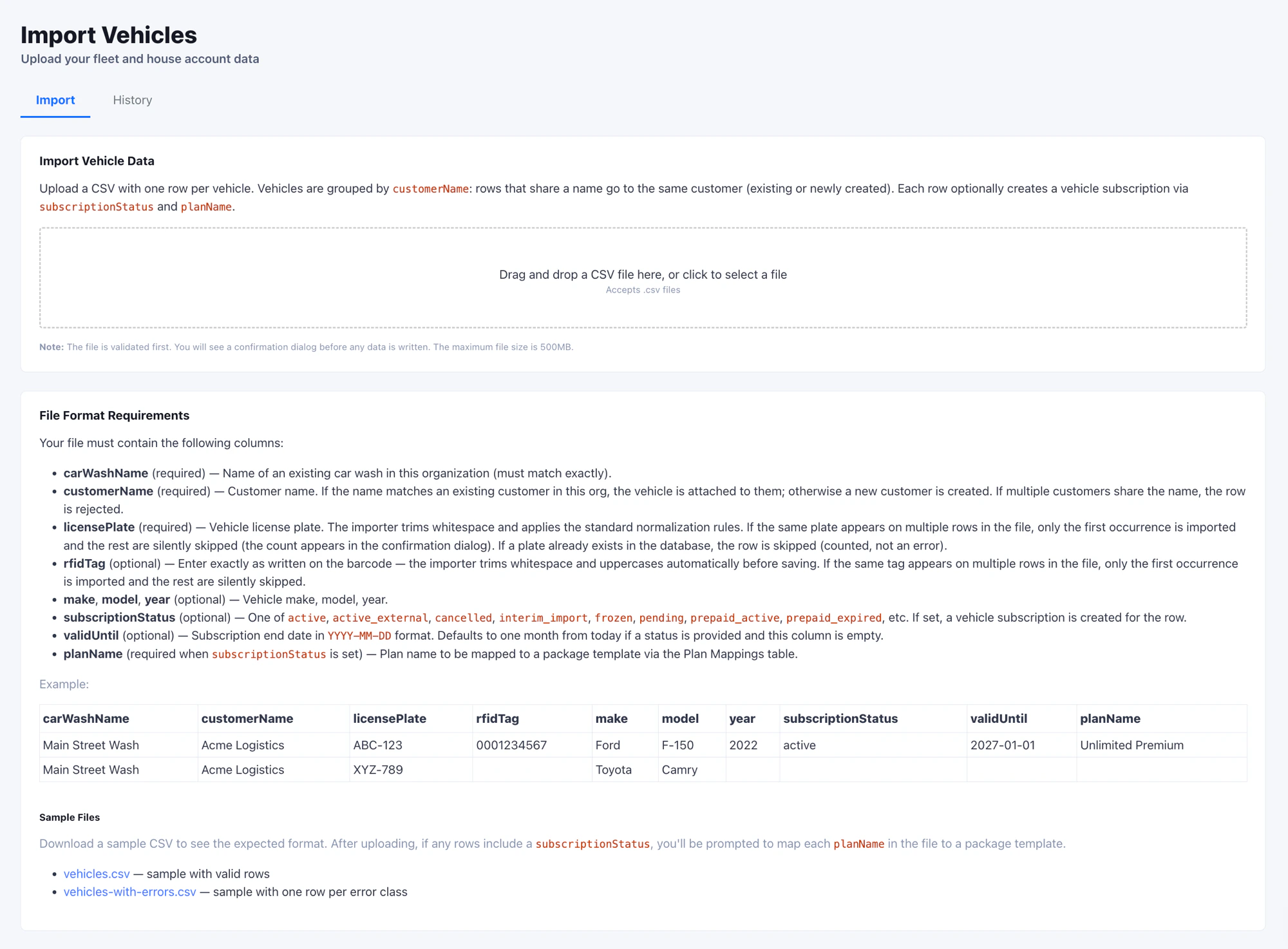
Open **Admin -> Import -> Vehicles** in the left navigation. You need at
least the Admin role.
## Customer Grouping
This is the rule that catches operators off guard most often.
Rows that share the same `customerName` (case-insensitive) are grouped
to the **same customer**. FlexWash decides who that customer is per
group:
| Existing customers with this name in the org | Result |
| -------------------------------------------- | ----------------------------------------------------------------------------------------------------- |
| Zero | A new customer is created. All rows in the group attach to it. |
| Exactly one | All rows attach to that existing customer. |
| Two or more | Every row in the group is **rejected as an error**. Resolve the duplicate manually before re-running. |
If the rejection happens, the validator returns a per-row error
("Multiple customers named X exist in this organization"). Either merge
the duplicate customers in FlexWash first, or split the group into
distinct names.
## License Plate Normalization
Plates are normalized before write and before duplicate checks, in
this order:
1. Trim leading and trailing whitespace.
2. If the value ends with `-` immediately followed by two word
characters (letters, digits, or underscore), strip those three
trailing characters. `ABC123-WA` becomes `ABC123` (state code
dropped). A space breaks the match: `ABC 123 - WA` becomes
`ABC123-WA` after step 5.
3. Uppercase all letters.
4. Replace letter `O` with digit `0`. `ABO123` becomes `AB0123` -
verify your fleet records do not rely on a literal `O`.
5. Remove all remaining whitespace.
Within a single file, only the first occurrence of a normalized plate is
imported. The rest are skipped, not errored, and the count appears in the
confirm dialog under "Duplicate license plates in file."
A plate that already exists in your database is matched to its vehicle, so
you can re-import the same roster as often as you need. If the matched
vehicle belongs to the same customer named in the row, FlexWash updates it
in place and the latest upload wins for fields like make, model, year,
VIN, and RFID tag. If it belongs to a different customer, the importer
flags a conflict and asks you to skip the row or transfer the vehicle.
## Verify the Import
The customer-grouping and plate-normalization rules produce most
real-world surprises, so run an end-to-end test before committing to
a full file:
1. Upload a 5 to 10 row test CSV.
2. Open **Customers** in the admin app and locate one of the
imported customers.
3. On the customer's profile, confirm the vehicle, normalized license
plate, and (if set) the attached membership and subscription match
the CSV row.
## Tips
* Verify `customerName` casing and spacing in your source data before
upload. Two rows that look identical to a human but differ by a
trailing space create two separate customers.
* Open the CSV in a plain-text editor before uploading to confirm
Excel has not stripped leading zeros from RFID tags or rewritten
long numeric codes in scientific notation.
* For mixed batches (some rows with subscriptions, some without),
leave `subscriptionStatus` and `planName` blank on the
vehicles-only rows. The same file can carry both shapes.
* The Fleet and House toggles are global to the import. If you need
some customers flagged and others not, run two imports.
## When Not to Use This Importer
Pick a different tool if any of these match your situation.
| Situation | Use this instead |
| -------------------------------------------------------------------- | ------------------------------------------------------------------------ |
| Daily membership feed so existing members are recognized at the gate | [Interim Imports](/data-import/interim-import) |
| Migrating credit card tokens from a previous processor | [Member Token Migration](/data-import/member-token-migration) |
| Adding a single vehicle to a customer | The Pay Tablet vehicle workflow or the customer profile in the admin app |
## Where to Find It
Open **Admin -> Import -> Vehicles** in the left navigation. You need at
least the Admin role.
## Customer Grouping
This is the rule that catches operators off guard most often.
Rows that share the same `customerName` (case-insensitive) are grouped
to the **same customer**. FlexWash decides who that customer is per
group:
| Existing customers with this name in the org | Result |
| -------------------------------------------- | ----------------------------------------------------------------------------------------------------- |
| Zero | A new customer is created. All rows in the group attach to it. |
| Exactly one | All rows attach to that existing customer. |
| Two or more | Every row in the group is **rejected as an error**. Resolve the duplicate manually before re-running. |
If the rejection happens, the validator returns a per-row error
("Multiple customers named X exist in this organization"). Either merge
the duplicate customers in FlexWash first, or split the group into
distinct names.
## License Plate Normalization
Plates are normalized before write and before duplicate checks, in
this order:
1. Trim leading and trailing whitespace.
2. If the value ends with `-` immediately followed by two word
characters (letters, digits, or underscore), strip those three
trailing characters. `ABC123-WA` becomes `ABC123` (state code
dropped). A space breaks the match: `ABC 123 - WA` becomes
`ABC123-WA` after step 5.
3. Uppercase all letters.
4. Replace letter `O` with digit `0`. `ABO123` becomes `AB0123` -
verify your fleet records do not rely on a literal `O`.
5. Remove all remaining whitespace.
Within a single file, only the first occurrence of a normalized plate is
imported. The rest are skipped, not errored, and the count appears in the
confirm dialog under "Duplicate license plates in file."
A plate that already exists in your database is matched to its vehicle, so
you can re-import the same roster as often as you need. If the matched
vehicle belongs to the same customer named in the row, FlexWash updates it
in place and the latest upload wins for fields like make, model, year,
VIN, and RFID tag. If it belongs to a different customer, the importer
flags a conflict and asks you to skip the row or transfer the vehicle.
## Verify the Import
The customer-grouping and plate-normalization rules produce most
real-world surprises, so run an end-to-end test before committing to
a full file:
1. Upload a 5 to 10 row test CSV.
2. Open **Customers** in the admin app and locate one of the
imported customers.
3. On the customer's profile, confirm the vehicle, normalized license
plate, and (if set) the attached membership and subscription match
the CSV row.
## Tips
* Verify `customerName` casing and spacing in your source data before
upload. Two rows that look identical to a human but differ by a
trailing space create two separate customers.
* Open the CSV in a plain-text editor before uploading to confirm
Excel has not stripped leading zeros from RFID tags or rewritten
long numeric codes in scientific notation.
* For mixed batches (some rows with subscriptions, some without),
leave `subscriptionStatus` and `planName` blank on the
vehicles-only rows. The same file can carry both shapes.
* The Fleet and House toggles are global to the import. If you need
some customers flagged and others not, run two imports.