> ## Documentation Index
> Fetch the complete documentation index at: https://docs.flexwash.com/llms.txt
> Use this file to discover all available pages before exploring further.
# Promotion Code Import
> Bulk-load thousands of unique promo codes for your next direct-mail or partner campaign without lifting a finger past the upload.
The Promotion Code importer attaches a batch of unique, single-use codes
to a Wash Codes promotion. Use it when you have generated codes outside
FlexWash (for a direct-mail campaign, partner program, or one-time
acquisition push) and need them recognized at the pay tablet. These codes
are sometimes called voucher codes, promotion codes, wash codes, or
discount codes.
 ## Where to Find It
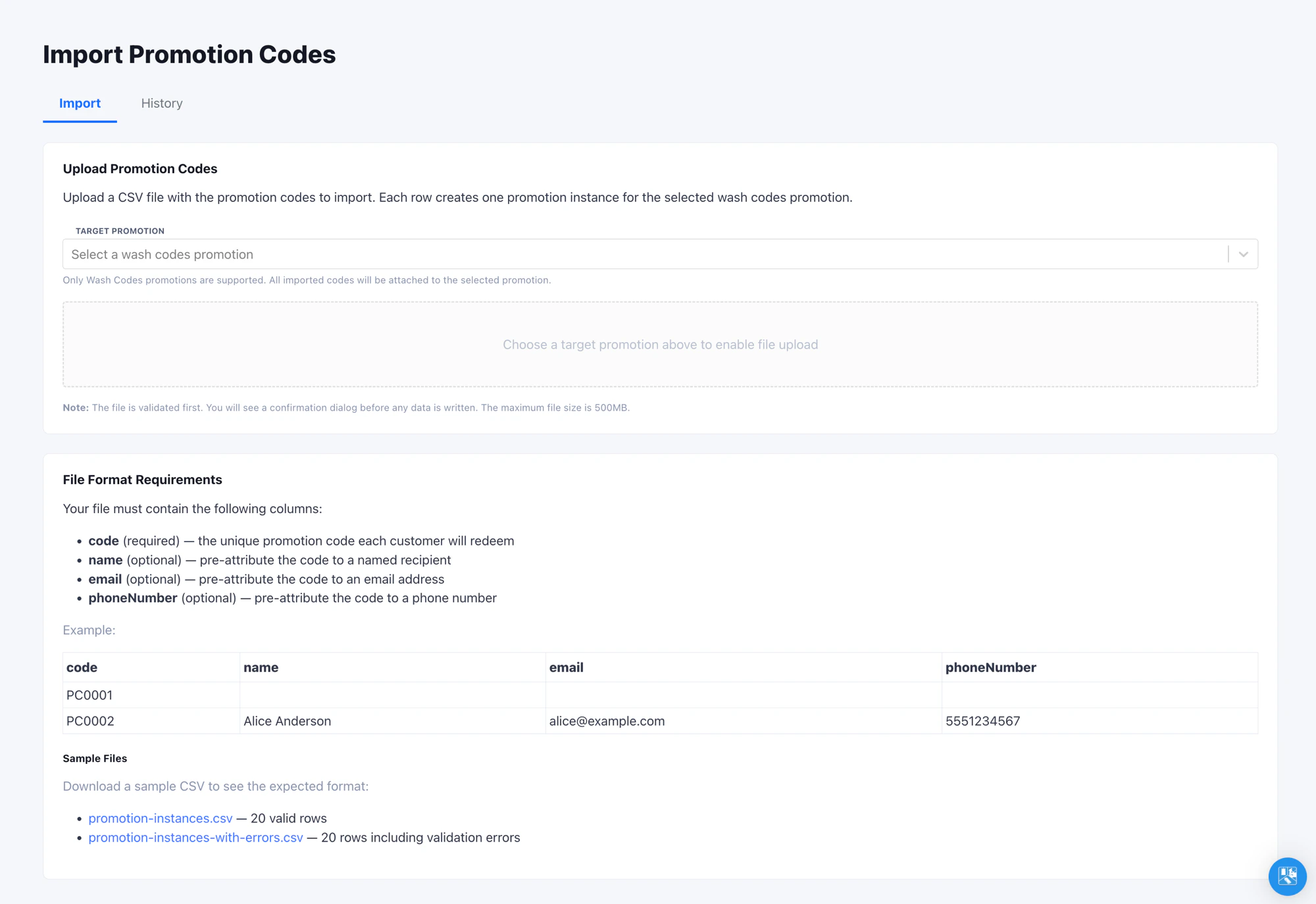
Open **Admin -> Import -> Promotion Instances** in the left navigation.
You need at least the Admin role and access to the specific promotion you
plan to import codes for.
## Wash Codes Promotions Only
The importer only accepts promotions of type **Wash Codes**. Other
promotion types (such as single-use or multi-use) cannot be bulk-loaded this way.
A Wash Codes promotion is a promotion configured to issue unique,
single-use codes per recipient. See [Promotions](/configuration/pricing-and-promotions/promotions)
for the full configuration. If your promotion does not appear in the
Target Promotion dropdown, it is not a Wash Codes promotion - convert
it or pick a different one.
## Customer Redemption
Imported codes redeem like any other Wash Codes instance.
The customer arrives with a printed code, a QR code, or a code
delivered through email or SMS.
The pay tablet validates the code against the promotion and applies
the configured deduction automatically.
If the imported row included `name`, `email`, or `phoneNumber`,
FlexWash attaches those values to the customer record at the moment
of redemption.
Each code can only be redeemed once. After redemption it is marked
consumed and will fail validation on a subsequent attempt.
## Re-Importing
Run multiple imports against the same promotion as your campaign grows.
Codes are matched per promotion, and the latest upload wins: a code
already attached has its `name`, `email`, and `phoneNumber` updated, while
new codes are added. Re-running never creates duplicate codes.
Re-importing updates the imported contact details only. It does not reset a
code that a customer has already redeemed.
## Verify the Import
Run an end-to-end test before committing to a full file:
1. Upload a 5 to 10 row test CSV against the production target promotion.
2. On the pay tablet, start a sale, tap **Scan Coupon** on the top row and
scan or enter one of the imported codes.
3. Confirm the promotion's configured deduction is applied to the order.
## Tips
* Generate codes outside FlexWash with whatever entropy your campaign
requires (e.g. 12-character alphanumeric for high-value direct mail,
short codes for in-store flyers). The importer treats `code` as an
opaque string.
* For campaigns split across vendors, upload each batch against the same
promotion as it arrives. Re-uploading the master list after a partial
vendor batch is safe: existing codes are updated and new ones are added,
with no duplicates.
## Where to Find It
Open **Admin -> Import -> Promotion Instances** in the left navigation.
You need at least the Admin role and access to the specific promotion you
plan to import codes for.
## Wash Codes Promotions Only
The importer only accepts promotions of type **Wash Codes**. Other
promotion types (such as single-use or multi-use) cannot be bulk-loaded this way.
A Wash Codes promotion is a promotion configured to issue unique,
single-use codes per recipient. See [Promotions](/configuration/pricing-and-promotions/promotions)
for the full configuration. If your promotion does not appear in the
Target Promotion dropdown, it is not a Wash Codes promotion - convert
it or pick a different one.
## Customer Redemption
Imported codes redeem like any other Wash Codes instance.
The customer arrives with a printed code, a QR code, or a code
delivered through email or SMS.
The pay tablet validates the code against the promotion and applies
the configured deduction automatically.
If the imported row included `name`, `email`, or `phoneNumber`,
FlexWash attaches those values to the customer record at the moment
of redemption.
Each code can only be redeemed once. After redemption it is marked
consumed and will fail validation on a subsequent attempt.
## Re-Importing
Run multiple imports against the same promotion as your campaign grows.
Codes are matched per promotion, and the latest upload wins: a code
already attached has its `name`, `email`, and `phoneNumber` updated, while
new codes are added. Re-running never creates duplicate codes.
Re-importing updates the imported contact details only. It does not reset a
code that a customer has already redeemed.
## Verify the Import
Run an end-to-end test before committing to a full file:
1. Upload a 5 to 10 row test CSV against the production target promotion.
2. On the pay tablet, start a sale, tap **Scan Coupon** on the top row and
scan or enter one of the imported codes.
3. Confirm the promotion's configured deduction is applied to the order.
## Tips
* Generate codes outside FlexWash with whatever entropy your campaign
requires (e.g. 12-character alphanumeric for high-value direct mail,
short codes for in-store flyers). The importer treats `code` as an
opaque string.
* For campaigns split across vendors, upload each batch against the same
promotion as it arrives. Re-uploading the master list after a partial
vendor batch is safe: existing codes are updated and new ones are added,
with no duplicates.