> ## Documentation Index
> Fetch the complete documentation index at: https://docs.flexwash.com/llms.txt
> Use this file to discover all available pages before exploring further.
# Interim Lookup
> Give your attendants a way to confirm any interim member from their own phone, so nobody waves a car through on a guess during migration.
During a migration, members still billed in your old POS are recognized in
FlexWash through [Interim Imports](/data-import/interim-import). Interim Lookup
gives your staff a mobile view into that data. An admin generates a link, staff
open it on a phone, and a license plate returns the vehicle's membership status
and package.
Use it when someone at the pay station or in the lane needs to answer one
question fast: is this car a member, and what did they pay for?
Interim Lookup only returns vehicles that were included in an Interim Import.
If a plate returns nothing, start with the troubleshooting steps in
[Interim Import](/data-import/interim-import).
## Generate the lookup link
This is done once per shift by anyone with access to the FlexWash back office.
Go to **Interim Lookup** in the sidebar.
FlexWash creates a QR code and a link.
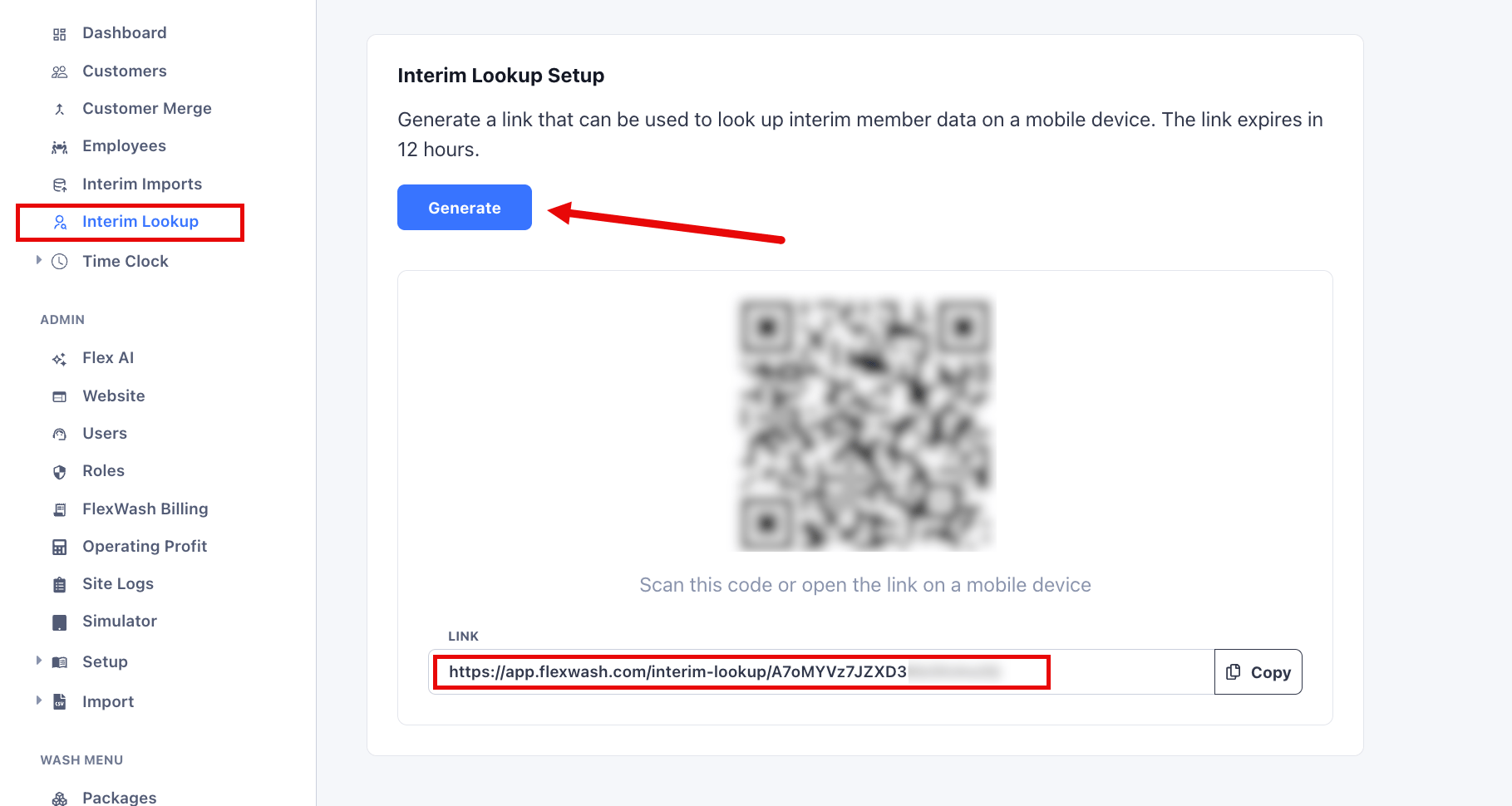 Scan the QR code with the phone's camera, or click **Copy** and send the
link to staff.
The link expires 12 hours after it is generated. Generate a new one at the
start of each shift rather than reusing an old link.
## Look up a vehicle
The lookup page opens with a license plate field and a **Scan LP** button.
Scan the QR code with the phone's camera, or click **Copy** and send the
link to staff.
The link expires 12 hours after it is generated. Generate a new one at the
start of each shift rather than reusing an old link.
## Look up a vehicle
The lookup page opens with a license plate field and a **Scan LP** button.
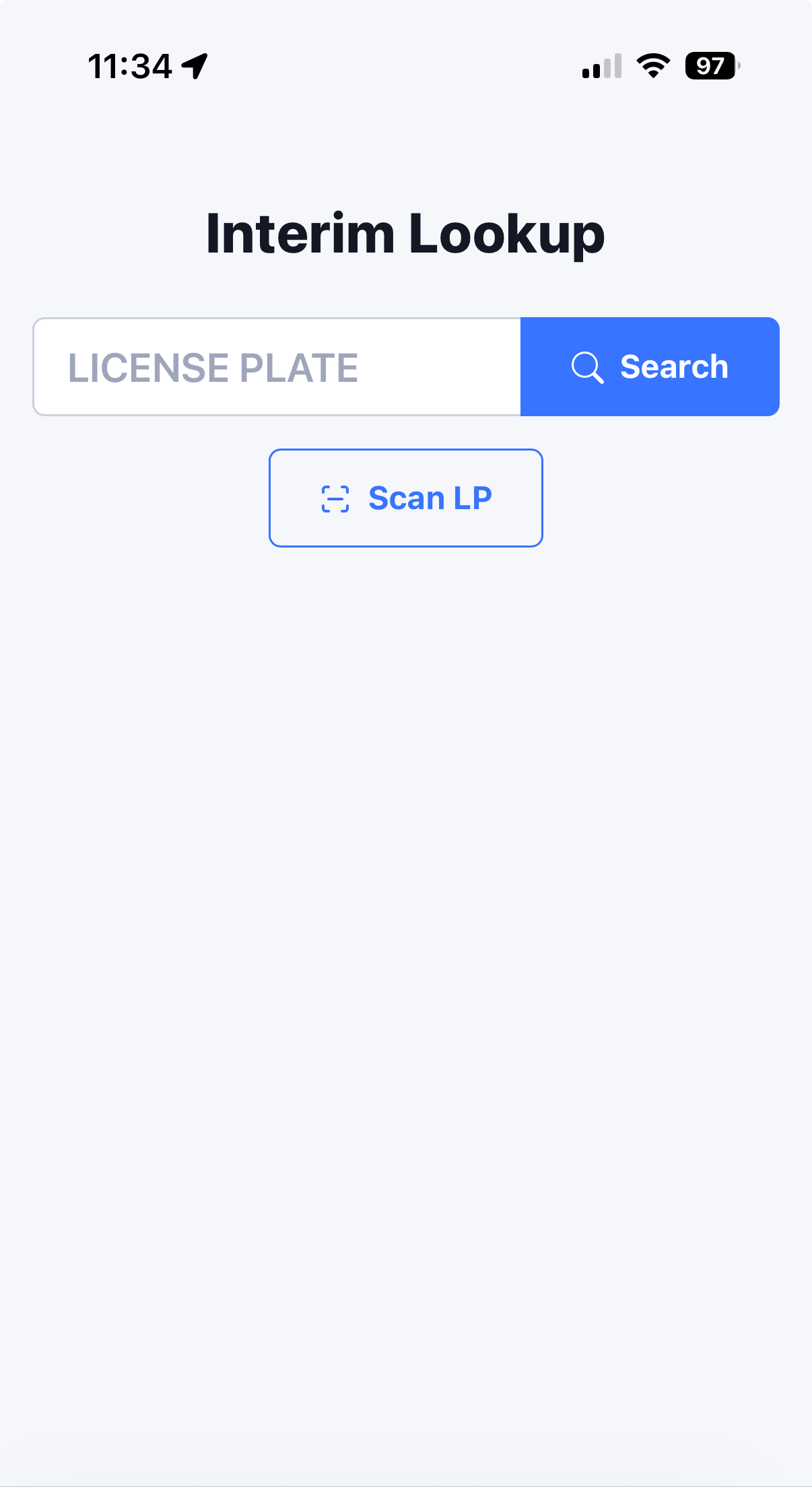 Enter the license plate and tap **Search**.
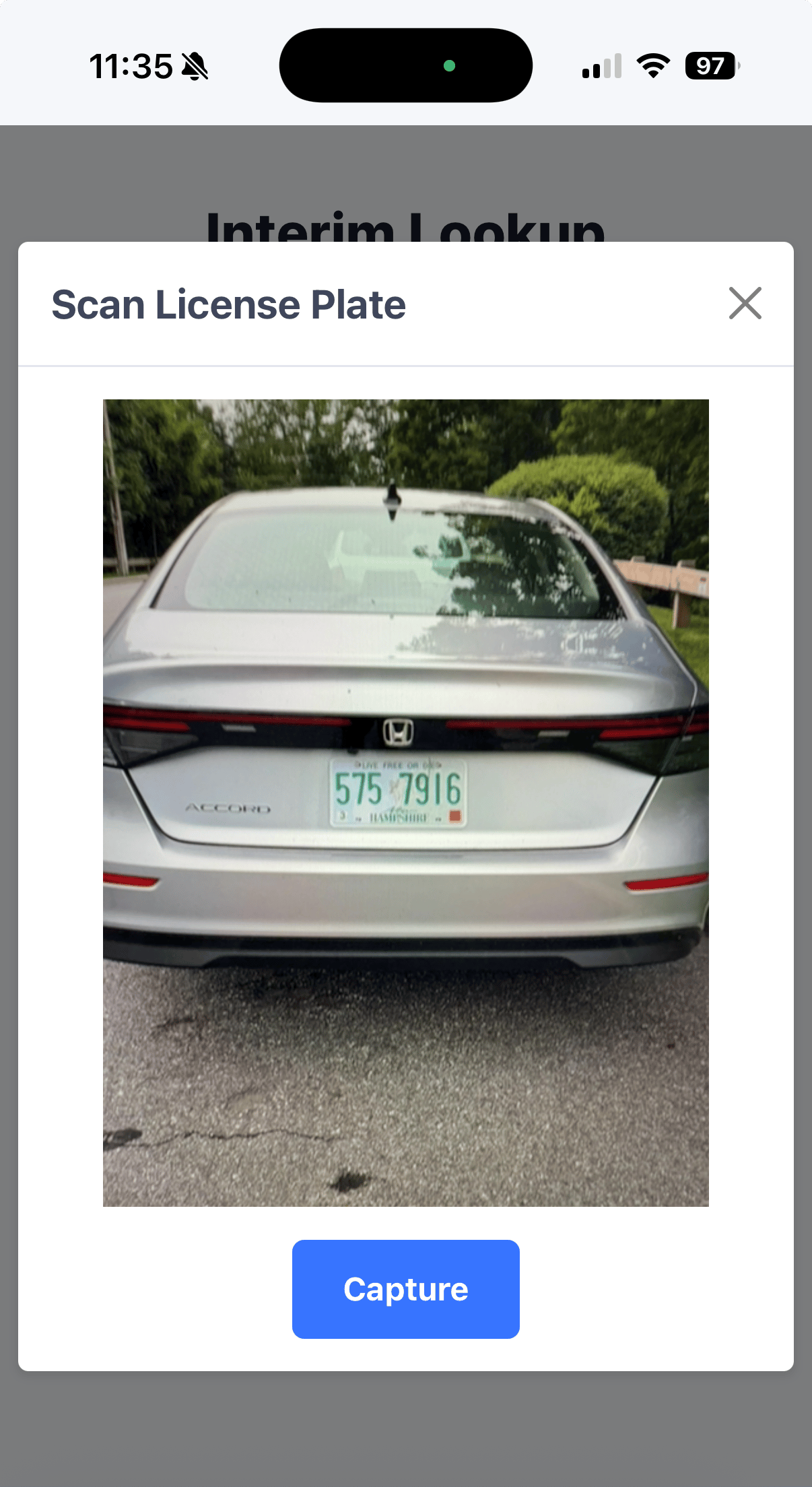
The camera opens in a **Scan License Plate** window.
Fill the frame with the rear of the vehicle so the plate is readable,
then tap **Capture**.
Enter the license plate and tap **Search**.
The camera opens in a **Scan License Plate** window.
Fill the frame with the rear of the vehicle so the plate is readable,
then tap **Capture**.
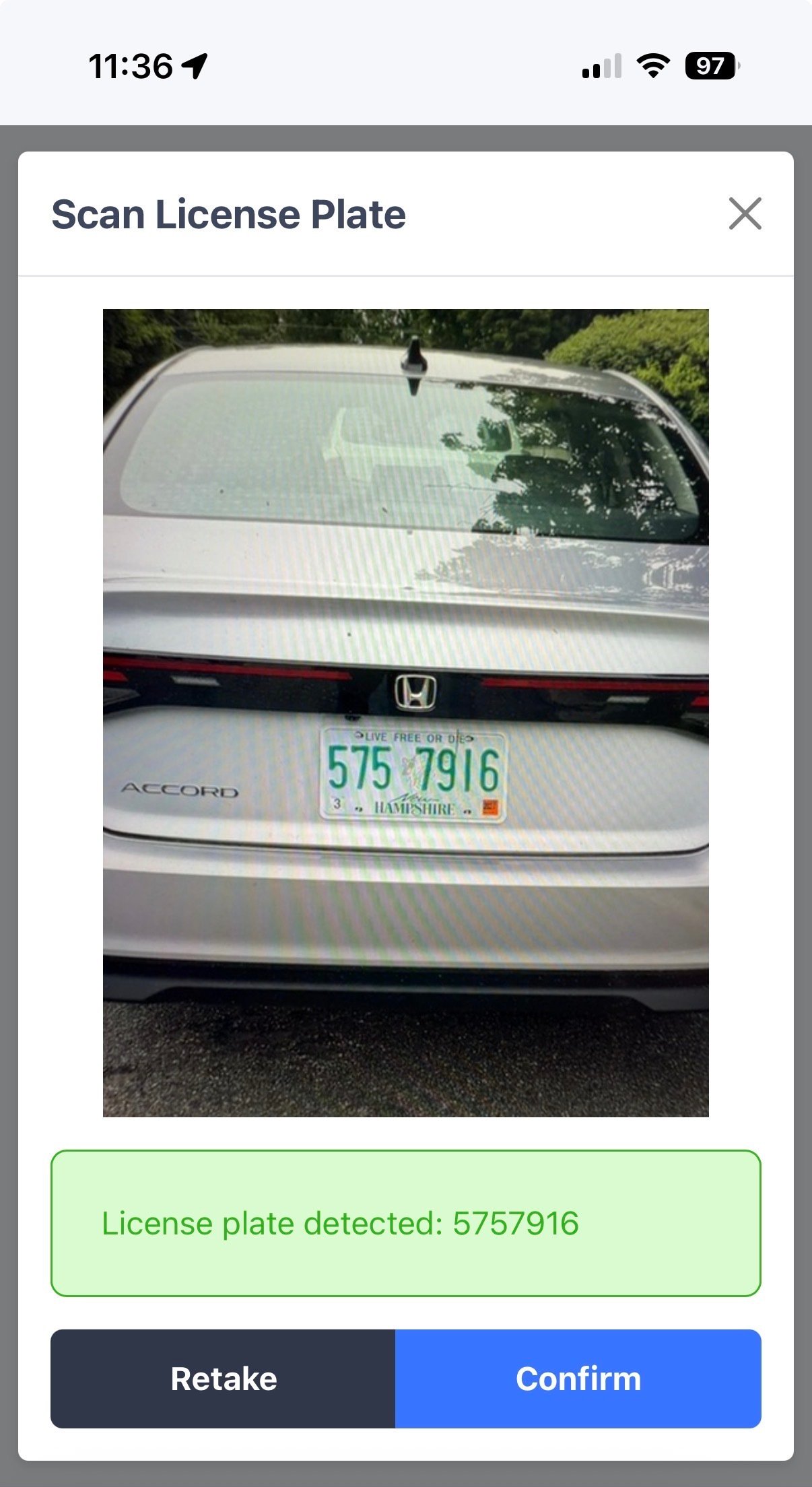
 FlexWash shows the characters it detected. Compare them against the
plate before tapping **Confirm**. Tap **Retake** if the read is wrong or
the image is blurry.
FlexWash shows the characters it detected. Compare them against the
plate before tapping **Confirm**. Tap **Retake** if the read is wrong or
the image is blurry.
 Characters like 0 and O, 1 and I, and 8 and B are easy to confuse, and
dirt, snow, and plate covers make it worse. See
[LPR and RFID limitations](/technical/hardware/lpr-rfid)
for what affects a read.
## Read the result
**Member Details** returns the vehicle's subscription status and the FlexWash
package the legacy plan is mapped to.
Characters like 0 and O, 1 and I, and 8 and B are easy to confuse, and
dirt, snow, and plate covers make it worse. See
[LPR and RFID limitations](/technical/hardware/lpr-rfid)
for what affects a read.
## Read the result
**Member Details** returns the vehicle's subscription status and the FlexWash
package the legacy plan is mapped to.
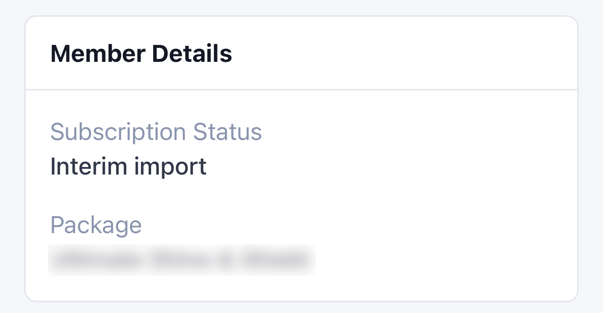 A **Subscription Status** of `Interim import` means the vehicle came from an
Interim Import and is recognized as an active member. **Package** is the
FlexWash package that plan was mapped to under **Plan Mappings**, which is what
determines the wash the member can redeem.
If the package looks wrong, the plan mapping is the place to check. See
[Plan Mapping](/data-import/interim-import) in the Interim Import article.
A **Subscription Status** of `Interim import` means the vehicle came from an
Interim Import and is recognized as an active member. **Package** is the
FlexWash package that plan was mapped to under **Plan Mappings**, which is what
determines the wash the member can redeem.
If the package looks wrong, the plan mapping is the place to check. See
[Plan Mapping](/data-import/interim-import) in the Interim Import article.