> ## Documentation Index
> Fetch the complete documentation index at: https://docs.flexwash.com/llms.txt
> Use this file to discover all available pages before exploring further.
# Interim Import
> Switch POS systems without the usual migration headaches.
[Token migrations](/data-import/member-token-migration) start after launch and
take 4-6 weeks. After you go live with FlexWash (sign up all new memberships in
FlexWash) you need a streamlined way to recognize members still being billed in
your ex-POS. Interim Imports is our solution for that problem.
 Without Interim Imports, after launching a new POS operators run into these issues:
* Members appearing inactive at the pay station
* Staff manually overriding washes
* Incorrect wash access
* Long lines and member frustration
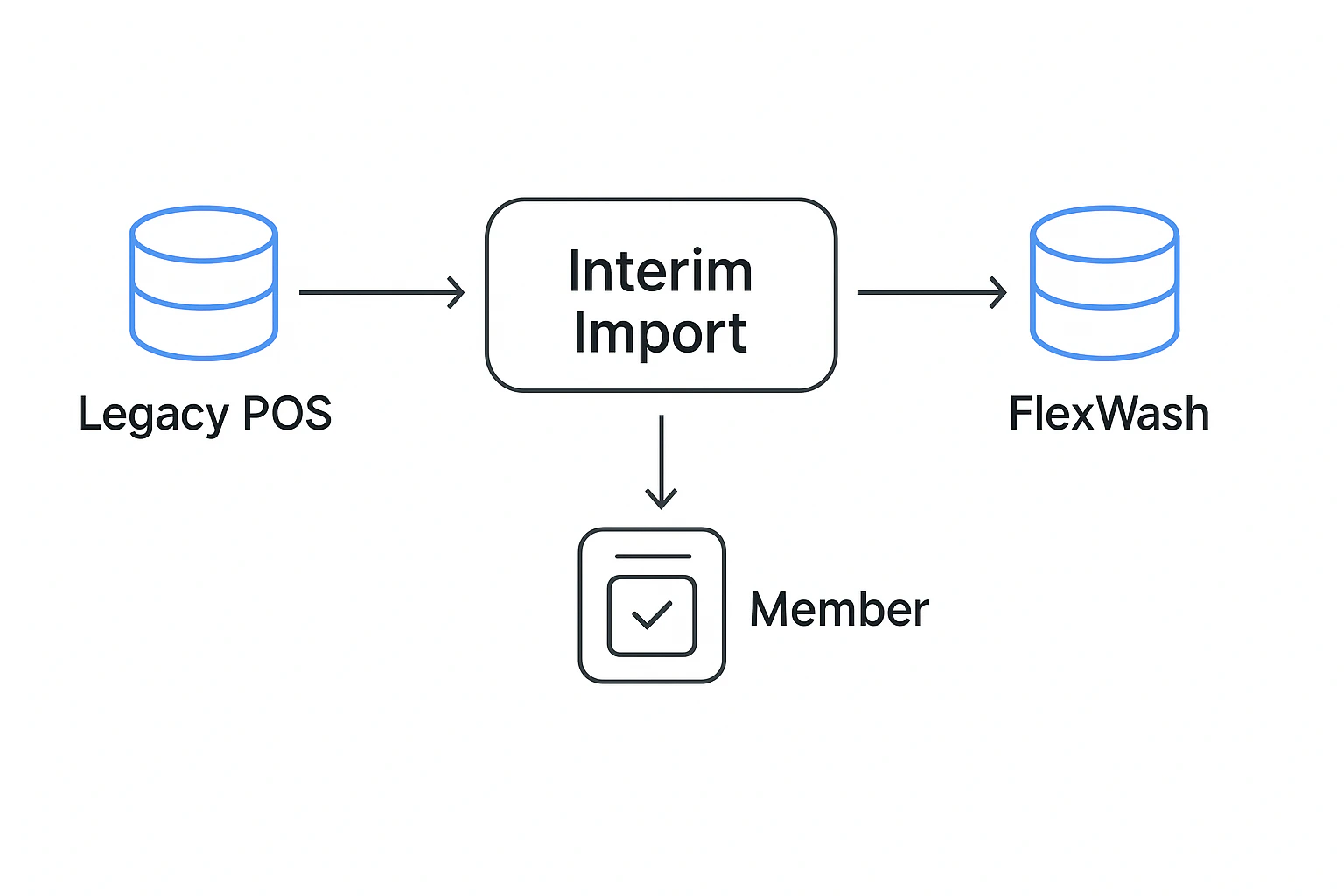
Interim Imports removes this risk by temporarily syncing active membership data
from the legacy POS into FlexWash until migration is complete.
### Benefits
* **Immediate recognition** - Members are recognized right after go-live.
* **Frictionless for staff** - No manual lookups or overrides by staff.
* **Fast daily workflow** - Each import takes less than a minute.
* **One-time mapping** - Legacy plans only need to be mapped once.
* **Vendor-agnostic** - Works with most major car wash POS export formats.
* **Safe and secure** - Encrypted uploads with automated file processing.
### How It Works
Day before you launch you need to start doing these steps every day until
your [token migration](/data-import/member-token-migration) is complete.
Export your active membership list from your previous POS as a CSV or XLSX
file.
Upload the file in the Interim Imports section of FlexWash.
Without Interim Imports, after launching a new POS operators run into these issues:
* Members appearing inactive at the pay station
* Staff manually overriding washes
* Incorrect wash access
* Long lines and member frustration
Interim Imports removes this risk by temporarily syncing active membership data
from the legacy POS into FlexWash until migration is complete.
### Benefits
* **Immediate recognition** - Members are recognized right after go-live.
* **Frictionless for staff** - No manual lookups or overrides by staff.
* **Fast daily workflow** - Each import takes less than a minute.
* **One-time mapping** - Legacy plans only need to be mapped once.
* **Vendor-agnostic** - Works with most major car wash POS export formats.
* **Safe and secure** - Encrypted uploads with automated file processing.
### How It Works
Day before you launch you need to start doing these steps every day until
your [token migration](/data-import/member-token-migration) is complete.
Export your active membership list from your previous POS as a CSV or XLSX
file.
Upload the file in the Interim Imports section of FlexWash.
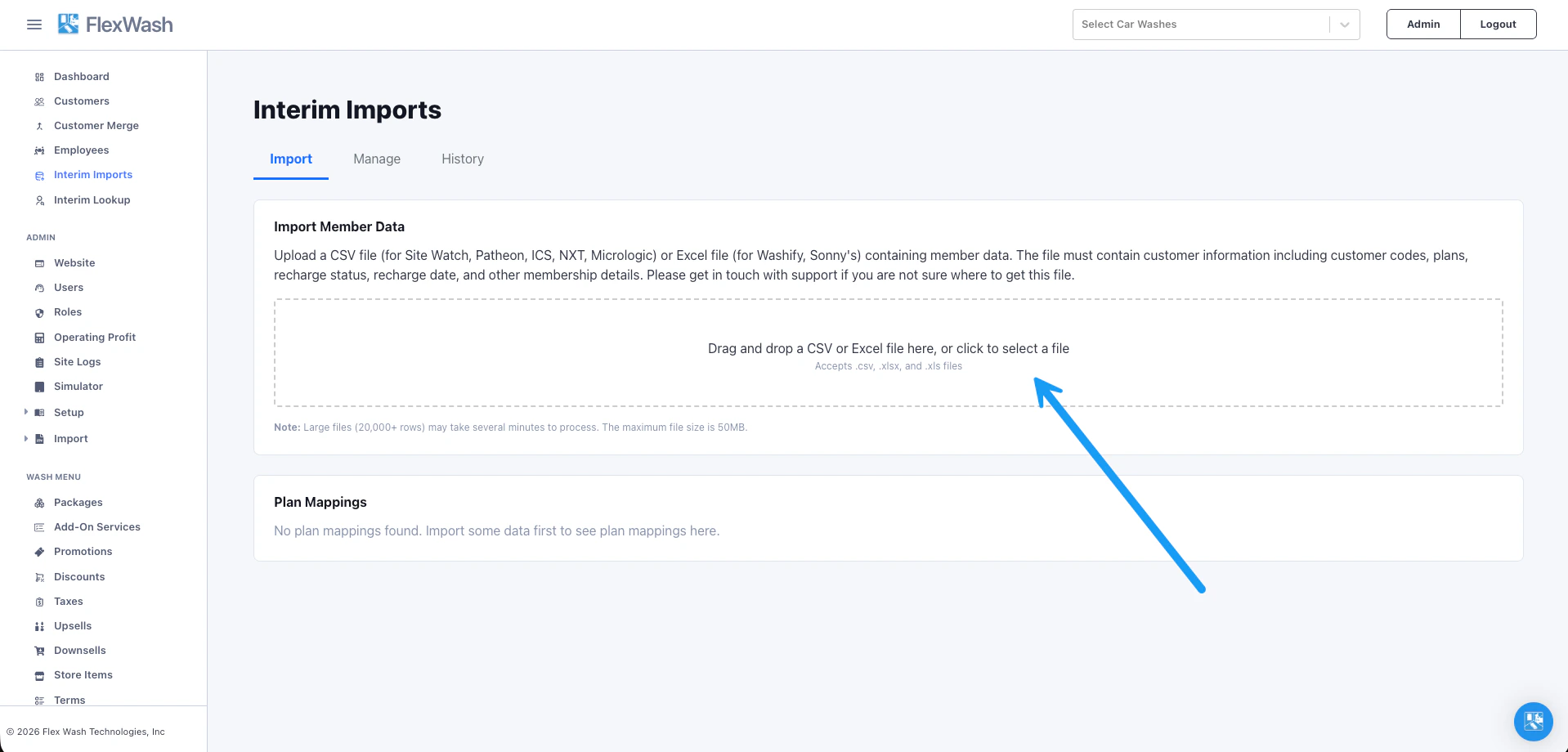 Map legacy membership plans to your FlexWash packages.
Repeat the upload each day until token migration is complete.
Active members continue to be recognized correctly at the pay station.
### Plan Mapping
The first time you upload an Interim Import, FlexWash asks you to map plans from
the old POS to packages in FlexWash. This step is important because FlexWash uses
these mappings to determine which package each member receives.
Map legacy membership plans to your FlexWash packages.
Repeat the upload each day until token migration is complete.
Active members continue to be recognized correctly at the pay station.
### Plan Mapping
The first time you upload an Interim Import, FlexWash asks you to map plans from
the old POS to packages in FlexWash. This step is important because FlexWash uses
these mappings to determine which package each member receives.
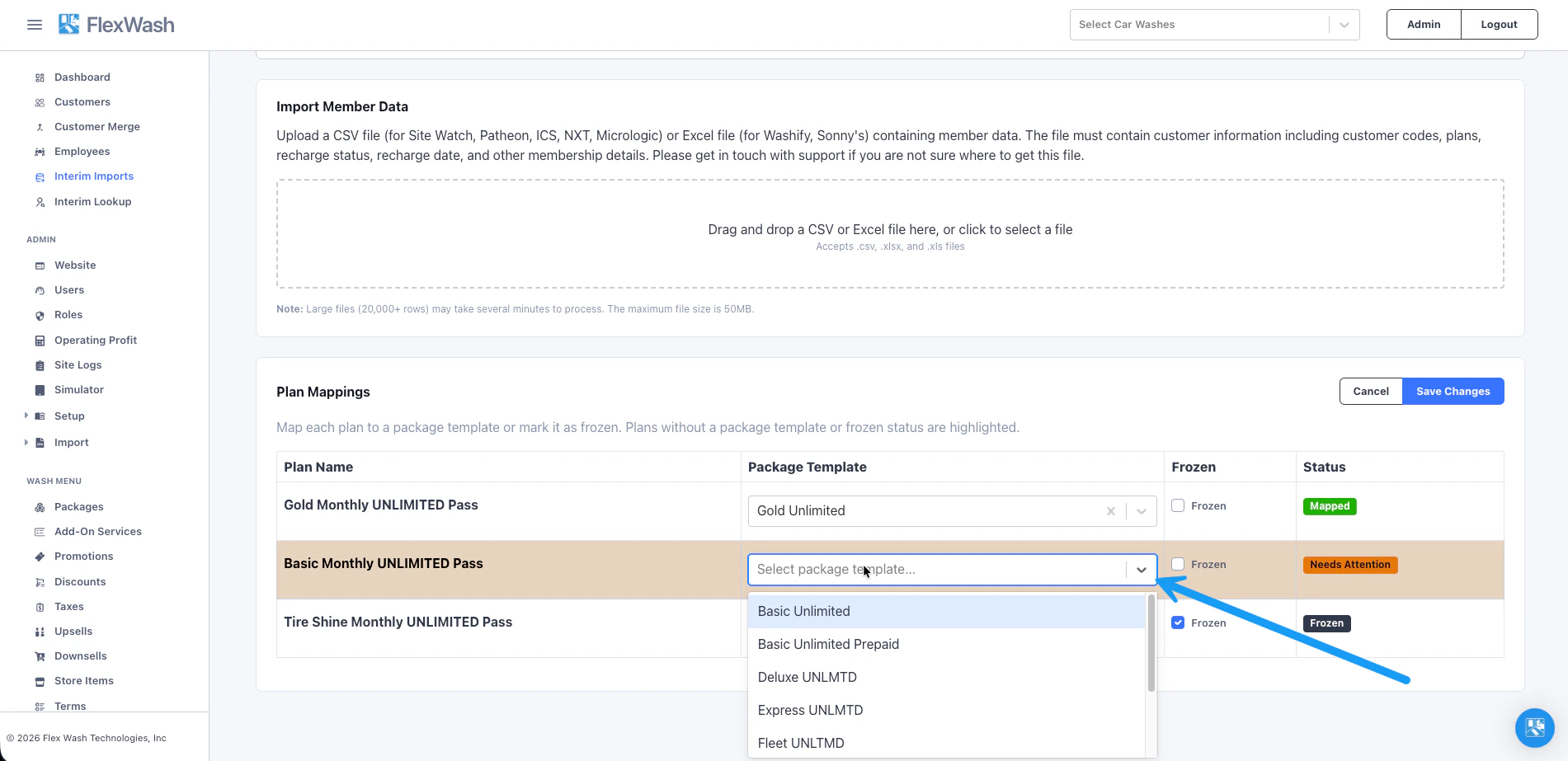 Use the **Frozen** checkbox when the old POS requires a separate plan to
represent frozen members. A frozen membership has temporarily suspended billing,
so members on this plan cannot redeem a wash. Marking the plan as frozen, rather
than mapping it to a package, tells FlexWash to recognize these members without
granting wash access.
Once plans are mapped, FlexWash remembers them for future imports, so you only
need to map each plan once.
### License Plate Backfill
If you are importing members with RFID tags, you can have the FlexWash LPR camera
automatically detect each customer's license plate and populate the vehicle's
license plate field. To enable this feature, turn on
**Interim Import License Plate Backfill** in your [Car Wash Config](/configuration/users-and-admin/car-wash-config).
### How to Test
Before launching FlexWash do a sample import and use the
[simulator](/configuration/testing/pay-tablet-simulator) to verify an Interim
Import member is recognized.
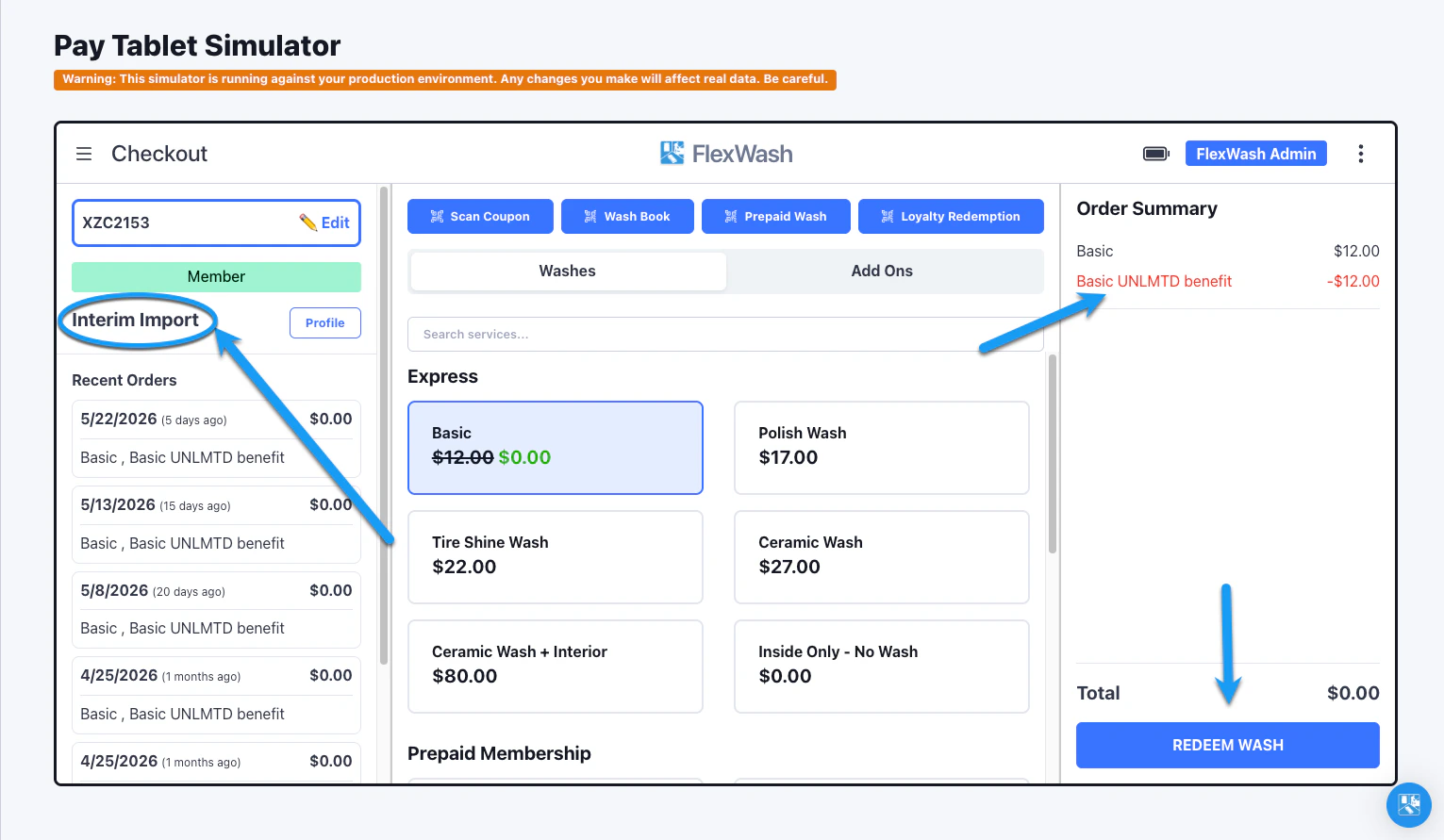
Enter the license plate in the simulator and verify the vehicle is recognized
as an Interim Import member, with the membership benefit automatically applied
and the ability to redeem the wash.
Use the **Frozen** checkbox when the old POS requires a separate plan to
represent frozen members. A frozen membership has temporarily suspended billing,
so members on this plan cannot redeem a wash. Marking the plan as frozen, rather
than mapping it to a package, tells FlexWash to recognize these members without
granting wash access.
Once plans are mapped, FlexWash remembers them for future imports, so you only
need to map each plan once.
### License Plate Backfill
If you are importing members with RFID tags, you can have the FlexWash LPR camera
automatically detect each customer's license plate and populate the vehicle's
license plate field. To enable this feature, turn on
**Interim Import License Plate Backfill** in your [Car Wash Config](/configuration/users-and-admin/car-wash-config).
### How to Test
Before launching FlexWash do a sample import and use the
[simulator](/configuration/testing/pay-tablet-simulator) to verify an Interim
Import member is recognized.
Enter the license plate in the simulator and verify the vehicle is recognized
as an Interim Import member, with the membership benefit automatically applied
and the ability to redeem the wash.
 ### Troubleshooting
#### Active Member Issues
If a member who is active in your Ex-POS does not appear as an Interim Import
member in FlexWash, check the following.
Go to the **Manage** tab and search for the vehicle's license plate.
If the plate does not appear in the results, it was never imported. Open
the export file that was uploaded, confirm the plate is present, and
verify the correct file was uploaded.
Hover the status icon to see why the vehicle is or isn't recognized as
active.
### Troubleshooting
#### Active Member Issues
If a member who is active in your Ex-POS does not appear as an Interim Import
member in FlexWash, check the following.
Go to the **Manage** tab and search for the vehicle's license plate.
If the plate does not appear in the results, it was never imported. Open
the export file that was uploaded, confirm the plate is present, and
verify the correct file was uploaded.
Hover the status icon to see why the vehicle is or isn't recognized as
active.
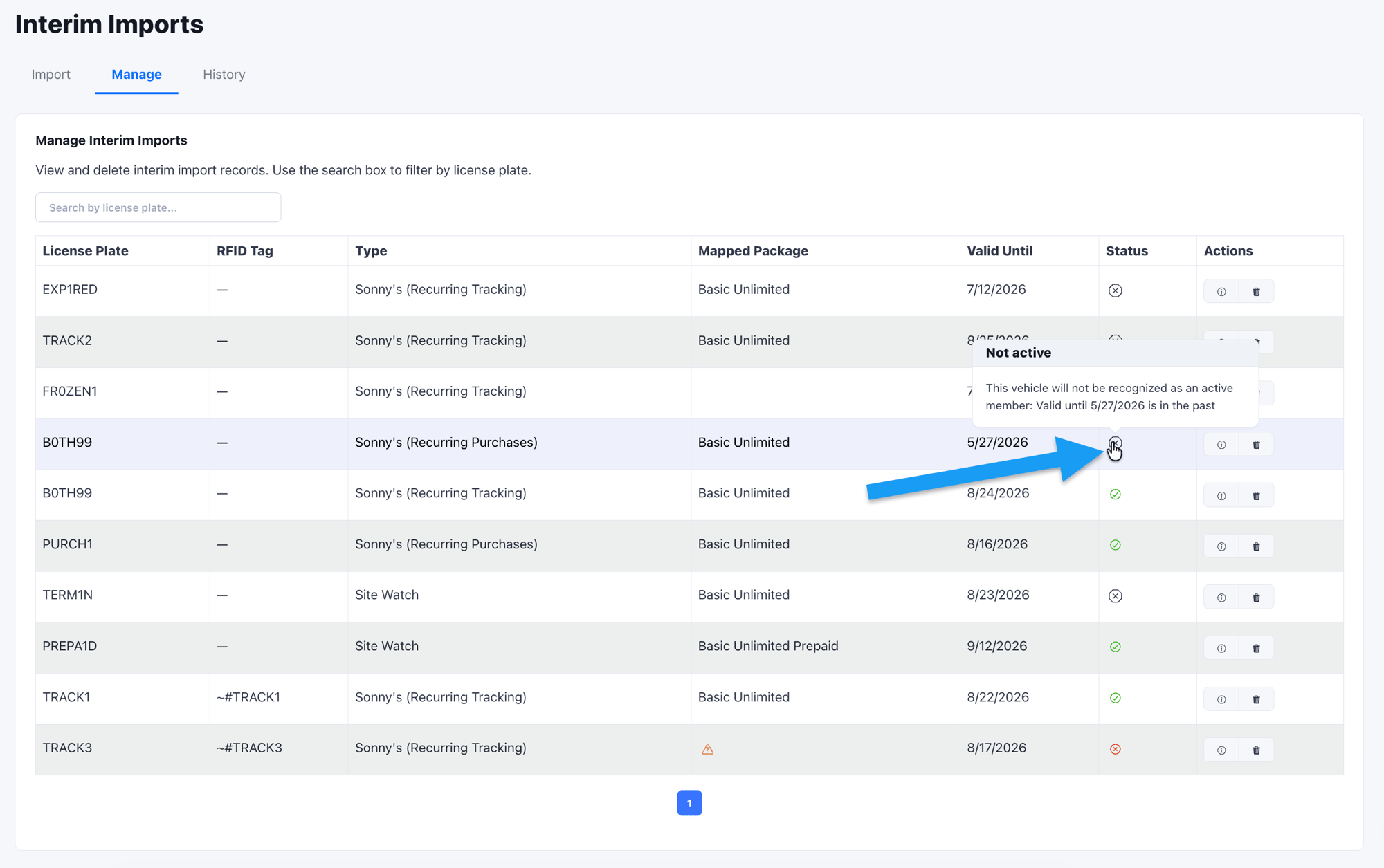 **Valid Until** is the date through which the vehicle is recognized as an
active member. If this date is in the past, the record has expired and
needs a fresh import from your Ex-POS.
Confirm the **Mapped Package** column shows a valid FlexWash package. If
it is empty, the plan needs to be mapped under **Plan Mappings** on the
**Import** tab before the member can be recognized.
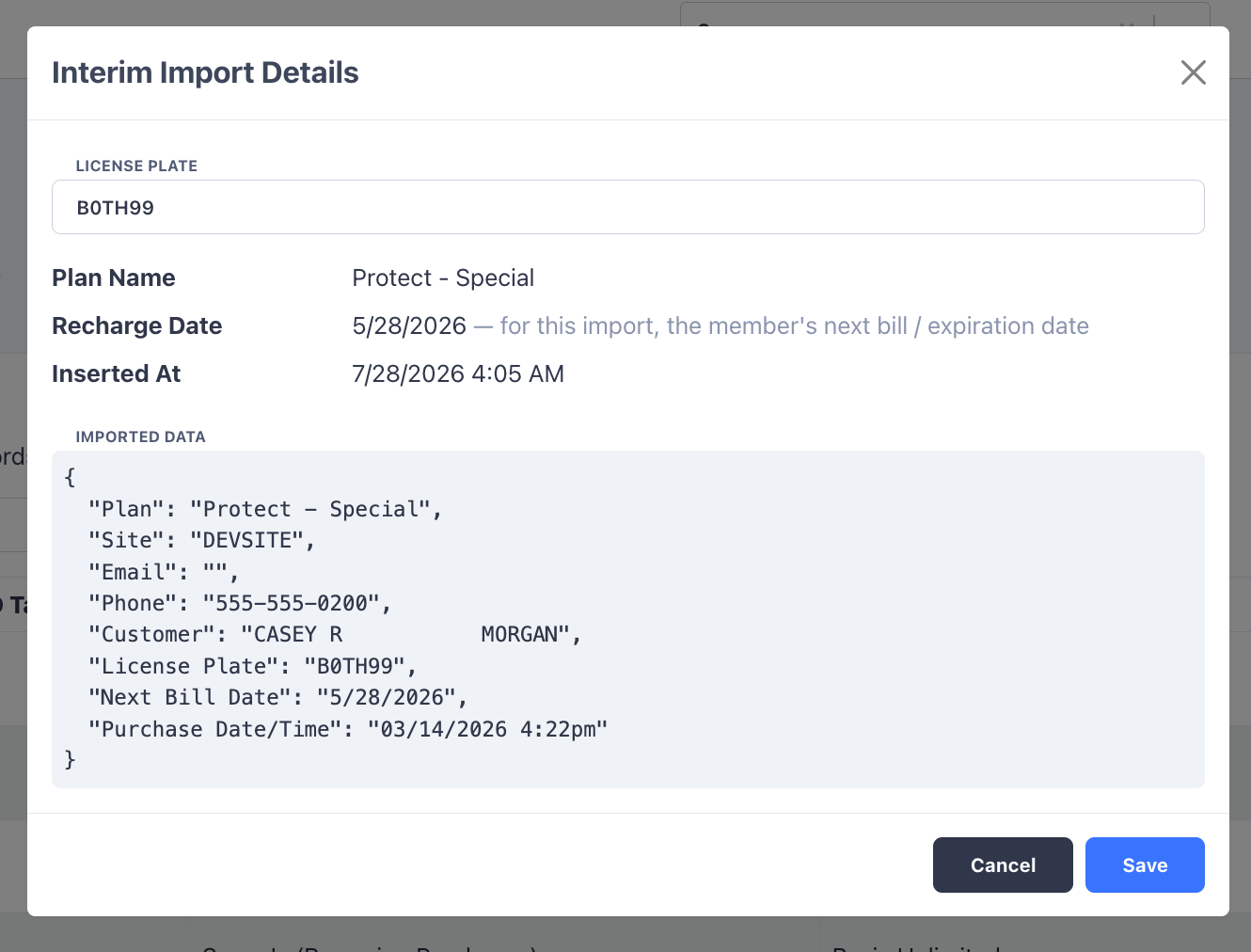
Click the details button under **Actions** to open a record's full history,
including the plan name, recharge date (what it represents for that import),
and the date the record was inserted.
**Valid Until** is the date through which the vehicle is recognized as an
active member. If this date is in the past, the record has expired and
needs a fresh import from your Ex-POS.
Confirm the **Mapped Package** column shows a valid FlexWash package. If
it is empty, the plan needs to be mapped under **Plan Mappings** on the
**Import** tab before the member can be recognized.
Click the details button under **Actions** to open a record's full history,
including the plan name, recharge date (what it represents for that import),
and the date the record was inserted.
 #### Non-Active Member Issues
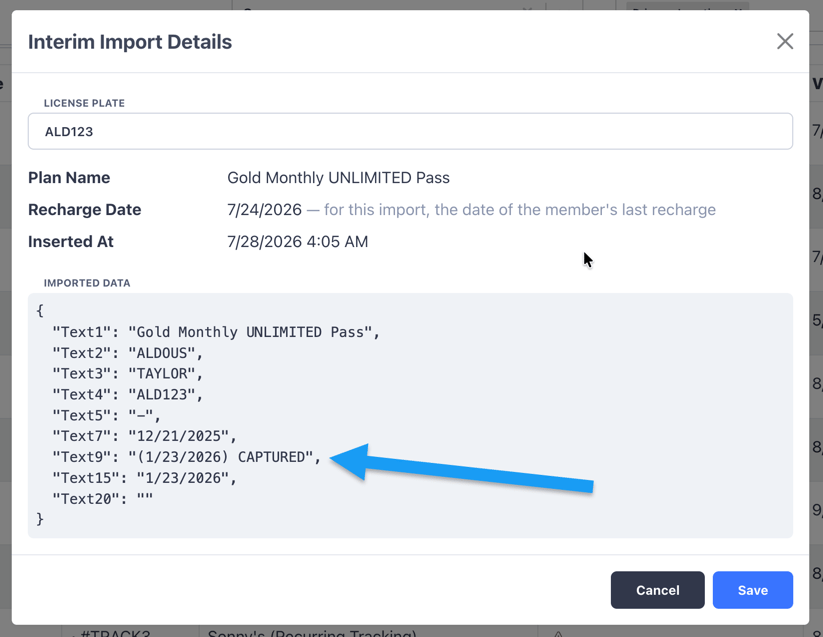
If a member is not active in your Ex-POS but is treated as active in FlexWash,
search for the member in the **Manage** tab, open their details, and check whether the
Ex-POS records indicate the member is active.
#### Non-Active Member Issues
If a member is not active in your Ex-POS but is treated as active in FlexWash,
search for the member in the **Manage** tab, open their details, and check whether the
Ex-POS records indicate the member is active.
 ### What Interim Imports Does *Not* Do
Interim Imports does not:
* Change anything in the legacy POS.
* Handle billing.
* Replace token migration.
* Require downtime.
* Interrupt normal operations.
It is simply a temporary recognition layer used during migration.
## Summary
With Interim Imports, operators can migrate to FlexWash confidently, knowing
active members stay recognized throughout the migration period. By running daily
imports and keeping plan mappings up to date, you avoid recognition issues and
provide a smoother experience for both staff and members.
### What Interim Imports Does *Not* Do
Interim Imports does not:
* Change anything in the legacy POS.
* Handle billing.
* Replace token migration.
* Require downtime.
* Interrupt normal operations.
It is simply a temporary recognition layer used during migration.
## Summary
With Interim Imports, operators can migrate to FlexWash confidently, knowing
active members stay recognized throughout the migration period. By running daily
imports and keeping plan mappings up to date, you avoid recognition issues and
provide a smoother experience for both staff and members.