> ## Documentation Index
> Fetch the complete documentation index at: https://docs.flexwash.com/llms.txt
> Use this file to discover all available pages before exploring further.
# Washbooks
> Learn how to create and configure Washbooks, including pricing and location-specific settings.
## Overview
Washbooks are prepaid, discounted bundles of car washes. They often include promotions such as **“buy 5, get 1 free”**, allowing customers to save compared to purchasing individual washes.
***
## Create a Washbook
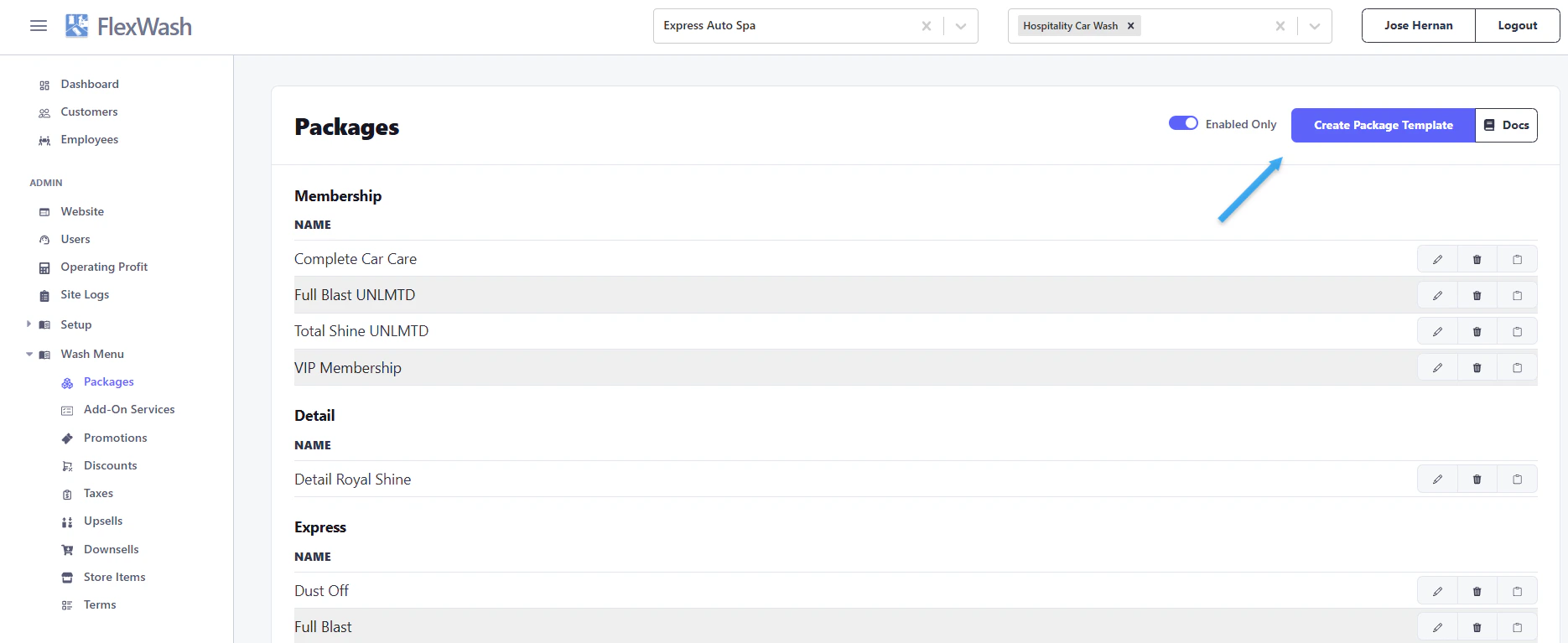
Within the **Wash Menu**, you can create and configure a new Washbook.
1. Click **Create Wash Package**
 ***
## Set Up a Washbook
Follow these steps to configure your Washbook:
1. Select **Washbook** from the **Package Type** dropdown
2. Choose a Washbook template
3. Enter the number of wash applications (total washes included)
4. Ensure **Enabled** is checked
5. Select **Washbook** from the **Revenue Type** dropdown
6. (Optional) Use **Roles** to restrict visibility
7. Click **Save**
***
## Set Up a Washbook
Follow these steps to configure your Washbook:
1. Select **Washbook** from the **Package Type** dropdown
2. Choose a Washbook template
3. Enter the number of wash applications (total washes included)
4. Ensure **Enabled** is checked
5. Select **Washbook** from the **Revenue Type** dropdown
6. (Optional) Use **Roles** to restrict visibility
7. Click **Save**
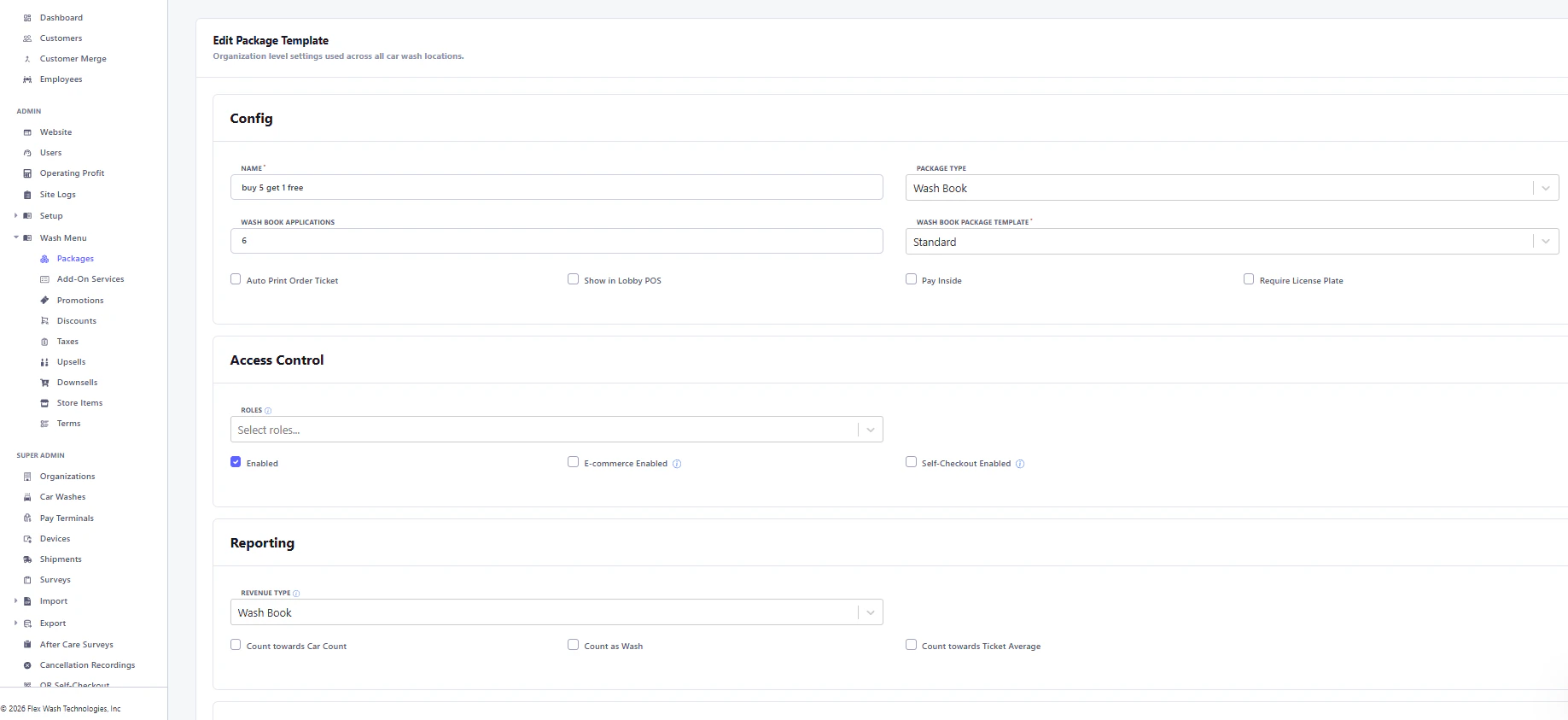 If the Enabled
option is unchecked, the Washbook will not be available on FlexWash devices.
By default, Washbooks are visible to all employees. Use Roles
to limit access by employee level.
***
## Configure Location Settings
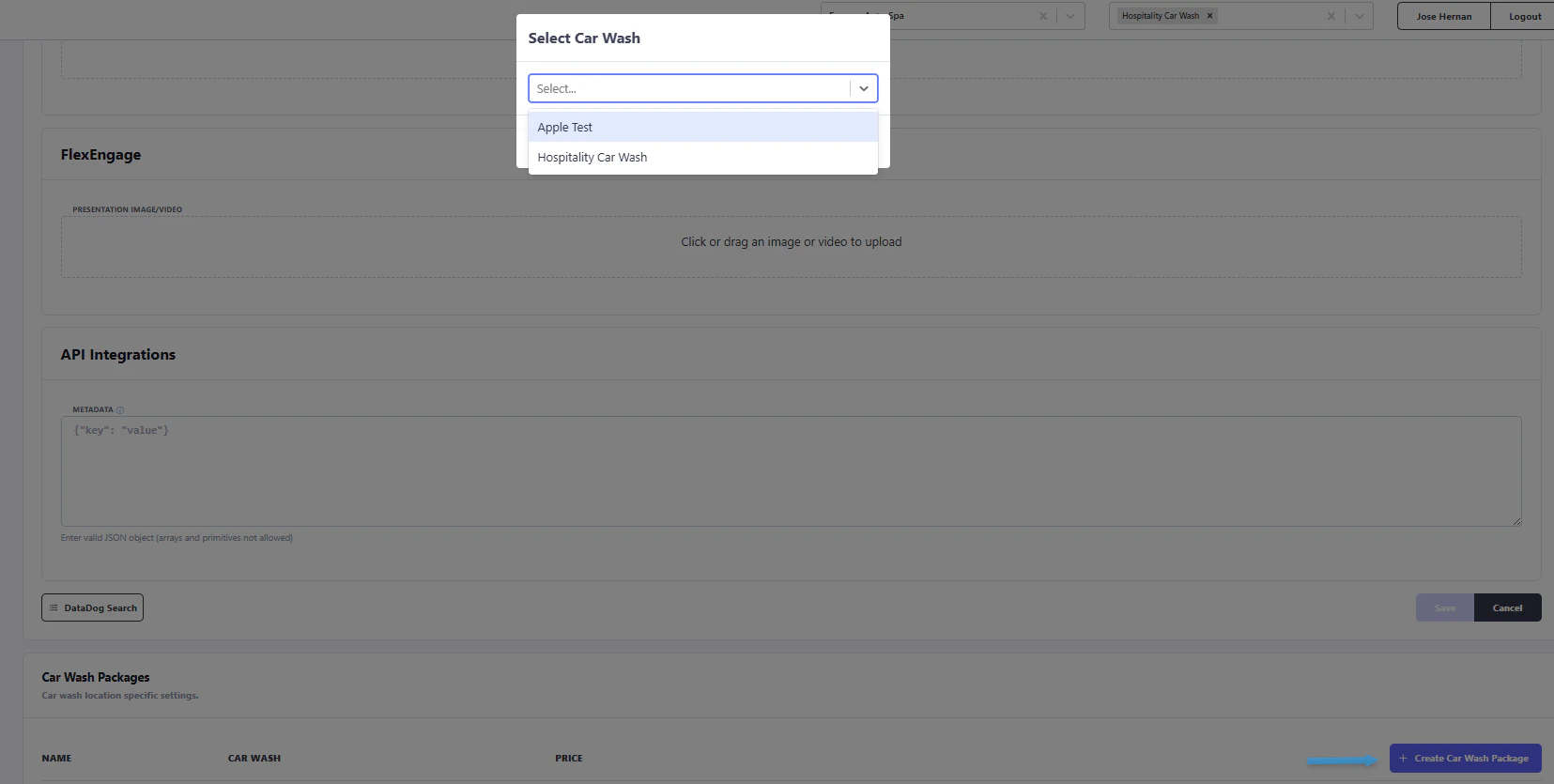
After creating a Washbook, a **Car Wash Packages** section will appear at the bottom of the settings page. This allows you to define pricing and configurations for each location.
1. Select the appropriate car wash location
If the Enabled
option is unchecked, the Washbook will not be available on FlexWash devices.
By default, Washbooks are visible to all employees. Use Roles
to limit access by employee level.
***
## Configure Location Settings
After creating a Washbook, a **Car Wash Packages** section will appear at the bottom of the settings page. This allows you to define pricing and configurations for each location.
1. Select the appropriate car wash location
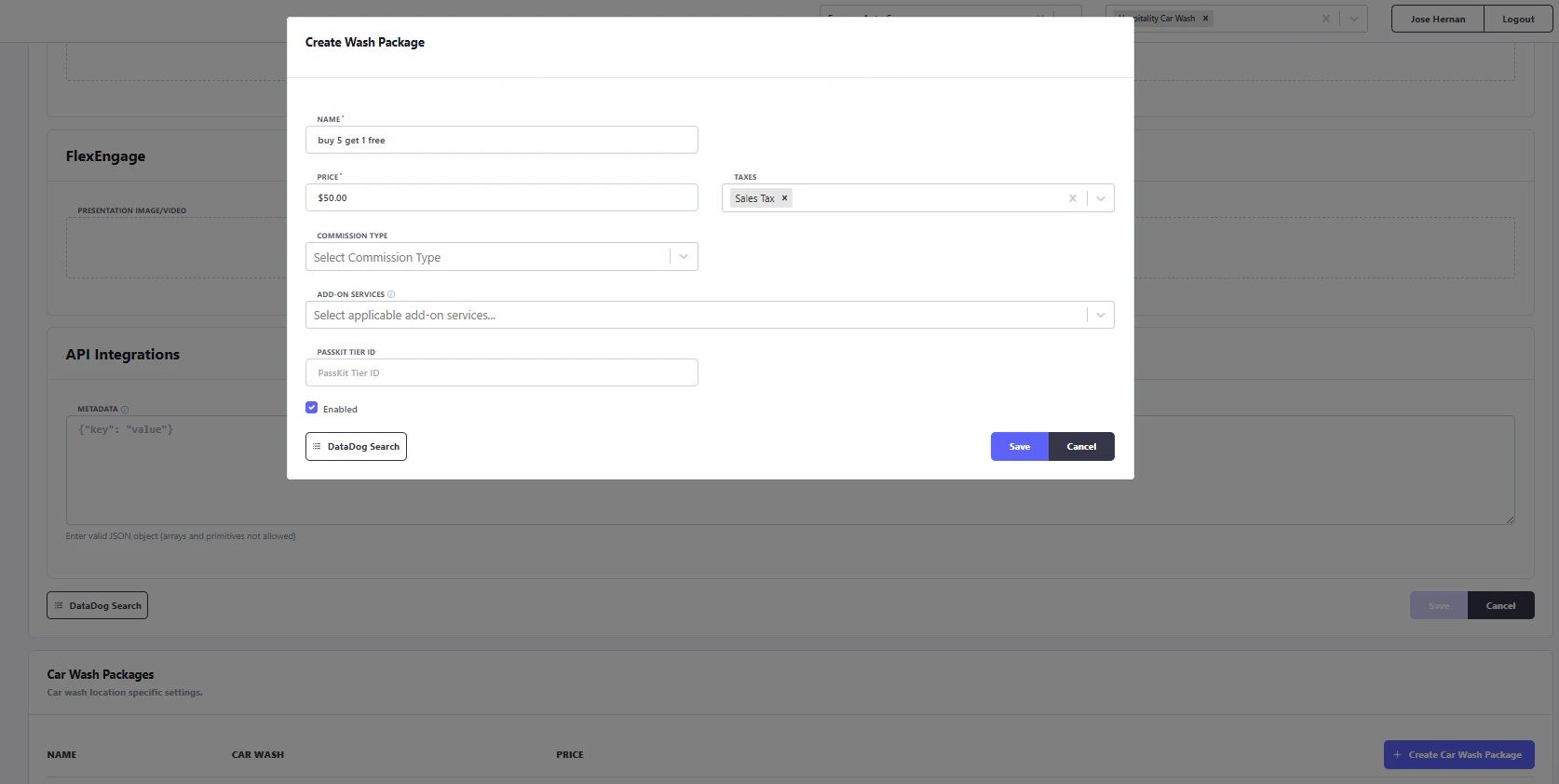
 2. In the configuration window:
* Enter the **Name**
* Set the **Price**
* Apply **Taxes** (if required)
* Ensure **Enabled** is checked
3. Click **Save**
2. In the configuration window:
* Enter the **Name**
* Set the **Price**
* Apply **Taxes** (if required)
* Ensure **Enabled** is checked
3. Click **Save**
 ***
Make sure the Washbook is enabled both globally and at the location level. Otherwise, it will not be available for purchase.
To make the wash book accessible, refresh the config on the payment tablet.
Refer to the [**Gift Card & Washbook Balance**](/operations/transactions/card-balance) article to check on the balance of existing.
***
## Best Practices
* Double-check pricing for each location before saving
* Ensure reporting accuracy by selecting the correct **Revenue Type**
* Use **Roles** to control employee access where needed
* Verify all settings after setup to avoid availability issues
***
***
Make sure the Washbook is enabled both globally and at the location level. Otherwise, it will not be available for purchase.
To make the wash book accessible, refresh the config on the payment tablet.
Refer to the [**Gift Card & Washbook Balance**](/operations/transactions/card-balance) article to check on the balance of existing.
***
## Best Practices
* Double-check pricing for each location before saving
* Ensure reporting accuracy by selecting the correct **Revenue Type**
* Use **Roles** to control employee access where needed
* Verify all settings after setup to avoid availability issues
***